
Migrate your Wix site to WordPress
If you feel stuck on Wix or want a flexible Wix alternative, you can migrate Wix to WordPress without starting over from scratch. Wix does not let you export your full design or blog posts directly to another platform. With ShipPress for Mac, Windows & Linux, you can copy your live Wix pages and uploaded pictures into an editable WordPress site on your computer before you cancel your plan.
-
Why a Wix site cannot be exported directly
Many small-business owners, creators, and freelancers eventually feel stuck on Wix. Over time, making routine changes like adjusting fonts can become frustrating, and some owners want a site they control. However, moving away takes more than clicking an export button.
According to official documentation, Wix explains that a Wix site needs to be hosted and operated on Wix's servers. While the content you create belongs to you, you cannot move a Wix site to another host as a functioning website. Furthermore, Wix confirms that it is currently not possible to export blog posts to other platforms.
ShipPress takes a different route and approaches your site from the outside. Instead of parsing an export file, ShipPress opens each live page in a real browser window at phone, tablet, and desktop widths. Because it reads what the browser actually renders, it can interpret JavaScript-built pages like those on Wix. It then rebuilds your pages into an editable WordPress block theme directly on your computer.
ShipPress is a free desktop app for Mac, Windows & Linux (see our guide on installing ShipPress). ShipPress builds your new site on your computer first, and nothing is published online until you choose Go live.
-
Back up your media and product list before you start
Before you begin the migration, keep your Wix site published and active on its current plan. Do not cancel your subscription yet.
First, back up the media files you uploaded. In your Wix dashboard, open the Media Manager. Hold Command on Mac or Control on Windows and Linux, click your files, and click Download. You can download multiple files within a folder at once, though there is no button to download everything across folders in one go. Keep in mind that free Wix media and Shutterstock media cannot be downloaded, as outlined in Wix's Media Manager guide.
If you sell products on Wix, export your product list from your Wix dashboard as a backup. Wix Stores products, customer accounts, and apps do not transfer over automatically. Finally, take note of your public pages and your total blog post count so you can verify your content later.
-
Copy your live pages to migrate Wix to WordPress
Open ShipPress on your computer (Mac, Windows or Linux). On the Home screen, click the Import from a website tab. The panel displays the heading Import a website from its address and the question Which website do you want to copy?, noting that your original site remains untouched and no credits are used.
Enter the public address of your Wix site. If your site has its own domain, enter that domain. If you are on a free Wix plan, enter the full address including your site path, such as yourname.wixsite.com/sitename. Your site must be published and publicly accessible.
If you only need a single page, click This page only. ShipPress reads that page's menu and asks: The menu leads to these pages. Copy them too?, giving you options to click Pick all, Untick all, and Start import.
To scan the entire site, click Next instead. You can give your site a name, then click Scan pages. ShipPress respects robots.txt rules. For sites with a custom domain, it scans Wix's /sitemap.xml file, which lists both pages and blog posts. For free wixsite.com addresses, the scan follows the navigation links found on your front page. For more details, see our guide on importing a website from its address.
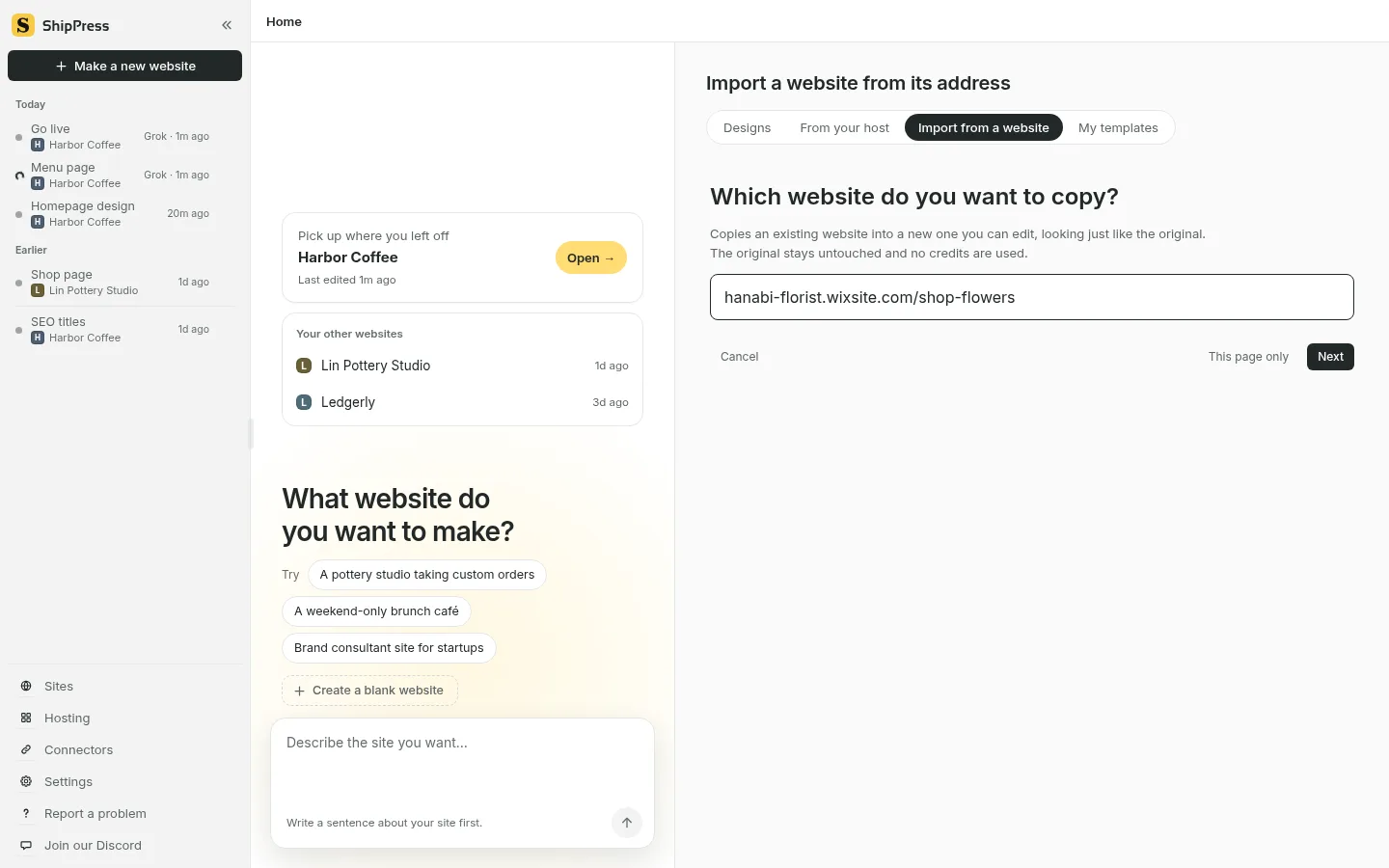
Type your public Wix address in the Import from a website tab. For free Wix sites, include the full folder address. -
Choose pages and blog posts to import
ShipPress presents the discovered pages under the question Which pages to copy?. Front page (always copied) is always selected. You can click Pick all, Untick all, or Shift-click a range of pages to choose what you want to keep.
When ShipPress detects a group of related entries, such as blog posts, it displays the question Make the … items in … their own category? with four options:
- Custom post type with its own menu
- Kept with your blog posts
- Closest to the original
- Do not copy
For collection entries, ShipPress transfers the title, text, date, and main image.
Please note that the import does not turn Wix Stores product pages (their addresses contain /product-page/) into WooCommerce products. The product import understands WooCommerce stores, Shopify stores, and product pages in a shop, store, or product(s) folder. If you run a shop, you can rebuild your catalog in WordPress using your exported product backup; see our guide on setting up a WooCommerce store.
When your selection is ready, click Check it over, review the summary, and click Start import. ShipPress processes pages in batches at roughly 30 seconds per page. Keep the application open while the import runs.
-
Check the copy honestly and adjust by chat
When the import finishes, treat the new site as an editable starting draft rather than a finished product. Review every page carefully.
In our test of a real free Wix site, a few layout details required adjustments:
- The promotional banner reading "This website was built on Wix" at the top of free sites was captured into the page.
- An image slideshow arrived empty without its slides.
- A few text blocks extended beyond the width of their containers.
You can adjust these details by chatting with the built-in assistant. For example, you can write: Please remove the Wix banner at the top of the page, or Replace the empty slideshow with three photo blocks. For instructions, see our guides on editing by chat and adding photos and logos.
Next, check the summary report line: … pictures, videos and fonts saved; … still load from the original.
ShipPress can download up to 300 files (up to 40 MB per file, 250 MB total). If files still load from the original site, click Show to view their addresses. Replace those images while your Wix site is still active so they do not break later.
Forms on your imported pages are preserved and managed by the Imported Forms plugin. Submissions are stored in your WordPress dashboard and sent to your site's administrator email. If you prefer to create a brand-new form, see our guide on contact forms.
Compare your blog post count with your original site. If you ever want to revert your changes, open History and restore the site to the restore point Before importing (see our guide on restore points).
-
Keep the look or pick a new design
ShipPress creates a theme based on your Wix layout, but you are not locked into that appearance. You can keep your imported styling or choose a fresh design from the library.
To explore options, click the site menu at the top of the preview window and select Change this site's design… (see our guide on finding a design).
When you select a design, a dialog confirms: Your posts, photos and menus all stay, and the words on your other pages aren't changed. ShipPress automatically creates a restore point first, and saves your existing homepage content as a draft named Home (previous design).
Leave the checkbox Also add the new design's sample content unchecked so template filler does not mix with your imported content. Click Use this design to apply it. If you change your mind, you can click Change back to the previous design at any time.
-
Publish to a free address or WordPress host
Once you are happy with your site, click Go live in the top right corner. You will see three tabs: Free address, WordPress host, and Deploy yourself.
Under Free address, select ShipPress hosting. Enter your email address, type the six-digit verification code you receive, and click Put it on a free address. Your site will be published at an address ending in .workers.dev. Each account can host up to five sites on a free address. Form submissions are delivered directly to your email, and future updates using Publish changes only upload modified files.
Keep in mind that a static free address cannot run a WooCommerce checkout or handle member logins. If you need online store functionality or customer logins, select the WordPress host tab instead. For full details, explore our guides on publishing to a free address, going live, and choosing a WordPress host.
-
Point your domain to the new site, then cancel Wix
To connect your own domain, open Sites, select Address, and choose I already have an address. Enter your www address. ShipPress shows the DNS records to add at your domain provider (typically a CNAME record for www, and a TXT record if required).
If you purchased your domain through Wix, manage your records in your Wix account: navigate to Domains, click the Domain Actions icon, and choose Manage DNS records. Follow Wix's guide to managing DNS records. If your domain was registered with another registrar and only pointed to Wix, update the DNS records with that provider instead. You can also purchase a new domain directly inside ShipPress.
Search engines skip the free trial address, so connect your own domain (or buy one) when you want people to find your site in search; see our guide on connecting your own domain.
Visit your live domain and test all pages, navigation links, pictures, and forms. Only after confirming that your new WordPress site works properly should you cancel or downgrade your Wix subscription.
Related guides: Moving from Squarespace to WordPress, Real WordPress, and Website redesign without starting over.