
It's real WordPress: wp-admin, the Site Editor and plugins
A ShipPress site is not a lookalike. It is a real WordPress site, with WordPress, a block theme and plugins, so everything you know about WordPress works here. In this tutorial I show it on a family udon restaurant in Kyoto, Hinoki Udon.
By Oberon Lai. I make ShipPress (Codotx, LLC), so this is our own product.
-
Every site is real WordPress
When ShipPress builds your site, it creates a real WordPress site on your own computer: WordPress itself, a block theme and plugins. It is not a copy that only looks like WordPress. That means you can use the normal WordPress tools, and the AI and you work on the same site.
-
Open wp-admin
Above the preview there are three tabs: Site, Dashboard and Tools. Click Dashboard to open wp-admin. You are already signed in as admin, so there is no password to type.
The menu on the left is the one you know: Posts, Media, Pages, Comments, Plugins, Users and Settings. Hinoki Udon also has a Reservations item, which comes from a small plugin made for the restaurant.
-
Edit by hand in the Site Editor
Go to Appearance › Editor. This opens the WordPress Site Editor. Open Pages, pick Menu and click Edit. This is the normal block editor.
Click into the text and type. In the video I add: This week only: yuzu cold udon with fresh shiso. Then click Save. WordPress says “Page updated”.
Go back to the Site tab and open the Menu page. The new line is there. Edits you make by hand and edits made by the AI go into the same WordPress site.
-
See and add plugins
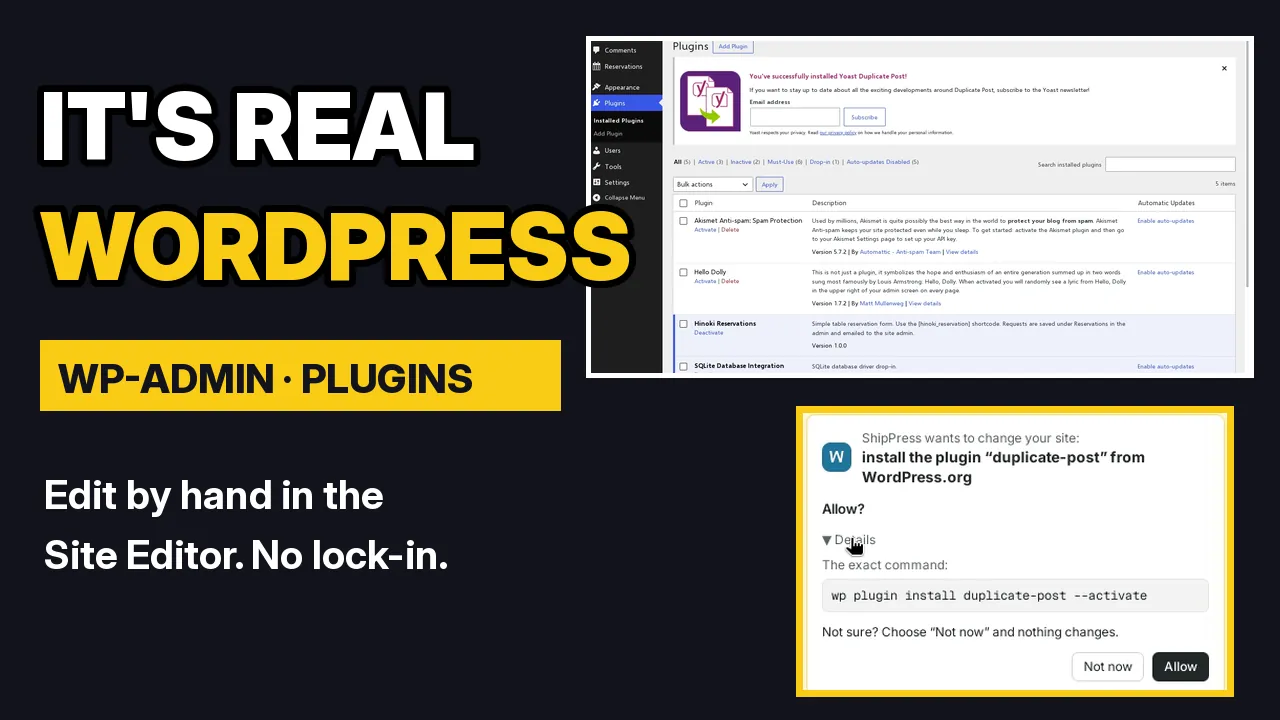
Open Plugins in wp-admin. You see the plugins of this site, for example the reservation form plugin. You can add plugins yourself with Add Plugin, just like on any WordPress site.
-
Let the AI add a plugin, with your approval
You can also ask in the chat. In the video I type: Install the Yoast Duplicate Post plugin so I can copy pages.
Before the AI installs, updates or deletes a plugin, ShipPress shows an approval card: “ShipPress wants to change your site: install the plugin “duplicate-post” from WordPress.org. Allow?” The card has three buttons:
- Details shows the exact command,
wp plugin install duplicate-post --activate. - Allow runs it.
- Not now changes nothing.
After I click Allow, the plugin is installed and active. The Plugins page shows it, and the AI explains how to use it: in the Pages list, hover a page and choose Clone, New Draft or Rewrite & Republish.
- Details shows the exact command,
-
Hand the site over
Going to give the site to a client or a teammate? Open Users › Add User and create an account for them. Once the site is live, they sign in to the live site's admin like on any WordPress site.
-
Why WordPress
- About 40% of all websites run WordPress (W3Techs), so help and people who know it are easy to find.
- The WordPress.org plugin directory has 70,000+ free plugins.
- The store designs in ShipPress come with WooCommerce installed.
- No lock-in: you can edit by hand without the AI, and any WordPress developer can work on your site.
-
Tips
- Small text change? Editing by hand in the Site Editor is often the fastest way.
- Not sure what will run? Click Details on the approval card. Choose Not now if you are unsure.
- Look at the Plugins page after an install to confirm the plugin is active.
- Every AI change can be undone with restore points.
-
Where to go next
To ask the AI for changes, read Edit your site by chatting. To point at one part of a page, use Canvas. To undo a change, see Undo any AI change with restore points. To keep your site and your computer in step, read From local to live: what Go live replaces.