
Undo any AI change with restore points
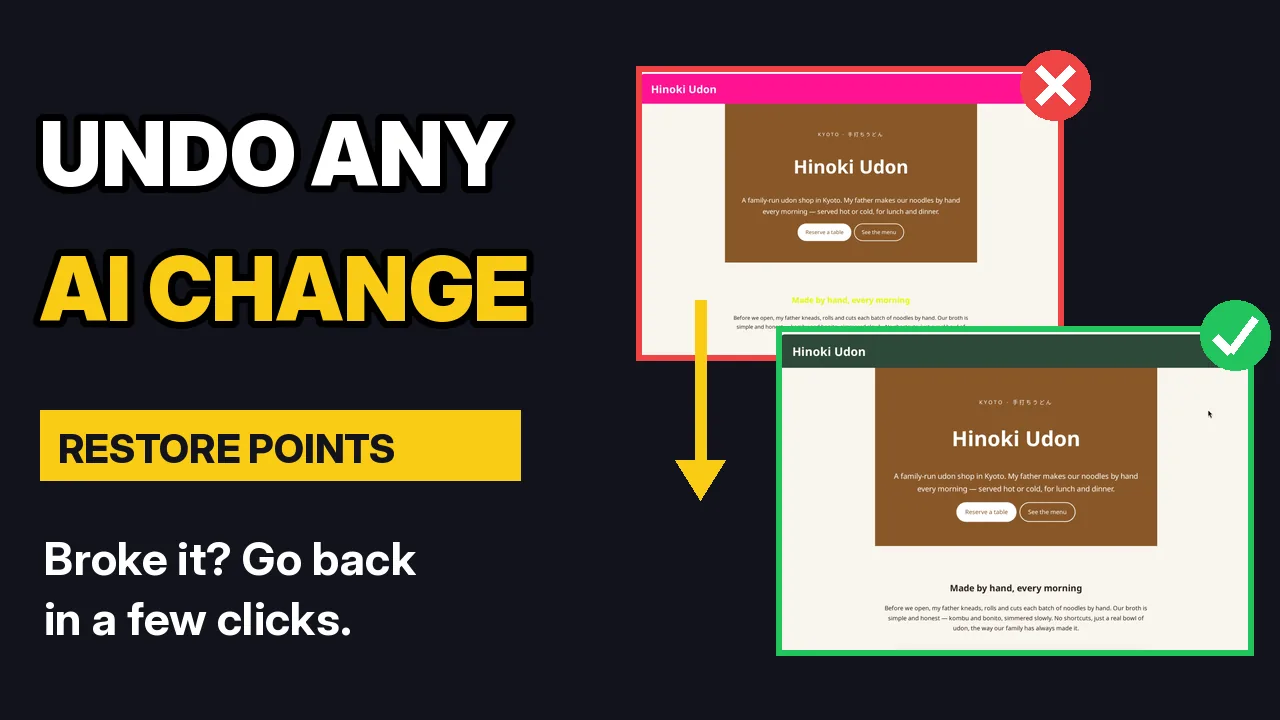
Letting an AI change your site is easier when you know you can always go back. Every time the AI finishes a change, ShipPress saves a restore point. In this tutorial I make a bad change to a restaurant site, Hinoki Udon, on purpose, then rescue it in a few clicks.
By Oberon Lai. I make ShipPress (Codotx, LLC), so this is our own product.
-
A restore point after every AI change
You don’t have to do anything. As soon as the AI finishes a change, ShipPress saves a restore point of your site. Each one is named after the message that made the change, so the list reads like your conversation.
A restore point is a copy of your site’s database (pages, posts and settings), your custom theme and your uploaded pictures. It is saved on your computer, and it never touches a copy of your site that is already online.
-
Open History
At the top right, next to History, a number shows how many restore points the site has. Click History to open the list.
The newest point is at the top. Each one shows the message that made the change, the date and time, and its size. At the bottom is the site as it was when it was first made.
-
When a change goes wrong
In the video I make a bad change on purpose:
Make the header bright pink and turn every heading on the site neon yellow.
The AI does exactly that, and even warns that neon yellow is hard to read. A new restore point appears at the top of History, named after this request. It is the site as it is now, pink header included.
-
Go back to an earlier point
Open History and find the point you want to go back to. To undo the pink header, that is the point just below the newest one: how the site looked after the previous change. Click Restore next to it.
ShipPress asks first: Go back to this version? Your current version is saved first, so you can come back to it. Click Restore.
A moment later the preview shows the site as it was at that point, and a message tells you which point it went back to.
-
Changed your mind? Undo the restore
Restoring is safe because ShipPress saves your site just before it goes back. Open History again and the newest point is Your site before you went back. Restore it, and you are right back where you were.
Right after a restore you can also click Take it back in the message at the bottom of the preview.
-
Undo just the latest change
If you only want to undo the change the AI just made, click Undo this change under its answer in the chat. It opens the restore points so you can go back to before that change, or pick an earlier version.
-
How many restore points are kept
Open Settings, then Workers. Restore points kept per site is 30 by default, and older ones are removed automatically. You can set it anywhere from 5 to 200.
-
Tips
- Experiment freely. Every AI change can be undone, so try the idea and look at the result.
- Short, clear messages make the list in History easy to read, because each point is named after your message.
- Wait for the AI to finish. The Restore buttons are grey while a Worker is changing the site.
- Restored the wrong point? Restore Your site before you went back.
-
Where to go next
Keep changing your site by chatting with Edit your site by chatting. When it looks right, publish your site free with a ShipPress address. For backups of a site that is already online, read From local to live: what Go live replaces.
Don’t have ShipPress yet? Download ShipPress (free, Mac).