
Run multiple AI Workers on one site
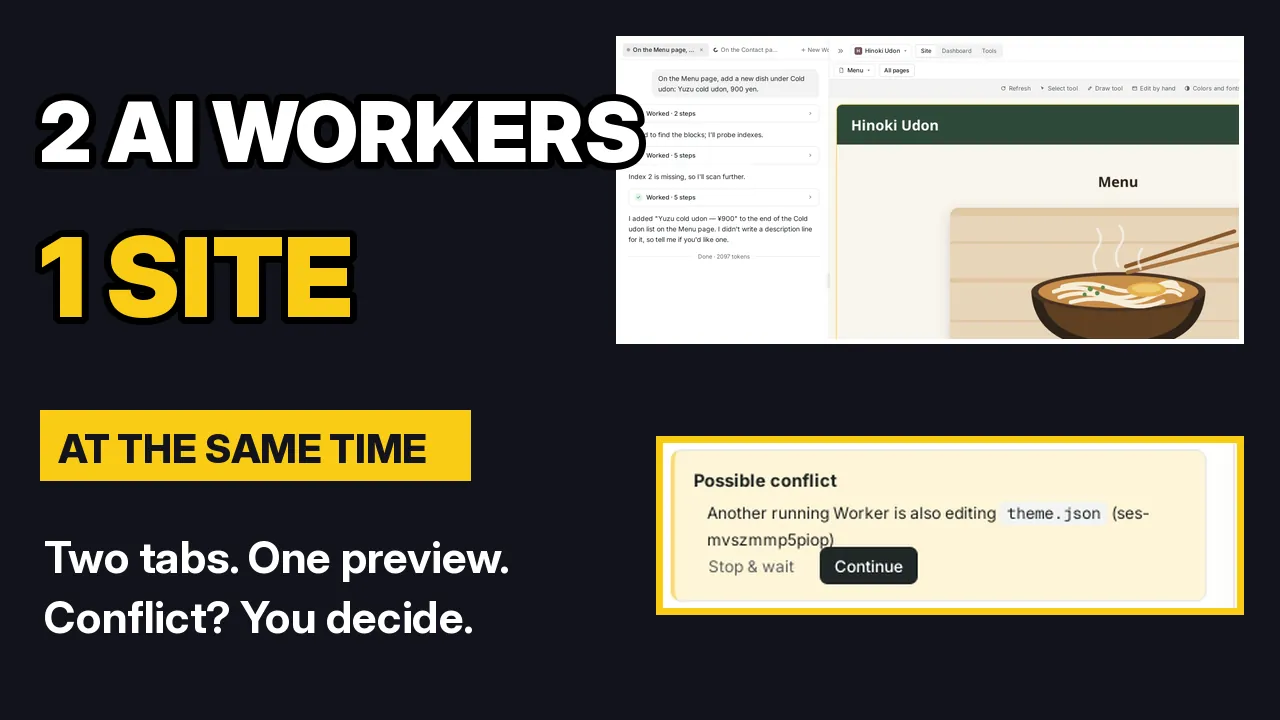
Sometimes you want two things done on your site at the same time. With Multiple Workers, you can open a second Worker on the same site and send it a different request while the first one is still busy. In this tutorial I do it on a restaurant site, Hinoki Udon.
By Oberon Lai. I make ShipPress (Codotx, LLC), so this is our own product.
-
Turn on Multiple Workers
Multiple Workers is off by default. Open Settings in the sidebar, go to Interface mode, open For developers and turn on Multiple Workers (“Work on several things on one site at once”).
A new Workers section appears in Settings. Max Workers running at once is 4. If you send more requests than that, the new ones wait their turn.
-
Open a second Worker
Close Settings. Above the chat there is now a row of tabs, one for each Worker, and a + New Worker button. Click it to open a second Worker on the same site.
-
Send two requests at the same time
In the video, the first Worker gets:
On the Menu page, add a new dish under Cold udon: Yuzu cold udon, 900 yen.
The second Worker gets a request for the Contact page: a line about free parking behind the shop. While it works, I switch back to the first tab and type another request.
A note appears above the box: the other Worker is changing this site right now. You can still send, but keep it to a different part of the site, or wait until the other Worker is done, so they don't undo each other's work. My second request is a short note on the Menu page, so I send it.
-
One site, one preview
Both Workers work on the same site, so they share one preview. Scroll the Menu page and both menu changes are there. Switch to the other tab, pick Contact in the page menu above the preview, and the parking line is there too.
When you are done with a Worker, click the × on its tab. The tab closes, but the chat stays in the sidebar, so you can open it again later.
-
When two Workers touch the same thing
In the video I ask two Workers to change the main color at the same time: one to deep forest green, the other to dark navy blue. Both change the same color setting, so the second Worker's chat shows a Possible conflict card: another running Worker is also editing the same thing.
While that Worker is running, the card has two buttons:
- Stop & wait stops this Worker, so it doesn't keep changing things while the other one works.
- Continue lets both Workers keep going.
Either way, look at the preview when they are done. If the result isn't what you want, just ask again. In the video the preview showed navy, so I asked the first Worker: Please make the main color deep forest green again.
-
Keep an eye on your AI quota
Every running Worker uses your AI plan, so several Workers at once use your quota faster. The line under the chat box shows how much of your limit is left and when it resets.
-
Tips
- Split the work by area: one Worker for the Menu page, another for the Contact page. Changes to different parts don't get in each other's way.
- One change, one Worker: colors, fonts and the overall look affect the whole site. Give them to a single Worker.
- Possible conflict? Choose Stop & wait or Continue, then check the preview.
- Every AI change can be undone with restore points.
-
Where to go next
New to asking for changes? Read Edit your site by chatting. To point at one part of a page, use Canvas. If two Workers undo each other's work, see Undo any AI change with restore points.