
Find the right design: filters, search and preview
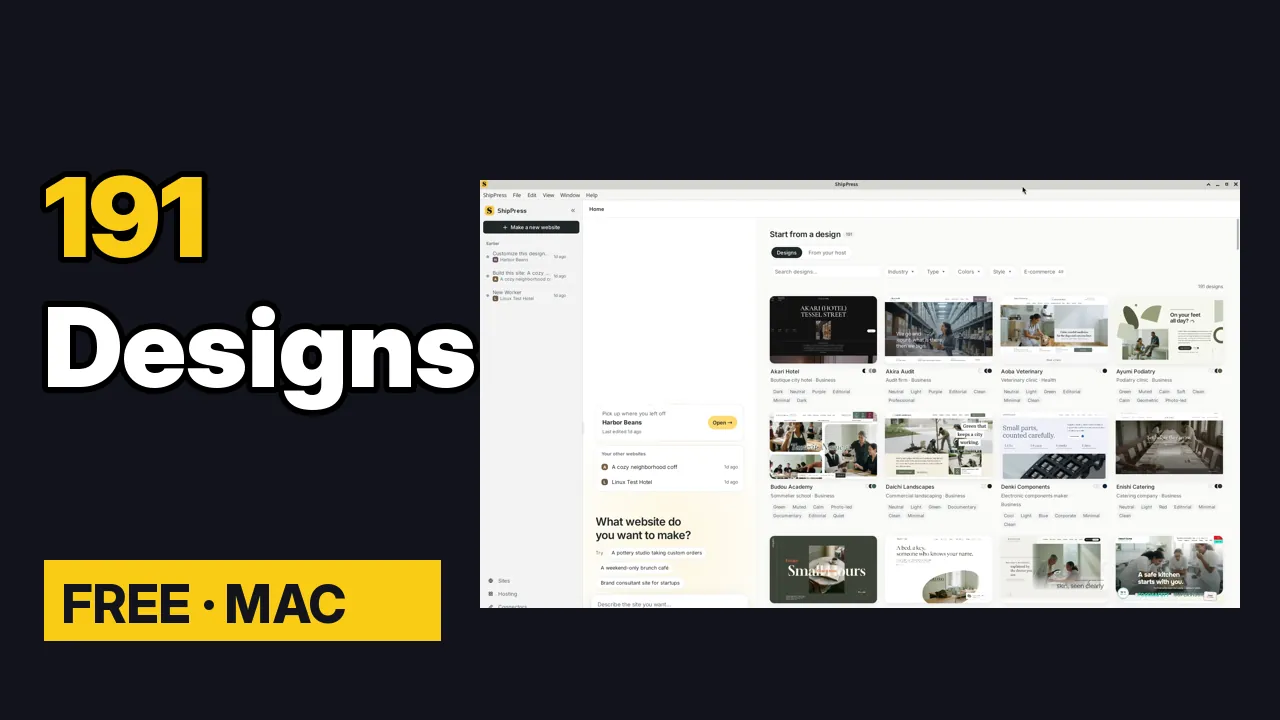
Every design in ShipPress is a complete WordPress block theme. If you start from the one whose pages and sections are closest to what you need, the AI has much less to change later. This tutorial walks through the design wall: the filters, the search box and the full preview.
By Oberon Lai. I make ShipPress (Codotx, LLC), so this is our own product.
-
Open the design wall
On Home, the right side is Start from a design, with the number of designs next to it (191 right now). Each card shows a screenshot, the design’s name, the kind of business it was made for (for example Boutique city hotel · Business) and its color and style tags.
Every design is a complete WordPress block theme with its own pages, fonts and colors, not just a home page.
-
Filter by industry
Open Industry to see the groups and how many designs are in each:
- Business & services: 42
- Classes & schools: 23
- Health & wellness: 23
- Crafts & homeware: 18
- Food & drink: 17
- Specialty shops: 16
- Fashion & beauty: 14
- Arts & media: 10
- Travel & stays: 10
- Events & community: 9
Pick Food & drink and the wall shows 17 designs, such as Enishi Catering, Shokutaku Dining and Teuchi Udon. Clear filters brings everything back. We keep adding designs, so your numbers may be a bit higher.
-
Narrow it down with Type, Colors and Style
Type is the kind of site: Business, Education, Events, Food & drink, Health, Hospitality, Landing page, Media, Nonprofit, Portfolio, Shop and Store.
Colors has tags such as Green (40 designs), Blue, Teal and Brown, and moods like Bold, Bright and Calm. Style has Asymmetric, Bold, Botanical, Calm, Cinematic, Clean, Editorial (76 designs), Elegant and more.
In Colors and Style you can pick more than one option. Industry and Type take one at a time. The filters work together, so each one you add narrows the wall further.
-
Show only shop designs
The E-commerce chip keeps only designs with shop features (WooCommerce). That leaves 49, for example Hayate Cycles, Kaname Watches, Kogu Hardware and Mochi Pet Supply.
-
Search
Type in the Search designs… box. hostel finds Fumoto Hostel. clinic finds 19 designs, including Aoba Veterinary, Hada Dermatology and Nemuri Clinic. Click × or press Esc to clear the search.
-
Open a full preview
Click a card to look closer. The tabs across the top are the design’s pages. Nemuri Clinic, for example, has Home, About us, Symptoms, Treatment, Doctors and nurses, Fees, Your first visit, Map & getting there, News, Contact and more. Computer and Phone switch between the desktop and mobile views.
What happens next? lists the sample pages you get, and What's your website called? lets you name the site now (you can change it later). Back to designs takes you back to the wall. Use this design starts your site. It stays on your computer until you click Go live.
-
Choose by structure, not by color
Look at the pages and sections first. Colors and text are the easy part: the AI changes them without much trouble. Adding pages or reworking how a page is laid out takes more back and forth, so pick the design whose structure is closest to your site.
-
Where to go next
Once you have picked a design, follow Make your first site and then Edit your site.
Don’t have ShipPress yet? Download ShipPress (free, Mac).