
Get a web host and connect it to ShipPress
To let people use a WordPress site that needs a real server (a shop, member logins, comments), you need a web host. This series has one article per host that the ShipPress Mac, Windows & Linux app connects to: how to sign up and pick a suitable plan, how to get the key or login the app needs, and how to connect it and go live. Read the part for your host, in any order; they are listed below from the easiest to set up.
-
Do you need a host?
Not always. A static copy of your site can go online without a host: on a free ShipPress address (publish free, and then your own domain with custom domain) or on Spacefast (Spacefast).
A static copy can’t run a WooCommerce shop, member logins, comments or anything else that needs WordPress running; for those, use a WordPress host (Go live → WordPress host, see Go live). Hosting is paid by you directly to the host; it is not a ShipPress charge.
-
Three ways a host connects
ShipPress connects to hosts in three ways:
- Browser sign-in: Hostinger and InstaWP (click Sign in with Hostinger, sign in in your browser; an API token also works).
- API key or token you paste: Kinsta, Cloudways (Access Token), xCloud and Pressable (Client ID + Client Secret).
- SSH: SiteGround and WordPress.com, whose Connect button opens Connect with SSH with their details filled in.
Whatever you paste goes to your system keychain only; the AI never sees it. All of them are on the Hosting page in the sidebar.
-
The series
- Hostinger — marked Recommended in the app; ShipPress can make a website on your plan
- InstaWP — quick test sites you can keep
- SiteGround — connects with an SSH key from Site Tools
- Kinsta — managed WordPress, API key
- Cloudways — your own cloud server, Access Token
- xCloud — server control panel, API token
- Pressable — managed WordPress by Automattic, API application
- WordPress.com — SSH on a plan that includes it
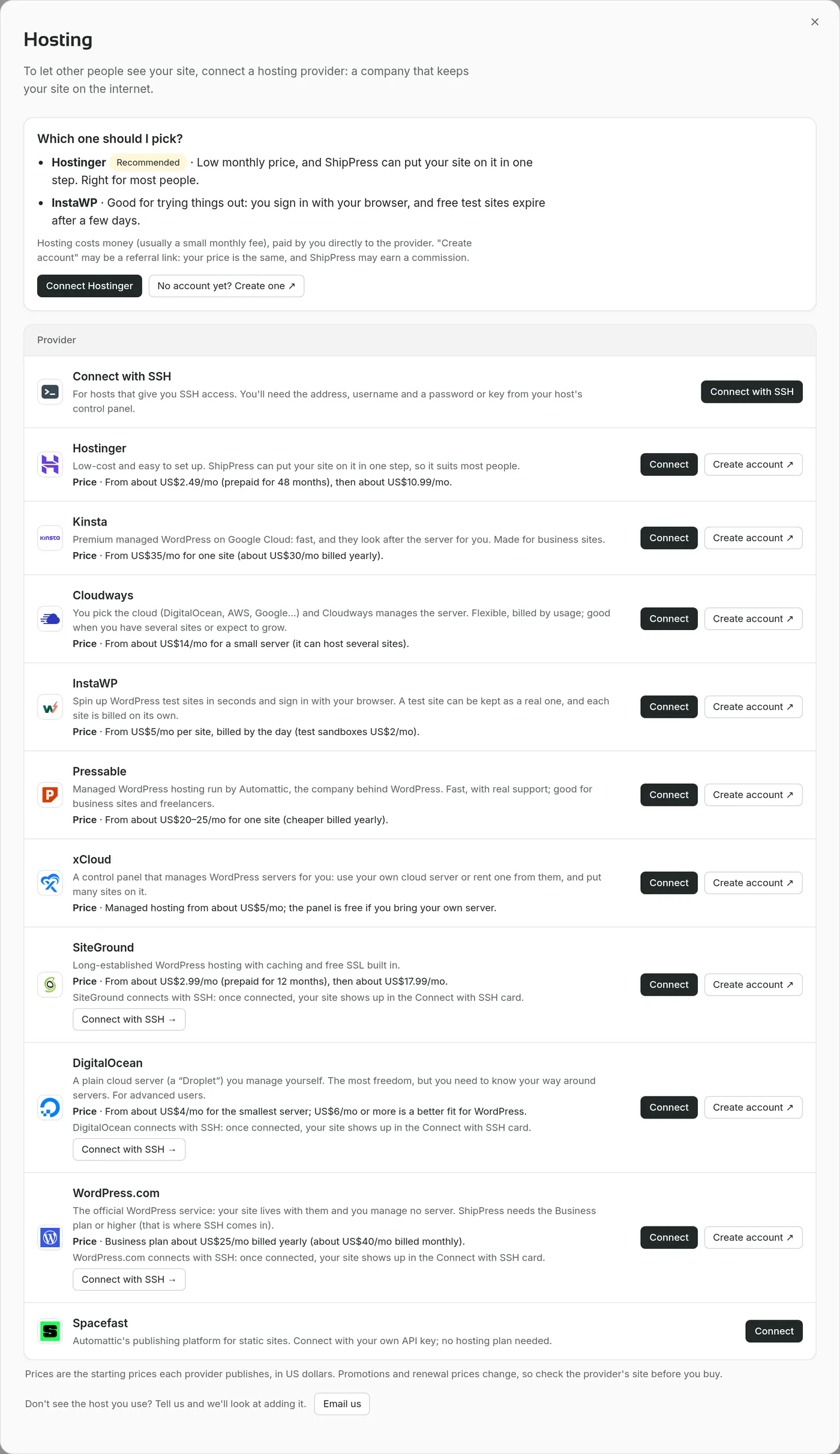
The Hosting page lists every host ShipPress can connect to. -
What each host can do in ShipPress
- Create a new website from ShipPress: Hostinger (on a plan you already have), InstaWP (temporary or permanent), Cloudways (on a server you already have) and Pressable (on your plan). On the others, create the site at the host first.
- Open WordPress admin already signed in: Hostinger, InstaWP, Kinsta and xCloud.
- Download a live site back to your computer: every host in the series; Hostinger needs an SSH connection for that (download guide).
ShipPress never buys a plan, server or domain at a host for you.
-
Your host isn’t in the list?
If your host gives you SSH access, use the Connect with SSH card on the Hosting page: “For hosts that give you SSH access. You'll need the address, username and a password or key from your host's control panel.”
Under the list of hosts, “Don't see the host you use? Tell us and we'll look at adding it.” with the Email us button.
-
After you connect
- Go live — pick the address and confirm
- From local to live — what Go live replaces
- Download a site from your host — download your site back to your computer
- Export your site and move it yourself — export and migration guide
- Simple vs Advanced mode — some labels differ, e.g. Go live is Deploy in Advanced mode
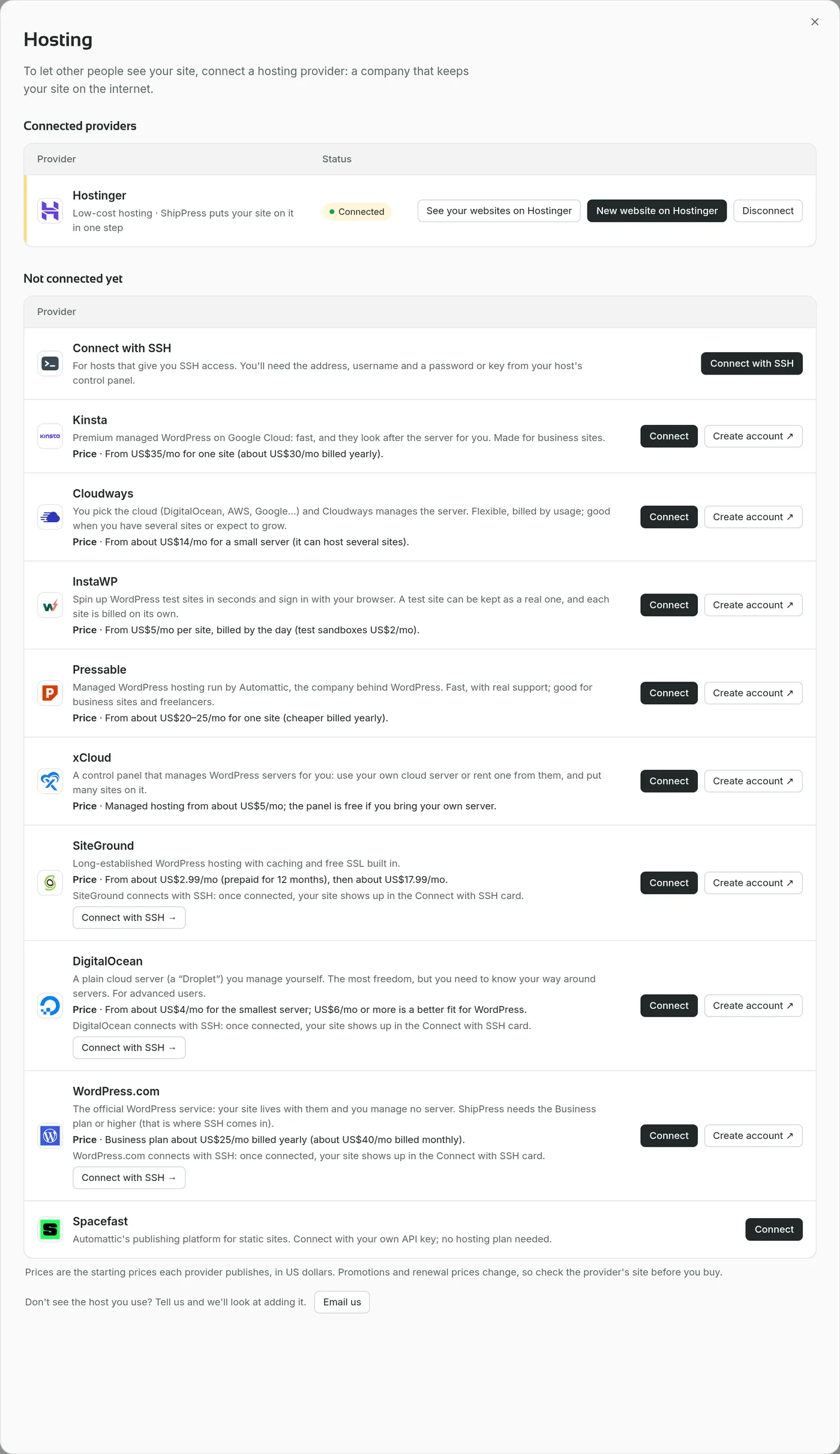
A connected host moves up to Connected providers.