
Your site is yours: export it and move it to your own host
A site you build with ShipPress lives on your computer, as a normal WordPress folder. This tutorial shows what is in that folder and the ways to take your site with you: a static copy of plain web files, the full site on a WordPress host you choose, and moving to a new host later. I use a restaurant site, Hinoki Udon.
By Oberon Lai. I make ShipPress (Codotx, LLC), so this is our own product.
-
Find your site's folder
Every site you build is a folder on your computer, inside the ShipPress folder in your home folder. The folder name is an ID (like
site-…), not the site name, so the easiest way to find it is in the app: open Sites in the sidebar and click Open folder next to the site. -
What is inside the folder
Inside is a normal WordPress site:
wp-admin,wp-includes,wp-config.phpandwp-content. Inwp-contentare your themes, plugins and uploads, and adatabasefolder.The database is a single SQLite file in that folder. Your pages, posts and settings are all inside it. Most hosts use MySQL instead, which is why Go live converts the database for you (see below).
The
.aiwpfolder holds ShipPress's own data for this site: chats and restore points. It stays on your computer and is not sent to your host. -
Save a static copy
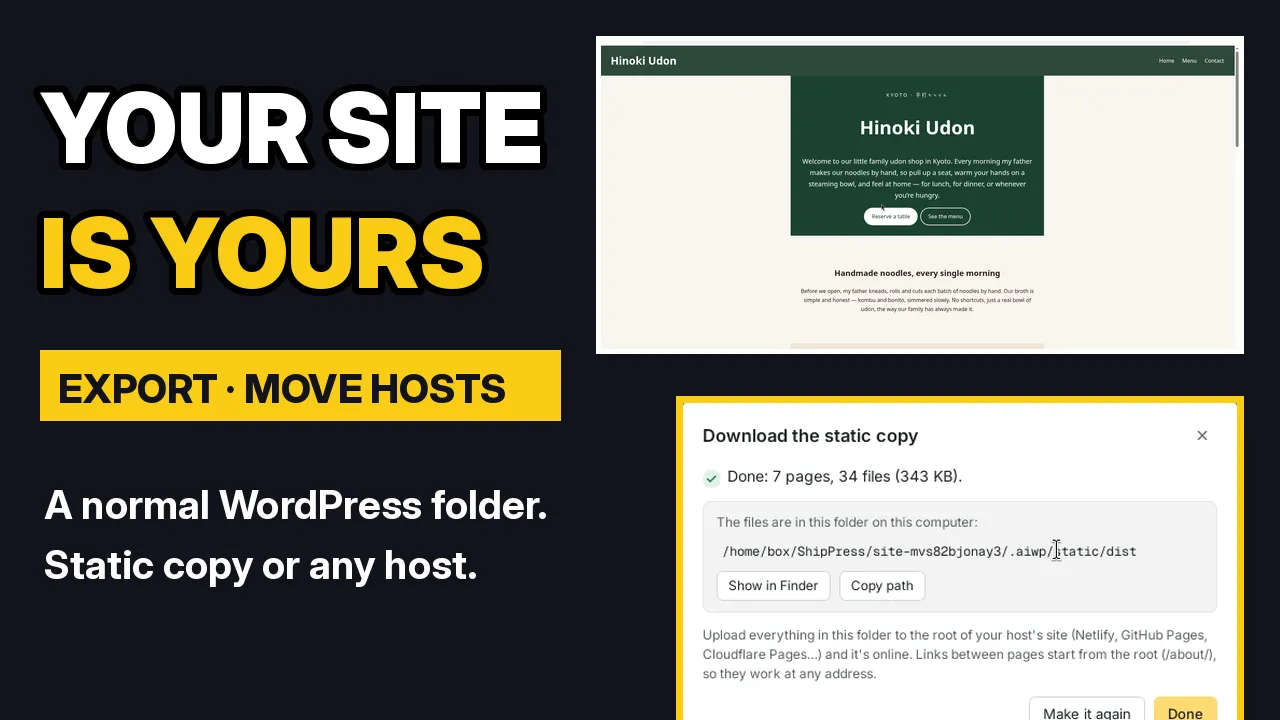
A static copy is every page of your site saved as plain web files. Click Go live at the top. The window has two tabs, Free address and WordPress host. At the bottom of Free address, click Only want the files? Download the static copy and put it on another host yourself.
ShipPress saves every page, then checks the result. If something needs fixing first, it says so and tells you where to fix it. In the video it found page addresses like
?p=123, which a static copy can't tell apart. The fix: open the Dashboard tab (your site's WordPress admin), go to Settings › Permalinks, choose Post name and save. Then download the static copy again.When it is done you see the number of pages and files, and the folder they are saved in. Show in Finder opens it; Copy path copies its location.
-
What is in a static copy, and how to publish it
The home page is
index.html. Every other page is a folder with its ownindex.html(the menu page ismenu/index.html, and so on). There is also a 404 page, a robots file, a sitemap and a headers file.These files don't need ShipPress. Any web server that serves static files can open them. To publish them, upload everything in the folder to the root of a static host, like Netlify, GitHub Pages or Cloudflare Pages. Links start from the root, so the site works at any address.
Before you publish, check search visibility. In the Dashboard tab, open Settings › Reading. If Discourage search engines from indexing this site is ticked, WordPress adds a
noindexrobots meta tag to every page and turns offwp-sitemap.xml, so a copy can look perfect and still stay invisible to Google. Untick it (or runwp option update blog_public 1), download the static copy again, and search the folder fornoindex. -
What a static copy can't do
A static copy is only plain pages. Anything that needs WordPress running won't work there:
- a shop (WooCommerce)
- member logins
- comments
- forms that send to WordPress, like the reservation form on Hinoki Udon
For a site like that, put the full site on a WordPress host instead.
-
Move the full site to a WordPress host
For the full WordPress site, with its database, use the WordPress host tab in Go live. You connect a hosting provider once: Choose a hosting provider opens the list. InstaWP, Hostinger and Pressable connect directly; xCloud and Kinsta with an API key; Cloudways with your email and an API key. Any other host that gives you SSH access works with Connect with SSH, for example SiteGround, DigitalOcean or WordPress.com. You choose the host.
When you click Go live, ShipPress:
- exports the database as a MySQL backup,
- changes the local address to the live one,
- packs
wp-content(themes, plugins, uploads), - and leaves out the local-only parts: the SQLite plugin, the local sign-in helper, ShipPress's editing helpers, the
.aiwpfolder andwp-config.php(your host uses its own database login).
What arrives on the host is a normal WordPress site. You can send Files and database, Files only or Database only, and the window tells you plainly that what is at that address now gets replaced. For the details, read From local to live: what Go live replaces.
-
Change hosts
It works the other way too. Download, next to Go live, brings the online site back to this computer: the files, the database, or both. On Home, From your host starts a new site from one that is online. Once a host is connected, its sites show up there.
That is also how you change hosts:
- Download the site from your old host as a new site.
- Connect the new host.
- Click Go live.
Downloading a full site also brings its customer data (orders, email addresses) to your computer, and it is a snapshot of that moment. More in Download a site from your host.
-
Tips
- Find the folder with Sites › Open folder.
- Static copy: set Permalinks to Post name first.
- Shops, logins, comments, forms: use a WordPress host, not a static copy.
- Full site: connect a WordPress host, then click Go live.
- Search visibility: untick Settings › Reading › Discourage search engines (or run
wp option update blog_public 1) and search the export fornoindex. For a full site, check it again on the live site after the import, and confirm one page with URL Inspection in Search Console before you submit the sitemap.
-
Where to go next
To put a site online without a hosting account, read Publish your site free with a ShipPress address. Before you replace a live site, read From local to live: what Go live replaces. To bring a site from your host onto this computer, see Download a site from your host.