
WordPress site hacked? Rebuild a clean copy and keep it safer
Finding out your WordPress site was hacked is stressful for any business owner. ShipPress for Mac, Windows & Linux lets you rebuild a clean copy on your computer directly from your public web address. You can then publish it as a static site, leaving far less online for attackers to target.
-
Signs your WordPress site was hacked and how to respond
According to the official WordPress documentation, several signs indicate your site may have been compromised:
- Your site is blacklisted by search engines like Google or Bing.
- Your host has disabled your site.
- Browsers or visitor antivirus tools flag your site for distributing malware.
- You are told your site is being used to attack other sites.
- Unauthorised behaviour occurs, such as unexpected new user accounts.
- You can see that the site was hacked when you open it in your browser (for example pages or links you never made).
ShipPress offers a way forward: rebuild a clean copy of your site on your computer from the pages visitors see, then publish it so far less is online for attackers to target. Keep in mind that ShipPress is not a malware scanner: it does not scan, detect or remove malware, and it does not repair a hacked server. It is a free desktop app for Mac, Windows & Linux (install ShipPress) that builds a real WordPress site on your computer, and nothing goes online until you click Go live.
-
First steps to take before you rebuild
Before touching your site files, take these steps recommended by the official WordPress.org hacked site FAQ:
- Stay calm: Take a breath so you can deal with it step by step.
- Document everything: Write down what you see, when you noticed it, and what changed recently, such as a new plugin or a theme change.
- Contact your host: Tell them what happened and ask for their help.
- Change all passwords: Update the passwords for your hosting account, WordPress administrator users, FTP/SSH and the database.
If the live site holds customer orders or member accounts you still need, ask your host or a security professional to help with that live data.
-
Why you should copy from the address, not from your host
With a hacked website, the way you copy it matters:
- Do not download from your host: From your host downloads the real WordPress site, its files and database as they are (downloading from host). On a hacked site, the attacker's files, users or changes would come along.
- Import from a website: Selecting Import from a website creates a new blank site on your computer. ShipPress opens each page in a window, reads back the layout the browser drew, and rebuilds it as an editable WordPress block theme. The original site's JavaScript, old plugins, theme files and database are not copied; pictures, videos and fonts are downloaded.
Because visible text and links are copied, spam text added to your pages can come along. Check every page after the import. Do not import from the address if your browser or Google shows a "dangerous site" warning, or if the site sends visitors to other sites. In those cases, first have your host take the site offline or restore a clean backup, or start from a ready-made design (starting from a design) and add your text by chatting.
-
Import your site into ShipPress
To start your clean copy on your computer:
- Open ShipPress, go to Home, and select the Import from a website tab.
- Under Which website do you want to copy?, type your site address and click Next.
- Optionally enter a site name, then click Scan pages. The scan respects robots.txt and reads the site's sitemaps.
- In Which pages to copy?, Front page (always copied) is selected. Review the list and untick every address you do not recognise. Hacked WordPress sites often have spam pages the attacker added, often in the sitemap.
- Click Check it over, then click Start import. It takes about 30 seconds per page; keep the app open until it finishes. Learn more in our website import guide.
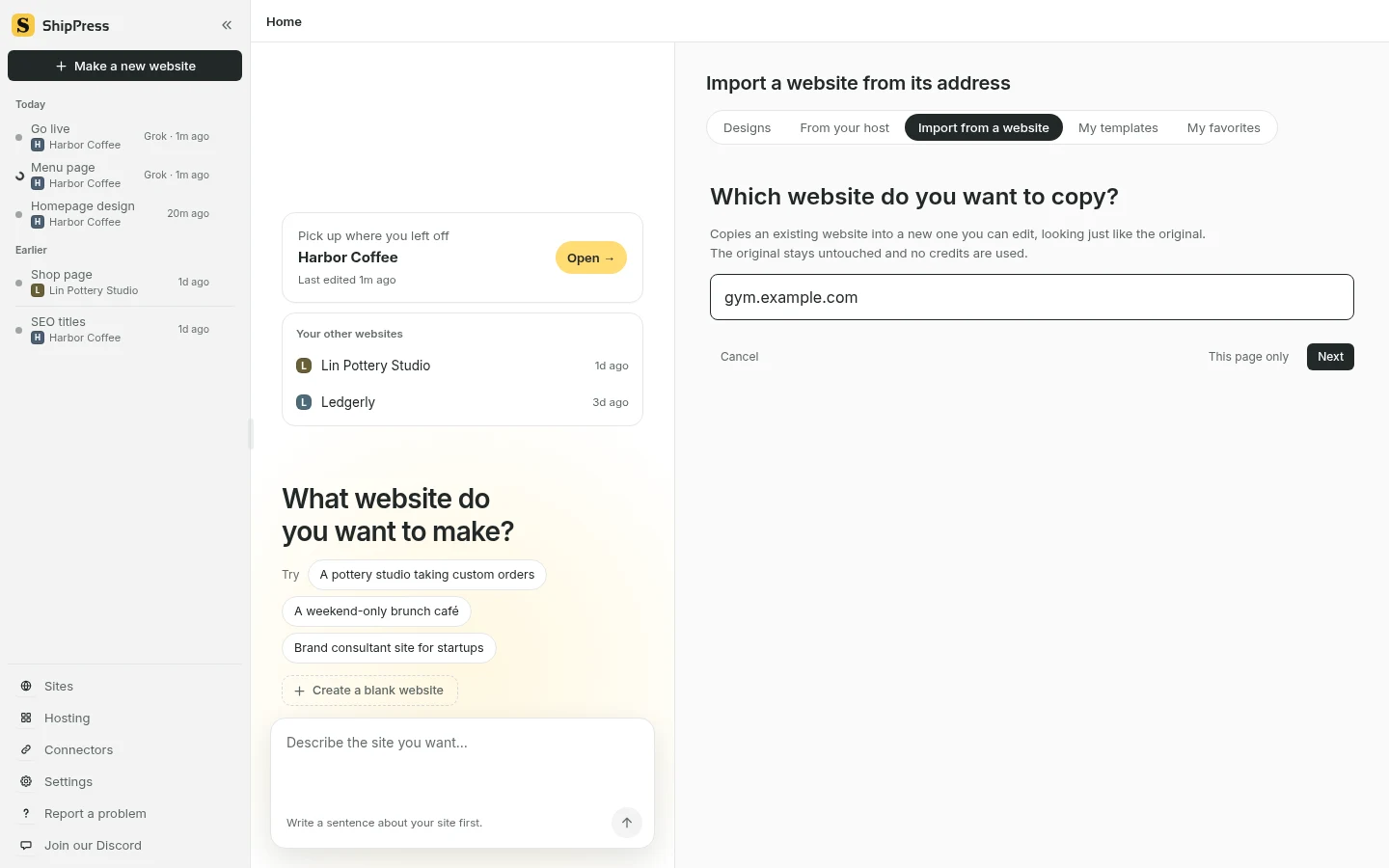
Import from a website: enter your public address and click Next to scan pages (shown in the English UI). -
Check every page for leftover spam
The import is a starting copy, not a perfect one, so review your pages one by one. Look for unfamiliar text, links to sites you do not know, or strange menu items.
You can remove spam text or fix sections by chatting with the AI (editing with chat). Check your layout on Computer, Laptop, Tablet and Phone views (preview screen sizes). Forms go to the Imported Forms plugin, a normal plugin you can switch off. To undo the import, open History and restore the point named Before importing (using restore points).
-
Publish your site as a static copy
A static copy leaves far less online that can be attacked or needs looking after (static site overview). ShipPress saves every page of your local site as plain HTML, CSS, JavaScript and image files, so these are not online:
- The WordPress login page (
wp-login.php) and dashboard (wp-admin) - PHP files, the database and the REST API (
wp-json) - Background entry points like
xmlrpc.phpandwp-cron.php - Comment form handlers and cart/checkout pages
Click Go live in the top right. Under Free address, choose ShipPress hosting or Spacefast (publish to Spacefast), then click Put it on a free address (free publishing guide). On ShipPress hosting, form messages are emailed to you. You can also select Deploy yourself and click Download static files for Netlify, GitHub Pages or Cloudflare Pages (Netlify hosting).
Before uploading, ShipPress checks the copy. Blocking problems appear under Nothing was uploaded. Fix these first:, while notices appear under Worth a look:. A static site can't run shop checkout, member logins or WordPress comments. If you need those, use the WordPress host tab and put the site on a clean new site at a host, not over the hacked one (choosing a host, what Go live replaces). On a WordPress host the site runs WordPress online again, so keep it updated and follow the official WordPress hardening guide. No website is 100% secure, but a static site leaves far less to attack.
- The WordPress login page (
-
Move your domain and retire the compromised server
When you have checked your site on its new address, connect your domain. Go to Sites in the sidebar, click Address on your site row, select I already have an address, and enter your domain starting with
www(connecting your domain). Connecting a domain you already own is free. ShipPress shows the DNS records to add where you bought the domain, and it never changes your DNS itself.Point the domain to the new copy only after you have checked it on its new address. Then have your host remove the old hacked site, and cancel what you no longer need. If Google flagged your site, request a review in the Search Console Security issues report.
-
Keep your site clean and up to date
Going forward, make edits on your computer. When updates are ready, open Go live and click Publish changes. Only the files that changed are uploaded.
If you publish to a free address, open Earlier versions and click Go back to this one whenever you need to roll back a change. Turn on the Daily backup checkbox in the top bar to save a copy of the site on your computer every night at 3:00 (daily backups). ShipPress also saves a restore point after every AI change (restore points), and asks before bigger changes (approval cards and where your data goes).
Related guides: see our tutorials on creating a static site and importing from a web address.