
How much does a website cost? What you really pay for, and how to build one with no monthly fee
ShipPress is a free desktop app for Mac, Windows & Linux. Reading this on a phone? Open this page on your computer to download it.
How much does a website cost? It depends on which parts you actually need, and several of them are optional. Monthly builder bills, add-on upsells and very different quotes from designers make it hard to know. This tutorial lists what you really pay for, shows the lowest-cost real path with ShipPress, a free app for Mac, Windows & Linux that builds a real WordPress site on your own computer, and explains when paying makes sense.
-
What a website really costs: the parts
Search for website cost and you will see answers from almost nothing to tens of thousands, because people count different things. A website is a handful of separate parts, and only some are required.
- Domain (your own address, like www.example.com): paid yearly to a registrar. Optional while you build and test, but you want one for a serious site.
- Hosting (the computer that serves your pages to visitors): needed only once the site goes online. Some kinds are free, some are paid monthly or yearly.
- The builder or software: WordPress itself is free, so “how much does WordPress cost” is really about everything around it. Website builders usually charge a subscription instead.
- Design and writing help: optional. A designer or agency is a one-off or ongoing fee; an AI can write the first draft.
- Upkeep: updates, backups and security. It costs time or money depending on how the site is run.
So the cost of building a website, even a small business website, is the sum of the parts you choose. A portfolio, a bakery page or an author site may need only a domain at the end. A shop with member logins needs more. Takeaway: list the parts, then decide which ones you really need.
-
Why builder bills keep growing, and why quotes differ
Many website builders look cheap at first and then add up. Common patterns: a plan is required before you can use your own domain, the price changes at renewal, and things you assumed were included (more pages, a shop, removing the builder’s branding, more storage) sit behind add-ons. You pay every month or year, and because the site lives inside the builder, stopping payment can mean losing it. Prices differ and change, so check each company’s current pricing page instead of trusting a number you read somewhere.
Designer and agency quotes differ for similar reasons. One quote may include copywriting, photos, a shop and a year of upkeep; another may be only a template. Scope, experience and what is “included” explain most of the gap. When you compare, ask what is covered and what you pay again next year.
Already on a paid builder and want out? See migrate Wix to WordPress or move Squarespace to WordPress. Takeaway: ask what is needed for your own domain, what renews, and what is an add-on.
-
Build for free on your own computer
ShipPress is a free app for Mac, Windows & Linux. You chat with an AI and it builds a real WordPress site on your own computer. Nothing is online until you click Go live.
- While you build, the site runs only on your computer, so there is no hosting bill while you build and try designs.
- Every AI change saves a restore point, so you can try something bold and go back (restore points).
- It is a normal WordPress site, not a locked box.
Takeaway: building and experimenting cost nothing in ShipPress itself and need no hosting.
-
The AI part: use what you have, or buy credits
The AI does the building, so it is the one cost to plan for. You have two options:
- You already have an AI subscription. If you use Claude Code, Grok Build, Codex, Antigravity CLI or Cursor CLI, signed in with your own account, ShipPress adds no charge. See which AI do you need?
- You don’t. Buy ShipPress AI credits in the app: Settings → Your AI → ShipPress AI → Buy credits. Choose one-time packs (valid 12 months) or monthly plans. Prices are in US dollars including tax and are on the pricing page.
New accounts get 1,000 free credits, valid for 14 days, which is a good way to try a first site. Other companies’ AI plans change, so check their own pricing pages. Takeaway: if you already pay for an AI, ShipPress costs nothing extra; if not, try the free credits first.
-
Put it online for $0 on a free address
When the site is ready, you can publish it without choosing a hosting company:
- Click Go live (top right).
- Open the Free address tab and choose ShipPress hosting.
- Sign in with your e-mail. You get a six-digit code, no password.
- Click Put it on a free address.
Your site gets a free public address ending in .workers.dev. Know the limits (full guide):
- Each account can have up to 5 sites on a free address.
- Contact forms are e-mailed to you, up to 100 form messages per site per month. The Sites page shows Form messages this month.
- It hosts a static copy, so a WooCommerce shop, member logins and comments do not work there.
- The free address shows a Trial badge: search engines such as Google skip it, so people will mostly find it through a link you share.
Takeaway: a free, shareable site for $0, good for a first version, a portfolio you send people to, or a trial run.
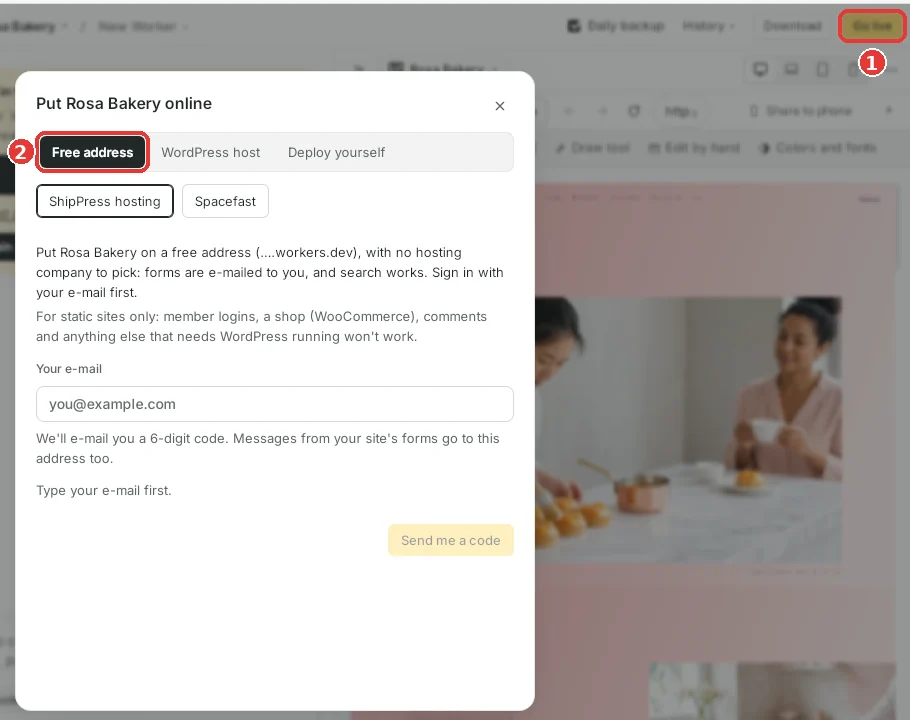
The free route: Go live (1), then the Free address tab (2), ShipPress hosting, e-mail code, and your site is online. -
Your own address: free to connect, or buy one in the app
To look professional and to be found on Google, you want your own address. In Sites, click Address on the site. The dialog has two choices (full guide):
- I already have an address: Free. Add one record at your domain provider to connect it. Use the www address, for example www.example.com. The address stays yours, and ShipPress does not change your domain’s settings. If you already own a domain, connecting it costs nothing extra in ShipPress; you only keep paying your registrar for the domain itself.
- I don’t have one; buy one: The domain and a year of hosting are paid together; it’s connected automatically. Search a name and each result shows Choose with the yearly price before tax. The summary card reads Domain + ShipPress hosting, paid once a year: the domain’s first year plus hosting, form e-mails and certificate for one year. Tax is calculated on Stripe’s page, so you see the total before you pay.
Good to know: a registered domain can’t be refunded, and if the renewal isn’t paid the site goes offline and the domain expires. A site with your own address does not count toward the 5 free-address sites, and it can be found on Google (submit your website to Google). Takeaway: the price is shown before you pay, and it is one yearly payment.
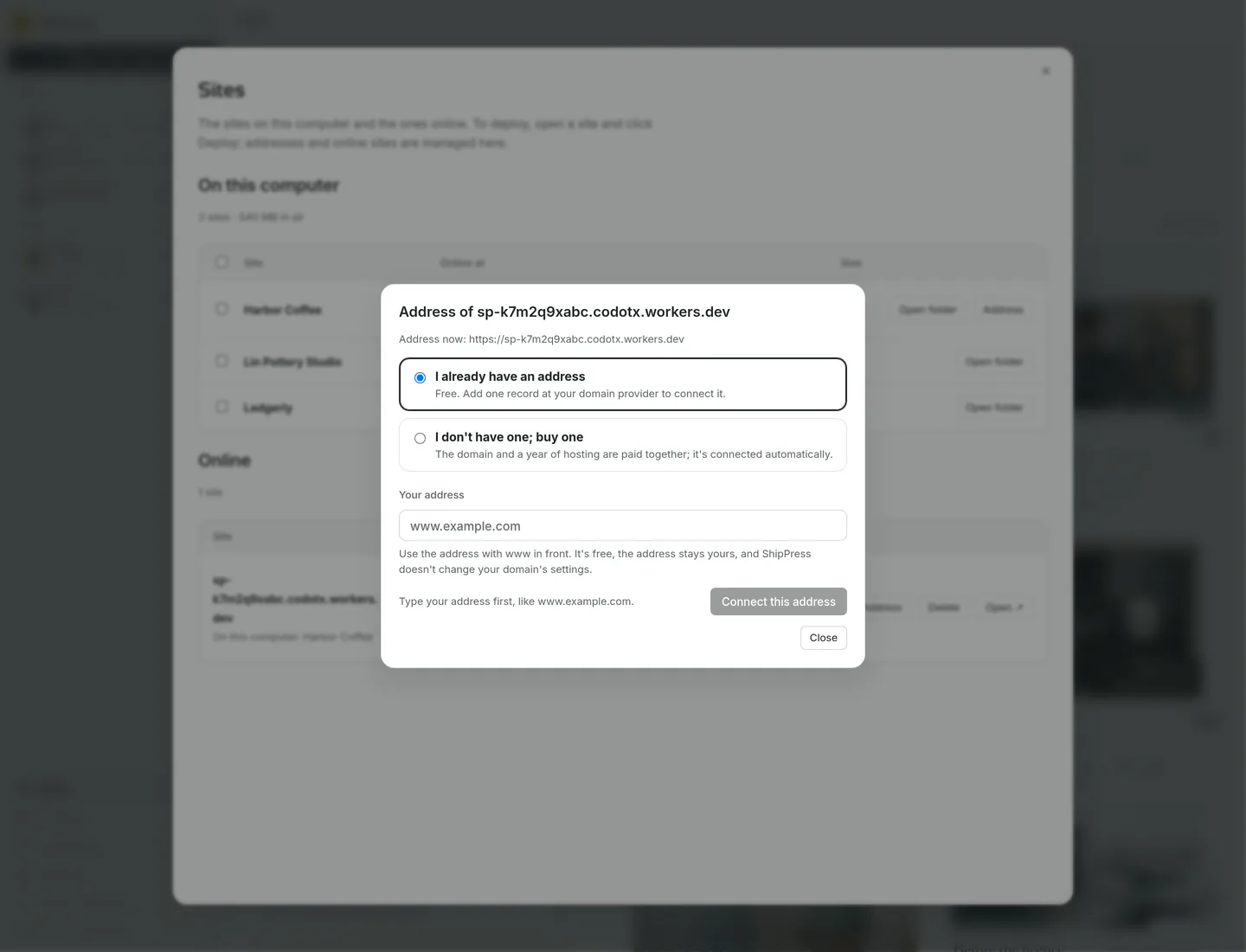
The Address dialog (English interface): connect a domain you own for free, or buy one together with a year of hosting. -
When you do need a paid WordPress host, and other free options
A paid WordPress host is only needed for a WooCommerce shop, member logins or comments. Use Go live → WordPress host. Hosting is paid by you directly to the host; it is not a ShipPress charge, and ShipPress never buys a plan, server or domain at a host for you. Prices vary by host, so check their pricing pages. See get a web host and build a WooCommerce store.
If you only need a static site, there are other free ways to put a copy online: Go live → Deploy yourself → Download static files, then Netlify, GitHub Pages or Cloudflare Pages (guide), or Spacefast (guide).
Takeaway: don’t pay for a server you don’t need; pay for one only when a feature needs WordPress running.
-
Keep yearly costs low: a short summary
With a static copy online, WordPress, its plugins and its database stay on your computer and are not exposed on the public web, so there is far less to look after (why). The site is a normal WordPress folder, so you can export it and move it to any host later, with no lock-in (export and move). To update the live site, click Go live again (Publish changes).
Your cost, by scenario:
- $0: the free app, an AI you already have (or the free trial credits), and a free address. Not on Google.
- A domain you already own: only your registrar’s yearly fee for the domain.
- A domain bought in ShipPress: one yearly payment, shown in the app before you pay.
- A shop or member site: the above, plus a WordPress host plan from the host.
More: publish free, own domain, which AI, pricing.
Don’t have ShipPress yet? Download ShipPress (free).