
Import a website from its address
On Home, open the Import from a website tab when you want a new site that looks like one that already exists. ShipPress copies it onto your computer so you can edit it. The original stays as it is, and the copy does not use credits.
-
Open Import from a website
On Home, the right-hand panel has four tabs: Designs, From your host, Import from a website, and My templates. Choose Import from a website. You will see the heading “Import a website from its address” and a field for the site you want to copy.
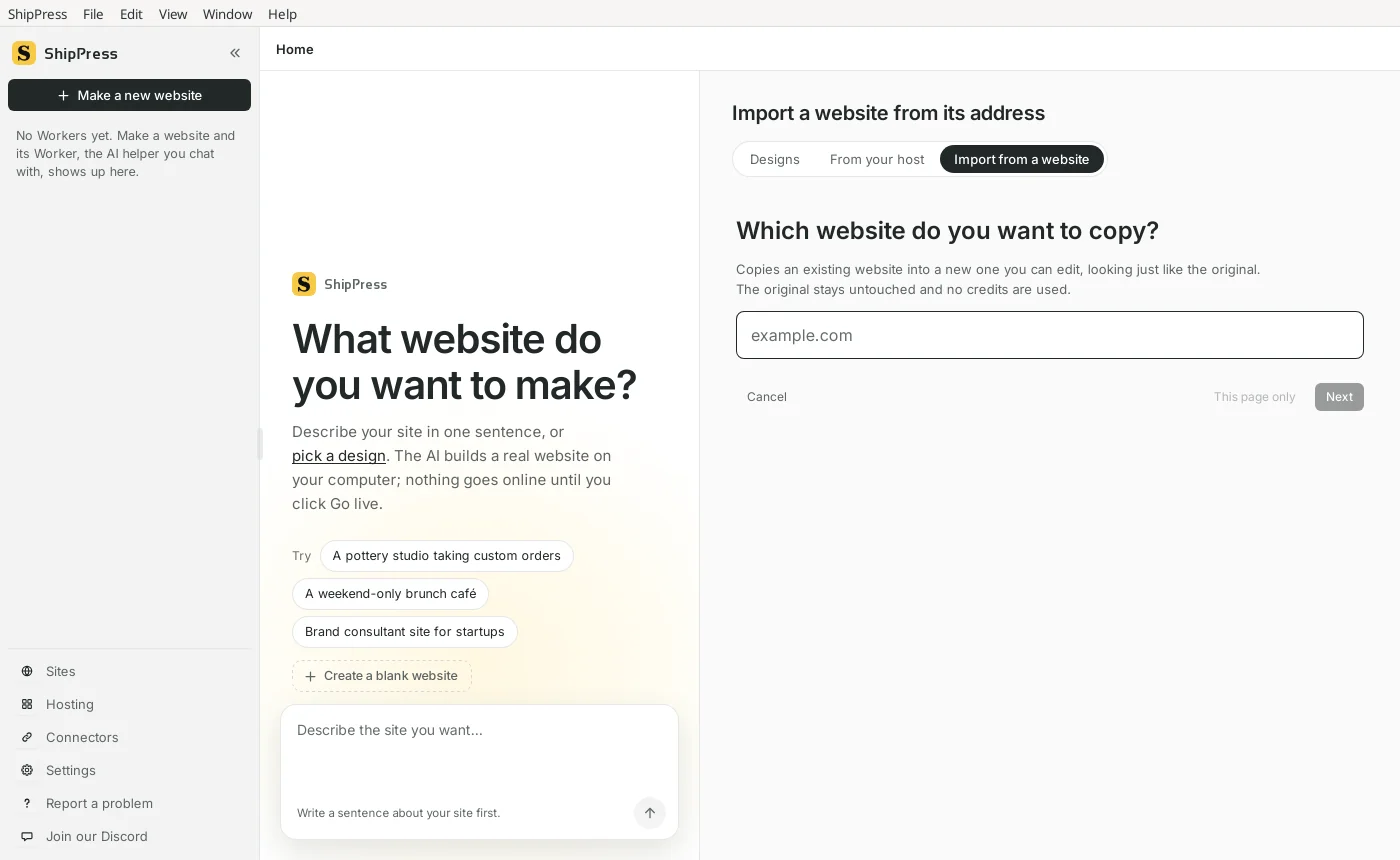
Import from a website is a tab on Home, next to Designs and From your host. -
Enter the site's address
Type or paste the address in the field. You can leave off https:// — example.com is enough. Next becomes available when the address looks valid. If you only want this one page (and, next, the pages its menu leads to), choose This page only instead of Next.
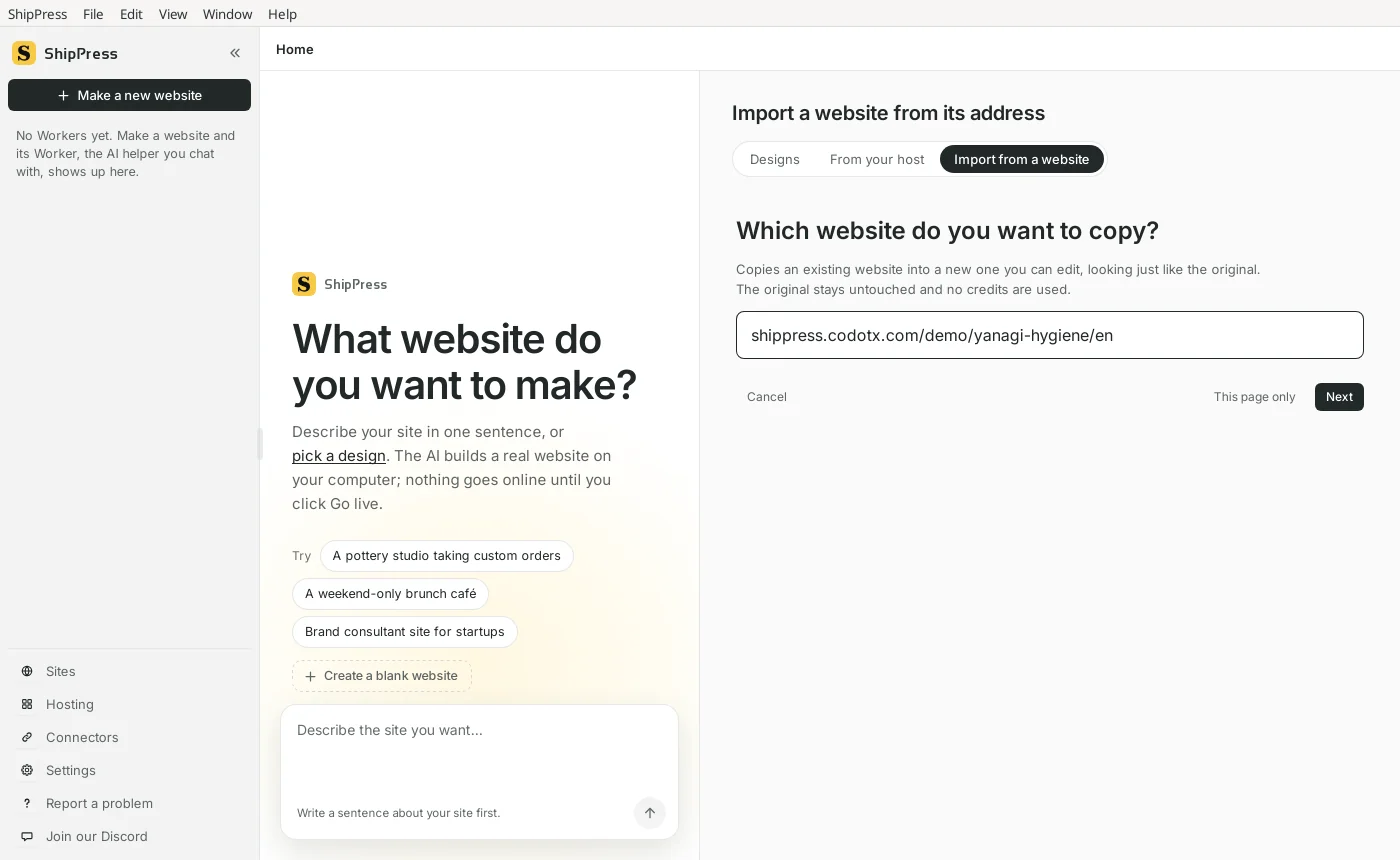
You can paste an address without https://. -
Name the new site
ShipPress asks what the new site should be called. This is optional; you can change it later. If you chose Next, the button here is Scan pages: ShipPress reads the site and then asks what to copy. If you chose This page only, the button is Next, and you go on to the menu pages.
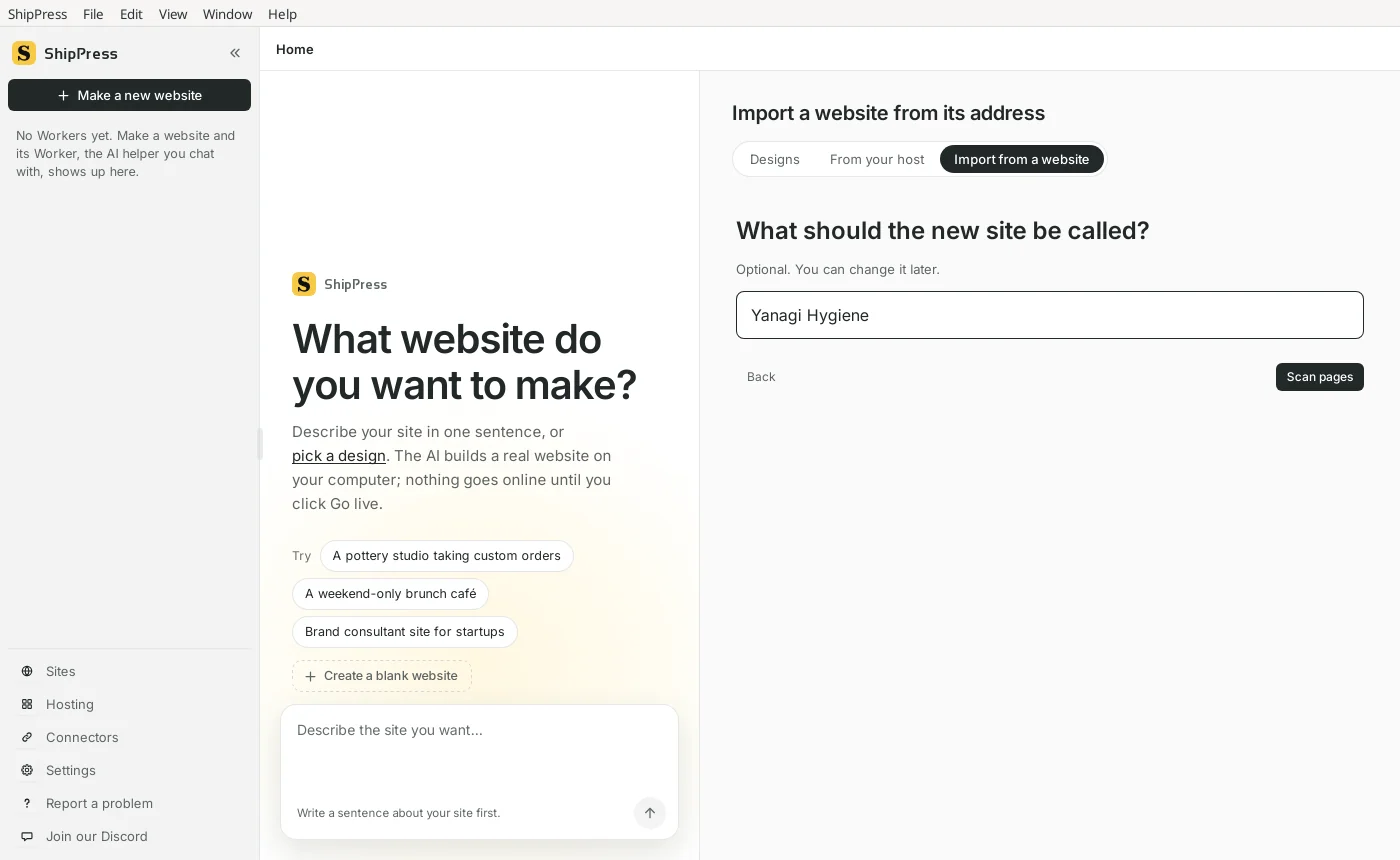
You can name the copy before ShipPress starts reading the site. -
If you chose This page only
ShipPress copies the page at the address you entered, then lists the pages that page's menu leads to. They are all selected at first. Untick any you do not want; pages you leave out keep their menu links pointing at the original site. The footer shows about how long the copy will take. Click Start import when the list looks right.
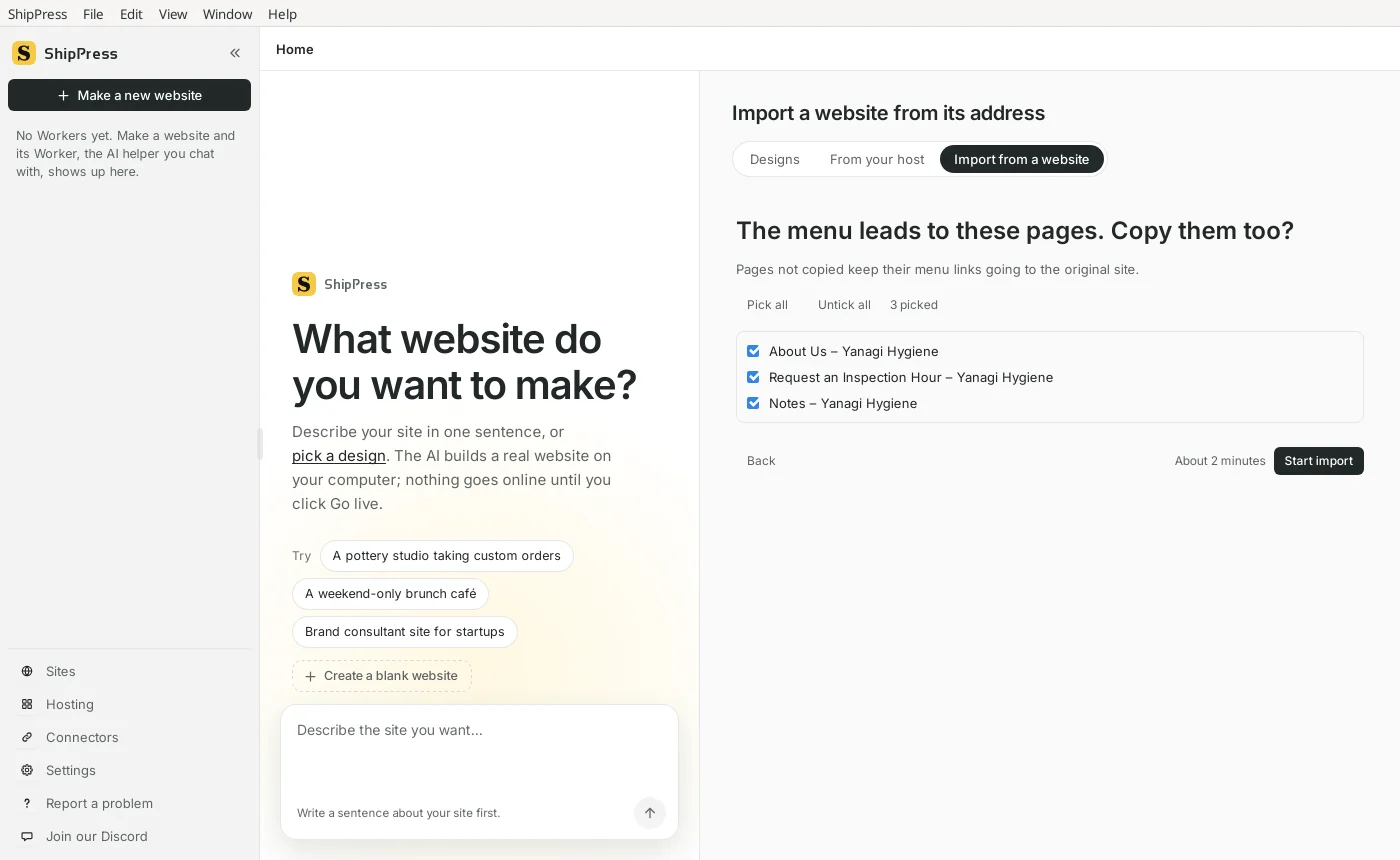
Menu pages are offered so leftover links do not have to point at the original site. -
If you chose Scan pages
ShipPress looks at which pages the site has. If the site is in more than one language, it asks which language to copy — the default language, one of the others, or all of them. It then shows a list of pages with their titles, not just addresses, so you can pick the ones you want. The front page is always copied. Click a page, then Shift-click another to tick or untick a range. Use Pick all or Untick all if that is faster. About 30 seconds is allowed for each page, and pages are done in batches.
Some sites also raise other questions: whether to bring over a shop's products as WooCommerce products, or how to treat a group of similar items (their own category, ordinary posts, as they are, or not at all). A last Check it over step lists what will be copied and about how long it will take. Click Start import to begin.
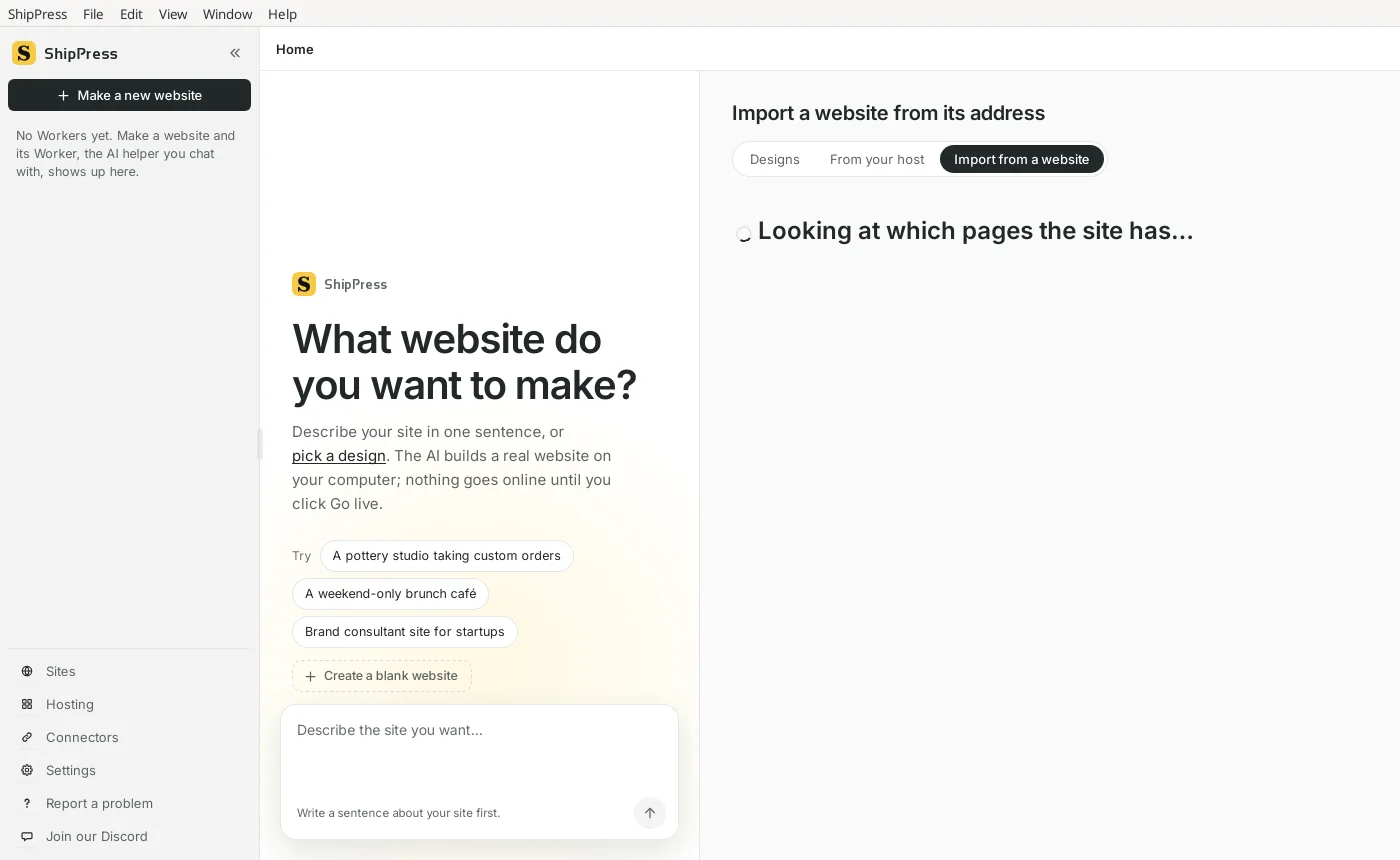
Scan pages reads the site before asking what to copy. 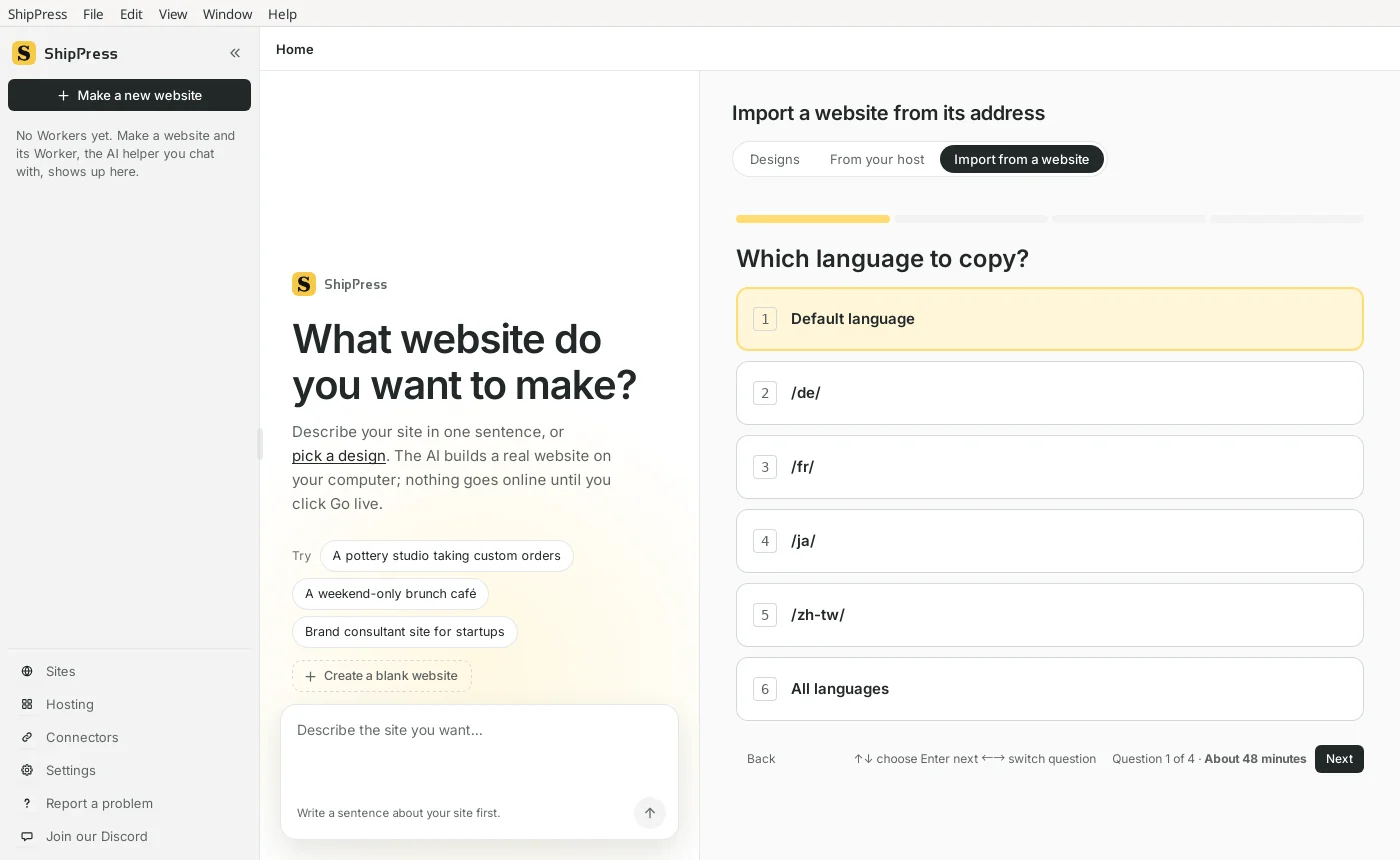
A site with more than one language is asked which to bring over. -
Wait while the copy is made
ShipPress creates the new site on your computer and copies the pages in batches, with a short rest between them. You can leave the window open; the progress message tells you which stage it is on, such as looking at the other pages or putting the pages into your site.
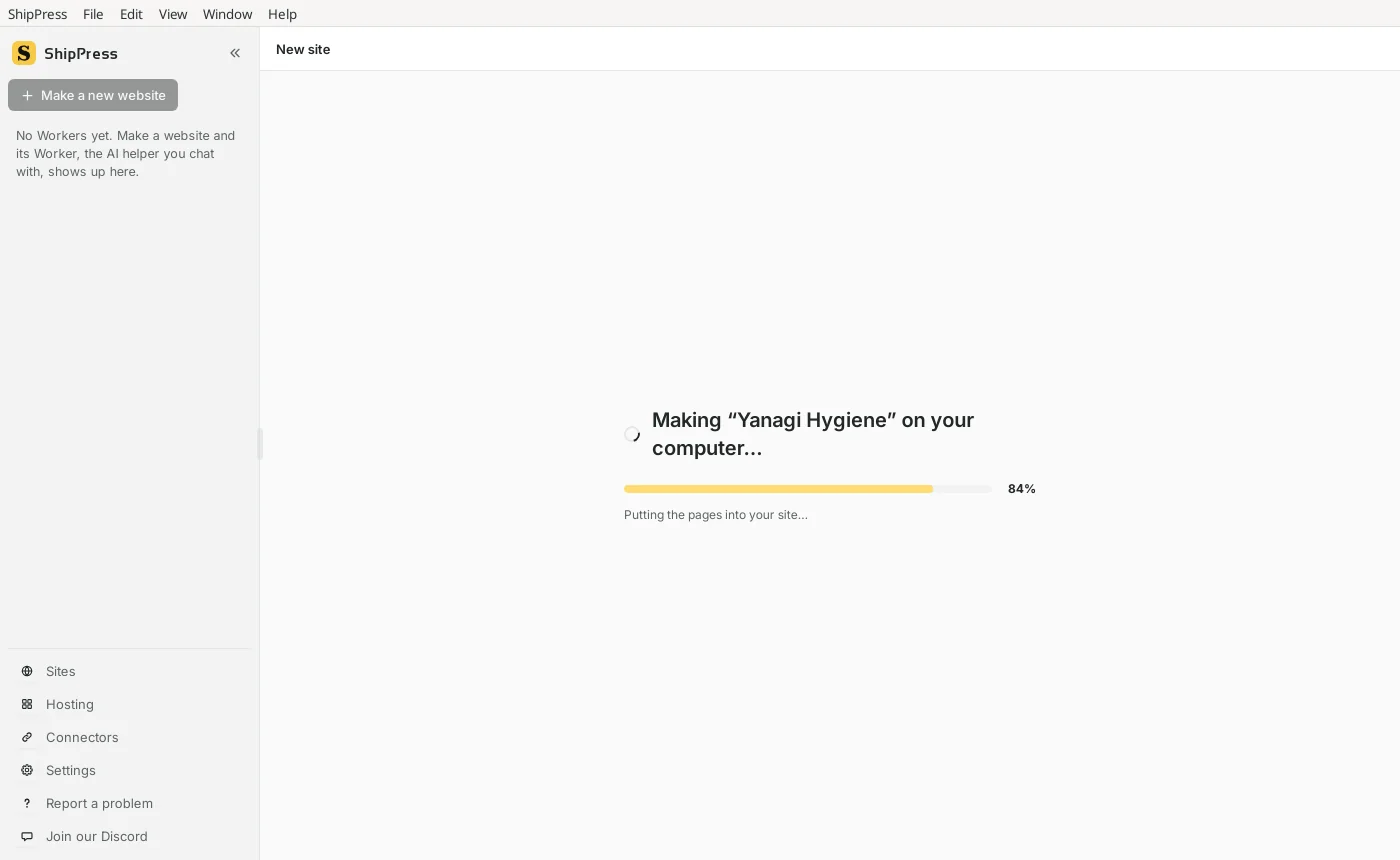
Pages are copied in batches, not all at once. -
When the copy is finished
A short report appears when the copy is done. It lists what came over — pages, pictures, videos and fonts, and any forms (those are received by the Imported Forms plugin). If some menu or in-page links still go to the original site, because those pages were not imported, the report can list them: open Show if you want to see each address.
The new site is already open behind the report. Click OK, then look around the preview. You can edit it like any other ShipPress site — for example by chatting.
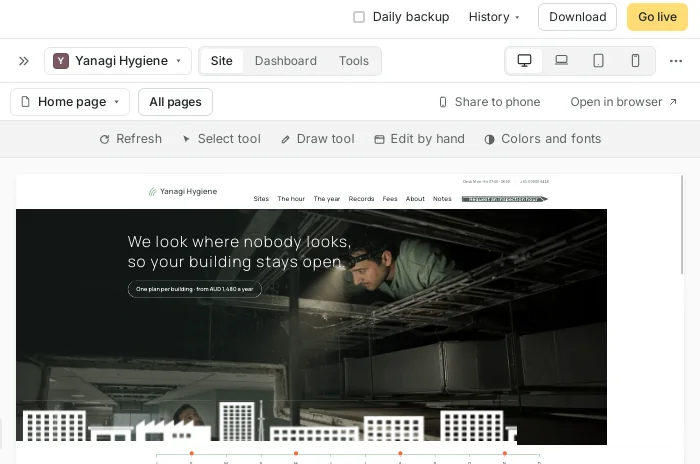
The copy opens in ShipPress, ready to edit. -
Undo the import
To put the site back to how it was before the import, open History and restore the point named Before importing. A second point marks the finished import, so you can go back or compare.
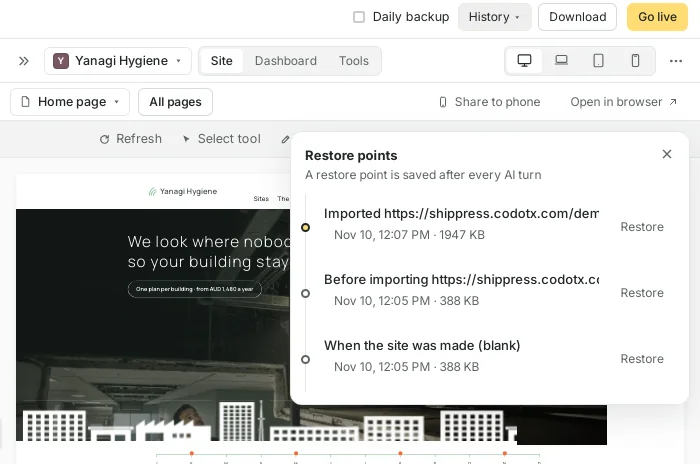
History keeps a “Before importing” restore point. -
Good to know
- The original website is not changed, and the copy does not use credits.
- You can name the new site now or later.
- Forms arrive through the Imported Forms plugin. If you do not need it, you can switch it off on the Plugins page.
- If the site already lives on a host you can connect to, Download a site from your host is the other path: it brings the site down over SSH, or from a host such as Hostinger or InstaWP, instead of copying it from its public address.
- When the copy looks right, publish your site free with a ShipPress address.
- Save a site as a template and reuse it — Save a finished site as your own template and start new sites from it on the same computer.
- Moving off Ameba Ownd before it closes? See Ameba Ownd is closing: migrate your website to WordPress.
- Leaving Squarespace? See Move your site from Squarespace to WordPress.
- Moving a Shopify store? See Move your Shopify store to WordPress and WooCommerce.