
Save a site as a template and reuse it
If you build similar sites again and again, you do not have to start from zero each time. In the ShipPress Mac, Windows & Linux app you can save a finished site as a template and start new sites from the My templates tab on Home. Freelancers and studios can start every new client site from their own proven starter: same pages, plugins and settings. Templates stay on this computer.
-
When a template helps
You built a site you like: pages, posts, media, a theme, plugins with their settings, and maybe a WooCommerce shop with products. Instead of starting from a design every time, save that site as a template and start the next one, for example the next client’s site, from it.
Templates are saved on this computer only. A template is a copy of the site as it is when you save it, and making a template never changes the site itself.
My templates arrived in ShipPress 0.1.31. To check which version you have, see About & What’s new: see your version.
-
Open the site menu and choose Save as template…
Open the site you want to keep. Click the site name at the top of the window to open the site menu. It is the same menu you use to switch sites (see Many sites in one app).
Below your sites and New site… you will find actions for the open site: Rename this site…, Change this site's design…, Save as template…, Go back to an earlier version… and Delete this site….
Choose Save as template…. If you point at it, you will see: Keep this site (shop products included) to start new sites from it on this computer. Users, orders and comments are left out.
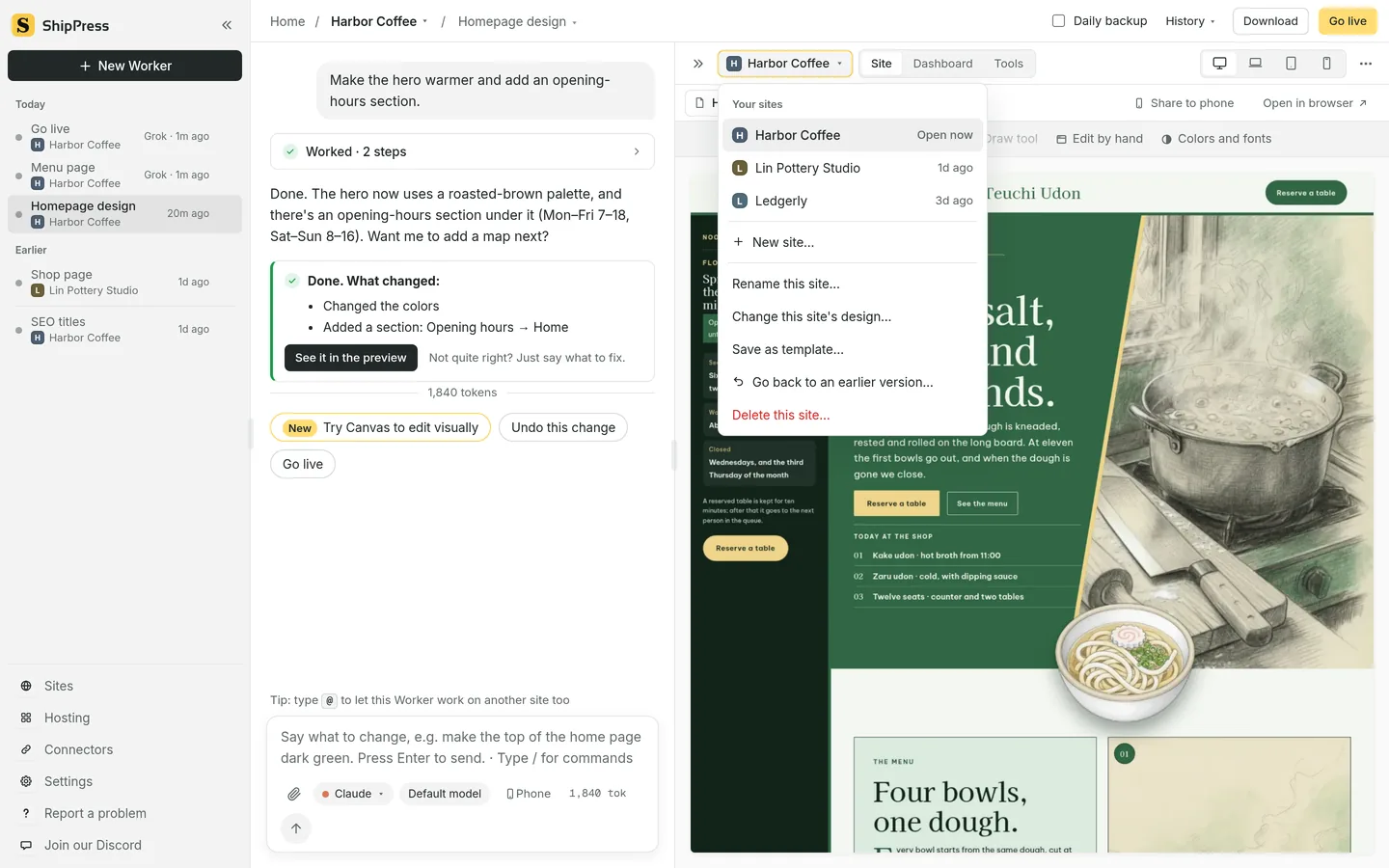
Save as template… is in the site menu, below your sites and New site… -
Name it and see what goes in
The Save as template dialog has two fields. Name is filled in with the site’s name; change it to something you will recognise, such as “Restaurant starter”. Description (optional) is for a note to your future self.
For a moment the dialog shows Checking this site…, then two lists; the first one also shows the size.
Included:
- Pages, posts and media
- Themes, plugins and plugin settings
- For a WooCommerce site: Products, variations, product categories and attributes, and the shop settings
Left out:
- User accounts and the admin password
- Comments (product reviews included)
- Orders, customers and checkout sessions
- Download permissions, customers’ saved payment details and API keys tied to an account
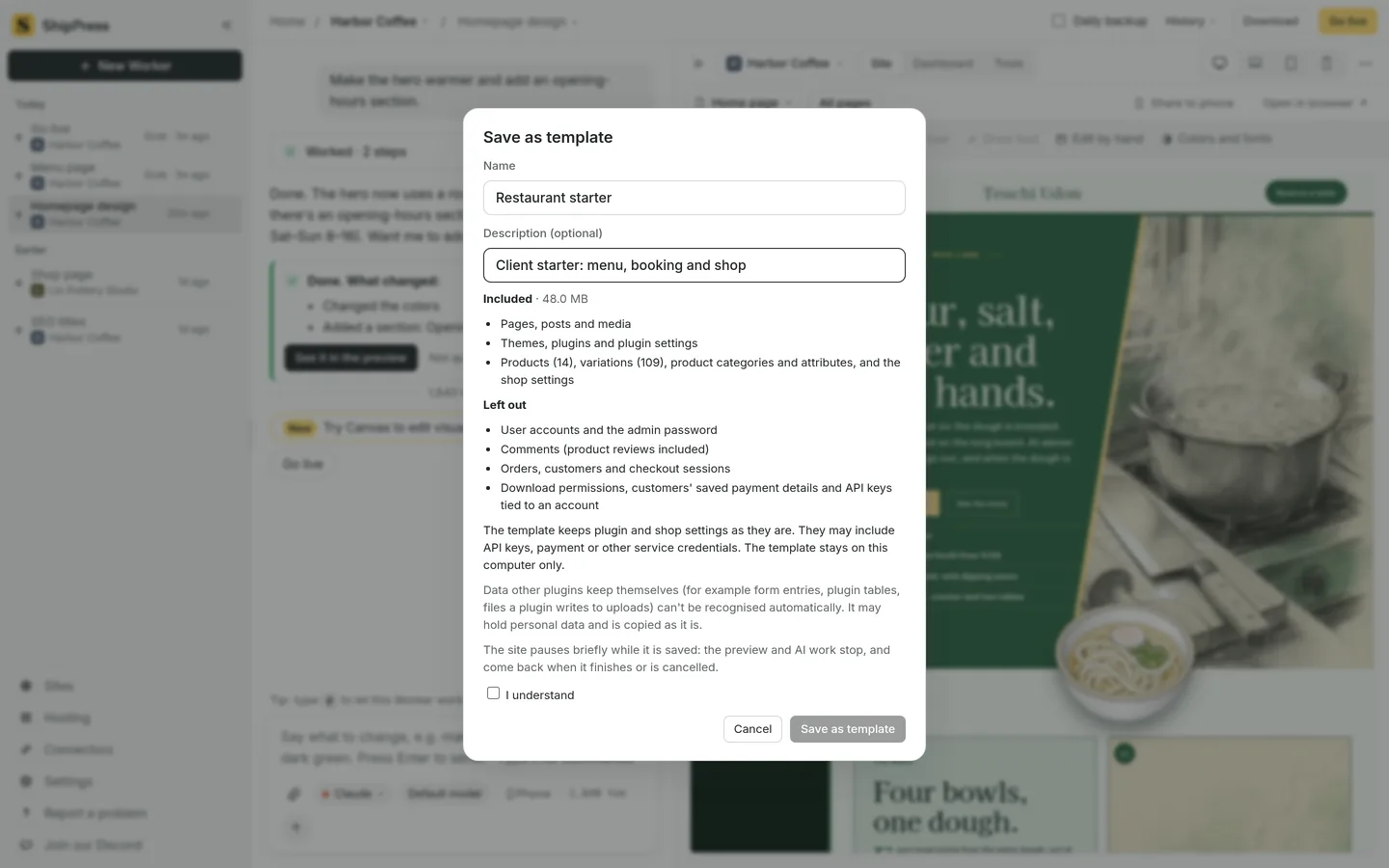
The dialog lists what goes into the template and what is left out, then asks you to confirm. -
Read the notice, tick I understand, and save
Before saving, read the notices in the dialog. The first one is about settings: The template keeps plugin and shop settings as they are. They may include API keys, payment or other service credentials. The template stays on this computer only.
The second one is about data that other plugins keep on their own: Data other plugins keep themselves (for example form entries, plugin tables, files a plugin writes to uploads) can’t be recognised automatically. It may hold personal data and is copied as it is. If the site has such tables, the dialog lists their names and row counts only.
Also note: The site pauses briefly while it is saved: the preview and AI work stop, and come back when it finishes or is cancelled.
Tick I understand, then click Save as template. The button stays off until there is a name and the box is ticked. While it shows Saving…, you can click Cancel saving; the site is not changed. When it is done you will see Saved. Use it for a new site from “My templates” on the home page. Click Done.
Two things can stop a save. The site may keep shop data in a form ShipPress can’t clean safely yet (This site keeps shop data in a form ShipPress can't clean safely yet, so it can't be saved as a template.), or there may not be enough free disk space; the dialog tells you how much more is needed.
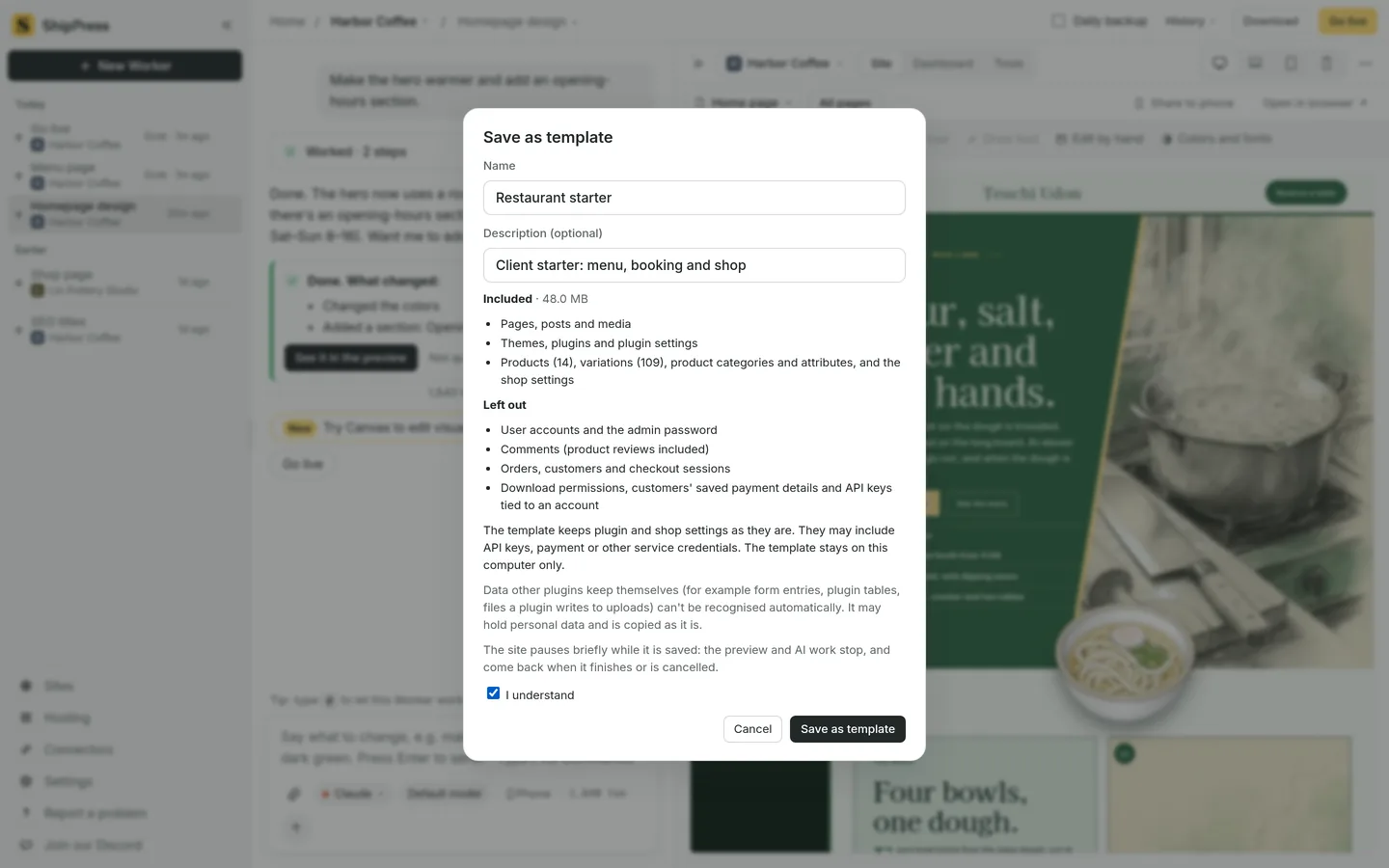
Tick I understand, then click Save as template. -
Start a new site from your template
Go to Home. Next to the Designs, From your host and Import from a website tabs there is now My templates.
It shows the heading Start from one of my templates and a card for each template: a picture of the site, its name, the number of products for a shop, its size, when it was saved and its description. At the bottom you will see Templates use … in total. With no templates yet, it says No templates yet and points you to Save as template… in a site’s menu.
Click a card; it shows Use when you point at it. The New site from a template dialog says “Restaurant starter” becomes a new site on this computer. The site it came from is not touched. Type the Site name (filled in with the template name), then click Create website.
ShipPress builds the new site with its own folder, chats and restore points, like any new site. Then you can edit it by chatting (see Edit your site by chatting).
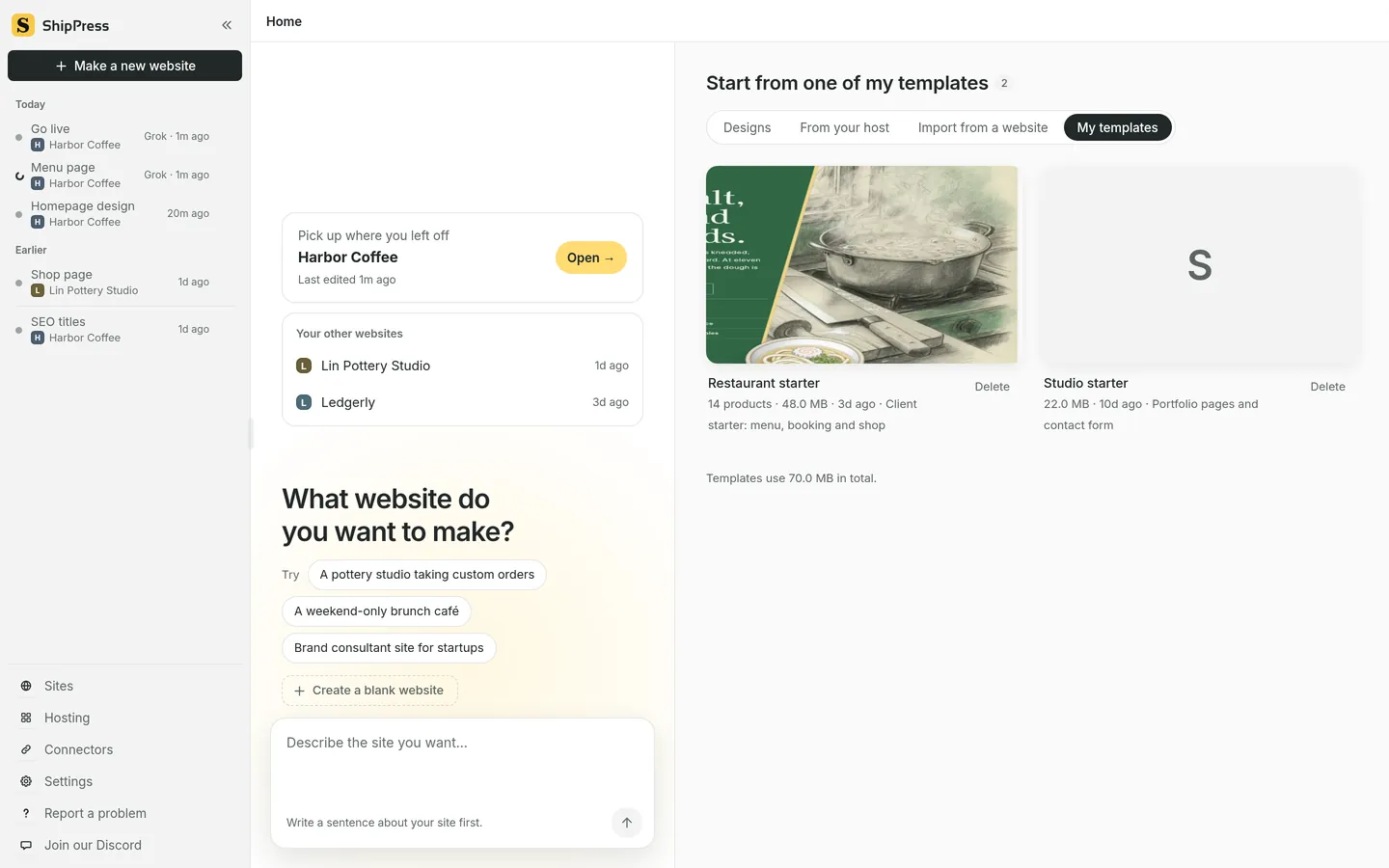
Your templates appear on the My templates tab on Home. -
Check the settings before the new site goes online
The dialog also tells you two things: A new admin account is created. and This site keeps the template's plugin and shop settings. Once open, it may connect to the same outside services as the source site (payments included) and may send email.
So before you go live (see Go live), open the plugin and shop settings in wp-admin (see It's real WordPress: wp-admin, the Site Editor and plugins) and replace any payment, e-mail or API keys with the ones for the new site.
Users, orders, customers and comments from the original site are never copied, so the new site starts clean. Products and shop settings do come along; for the shop basics, see Build a WooCommerce store with AI.
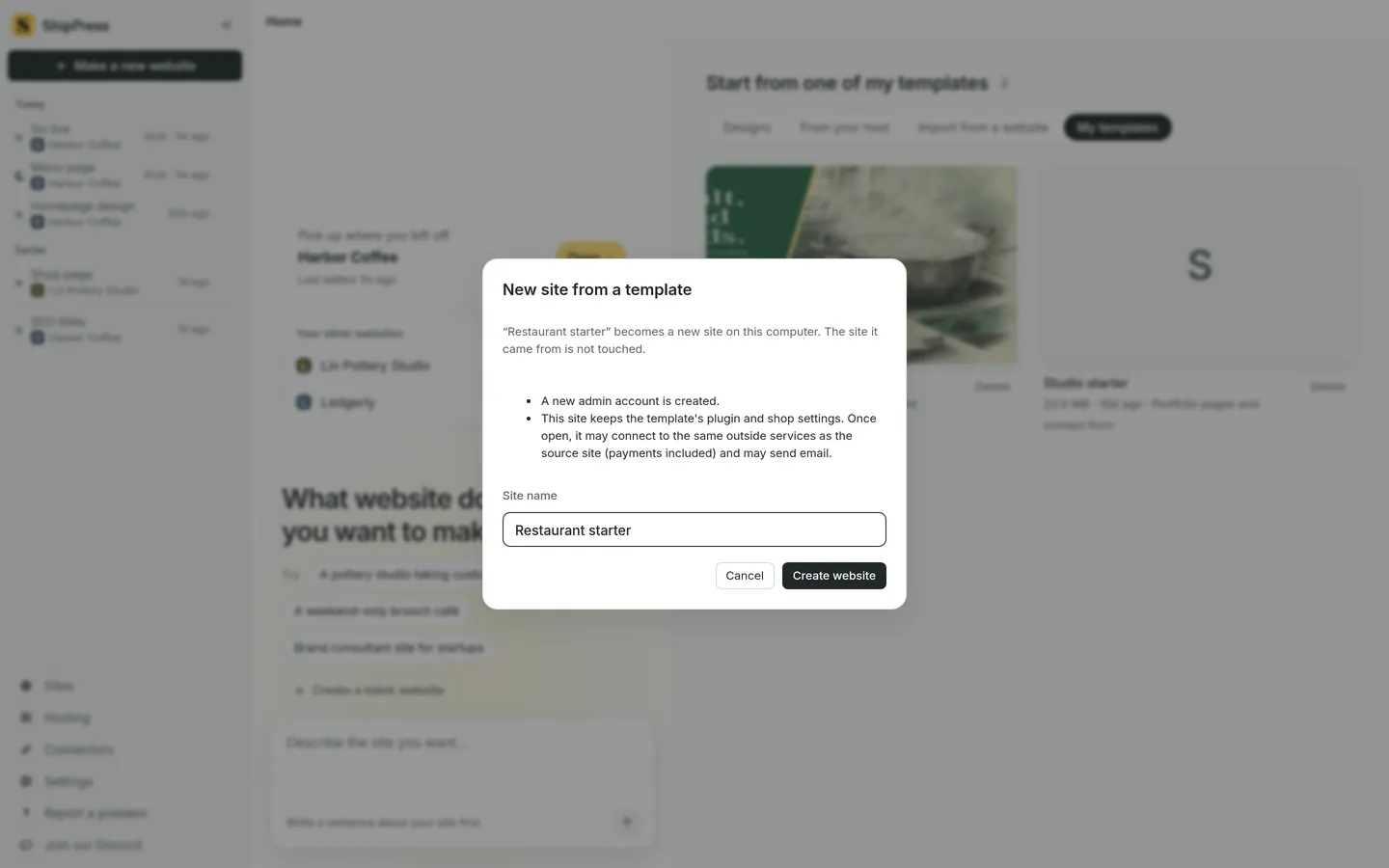
Starting a site from a template asks for a name and reminds you what carries over. -
Delete a template you no longer need
On the My templates tab, click Delete under the template. ShipPress asks: Delete the template “Restaurant starter” from this computer? Sites already made from it stay. Deleting files is not a secure erase of the disk. Click Delete template to confirm.
To see how much space your templates take, look at the line Templates use … in total.
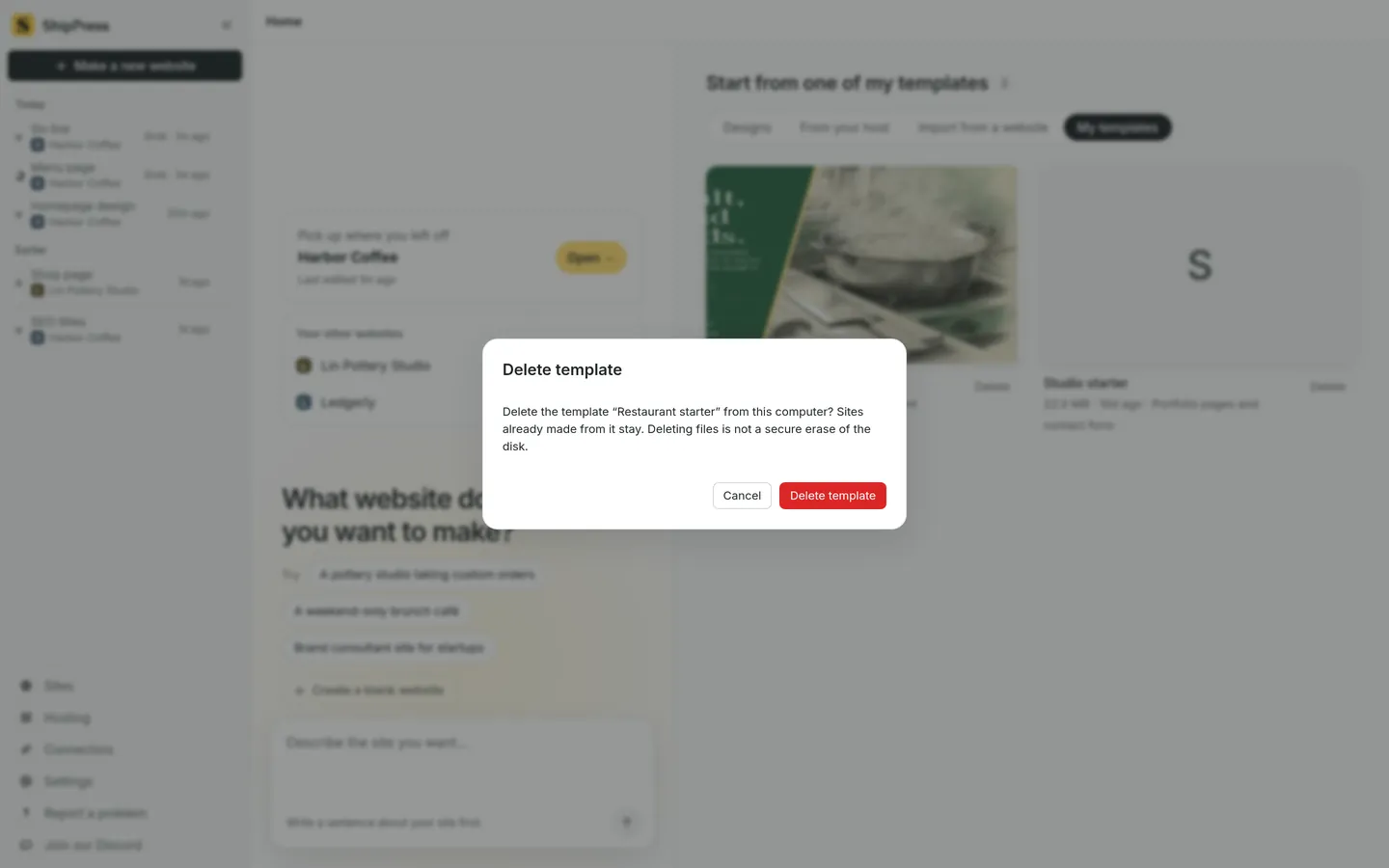
Deleting a template does not change sites already made from it. -
Where to go next
Here are a few pages that go well with templates:
- Pick a design — start from a ready-made design when you have no template yet.
- Import a website from its address — bring in an existing site as a starting point.
- Many sites in one app — switch between your sites, including the ones made from a template.
- Build a WooCommerce store with AI — set up a shop worth saving as a template.
- Undo any AI change with restore points — go back if a change goes wrong.