
About & What's new: see your version and what changed
When something looks different, or you want to know which ShipPress you are on, open Settings → About. That page shows your version number, a place to suggest a feature, and What's new — the same changelog the app ships with, shown in the language you picked for ShipPress. After an update, a short card also appears once so you can skim what changed before you keep working.
-
Open Settings → About
In the left sidebar, click Settings (the gear). In the Settings window, open the About tab at the bottom of the list. Changes in Settings are saved as you go; you do not need a Save button.
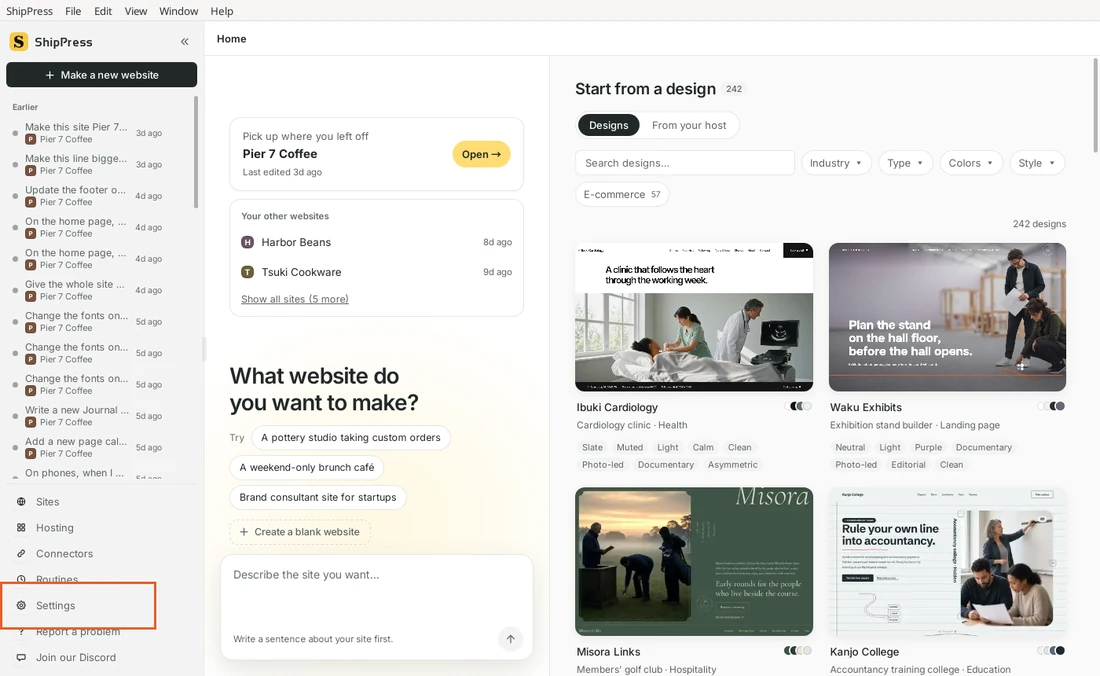
Settings sits in the left sidebar, under Routines. -
Check your version
At the top of About you see ShipPress and the version, for example v0.1.28. That is the build running on this computer. On Mac, Windows and Linux (AppImage), an Updates row also appears here so you can check for a newer version; ShipPress asks before it installs anything.
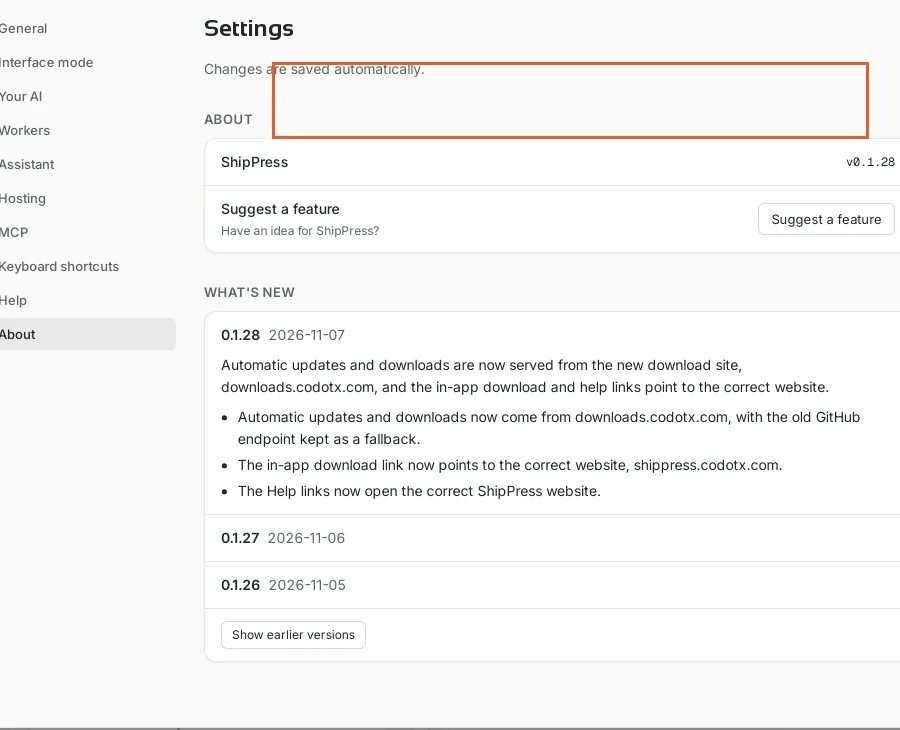
Your version is listed at the top of About. -
Read What's new
Under What's new, ShipPress lists recent versions. The newest one is open by default, with a short summary and the bullet points for that release. Click another version's heading to open it. If you want older releases, click Show earlier versions. The notes follow the app language: switch Language under General, and the list updates to match.
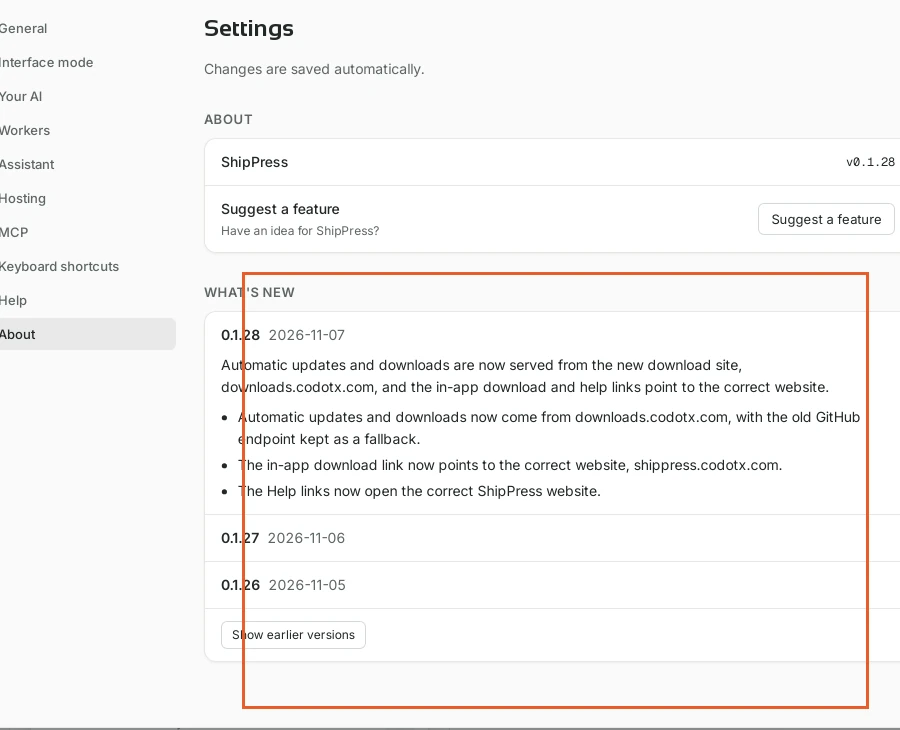
What's new lists each version. Open one to read its notes. -
The card after an update
The first time you open ShipPress after an update, a card appears: What's new in …, with that version's summary and bullets. Close dismisses it for this version. See all the changes opens Settings → About so you can browse the full list. The card only shows once per version; later launches stay quiet until the next update.
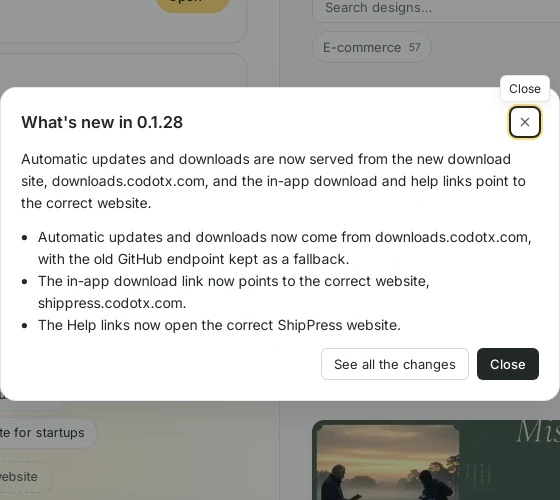
After an update, a one-time card summarises that version. -
Suggest a feature
Still on About, Suggest a feature opens a short form if you have an idea for ShipPress. Send it when you are ready; it does not change your sites.
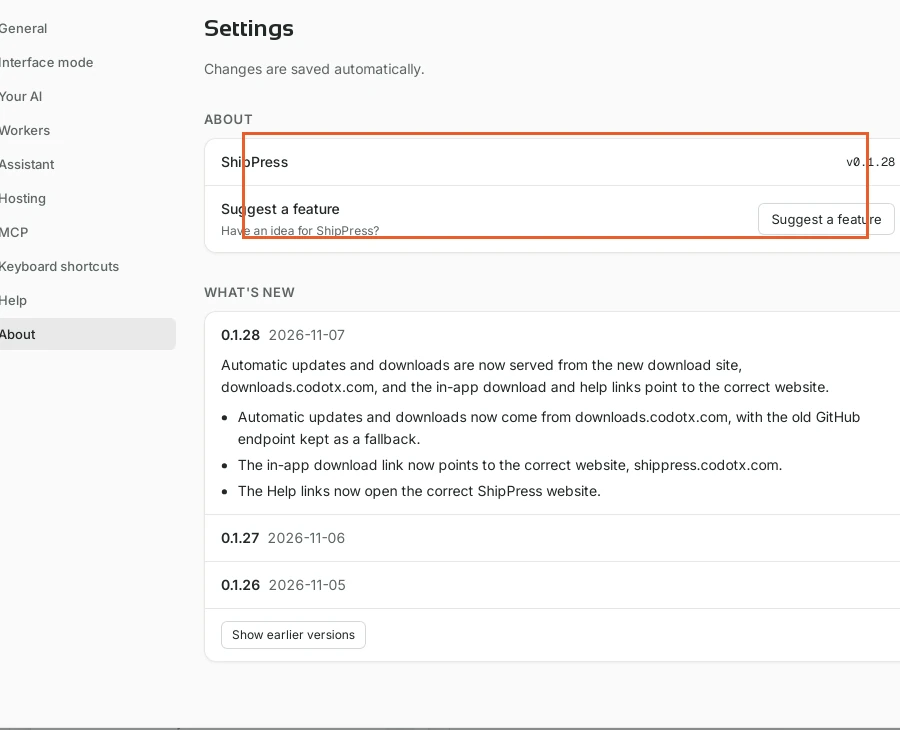
Suggest a feature is on the same About page. -
Good to know
- What's new and the post-update card use the language set under Settings → General.
- The notes are bundled with the app; you do not need to be online to read them.
- Automatic updates are offered on Mac, Windows and Linux (AppImage) from About (and a small banner when a version is ready).
- Suggest a feature never changes your sites or your AI settings.