
Connectors: let the AI use services you already use
Your menu is in a Google Doc, your logo is in Canva, your opening hours are in Notion. With Connectors, the AI that builds your site can read them directly instead of you copying and pasting. Connecting is optional, each site only uses the connectors you switch on for it, and your sign-in stays on your computer — the AI never sees it.
-
Open Connectors
Click Connectors in the bottom-left of the sidebar, between Hosting and Settings. It is best to open the site you want to use first, because switching a connector on happens for the site that is open.
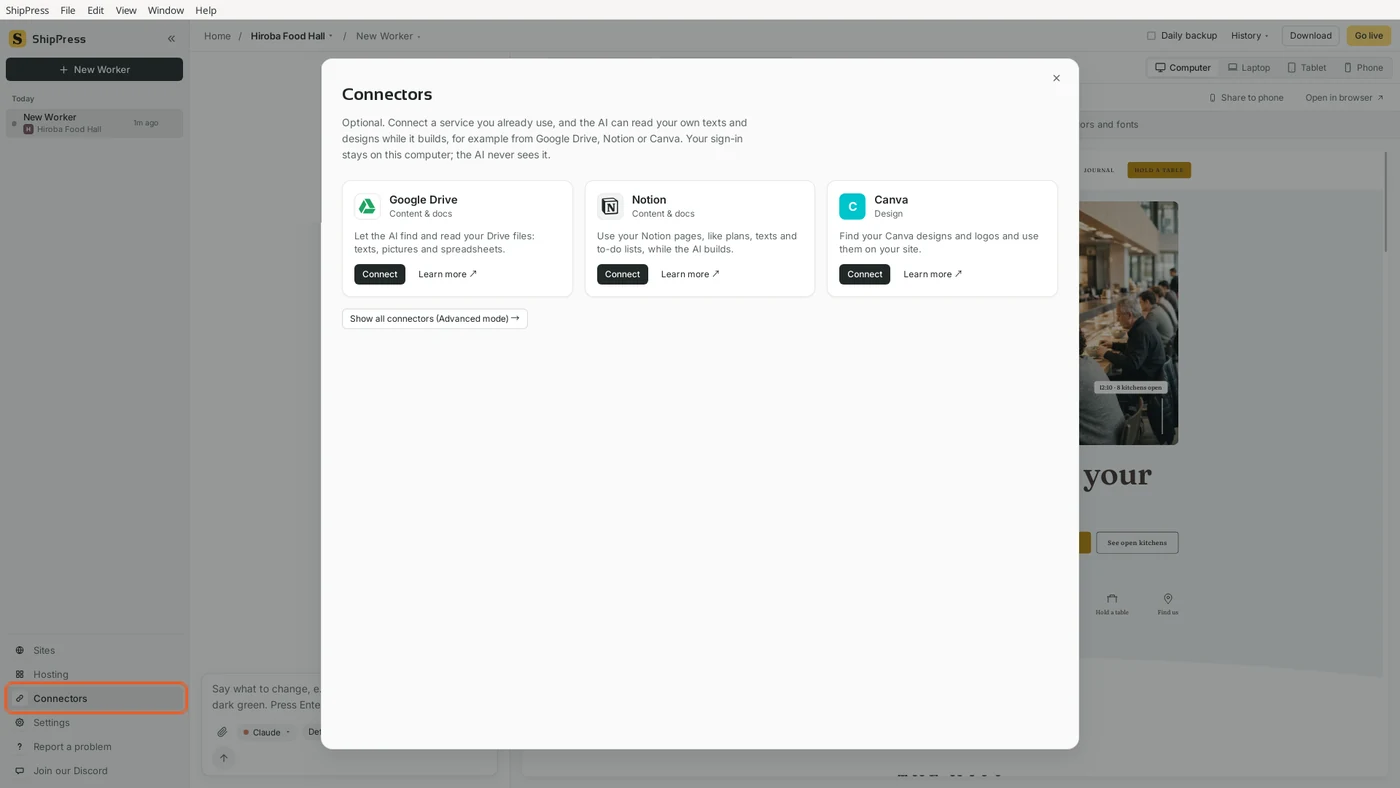
Connectors is in the sidebar, below Hosting. -
Start with the three most useful ones
At first the page shows three connectors: Google Drive (your files: texts, pictures and spreadsheets), Notion (your pages, plans, texts and to-do lists) and Canva (your designs and logos). Each card says what the AI can do with it. Learn more opens the service's own page about its connector.
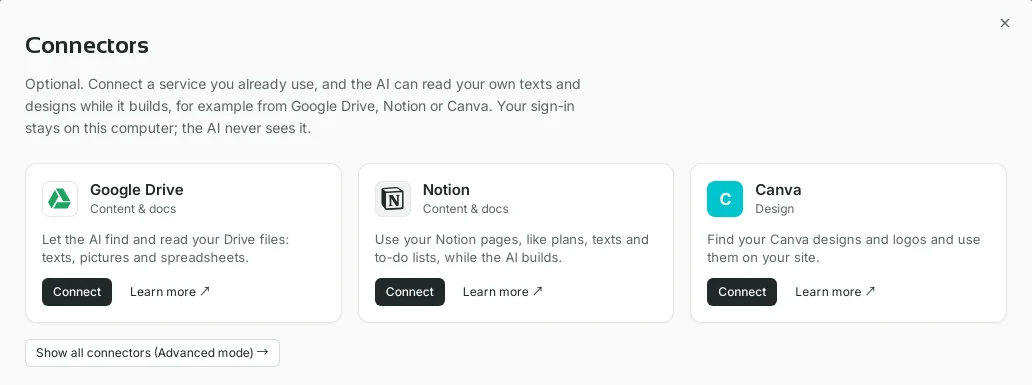
Google Drive, Notion and Canva are shown first. -
Connect a service
Click Connect on a card. For services such as Notion, a small window explains that the official sign-in page opens in your browser. Click Sign in with Notion (or Google, or Canva), allow access there, and you come back to ShipPress automatically. Details shows the address of the official connector ShipPress talks to.
Some services ask for a key instead of a browser sign-in. In that case the window shows the fields to paste it into, with a short guide on where to find it. Either way, the sign-in is kept in your computer's keychain.
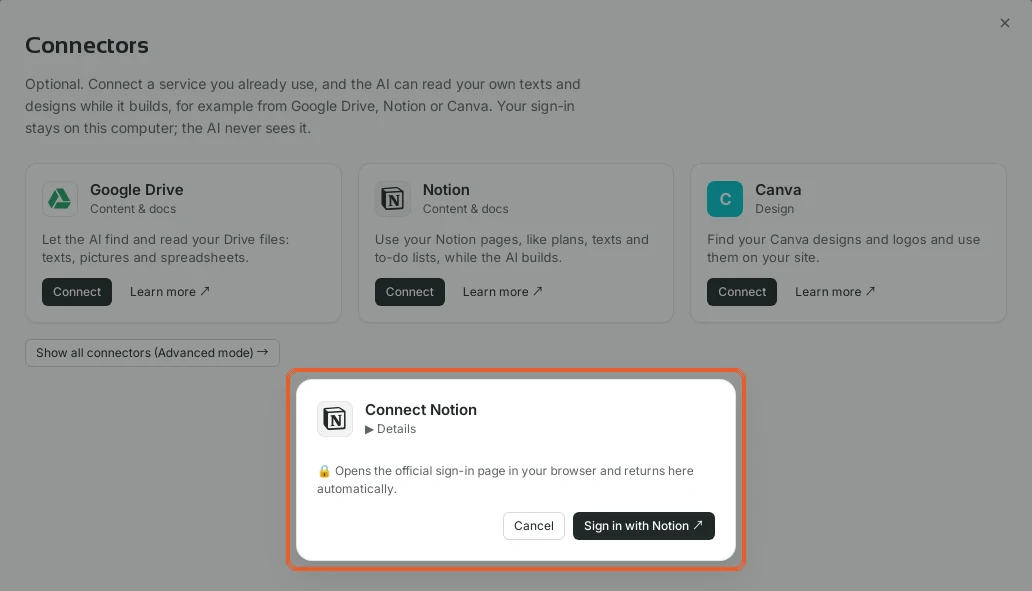
Signing in happens on the service's own page, in your browser. -
See every connector
Below the three cards, Show all connectors (Advanced mode) opens the full list. It has a search box and categories: Design, Content & docs, Communication, Dev & deploy, Data & automation, Commerce and Analytics. Only connectors with an official server are listed — for example Figma, Stripe, Slack, Cloudflare, GitHub and Context7 (up-to-date WordPress and WooCommerce guides).
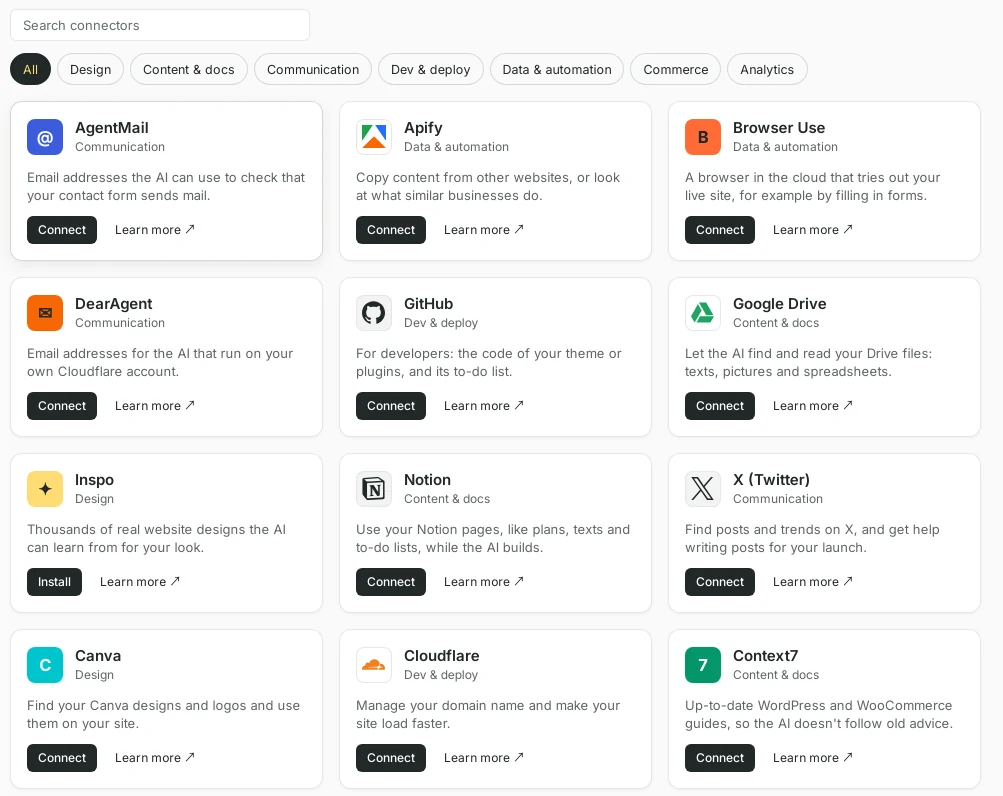
The full list can be searched or narrowed by category. 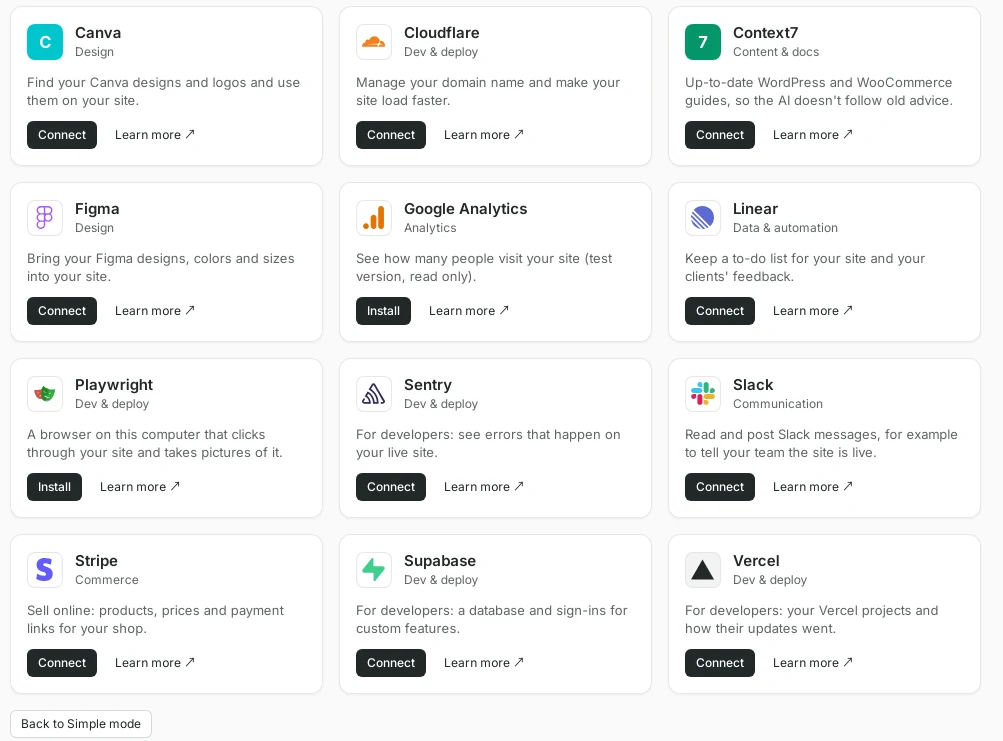
Back to Simple mode returns to the short list. -
Install one that needs no sign-in
A few connectors work without an account, so their button says Install instead of Connect. In the Design category, for example, Inspo gives the AI thousands of real website designs to learn from for your look. Click Install; when it is ready the card shows Connected.
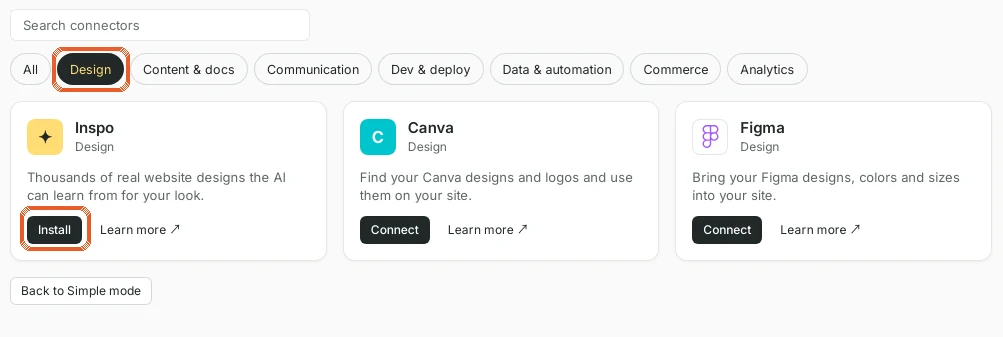
Inspo needs no account, so it installs with one click. 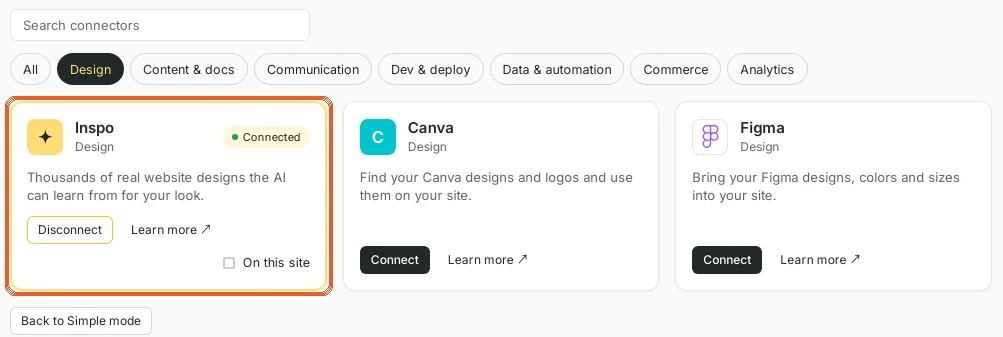
A connected card shows Disconnect and On this site. -
Switch it on for this site
Connecting a service does not hand it to every site. On a connected card, tick On this site to let the open site's Workers use it. Each site only uses the connectors you switch on for it, so a client's site never sees your personal Drive by accident. If no site is open, the page reminds you to open one first.
Then simply ask in the chat, for example: “Use the opening hours from my Notion page on the Visit page” or “Pick a look from Inspo that suits a food hall.”
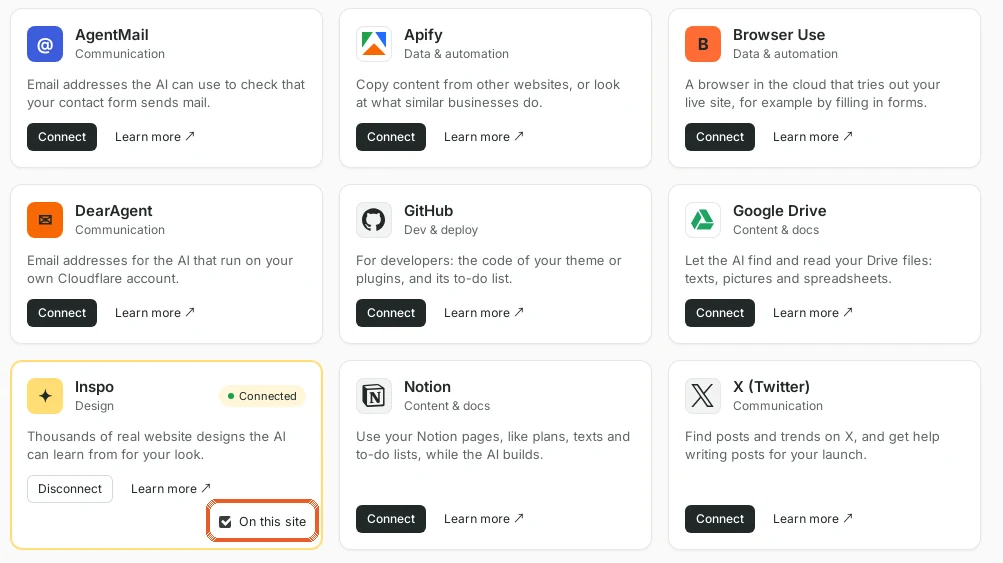
On this site decides which sites may use the connector. -
Check what is connected
Back in Simple mode, the short list also shows every connector you have connected, so you can see at a glance what is in use and whether it is on for this site. To stop using a service, click Disconnect; it goes back to its Connect button and no site can use it until you connect it again.
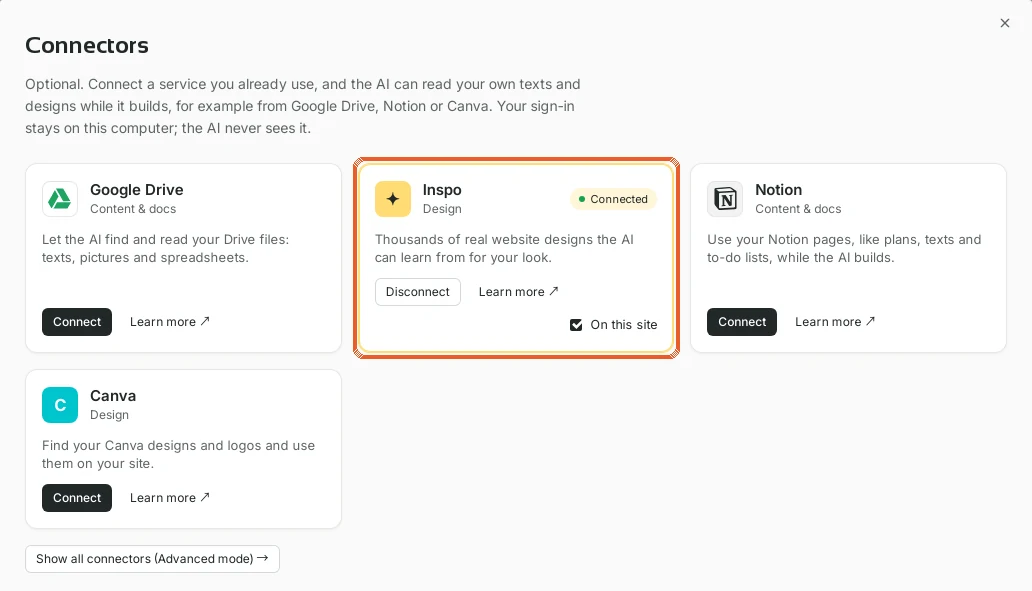
Connected services stay visible in the short list. -
Good to know
- Connectors are optional. You can build and edit a whole site without any.
- Your sign-in or key is stored in your computer's keychain. The AI never sees it.
- The full list can be hidden again with Back to Simple mode, or from Settings › Interface mode.
- To give the AI a single picture or logo instead, you can also attach it in the chat.