
Ameba Ownd is closing: migrate your website to WordPress
Ameba Ownd shuts down on 31 March 2027 at 11:00 Japan time. After that, viewing sites, the admin and export all stop, and the data can't be recovered. Ameba Ownd's export zip contains only image web addresses, not the image files themselves, so you need to migrate your website to WordPress while the original is still online. ShipPress for Mac, Windows & Linux imports your live site onto your computer and downloads the pictures, videos and fonts it finds into the new site.
-
Ameba Ownd Is Closing: Why to Move Your Website to WordPress Early
Ameba Ownd will shut down on 31 March 2027 at 11:00 Japan time (postponed from the original 24 December 2026 date). After this deadline, public sites, the management dashboard, and export features will stop completely, and the data cannot be recovered.
On 18 November 2026 (around 13:00 JST), part of the admin reopened for content export (コンテンツのエクスポート), a notice to visitors (訪問者へのお知らせ), and deleting the site. Posting and editing articles stays stopped.
The most critical detail of this shutdown is that Ameba Ownd's export zip file does not contain actual image files; it contains only image web addresses (URLs). Images are fetched from Ameba Ownd when the file is imported at the new place, so saving the zip alone does not save your pictures. They have to be brought over while Ameba Ownd is still online. For the official details, see Ameba Ownd's official help page.
-
Export the Zip File and Keep It as a Backup
Before doing anything else, log into Ameba Ownd on a computer (not a smartphone) and run the content export (コンテンツのエクスポート). This function is available only to the site owner or manager, and must be run one site at a time.
Select the WordPress format (which provides a single zip file) rather than the Ameba Blog text format. The export includes your posts, pages, categories, drafts, scheduled posts, and private entries. You will receive an email once the export is ready. The file can be downloaded for 7 days after the export finishes; after that, export again. Keep this downloaded zip safe and do not rename or edit its contents.
Keep in mind what is not exported:
- Your site design settings and theme
- Custom domain settings
- Sidebar and custom CSS adjustments
- Comments
- Images pulled in from Instagram or Facebook, and Ameba Ownd gallery material
- Shop product and order data (your shop continues on your linked BASE account)
Unsupported blocks such as SNS widgets, post lists, search bars, and share buttons are omitted. Embeds other than YouTube, Vimeo, SoundCloud, Spotify, and X become plain text titles with links. Ameba Ownd explicitly warns: do not delete your old site until your move is completely finished and verified, including the images. Once the site is deleted, you can't export it and its images can't be fetched.
-
Import the Live Site into ShipPress While It Is Still Online
While your Ameba Ownd site is still online, open ShipPress on your Mac, Windows or Linux computer. ShipPress builds a real WordPress site on your computer; the original stays untouched and no credits are used.
On the Home screen, look at the right panel tabs and select Import from a website. Under the heading "Import a website from its address", you will see the question "Which website do you want to copy?". Enter your public Ameba Ownd site address (such as yourname.amebaownd.com, or your custom domain if configured). Typing https:// is optional.
Click Next, give your new local site an optional name, and click Scan pages. (If you only need a single page and the items linked in its menu, you can choose This page only instead). ShipPress downloads the pictures, videos, and fonts it finds into your new WordPress site, so the copy keeps working when Ameba Ownd goes away. Anything it can't fetch keeps its original address and shows up in the report. Learn more in our Import from a website guide.
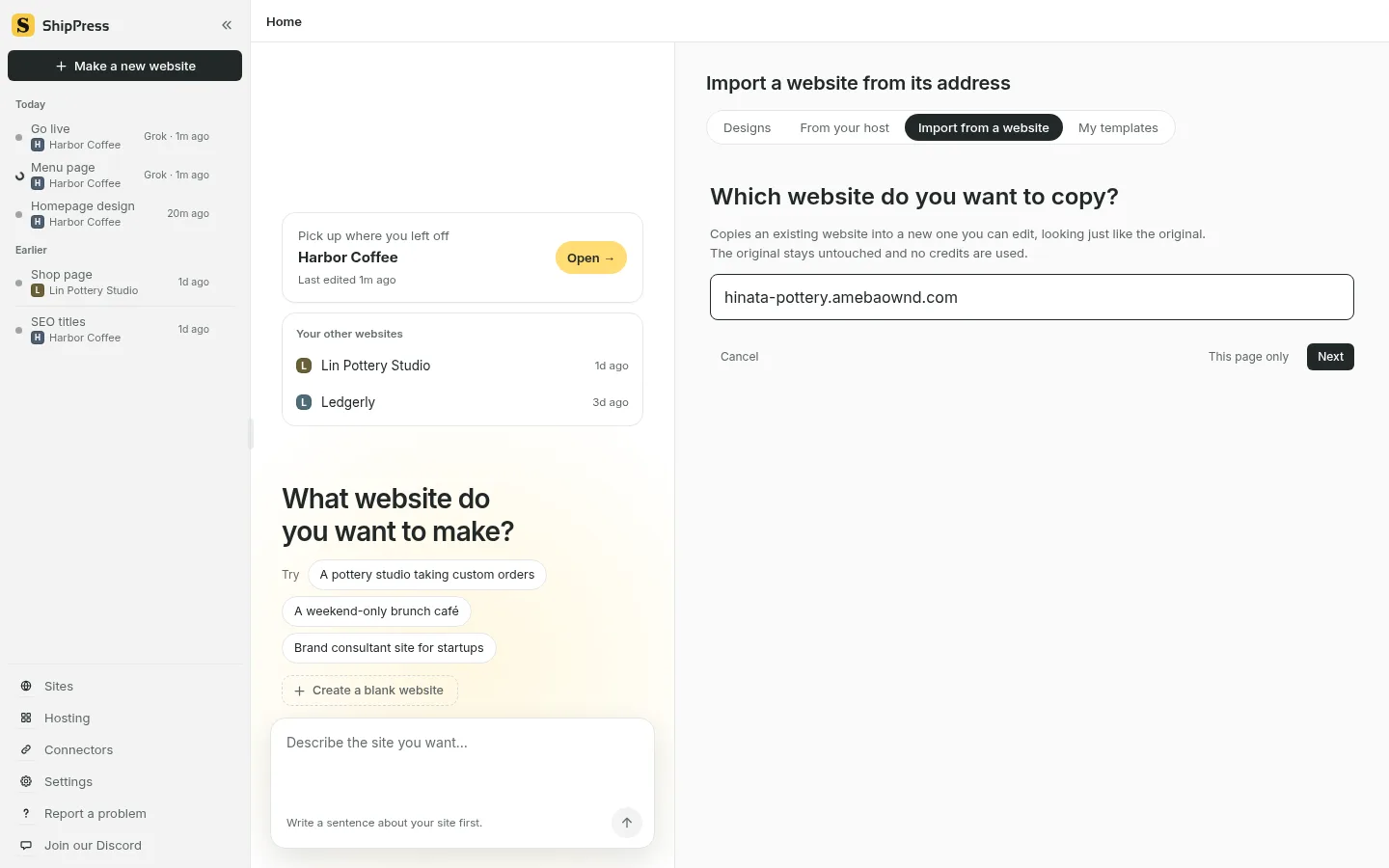
Select Import from a website on ShipPress Home, enter your Ameba Ownd site address, and click Next. -
Choose the Pages and Posts to Copy
When you click Scan pages, ShipPress reads your Ameba Ownd site's sitemap.xml and internal links (including /posts/ and /pages/), presenting an organized list of pages by title. Your front page is always copied automatically.
Use Pick all or Untick all to adjust your selection quickly, or click one item and Shift-click another to select an entire range. When ShipPress detects a repeating collection such as your blog posts, it asks how you want to handle them: assign them to their own category, import them as plain posts, keep them as they are, or leave them out.
On the final screen, Check it over, review what will be copied and about how long it will take, then click Start import. ShipPress copies pages in batches with short rests, allowing about 30 seconds per page. Large blogs take a while, so keep the app open until the import finishes.
-
Check the Import Report Before Ameba Ownd Closes
When the import finishes, ShipPress shows a report of the copied pages and posts. It includes a line such as “… pictures, videos and fonts saved; … still load from the original.” (the report shows the real numbers in place of the dots).
If the second number is above 0, those files still load from Ameba Ownd and will stop showing once Ameba Ownd closes on 31 March 2027. While Ameba Ownd is still online, check those pages and replace those pictures with your own copies, either by chatting with the AI or in the Dashboard under Media. The import limits are up to 300 files, 40 MB per file, and 250 MB in total; anything that can't be fetched keeps its original address. If some links still point to the original site (pages that were not imported), click Show to see them. Forms found on your pages are received by the Imported Forms plugin. If you need to undo the import, open History and restore the restore point named Before importing.
For blog posts only, there is also an alternative: in the Dashboard, WordPress's own Tools › Import › WordPress importer can read the XML files from your Ameba Ownd zip (one at a time, starting with -01.xml). It also fetches images from Ameba Ownd, so it too must be done before the shutdown. Don't import the same posts both ways into one site, or you will get duplicates.
-
Pick a Fresh WordPress Design
Your imported site arrives with an “imported” theme made from your Ameba Ownd layout. You can keep this look or switch to a modern design. To explore options, click your site name at the top of the preview window to open the site menu and select Change this site's design….
The design wall is the same as on Home, with filters and search. When you click a design for a closer look, the dialog says: "Your posts, photos and menus all stay, and the words on your other pages aren't changed." ShipPress automatically saves a restore point before applying the change so you can undo it with one click. If your Home page was built with the old design's layout, it gets the new design's look and sample content, and your own Home text is saved as a draft named Home (previous design) so you can ask the AI to write it into the new Home page. Because you already imported your content, leave the checkbox Also add the new design's sample content unchecked. Click Use this design to apply it. You can change back with Change back to the previous design on the Change design page. For styling tweaks, see our guides on finding designs, site colors, site fonts, and editing by chat.
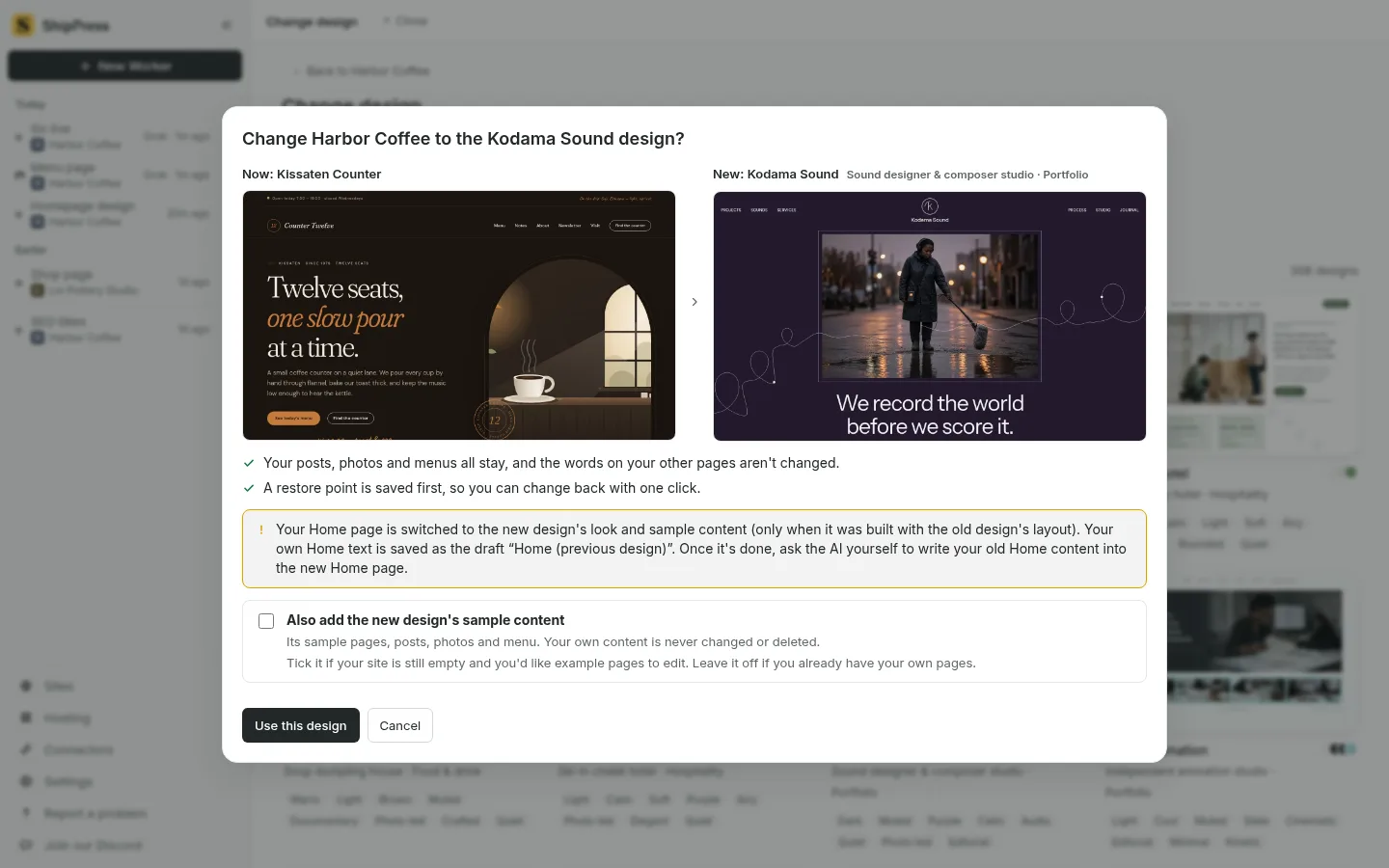
The Change design dialog: your posts, photos and menus stay, and a restore point is saved first. -
Publish the New Site to the Web
When your site looks right, click the Go live button in the top right corner of ShipPress. You will see three tabs: Free address, WordPress host, and Deploy yourself.
To launch quickly at no cost, select Free address and choose ShipPress hosting. Sign in with your e-mail and the six-digit code, then click Put it on a free address. Your site goes live on a free address ending in .workers.dev. Each account includes up to five free hosted sites, and visitor form submissions are emailed directly to you. Whenever you update your site locally later, clicking Publish changes uploads only the modified files (see publishing on a free address).
Note that a static site on a free address can't run a shop's checkout or member logins. If you need dynamic e-commerce or user accounts, switch to the WordPress host tab to connect a standard WordPress hosting provider (see our guides on going live and WordPress hosts).
-
Move Your Domain, Notify Visitors, and Retire Ameba Ownd
Ameba Ownd does not export your custom domain settings. If your original site used a custom domain, you will connect it to your new WordPress site manually. In ShipPress, go to Sites and click Address to connect your existing domain for free or purchase a new one directly (search engines skip the free address, so setting up your domain is essential; see our custom domain guide).
Once your domain is resolving and you have thoroughly checked that all pages and images display properly on the new site, open the Ameba Ownd admin and use the notice to visitors (訪問者へのお知らせ) to announce your new web address. Only delete your old Ameba Ownd site, if you want to, after everything has been checked.
Related tutorials: Importing from a website address, How ShipPress builds real WordPress, Daily backups and restores, and Move your site from Squarespace to WordPress.