
Manage your sites and free up disk space
In the ShipPress Mac, Windows & Linux app, the Sites page gives you a bird's-eye view of every WordPress site on your computer and where each one lives online. You can check how much disk space your sites use, delete old drafts to free up room, and take free-hosted test sites offline.
-
Open the Sites page
To view all your sites, look at the bottom of the sidebar and click Sites (marked with a globe icon). A tooltip notes: Sites on this computer and online: where they live and their addresses. The page works in both Simple and Advanced interface mode.
The page opens as a large window over the app. At the top, the intro explains: The sites on this computer and the ones online. To deploy, open a site and click Deploy; addresses and online sites are managed here. Putting a site online is not done here—you do that with the Deploy button inside an open site. When you are finished, close the window with the × at the top right or press Esc.
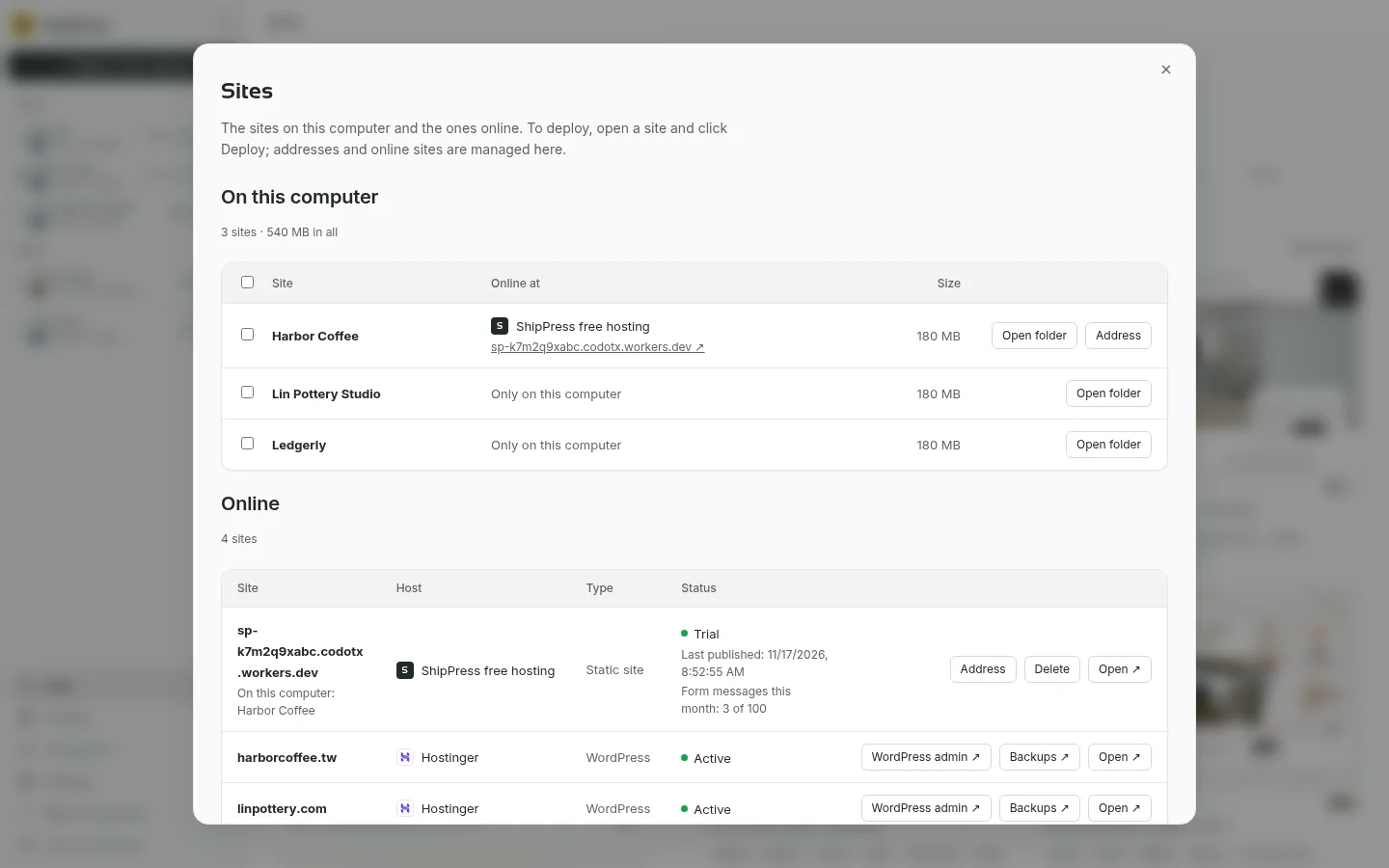
The Sites window lets you review local storage and online locations in one place. -
Check sites on this computer
The top section, On this computer, lists every site installed locally. A summary line above the table shows your total count and storage, such as 3 sites · 540 MB in all (a small spinner appears in the Size column while folder sizes are being calculated).
The table shows four main columns:
- Site: The name of each site. The site you are currently working on is marked Open now.
- Online at: Shows Only on this computer if the site has not been published anywhere. If you deployed it, you will see the host logo, the host name (such as ShipPress free hosting or Hostinger), and a link (↗) to open the live site in your browser.
- Size: The disk space taken by the site's folder in KB, MB, or GB.
- Buttons on each row: Click Open folder (Open this site's folder in your file manager) to view the complete WordPress install in Finder on Mac or File Explorer on Windows (see Many sites in one app). Sites on ShipPress free hosting also show an Address button.
-
Select sites you want to delete
When client drafts, tests, or old experiments pile up, you can remove them directly from the table. Tick the checkbox next to each site you want to remove, or tick the checkbox in the table header to select all of them.
As soon as you tick a box, the line above the table updates to show your selection and total space, such as 2 selected · 360 MB. Two buttons appear alongside it: Delete selected sites and Clear selection.
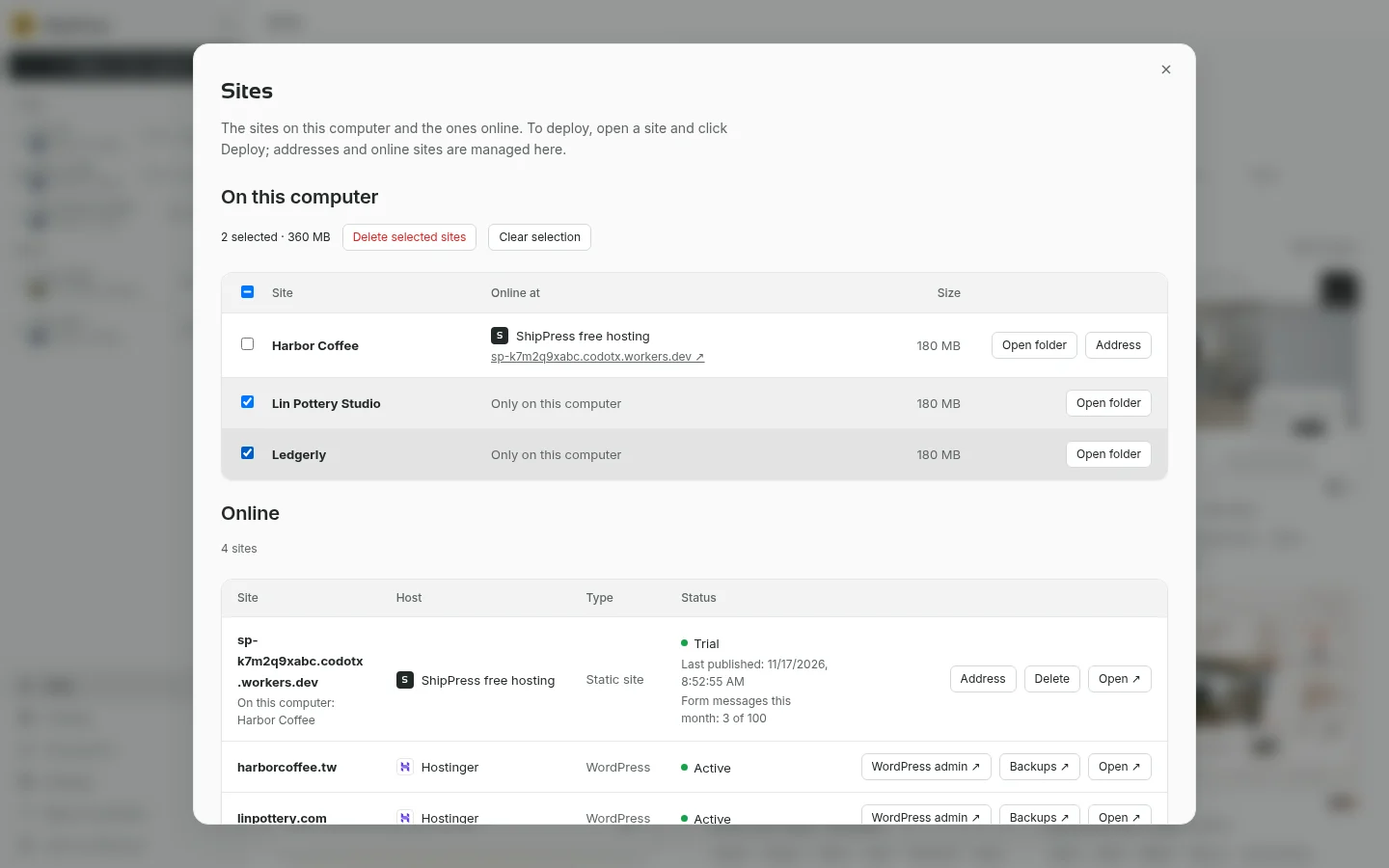
Select one or more sites to see how much disk space deleting them will free up. -
Delete them from this computer
Click Delete selected sites to open the confirmation dialog, titled Delete 2 sites from this computer. The dialog displays an explicit warning: These sites, their Worker chats and restore points are deleted from this computer. This can't be undone.
The dialog lists each site name and confirms the space gained: Frees 360 MB. If some of the ticked sites are online, the dialog adds a note: … of them are online: those online copies stay. Delete them under Online below. Nothing is deleted until you click the red Delete button (or click Cancel to keep them).
If the site marked Open now is among the deleted ones, ShipPress closes it and returns to Home. Deleting cannot be undone. If you might need a site again, keep a copy first by saving it as a template (see Save a site as a template and reuse it) or exporting it (see Your site is yours: export it and move it to your own host).
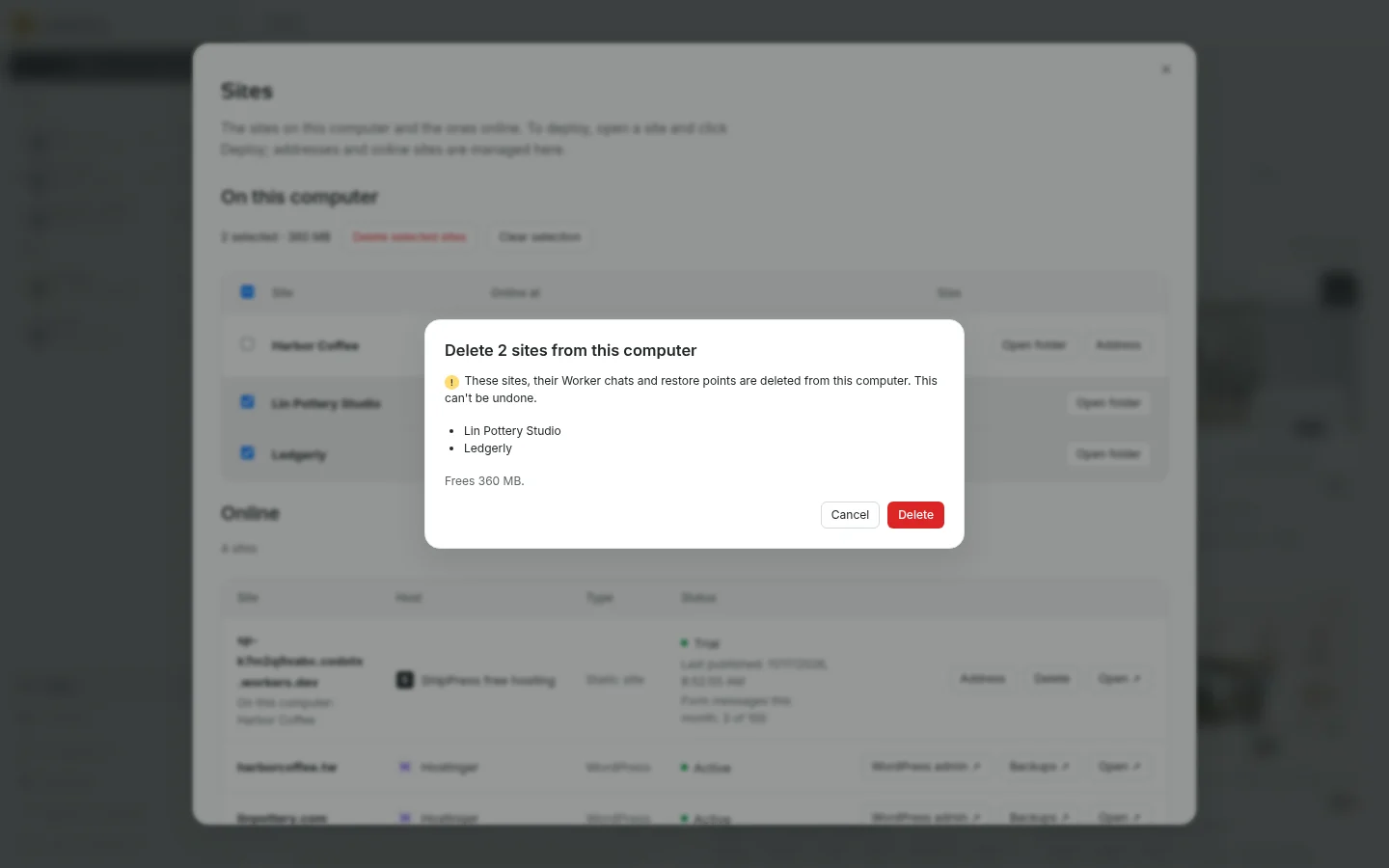
Review the warning and space freed before confirming local deletion. -
See what is published online
Below your local list, the Online section shows every website live on the web, with a count such as 4 sites. Sites on ShipPress free hosting and Spacefast appear first, followed by sites from connected hosting accounts like Hostinger. When the list gets long (more than six sites), a Search domains box appears above the table.
The table details each online property:
- Site: The online domain. If the site was deployed from your machine, it shows On this computer: Harbor Coffee.
- Host: The hosting provider.
- Type: WordPress, Other, or Static site.
- Status: Displays the current state, such as Active, Suspended, or Expired (or Trial, Ending soon, and Ended on free hosting, with some hosts showing Expires in … days).
For ShipPress free hosting, the row displays Last published: followed by the date and time, and Form messages this month: 3 of 100, with buttons for Address, Delete, and Open ↗. For connected hosts, rows provide quick browser shortcuts: WordPress admin ↗ (opens the dashboard already signed in), Backups ↗, and Open ↗.
-
Take a free-hosted site offline
If you published a test or draft on ShipPress free hosting and no longer want it publicly accessible, click Delete on its row (available when no purchased custom domain is attached). This opens the dialog titled Delete the online site.
The confirmation explains: sp-k7m2q9xabc.codotx.workers.dev is taken off the internet; visitors can't see it any more. The site on your computer stays as it is, and you can deploy it again later. If a custom address was attached, it adds: The address www.example.com is disconnected too; remove its CNAME record at your domain provider.
Click the red Delete button to take the site down, or Cancel to keep it live. Sites on other hosts (like Hostinger) have no Delete button on the Sites page; manage or remove those in your host's own dashboard. Local and online sites remain strictly separate: taking an online site down never touches the files on your computer.
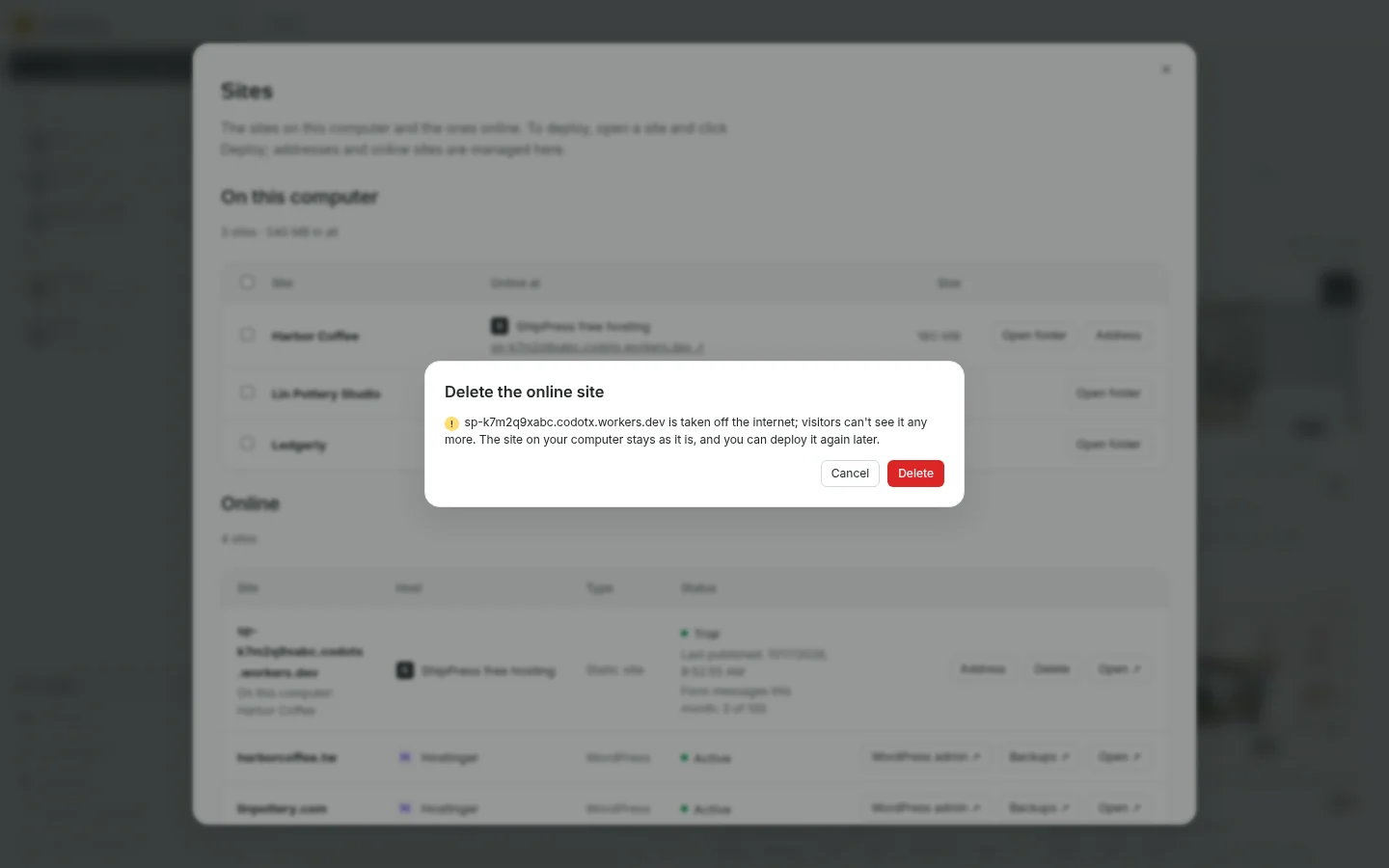
Deleting a free-hosted site removes it from the web while keeping your local copy intact. -
Manage domains and download copies
From the Online section, click Address on any free-hosted site to configure a custom domain or check DNS records (see Give your site its own domain).
If you work in Simple mode, a helpful note appears: Changed something on a live site and want to keep editing it here? You can download a copy to this computer. Click Show download buttons to reveal Download to this computer buttons for your host sites, allowing you to pull down live content (see Download a site from your host and Download from your host).
If you have not connected an external host yet, the section shows No hosting provider connected with Connect your hosting account, and the websites already on it show up here. Click Choose a hosting provider to connect your account (see Get a web host and connect it to ShipPress).
-
Good to know and next steps
Local and online sites are completely independent. Deleting a site from your computer never removes its live online version, and taking an online site down never deletes your local files.
- Many sites in one app — Learn how to open site folders, switch sites, and manage app settings.
- Publish your site free with a ShipPress address — Put any local site online with a free address.
- Give your site its own domain — Connect your custom domain to any free-hosted site.
- Go live — Deploy and publish changes from your local site to the web.
- Get a web host and connect it to ShipPress — Connect external hosting providers to manage all your client sites.
- Save a site as a template and reuse it — Keep reusable starting points before clearing out old local sites.
- Your site is yours: export it and move it to your own host — Back up and export your site files before deleting.