
Download from your host: update the open site from its online version
In the ShipPress Mac, Windows & Linux app, the top-bar Download button brings changes from your online site back to this computer. You can refresh the open site or save a separate copy, choosing files, the database, or both. Your live site on the host is never changed.
-
Find Download next to Go live
When you have a site open in ShipPress, look at the top bar. Right next to the yellow Go live button, you will find Download.
If you hover over it, the tooltip explains: Bring the online site's files or database back to this computer. Click it to open the window titled Download from your host to this computer.
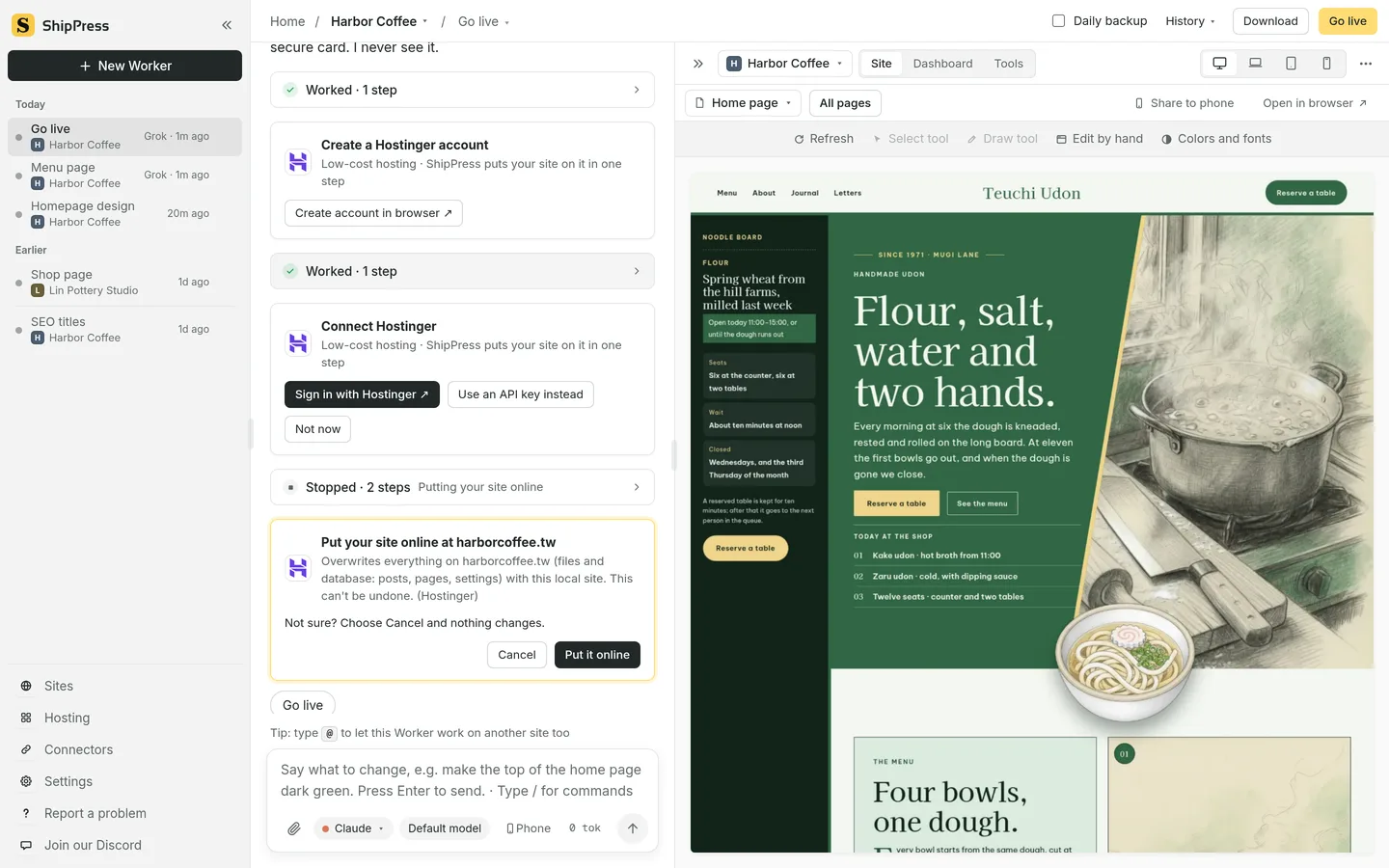
The Download button sits right beside Go live in the top bar. -
Pick a site on your host
The window opens with Loading the sites on your hosts… and then lists the sites from your connected hosts. The host name appears under each address.
ShipPress lists the open site's own address first and marks it This site's online version. For harborcoffee.tw on Hostinger, click Download next to the address. Other sites like linpottery.com can also be downloaded. Sites that cannot be downloaded show a clear reason, such as Not a WordPress site for old-blog.net.
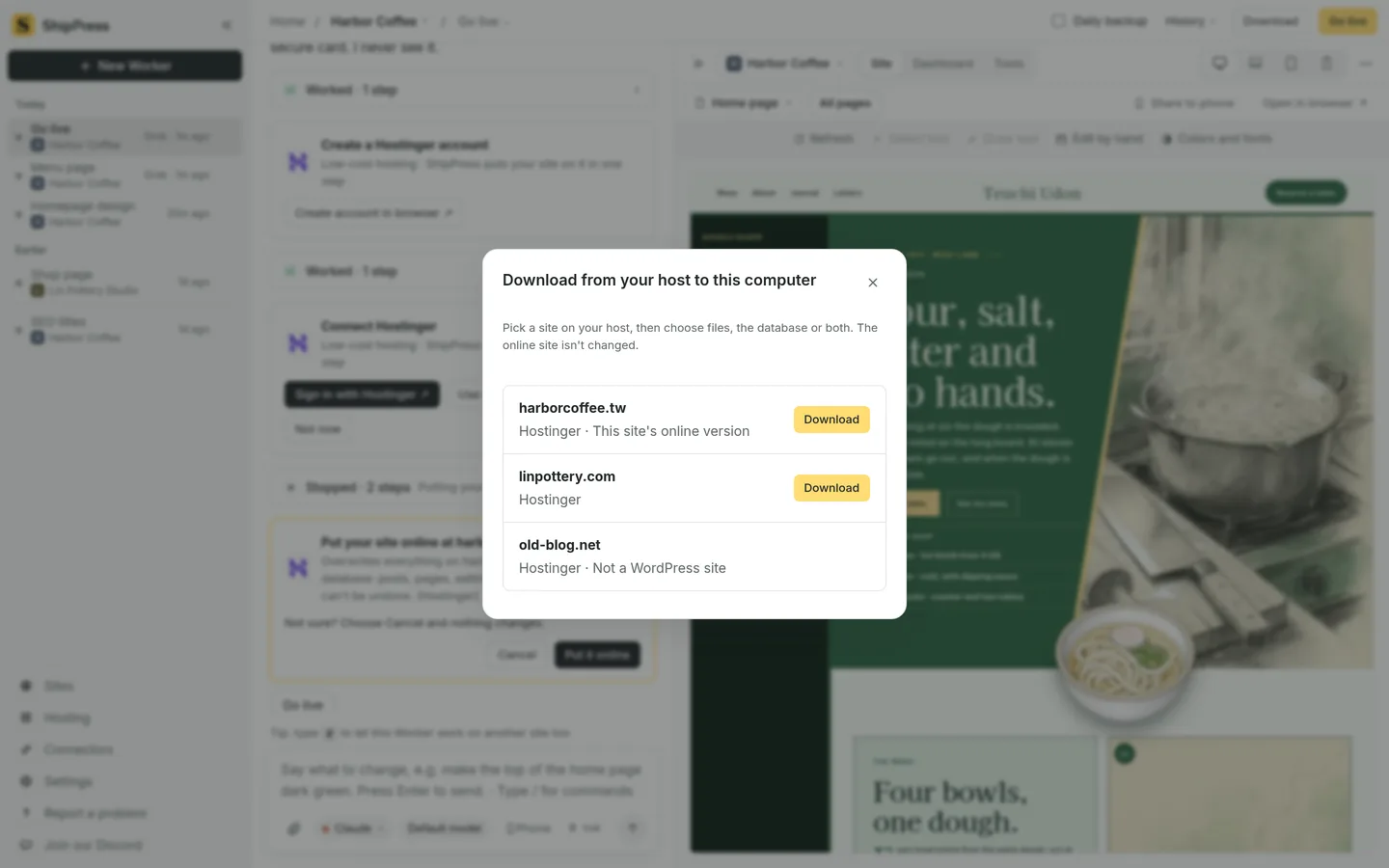
Select your site from the list of addresses found on your connected host. -
New site or replace the open one
Clicking Download opens Download your site to this computer. You will see: Makes a copy of harborcoffee.tw on this computer. Your site on Hostinger stays exactly as it is.
Because you opened this from an open site and chose its matching online address, Replace the site that's open now is preselected. A note confirms: A restore point is saved first, so you can undo.
To protect your work, a yellow warning asks you to tick I understand the site on this computer will be replaced by the online one. Once ticked, the button Replace and download becomes available.
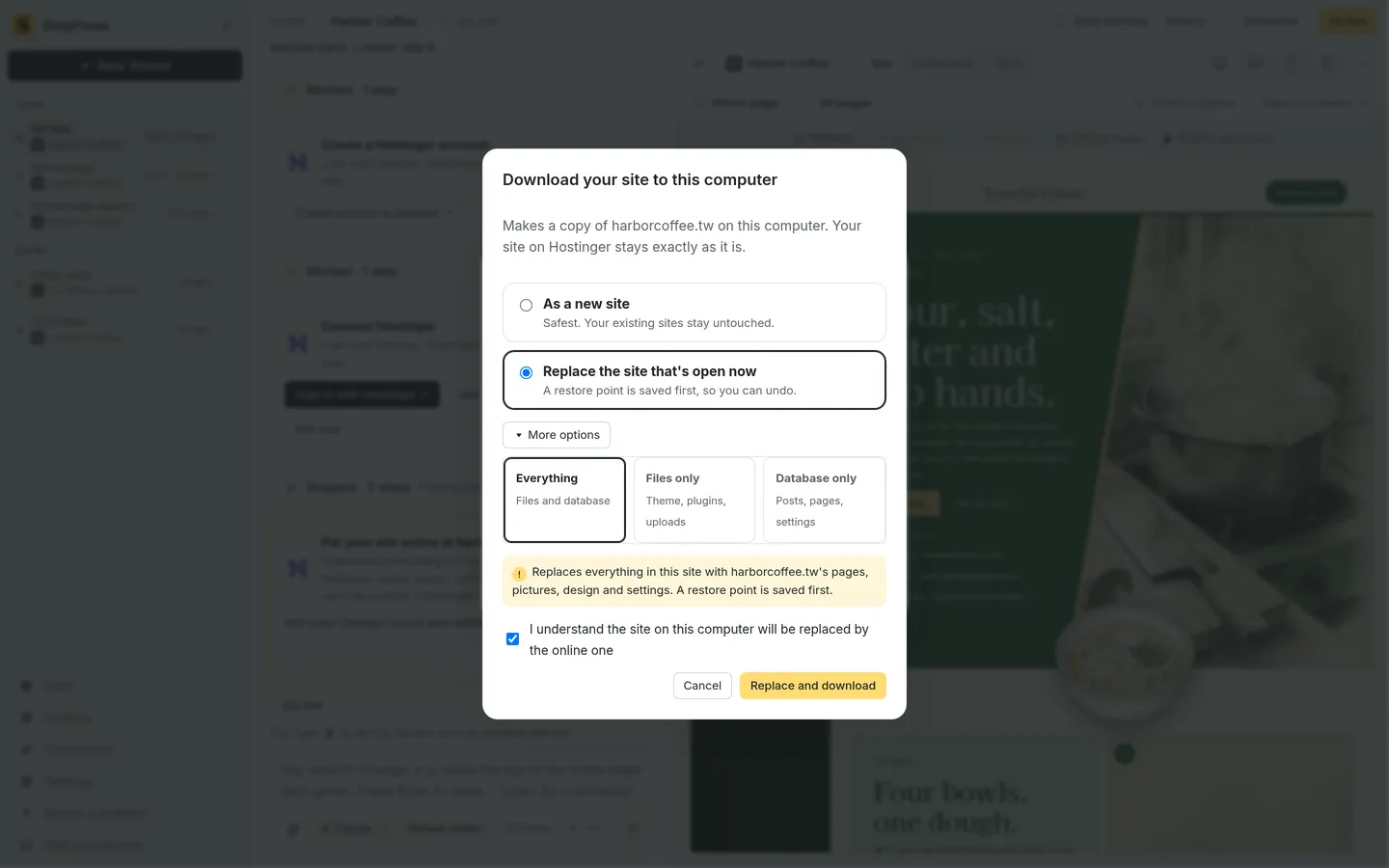
Tick the confirmation box to enable the Replace and download button. -
Choose files, database or both
Click More options to choose what to bring down. The default is Everything (Files and database). You can also choose Files only (Theme, plugins, uploads) or Database only (Posts, pages, settings).
If you choose As a new site (Safest. Your existing sites stay untouched.) and pick Database only, the dialog explains: Copies only posts, pages and settings; the new site uses default WordPress files, so the theme may be missing. Click Download a copy to proceed.
In Advanced mode (see Interface mode: Simple vs Advanced), supported hosts also let you select specific folders under Only these folders (none = all): Themes, Plugins, and Uploads.
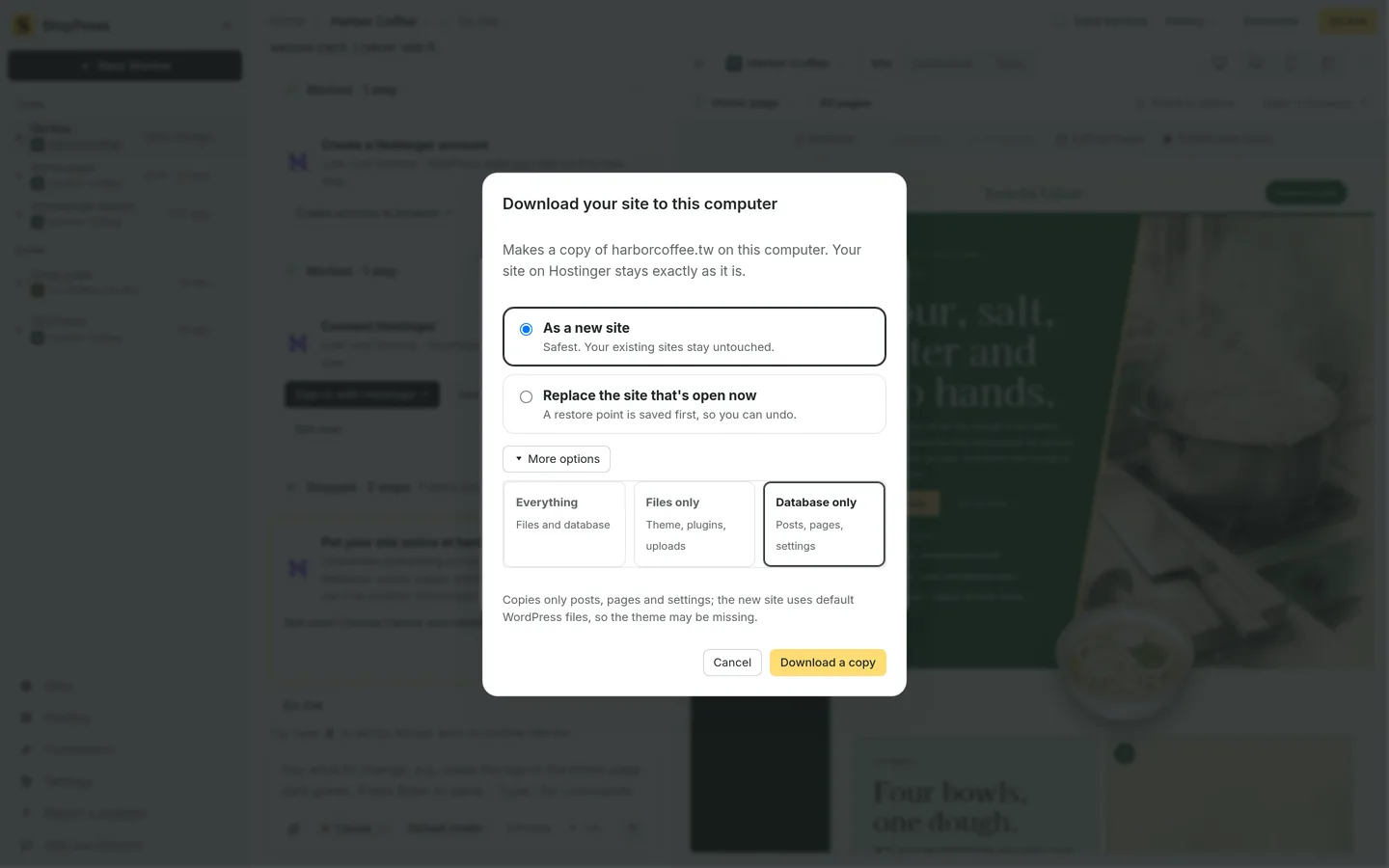
Select whether to bring down the entire site, only files, or just the database. -
Follow it in the corner panel
Once you click the download button, the dialog closes and a progress panel appears in the bottom-right corner. It confirms: Copying from Hostinger. You can keep working.
The panel displays Step n of total and shows clear progress steps: connecting, downloading files, downloading the database, unpacking files, importing the database, pointing addresses to this computer, and finishing up. You can click Cancel download at any time without changing anything on your computer.
When finished, the panel announces harborcoffee.tw is downloaded. If you downloaded a new site, click Go to Home to open it.
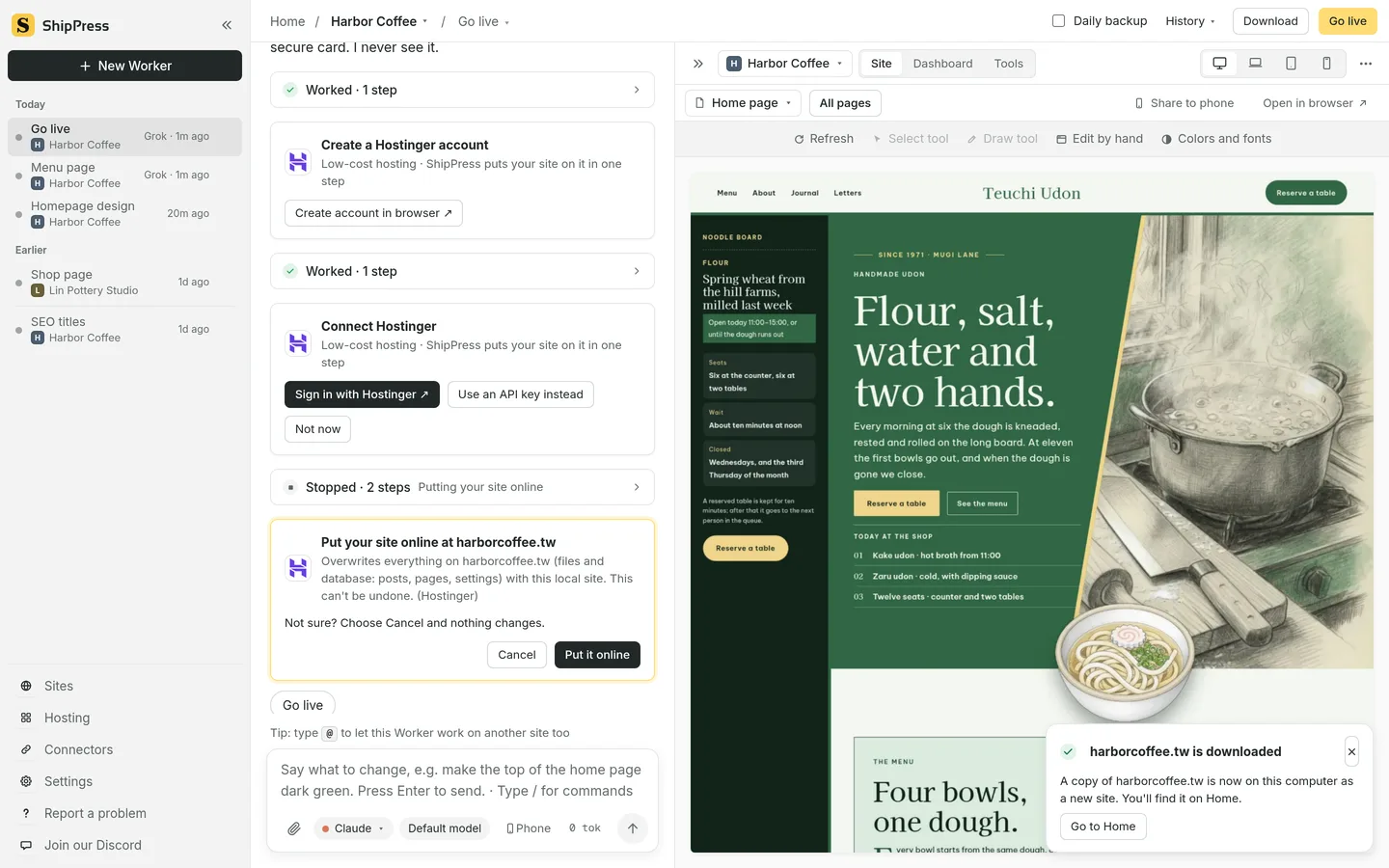
The progress panel tracks the download steps and notifies you when the site is ready. -
Good to know
The online site on Hostinger is never altered when you download. All downloads are strictly one-way copies to your computer.
When replacing an open site, ShipPress automatically saves a restore point before overwriting anything. You can always revert to your earlier local version through History in the top bar (see Undo any AI change with restore points).
The top-bar Download button is designed to refresh the open site with recent online updates. By contrast, the From your host tab on Home always downloads as a brand-new local site (see Download a site from your host). To push local changes back to your host, use the yellow Go live button (see From local to live: what Go live replaces).
-
Where to go next
- Download a site from your host — Start a brand new local project from an existing live website.
- Undo any AI change with restore points — Roll back local changes or downloads safely at any time.
- From local to live: what Go live replaces — Understand what files and database records are transferred online.
- Go live — Publish your local WordPress site updates to the web.
- Get a web host and connect it to ShipPress — Connect Hostinger, InstaWP, or custom SSH servers.
- Interface mode: Simple vs Advanced — Learn how to access advanced folder selection and developer settings.