
Keyboard shortcuts and the Quick Switcher
Most things you do in ShipPress have a keyboard shortcut: starting a new Worker, moving between Workers, switching the right side between Preview, Tools and Canvas, stopping the AI, or going live. You don't need to learn them all. Two are enough to start: Ctrl+/ shows the whole list, and Ctrl+K opens the Quick Switcher, where you type a few letters to find what you want. On a Mac, use ⌘ wherever this page says Ctrl, and ⌥ Option for Alt.
-
See every shortcut
Press Ctrl+/ (⌘/ on a Mac) anywhere in the app. The Keyboard shortcuts sheet opens over the window, grouped the same way as the menus: ShipPress, File, Edit, View, Window and Help. Each row shows the keys for this computer, so a Mac shows the ⌘ symbols and Windows shows Ctrl.
Press Esc, click the ×, or click outside the sheet to close it.
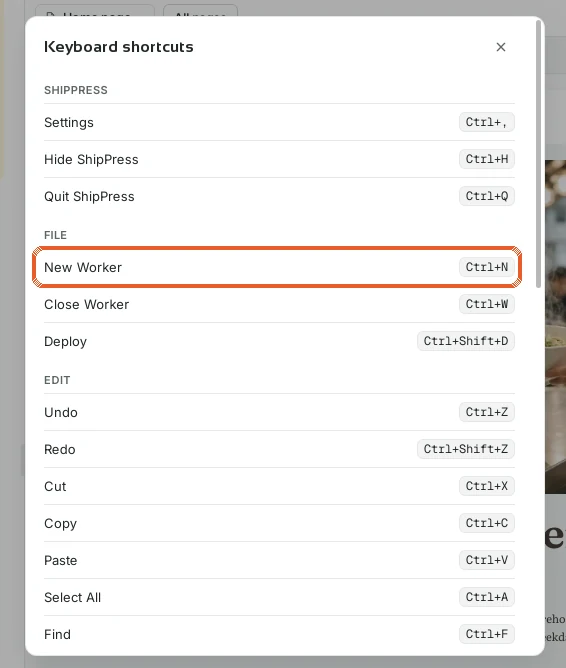
Ctrl+/ opens the full list. New Worker is Ctrl+N. 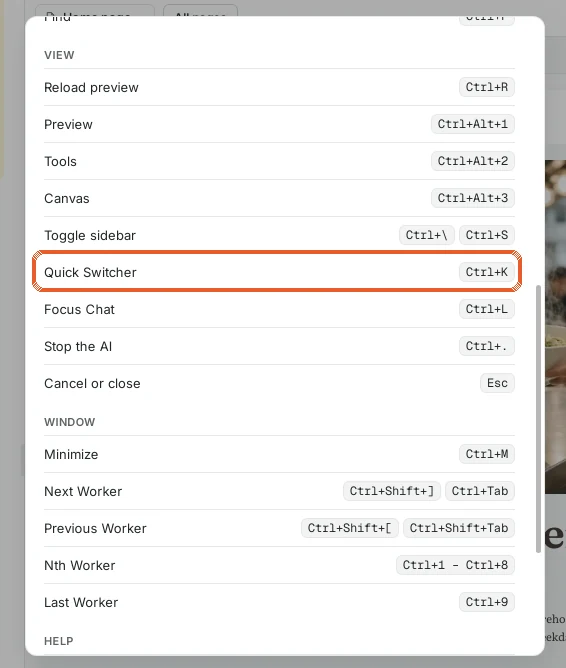
Scroll down for the View and Window shortcuts. -
Jump anywhere with the Quick Switcher
Press Ctrl+K (⌘K). The Quick Switcher opens with a search box at the top and three lists: Workers (each with the site it works on), Sites, and Commands with their shortcuts. Use the ↑ and ↓ arrow keys to move, Enter to open the highlighted item, and Esc to close. Picking a Worker opens its chat, and picking a site opens that site.
Ctrl+F opens the same Quick Switcher, so the find key you already know works here too.
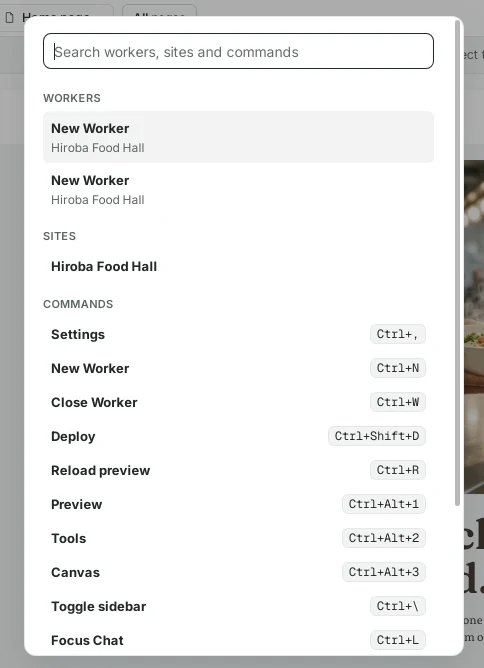
Workers, sites and commands in one searchable list. -
Type a few letters, then press Enter
You rarely need to scroll. Start typing and the lists narrow as you go: a few letters of a site's name, a Worker's title, or a command. Typing canv leaves only the Canvas command; press Enter and the right side of the window switches to Canvas, with all your pages side by side.
The Quick Switcher also shows each command's own shortcut, so after a few uses you can skip it: Ctrl+Alt+3 goes straight to Canvas.
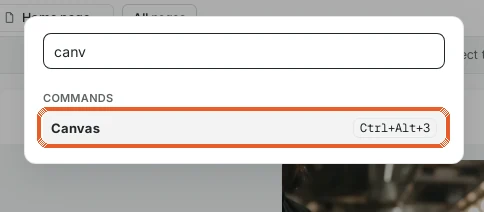
Typing narrows the list to what matches. 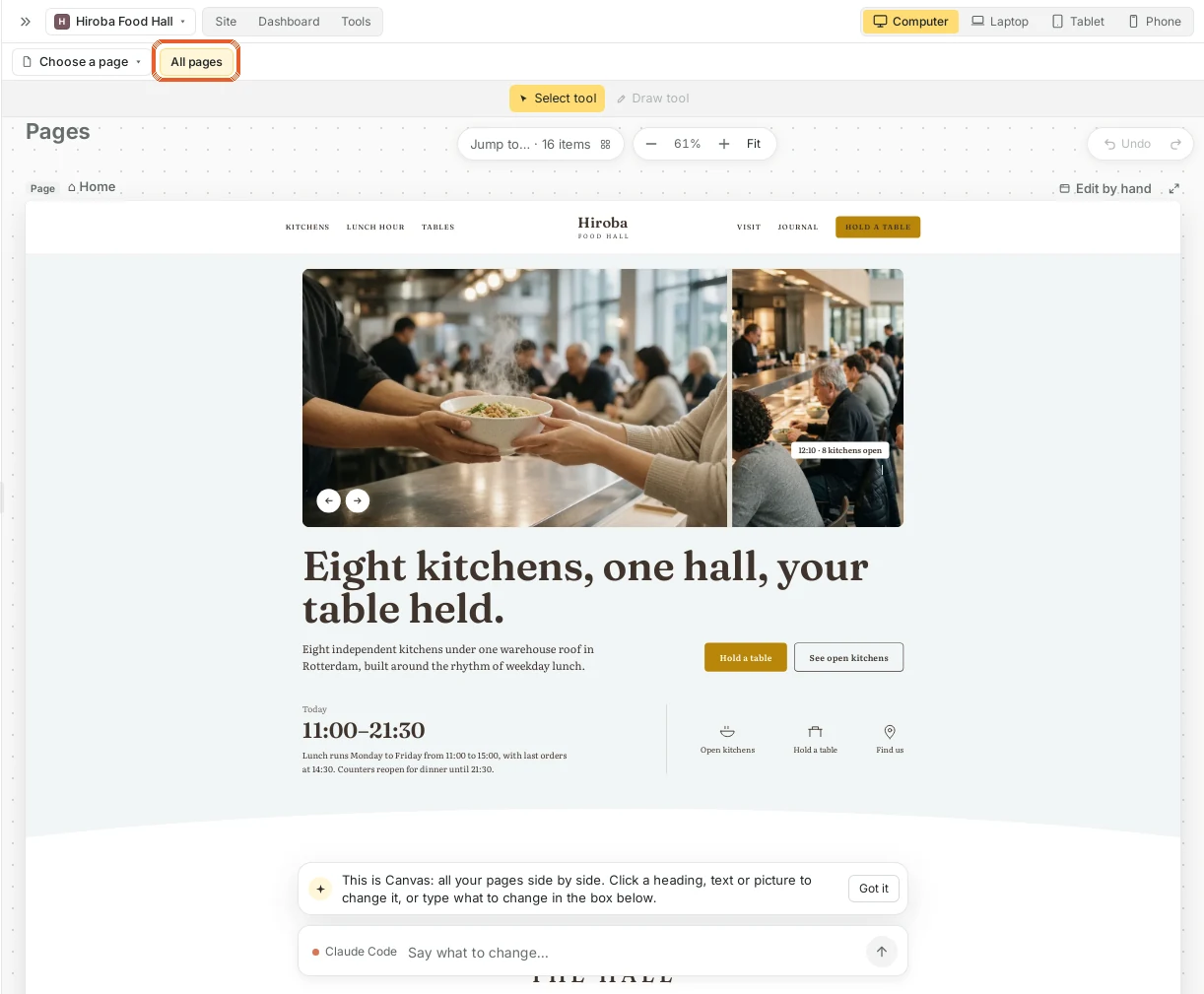
Enter runs the command: here, Canvas opens. -
The shortcuts worth remembering
- Ctrl+N starts a new Worker on the open site, and Ctrl+W closes the current one (its chat stays in the sidebar).
- Ctrl+Tab and Ctrl+Shift+Tab move to the next or previous Worker. Ctrl+1 to Ctrl+8 open the first to eighth Worker, and Ctrl+9 the last one.
- Ctrl+L puts the cursor in the chat box, ready to type.
- Ctrl+. stops the AI if it is going the wrong way.
- Ctrl+Alt+1, Ctrl+Alt+2 and Ctrl+Alt+3 switch the right side to Preview, Tools or Canvas. Ctrl+R reloads the preview.
- Ctrl+\ hides or shows the sidebar, which gives the preview more room.
- Ctrl+Z outside a text box opens the undo question for the last AI change, the same as in restore points. In Canvas, Ctrl+Z and Ctrl+Shift+Z undo and redo your own edits.
- Ctrl+Shift+D opens Go live, and Ctrl+, opens Settings.
- Esc closes what is open, such as a dialog, the shortcut sheet or the Quick Switcher.
-
Spot shortcuts as you work
You don't have to open the list to find a shortcut. The menu bar shows each one next to its command: the View menu, for example, lists Reload preview, Preview, Tools, Canvas, Toggle sidebar, Quick Switcher, Focus Chat and Stop the AI with their keys. Hover over a button and its tip includes the shortcut too, such as New Worker showing Ctrl+N.
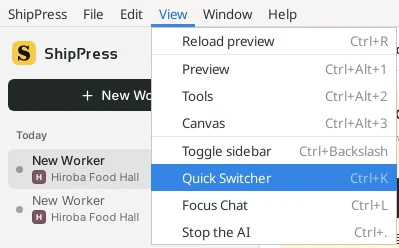
The menus show each command's shortcut. 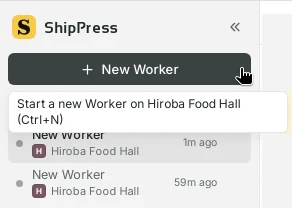
Button tips include the shortcut. -
Find the list in Settings
The same list is also in Settings › Keyboard shortcuts. Press Ctrl+, (or click Settings at the bottom of the sidebar) and choose Keyboard shortcuts on the left. It is handy when you want to keep the list open next to other settings, or look something up without covering your site.
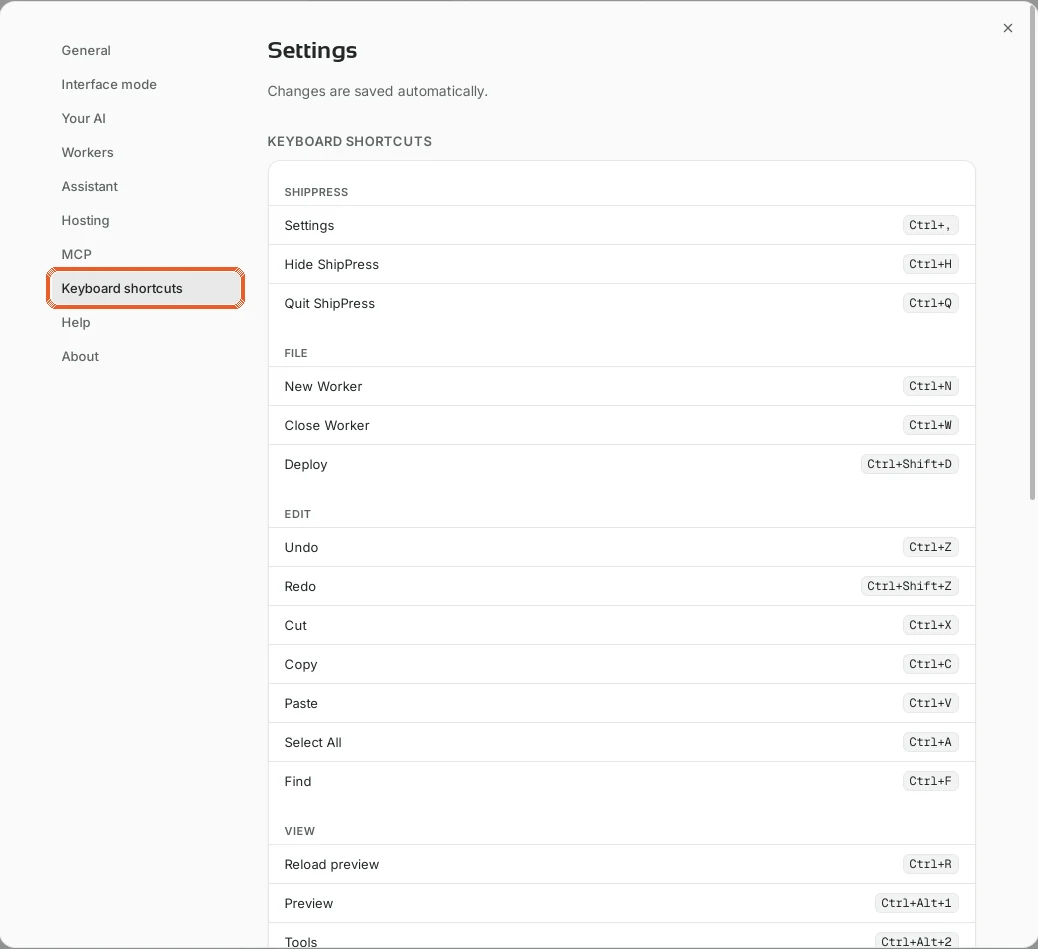
Settings › Keyboard shortcuts shows the same list. -
Good to know
- On a Mac the keys use ⌘ Command and ⌥ Option: ⌘N for a new Worker, ⌘K for the Quick Switcher, ⌥⌘3 for Canvas. Moving between Workers with ⌃⇥ (Control+Tab) works on a Mac too.
- While you are typing in a text box, Ctrl+Z, copy, paste, select all and Esc work on your text as usual. They only act on ShipPress when the cursor is not in a text box.
- If you type Chinese, Japanese or Korean, shortcuts and Enter wait while you are still choosing a word, so confirming a word never sends your message or runs a command by accident.
- Typing / in the chat box opens a different list: chat commands such as /snapshot and /undo.