
Chat commands: type / to get things done fast
Most of the time you talk to ShipPress in plain sentences. But some things are not a request for the AI at all: saving a restore point, going back to an earlier version, switching to Canvas, opening Settings. For these, the chat box has commands. Type / and a menu opens. Pick a command and ShipPress does it straight away, without asking the AI and without using tokens. In this tutorial I use them on Pier 7 Coffee.
-
Type / to open the command menu
Click the chat box at the bottom left and type a slash: /. A menu opens above the box with every command and a short line about what it does. Use the ↑ and ↓ keys to move, Enter to run the highlighted command and Esc to close the menu. The note at the bottom tells you the important part: commands use no tokens, except the few marked AI.
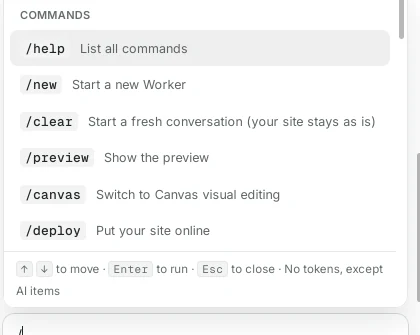
Type / and the command menu opens. -
Keep typing to find a command
You do not have to scroll. Keep typing and the list gets shorter. Here I typed /snap and only /snapshot is left. Some commands take something after the name, shown in grey: /snapshot takes an optional note, /engine takes claude, grok or codex.
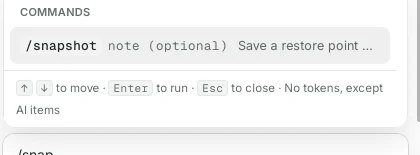
Typing more letters narrows the list. -
Save a restore point with /snapshot
ShipPress saves a restore point after every AI turn on its own. Before a big change, it is handy to save one yourself with a name you will recognise. Type /snapshot, a space and a short note, then press Enter.

Add a note so you can find this point later. 
A second later: Restore point saved. -
Go back with /undo
Type /undo and press Enter. The Restore points panel opens on the right. At the top, ShipPress offers to undo the latest point in one click with Undo it. Below it are all earlier versions with their date and size, and my “Before the winter menu” point is first, marked Latest. Click Restore next to any of them to go back. Your current version is saved first, so you can always come back. Click Not now to close the panel without changing anything.
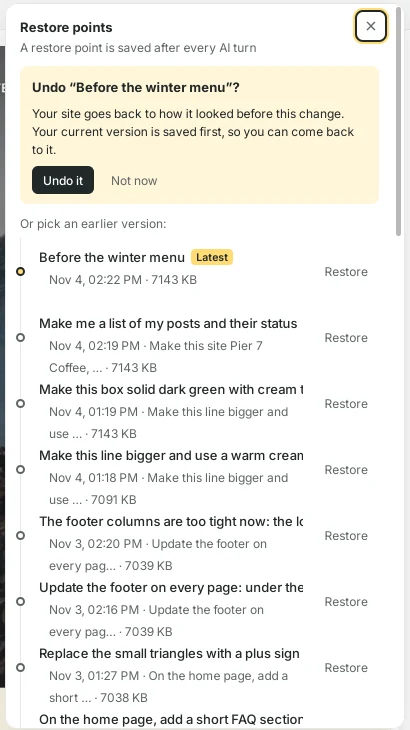
/undo opens your restore points. -
Switch views with /canvas and /preview
Type /canvas to switch the right side to Canvas, where you can see the page large and click right on it to change it. Type /preview to go back to the normal preview. Your hands never leave the keyboard.
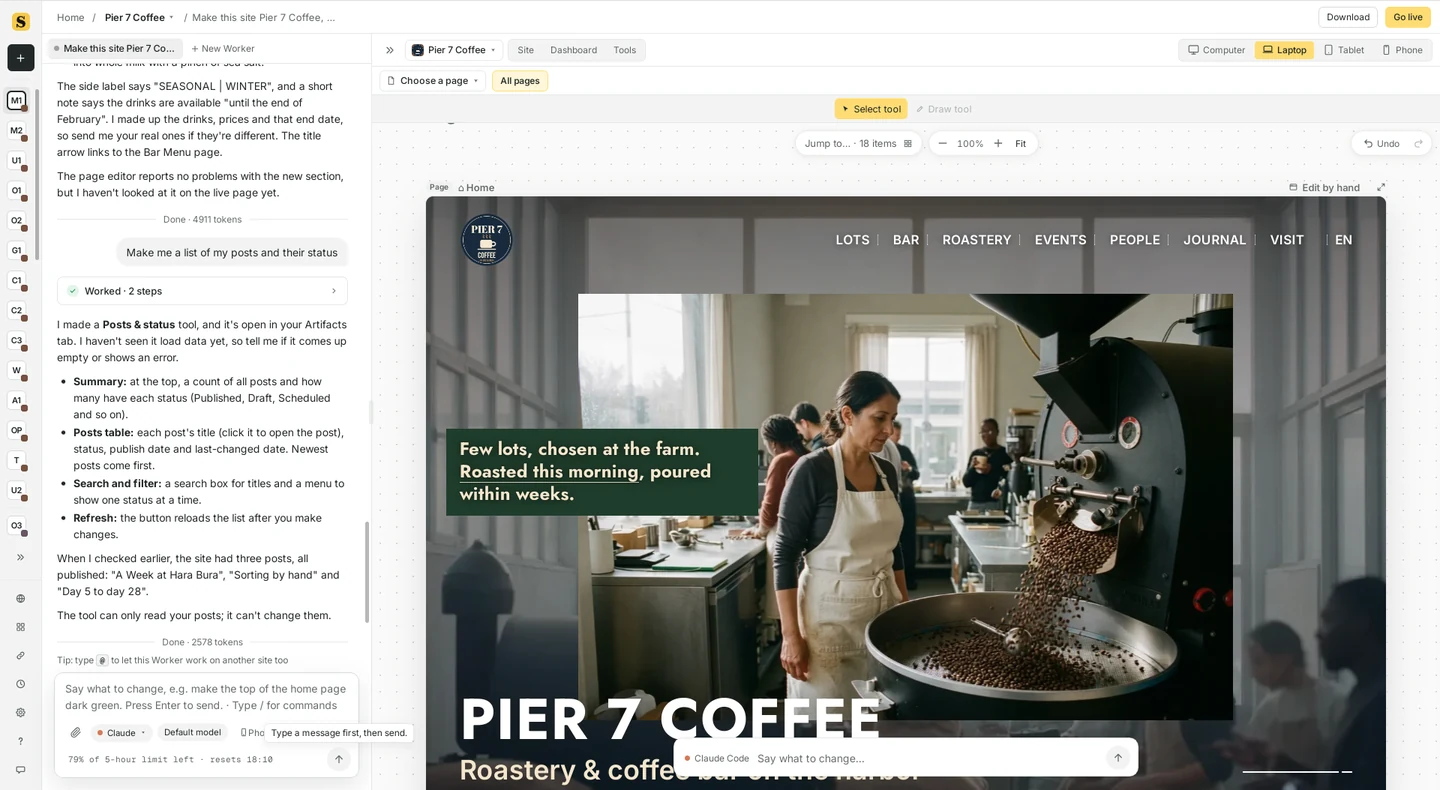
/canvas switches the right side to Canvas. -
See every command with /help
Type /help to put the full list into the chat as a card, with a line for each command. It stays there while you work, so you can look things up. Click the × on the card to close it.
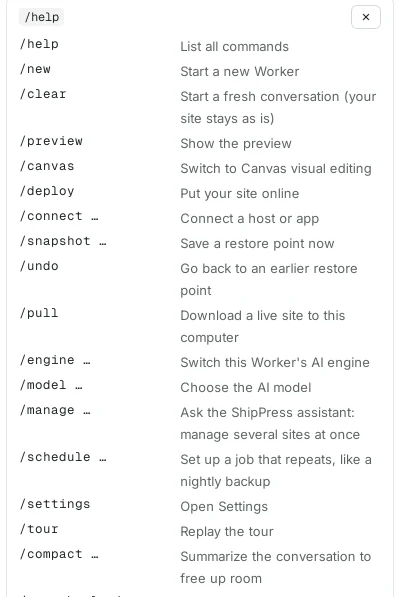
/help lists every command in the chat. -
The commands at a glance
- /new: start a new Worker. /clear: start a fresh conversation, your site stays as it is.
- /preview and /canvas: switch between the preview and Canvas.
- /deploy: put your site online. /connect: connect a host or app. /pull: download a live site to this computer.
- /snapshot and /undo: save a restore point or go back to one.
- /engine and /model: switch this Worker’s AI engine or choose the AI model.
- /manage: ask the ShipPress assistant to manage several sites at once. /schedule: set up a job that repeats, like a nightly backup.
- /settings: open Settings. /tour: replay the tour.
- /compact (AI): summarize a long conversation to free up room.
-
Good to know
- Commands only run when the message starts with /. A slash in the middle of a sentence is just text.
- Commands without the AI mark use no tokens, so they do not count toward your AI plan.
- If you change your mind, press Esc and delete the slash.