
Turn on Daily backup for your site
ShipPress already saves a restore point after every AI change. But your site also changes when you edit it by hand, add a blog post or upload photos in the dashboard. The Daily backup box covers those days too: once it is on, ShipPress saves a copy of your site every night, on its own. In this tutorial I turn it on for Pier 7 Coffee, run the first backup right away, and then go back to it.
-
Find the Daily backup box
Open your site in ShipPress. In the top bar of the window, left of History, Download and Go live, there is a small checkbox called Daily backup. Each site has its own box, so you turn it on per site.
Not sure what it does? Hover over it. The tip says it in one line: every night at 3:00 a copy of the site is saved on this computer, and nothing is uploaded.
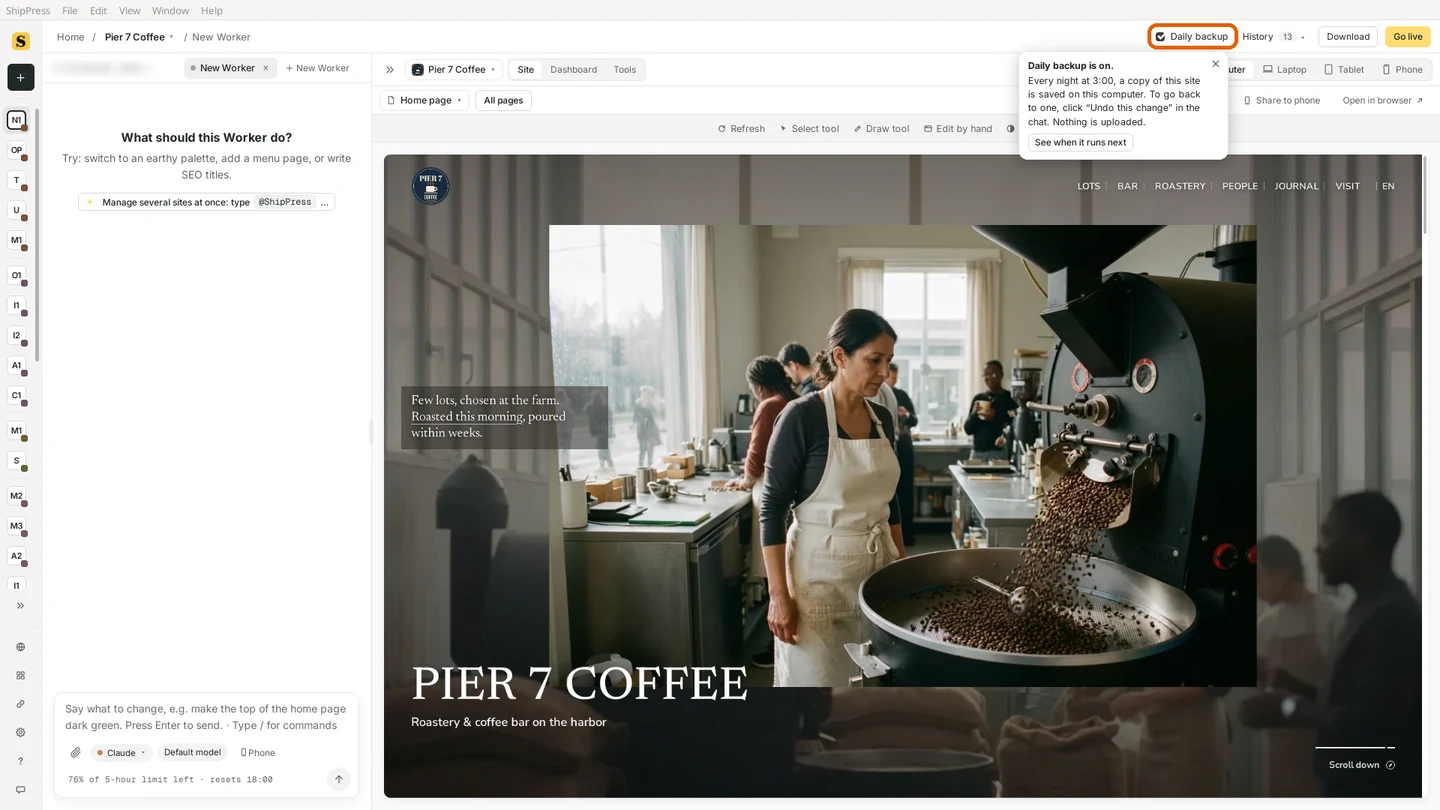
The Daily backup box sits in the top bar, left of History. 
Hover over the box to see what it does. -
Tick the box
Click Daily backup. The box gets a tick and a short note opens next to it: Daily backup is on. It repeats where the copies go: they stay on your Mac, they are not uploaded anywhere, and you get back to one from your restore points.
On a Mac the note also tells you that closing the window is fine: ShipPress stays in the menu bar at the top of the screen, and the backup still happens at night. The note closes by itself after a few seconds.
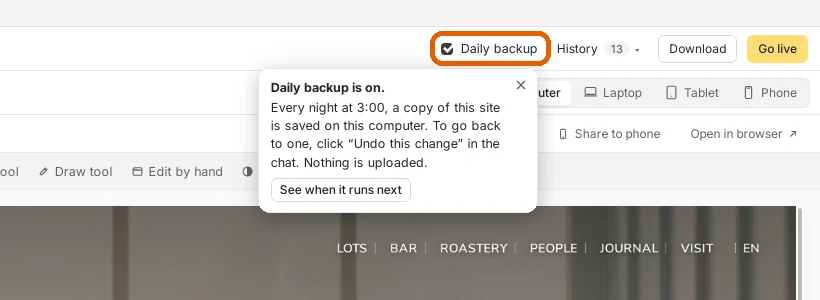
Turning it on opens a short note, with a “See when it runs next” button. -
See when it runs, and run it now
In the note, click See when it runs next. The Routines window opens with your new job: Daily backup, “Every day at 03:00 · Pier 7 Coffee”, and the next run, for example “Tomorrow at 03:00”.
You don't have to wait until tomorrow to see it work. Click Run now. A few seconds later the row says OK and “Restore point … saved”: that is your first backup.
From now on you can open this window again from the ⋯ menu, where Routines is listed.
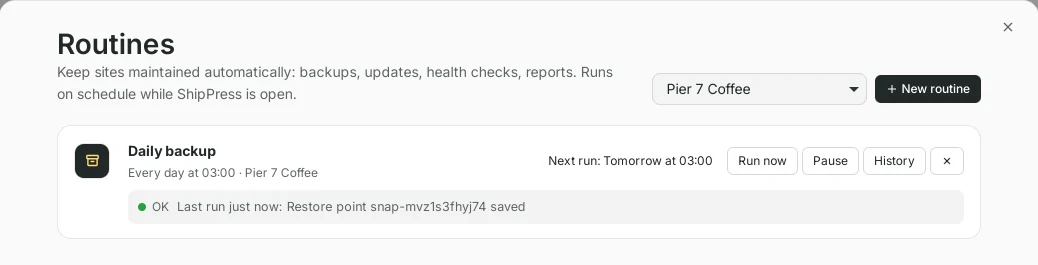
Run now saves the first backup right away. -
Check that it worked
Click History on the same row. A side panel lists every run of the job with its date, the site and the result. A green OK with “Restore point … saved” means the copy is there. If a run ever fails, you see it here too, with the reason.
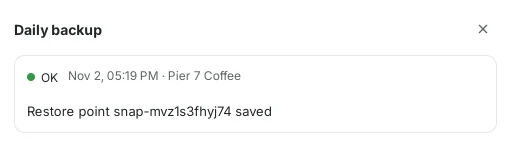
Each run of the job is listed with its result. -
Find the backup in History
Close the Routines window and click History in the top bar. Your restore points are listed with the newest at the top. The backup is there as Daily backup, with its date, time and size, right next to the points the AI saved after each change.
Each backup holds your site's database (pages, posts, menus and settings), the photos and files you uploaded, and your theme. It is saved inside your site's folder on your Mac.
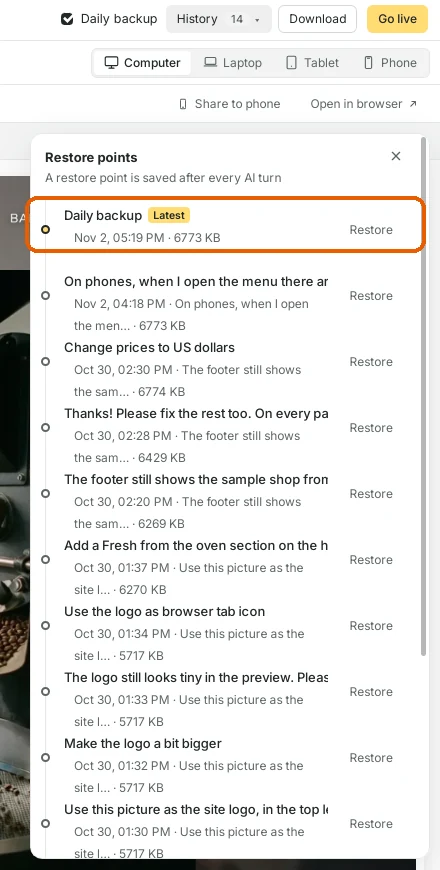
Daily backups appear in History next to your AI changes. -
Go back to a backup
If something went wrong since the last backup, click Restore next to Daily backup. ShipPress asks first: “Go back to this version? Your current version is saved first, so you can come back to it.” Click Restore to go ahead.
A moment later the preview shows your site as it was at the backup, and a message confirms it: “Your site is back to how it was right after Daily backup.” Changed your mind? Click Take it back in the same message.
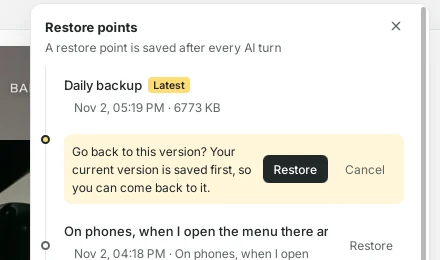
ShipPress saves your current version before it goes back. 
After restoring, “Take it back” returns you to the version you had a moment ago. -
Turn it off
Untick Daily backup to stop the nightly copies. The job is paused, not deleted, and the backups you already have stay in History. Tick the box again to turn it back on. To remove the job completely, open Routines and click × on its row.
-
Good to know
- The backup runs while ShipPress is running. Closing the window is fine, because ShipPress keeps running in the menu bar. If you quit ShipPress or your Mac is asleep at 3:00, the missed backup runs once the next time ShipPress is open.
- The copies stay on your Mac and are never uploaded. To also keep a copy somewhere else, export your site now and then (see Your site is yours: export it and move it to your own host).
- Daily backups and AI changes share the same list of restore points. ShipPress keeps the newest 30 per site and removes older ones automatically.
- For more about going back to earlier versions, see Undo any AI change with restore points.