
Continue on your phone: chat with your site Worker on the go
In the ShipPress Mac, Windows & Linux app, Continue on your phone connects your active chat to the Claude or Codex app on your phone. You can step away from your desk, chat with the same Worker while commuting or meeting a client, and watch the site update back on your computer.
-
What you need before starting
To use this feature, your Worker must be set to use Claude Code or Codex. You can choose which AI new Workers use in Settings › Your AI › New Workers (see our guides for Claude Code and Codex). The button does not appear for Grok Build, Antigravity, Cursor CLI, or ShipPress AI credits.
For Claude Code, you need a paid Claude plan (Pro, Max, Team, or Enterprise; on Team or Enterprise, an admin may need to turn Remote Control on). API keys are not supported. You must be signed in to Claude Code with your claude.ai account and have the Claude app installed on iOS or Android (or use claude.ai/code). See Anthropic's Remote Control documentation for details.
Note on platforms: with Claude Code, phone mode currently works in the ShipPress Mac app only. On Windows, ShipPress will report that it cannot connect because Claude Code's phone mode needs a terminal feature ShipPress only uses on Mac.
-
Find the Phone button in the chat box
Open your site in ShipPress and look at the bottom row of the chat box, right next to the AI and model pickers. You will see the Phone button with a phone icon.
Hovering over it shows the tooltip: Continue this site's work in the Claude app on your phone (or Codex app if your Worker uses Codex). If your Worker is busy editing files or running commands, wait for it to finish. If you press Start while it is still working, ShipPress says: This Worker is busy. Turn on the phone connection when it's done.
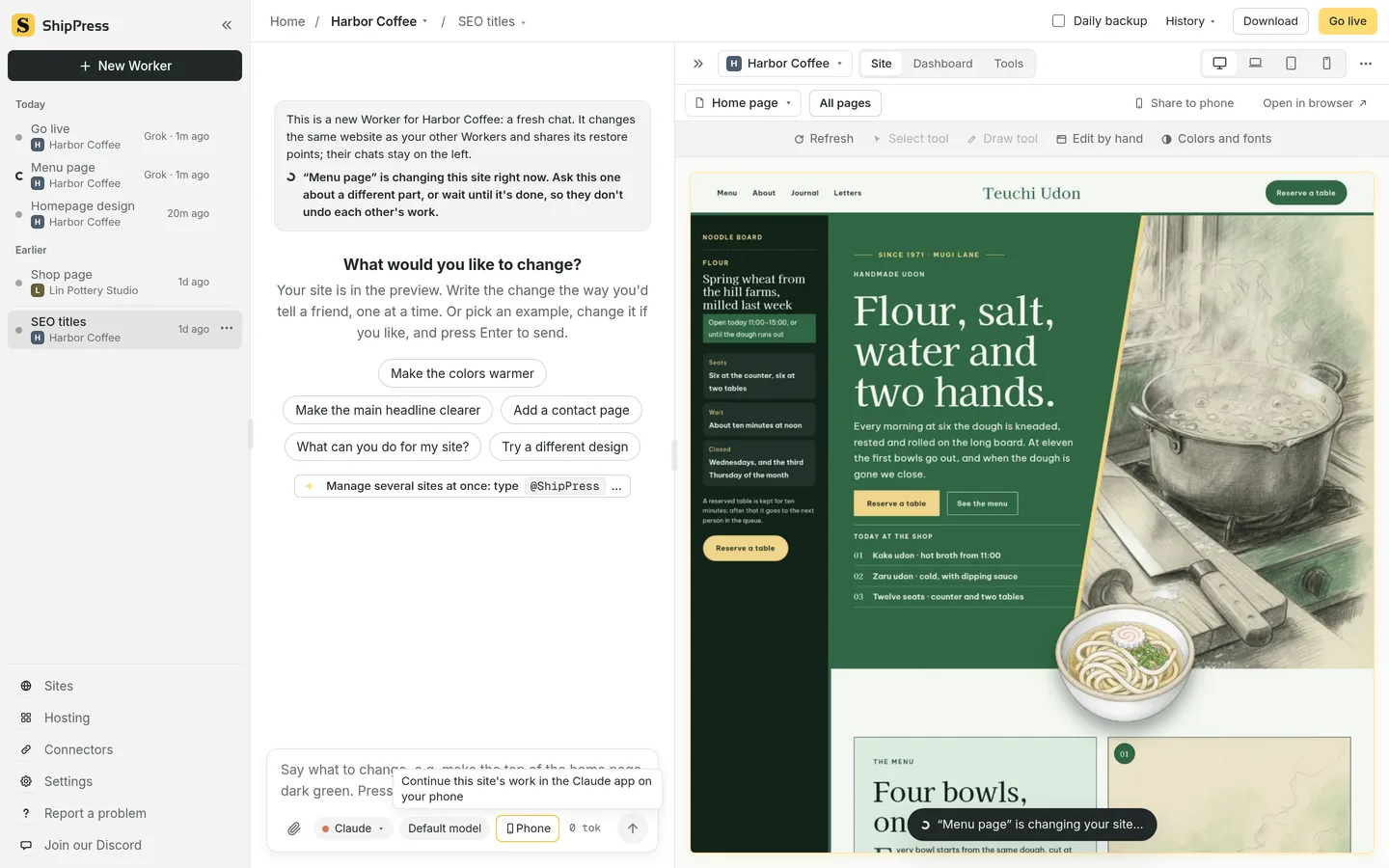
The Phone button sits in the bottom row of the chat box next to the model selector. -
Open the dialog and click Start
Click Phone to open the Continue on your phone dialog. For Claude, the dialog explains: The computer and phone share one conversation: what you type here shows in the Claude app (Code tab), and the other way round. For Codex, it explains: The computer and phone share one conversation. Type the pairing code in the Codex app on your phone to join.
Read the small print at the bottom: Keep this computer and ShipPress on. In this mode the Worker can't ask for web permission or use @ to reach other sites. Stop returns to the usual mode. Click Start. The button briefly displays Connecting… while preparing the link.
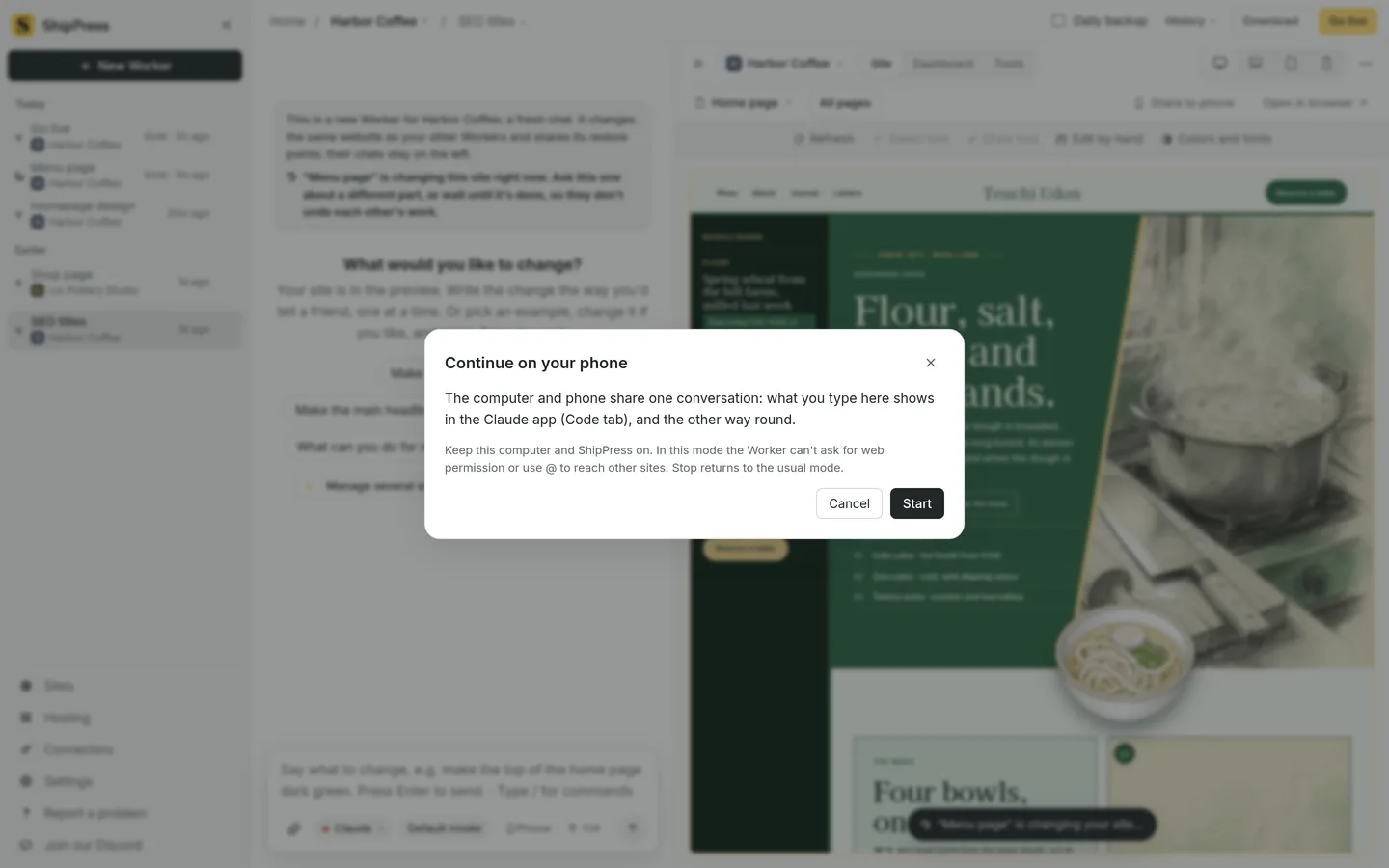
Click Start to begin connecting your phone to the active Worker session. -
Trust the site folder on the first connection
The first time you connect a site with Claude Code, ShipPress shows a permission prompt: Claude must “trust” this site's folder before the phone can connect. ShipPress records just this one folder in your ~/.claude.json (nothing else in it changes).
Click Trust and start to allow Claude Code to work inside this site directory. This happens once per site folder and leaves all other settings in your configuration file untouched.
-
Open the conversation on your phone
Once connected, the dialog displays Connected: “Harbor Coffee”. You will see a QR code along with the instruction: Scan with your phone, or open the Claude app → Code and pick “ShipPress · Harbor Coffee”.
You can also click Open this conversation on claude.ai to view it in a desktop browser. If the address is still generating, ShipPress notes: The connection is on; the address is still being made…
When you are ready, click Done. Clicking Done closes the dialog window while keeping the phone connection alive in the background.
-
Chat on the go while your computer builds
While connected, the chat button turns bright yellow with a live indicator dot and reads On your phone. Its hover tip confirms: Phone is connected: what you say on the phone shows in this chat. ShipPress checks the status every few seconds to reflect the real connection state.
Because both devices share the exact same conversation, anything you send from your phone appears in the ShipPress chat as your messages, and the Worker's responses show up right alongside them. If I am in a coffee meeting and a client asks to change the menu layout, I type the change on my phone. The Worker makes it on my computer, and when I'm back at my desk the ShipPress preview shows it.
All changes remain strictly on your local computer. Nothing touches the internet until you return and click Go live.
-
Connecting with a Codex Worker
If your Worker runs on Codex, clicking Start displays either Pairing code: … Type it in the Codex app on your phone (valid for a few minutes). or The connection is on. Pick this computer in the Codex app on your phone. Enter the code in your Codex app on your phone to pair.
If Codex was not installed through its official script, ShipPress displays an error: Codex's phone connection needs the version made by Codex's own installer. Run in a terminal:
curl -fsSL https://chatgpt.com/codex/install.sh | sh, then try again. For details on Codex mobile configuration, check OpenAI's remote connections guide. -
Disconnect and helpful tips
To finish your mobile session, click the yellow On your phone button in ShipPress and click Stop. Your Worker will immediately return to its standard local mode on the same ongoing conversation.
Remember that your computer and ShipPress must stay awake and running. While phone mode is active, the Worker cannot request web permissions or use
@mentions to inspect other local sites.Tip: To test the actual WordPress website on your mobile browser rather than chatting with the AI Worker, use the Share to phone button above the site preview instead (see Edit your site). That creates a temporary link and QR code, with a password on by default, that stops after 2 hours.
Next reads: