
Build a WooCommerce store with AI: products, cart and checkout
Want to sell online? Pick a store design in ShipPress and you get a real WordPress shop with WooCommerce already installed. In this tutorial I build a small cookware shop, Tsuki Cookware, and change it only by chatting with the AI.
By Oberon Lai. I make ShipPress (Codotx, LLC), so this is our own product.
-
Pick a store design
On the design wall, filter by E-commerce. These designs are made for shops and come with sample products. In the video I pick Kama Cookware, name the site Tsuki Cookware and click Use this design.
ShipPress sets up the store on your computer, with WooCommerce already installed. The first time can take a minute. When it's ready, click the Site tab to see the home page, then open the Shop page from the page list. You see the design's sample products, priced in euros.
-
Change products by chatting
Now make it yours. In the chat I ask the AI to switch the shop to Japanese yen, set new prices, put the copper pan on sale and add a new product, an iron tamagoyaki pan.
The AI works through the store's products and settings. When it's done, you get a table of what changed: every product with its new price, the sale price, and the stock counts.
-
Show the real products on the Shop page
Back on the Shop page, the cards may still show the old prices. In some designs the product cards are written into the page, not pulled from the store.
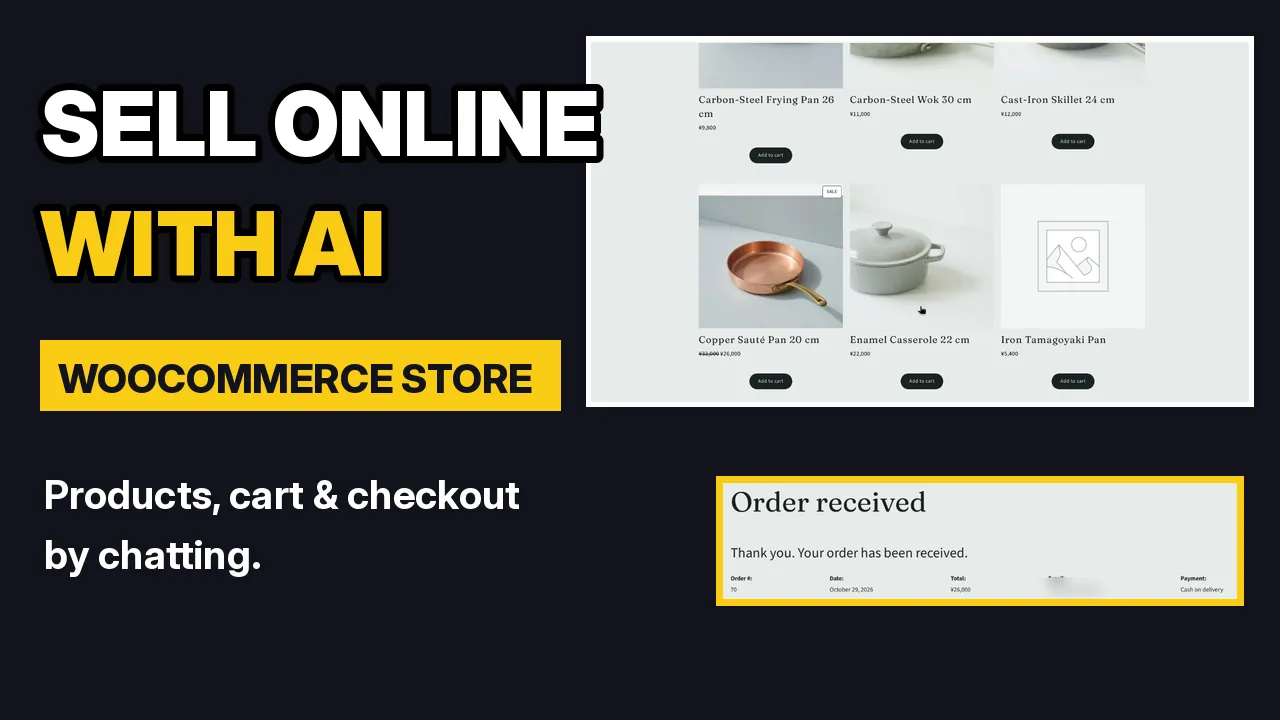
Just tell the AI: Make the product list on the Shop page show the real products from the store, with their current prices. It swaps the cards for a live product list. Now the Shop page shows every product straight from the store, in yen, with Add to cart buttons, the sale price and the new product. Change a price later, and the page follows.
-
Try the cart like a customer
Add a product to the cart and click View cart. The cart shows the sale price. Click Proceed to checkout.
A new store has no payment method turned on yet, so checkout says there are no payment methods. That is normal for a brand-new WooCommerce store.
-
Turn on a payment method and place an order
Ask the AI to turn on Cash on delivery for now. It turns on the payment method and sets the wording customers see at checkout.
Open the page list at the top of the preview and pick Checkout. Cash on delivery now shows up as a payment option. Fill in the details like a shopper would, check the order summary and click Place order. You see “Order received”, paid by cash on delivery.
-
See products and orders in WooCommerce
Click the Dashboard tab. This is the store's WordPress admin, with WooCommerce in the menu.
- Products lists every product with its price, sale price and stock. You can edit any of them by hand here too.
- WooCommerce › Orders shows the order you just placed, with its status and total.
It's the same WooCommerce you would use on any WordPress site.
-
Putting a store online
When you're ready, click Go live. For a store, ShipPress points you to a WordPress host. The Free address tab explains why: the cart, checkout and customer logins need WordPress running on a server, and a static copy is plain web files where none of that works.
So choose a WordPress host. See Go live for the options, and Your site is yours for moving the site to your own host.
-
Tips
- Start from the E-commerce filter on the design wall, and WooCommerce comes installed.
- Change products, prices, sales and stock by chatting. Check the table of changes the AI gives you.
- Old prices on the Shop page? Ask the AI to show the real products from the store there.
- Turn on a payment method before your first test order.
- Use the Dashboard tab for products and orders.
- A store needs a WordPress host to go live, not a static copy.
-
Where to go next
To ask the AI for more changes, read Edit your site by chatting. To learn more about wp-admin and plugins, see It's real WordPress. To undo a change, see Undo any AI change with restore points.