
Download your static site and put it on Netlify for free
ShipPress can save your whole site as a static copy: every page, image and style turned into plain web files. This tutorial shows how to download it and put it online for free on Netlify Drop, plus how the same folder works on GitHub Pages and Cloudflare Pages.
By Oberon Lai. I make ShipPress (Codotx, LLC), so this is our own product. Netlify, GitHub and Cloudflare are not affiliated with ShipPress, and there are no affiliate links on this page.
-
Download the static copy
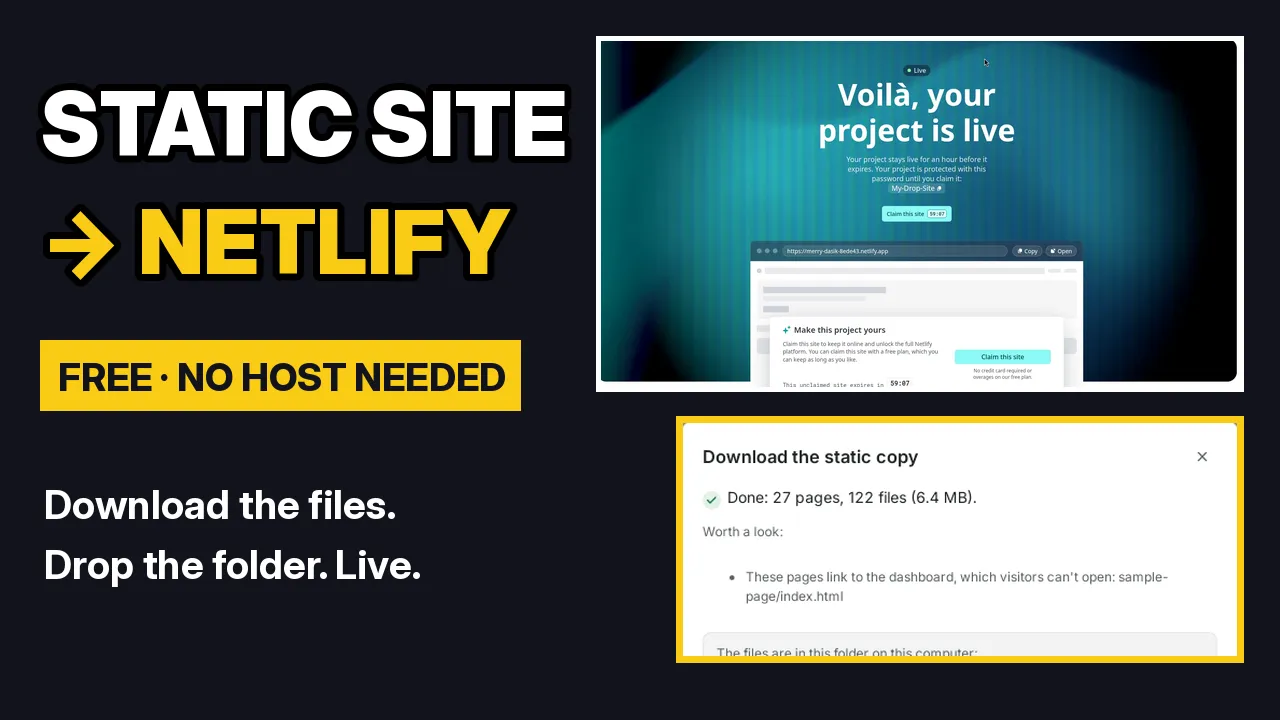
Open your site and click Go live at the top right. In the Free address tab, at the bottom, it says Only want the files? Click Download the static copy and put it on another host yourself.
ShipPress saves every page as plain web files and checks the result, for example Done: 27 pages, 122 files. Read the Worth a look list before you upload: it points out things like pages that link to the WordPress dashboard, which visitors can't open. If ShipPress asks you to change the page addresses first, set Settings › Permalinks to Post name in the Dashboard tab and download again (see Your site is yours).
-
Find the folder
The window shows where the files are on your computer. Show in Finder opens the folder and Copy path copies its location. Inside you'll find
index.html(the home page), a 404 page, a sitemap, and a folder for every page, such asmenuandcontact. This folder is your whole site. -
Drop it on Netlify
Open app.netlify.com/drop in your browser. Drag the folder onto the page, or click folder, choose the static copy folder (paste the path you copied) and click Upload. Your browser asks you to confirm uploading the files; click Upload again. After about a minute, Netlify shows your project is live with a free
netlify.appaddress. -
Open the live site, then claim it
Click Open to see your site online. Without a Netlify account, a dropped site is protected by the password Netlify shows and stays up for one hour. To keep it, click Claim this site and sign up for a free Netlify account (Netlify's terms can change, so check the page when you do this).
Every page and image is in the folder, so links between pages work. Nothing on this site runs WordPress; it's the plain files ShipPress made.
-
Update the site later
After you change your site in ShipPress, download the static copy again and upload the new folder to the same site in Netlify. The static host never changes by itself; it shows the files you last uploaded.
-
GitHub Pages and Cloudflare Pages
The same folder works on other free static hosts. On GitHub Pages, upload the files to a repository, then turn on Pages in the repository's Settings › Pages. On Cloudflare Pages, create a Pages project and upload the folder. Whichever host you use, put everything from the folder at the root: links start from the root, so the site works at any address.
-
What a static copy can't do
A static copy is plain pages only. Anything that needs WordPress running won't work: a WooCommerce shop, member logins, comments, and forms that send to WordPress. For those, use the WordPress host tab in Go live. If you'd like forms emailed to you without any setup, put the site on a free ShipPress address instead.