
Routines: let ShipPress look after your sites on a schedule
A website needs a little care after it is built: a backup now and then, updates, a check that every link still works. You can ask for these in chat every time, or you can let ShipPress do them on its own. That is what Routines are for. You pick a job, choose which sites it covers and how often it runs, and ShipPress takes care of the rest while the app is open. In this tutorial I set up a weekly broken link scan for Pier 7 Coffee and Harbor Beans.
-
Open Routines
Click the clock icon in the left sidebar. The Routines window opens. At the top right you can pick a site from the list; the button next to it, New routine, adds a job. The first time, the list is empty and you see Nothing scheduled yet with a Choose a job button. Both buttons do the same thing.
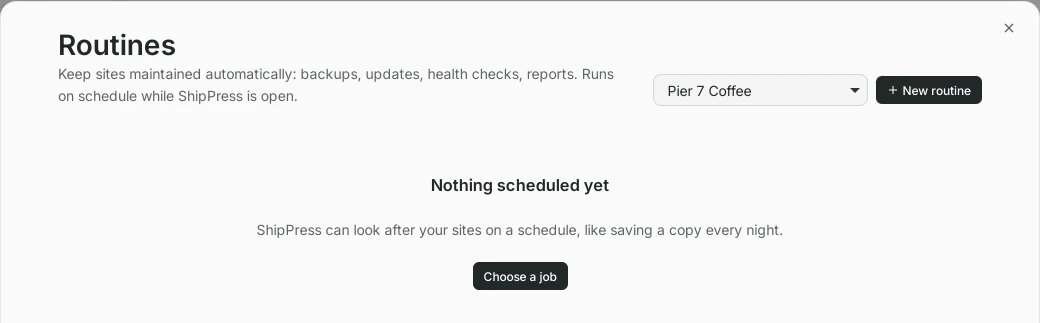
Routines starts empty. Click New routine or Choose a job. -
Pick a job
ShipPress offers ready-made jobs, each with a short line about what it does:
- Daily backup: saves a copy of your site on this computer every day, so you can go back to it.
- Weekly updates: keeps WordPress and its add-ons up to date. A copy is saved first, and if anything breaks it is put back.
- Uptime & health check: checks every hour that your site opens and works.
- Broken link scan: finds links on your pages that lead nowhere.
- Weekly security check: looks for known security problems and unexpected admin accounts.
- Database cleanup: saves a restore point, then removes old revisions, spam comments and other leftovers.
- SEO & performance audit and Monthly maintenance report: short reports about your site.
- Custom AI task: describe your own recurring job in one sentence and a Worker does it.
Two labels are worth knowing. Asks you first means ShipPress waits for your OK before it changes anything. Uses AI means the job uses your AI plan; the others do not. Click More jobs… if you do not see all of them.
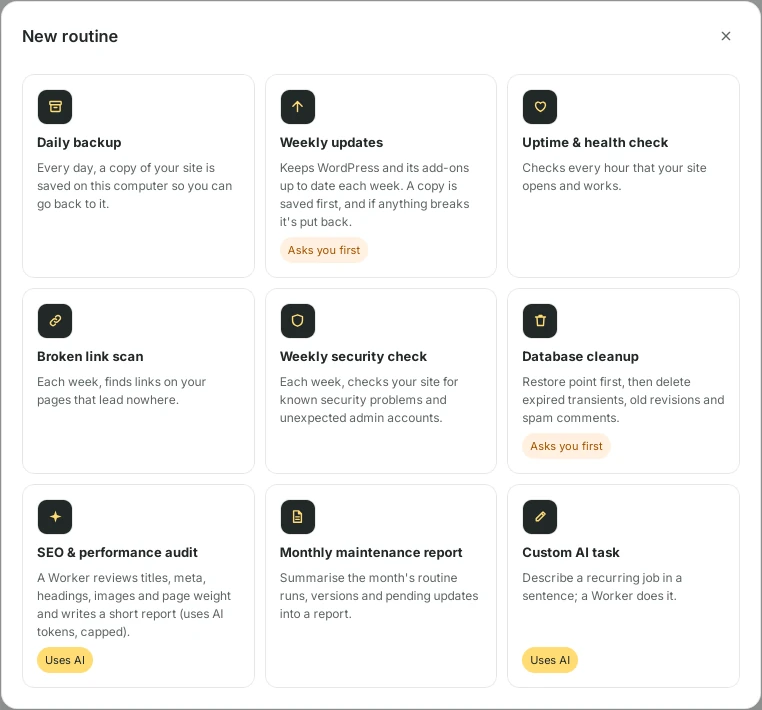
Every job says what it does. Some ask you first, some use AI. -
Choose the sites and the time
I picked Broken link scan. Now tick the sites the job should cover. One routine can look after several sites at once, so I ticked Pier 7 Coffee and Harbor Beans. Under How often, choose Every hour, Every day, Every week or Every month, then the day and the time. The line below repeats your choice in plain words, here Every Friday at 09:00. If you need something more specific, Custom schedule (advanced) lets you type a cron schedule and a time zone. Click Save routine.
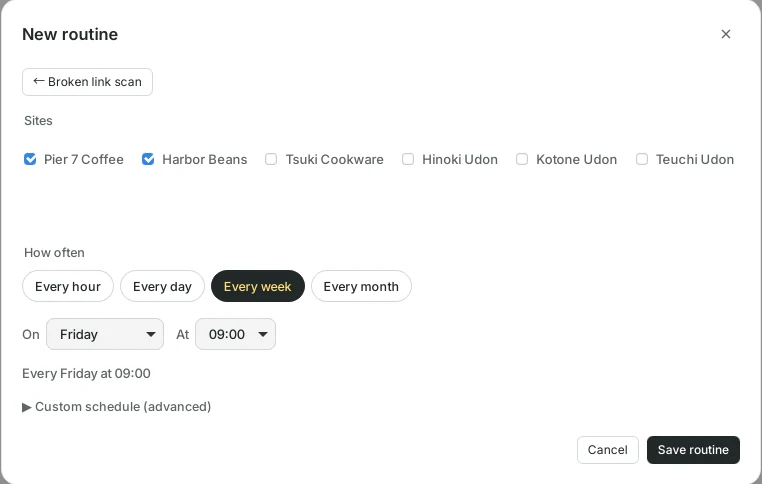
Tick the sites, pick how often, and save. -
Your routine in the list
The routine now appears in the Routines window with its schedule and sites, and on the right the Next run. Until it has run you see Hasn’t run yet. You do not have to wait for Friday: click Run now to try it straight away.
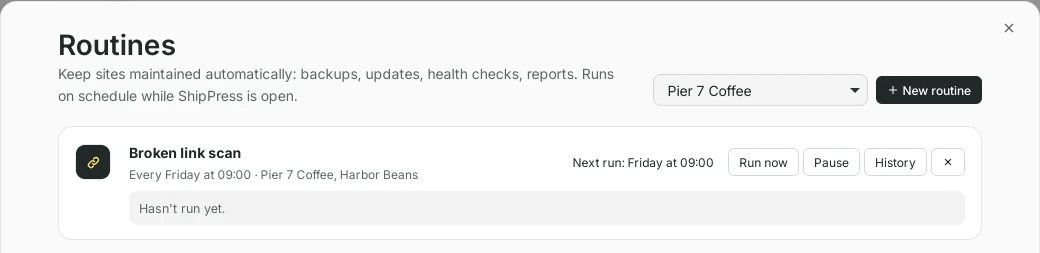
Saved. The next run is shown on the right. -
Run it and read the result
After Run now, the line under the routine shows the latest result. Here it says Needs attention: one broken link was found. A green result means everything was fine. Click History to see every run, site by site. Harbor Beans was Skipped because that site was not running at the moment; the scan needs the site open in ShipPress (or its host connected). Pier 7 Coffee has one broken link, which I can now ask the Worker to fix in chat.
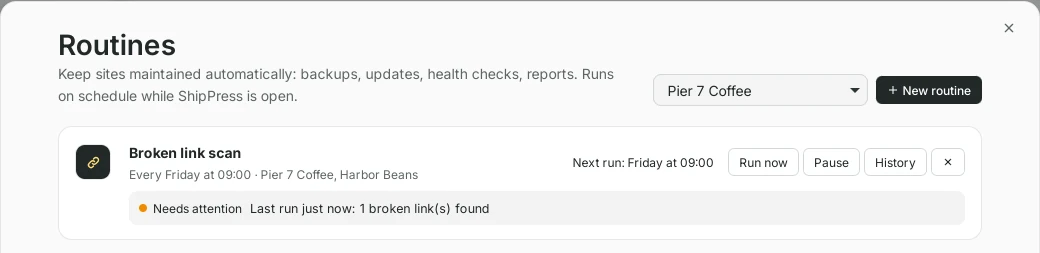
The latest result is shown right under the routine. 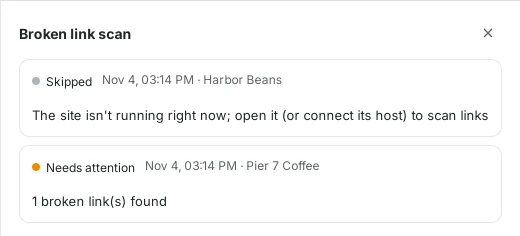
History lists every run for every site. -
Pause, resume or remove a routine
Going on holiday, or redesigning the site? Click Pause. The routine is greyed out and marked Paused, with the note that it won’t run until you resume it. Resume turns it back on. The × button removes the routine completely.
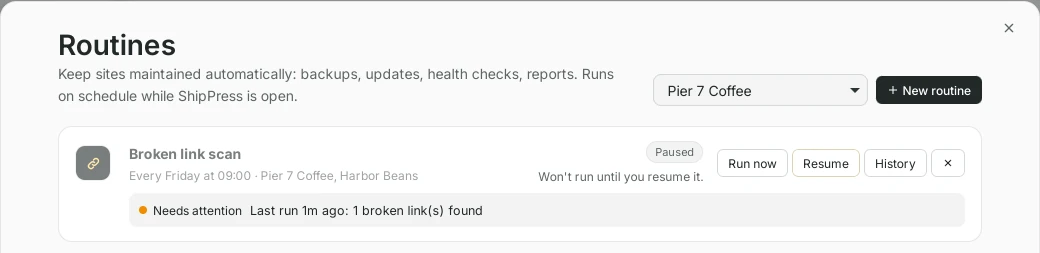
A paused routine waits until you resume it. -
Good to know
- Routines run while ShipPress is open. If the app is closed at the scheduled time, the job runs the next time it can.
- Jobs without the Uses AI label do not use your AI plan.
- Jobs marked Asks you first never change your site without your OK.
- Only need a backup? The Daily backup box in the site’s top bar is the quickest way to turn it on.