
InstaWP: sign up and connect it to ShipPress
This is part 2 of our hosting series. InstaWP creates WordPress sites in seconds, and ShipPress recommends it for trying things out. In this guide, you will sign up for an account, connect it using browser sign-in or an API token in the ShipPress Mac, Windows & Linux app, create a temporary or permanent site, and go live.
-
What InstaWP is good for
In ShipPress, the host overview describes InstaWP: “Spin up WordPress test sites in seconds and sign in with your browser. A test site can be kept as a real one, and each site is billed on its own.” In Which one should I pick?, ShipPress notes that InstaWP is “Good for trying things out: you sign in with your browser, and free test sites expire after a few days.”
With InstaWP connected, ShipPress can list your sites, create a new temporary or permanent site, put your local site online using Go live (with options for Everything, Files only or Database only), download a site back to your computer, and open WordPress admin ↗ already signed in.
-
Create an InstaWP account
To get started, use the signup button below to register an account on InstaWP.
Plans and what each includes are listed on the InstaWP pricing page; check there, as prices and details can change. A permanent site uses one site slot of your InstaWP plan, while a temporary site does not use any slot.
Sign up at InstaWP ↗The signup button above is an affiliate link: if you sign up through it, ShipPress may earn a commission, at no extra cost to you (details).
-
Connect InstaWP with a browser sign-in
- Click Hosting in the ShipPress sidebar.
- On the InstaWP row, click Connect.
- The Connect InstaWP dialog opens in browser sign-in mode. Click Sign in with InstaWP.
- A sign-in page opens in your browser. Sign in on InstaWP and come back. While waiting, ShipPress displays “Waiting for browser…” (you can click Cancel at any time to stop).
If your InstaWP account belongs to two or more teams, the connected InstaWP row shows a Team menu. ShipPress shows and uses the sites of the team you pick there.
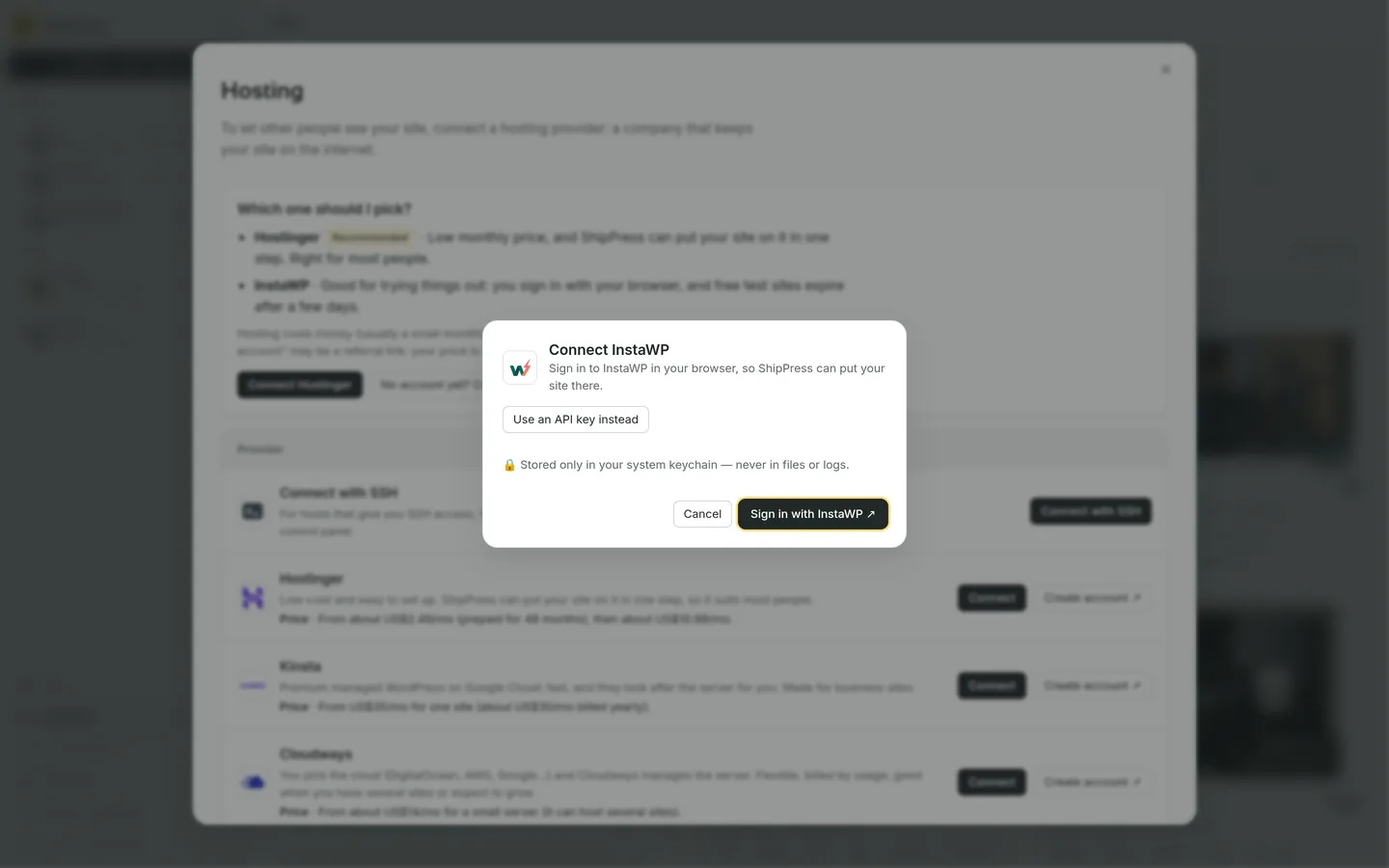
Browser sign-in is the usual way to connect InstaWP. -
Or connect with an API token
- In the dialog, click Use an API key instead. You can click Make an API key on InstaWP ↗ to open your token settings directly in your browser.
- At InstaWP, click your profile in the top-right corner, then go to Account → API Token. For full instructions, see the InstaWP token guide.
- Create a token with a name and choose its permission. ShipPress creates and updates sites, so choose read-write.
- Copy your new token.
- In ShipPress, paste the token into API key (API token) (the field shows the placeholder “Paste the key from InstaWP → Settings → API tokens”).
- Click Connect.
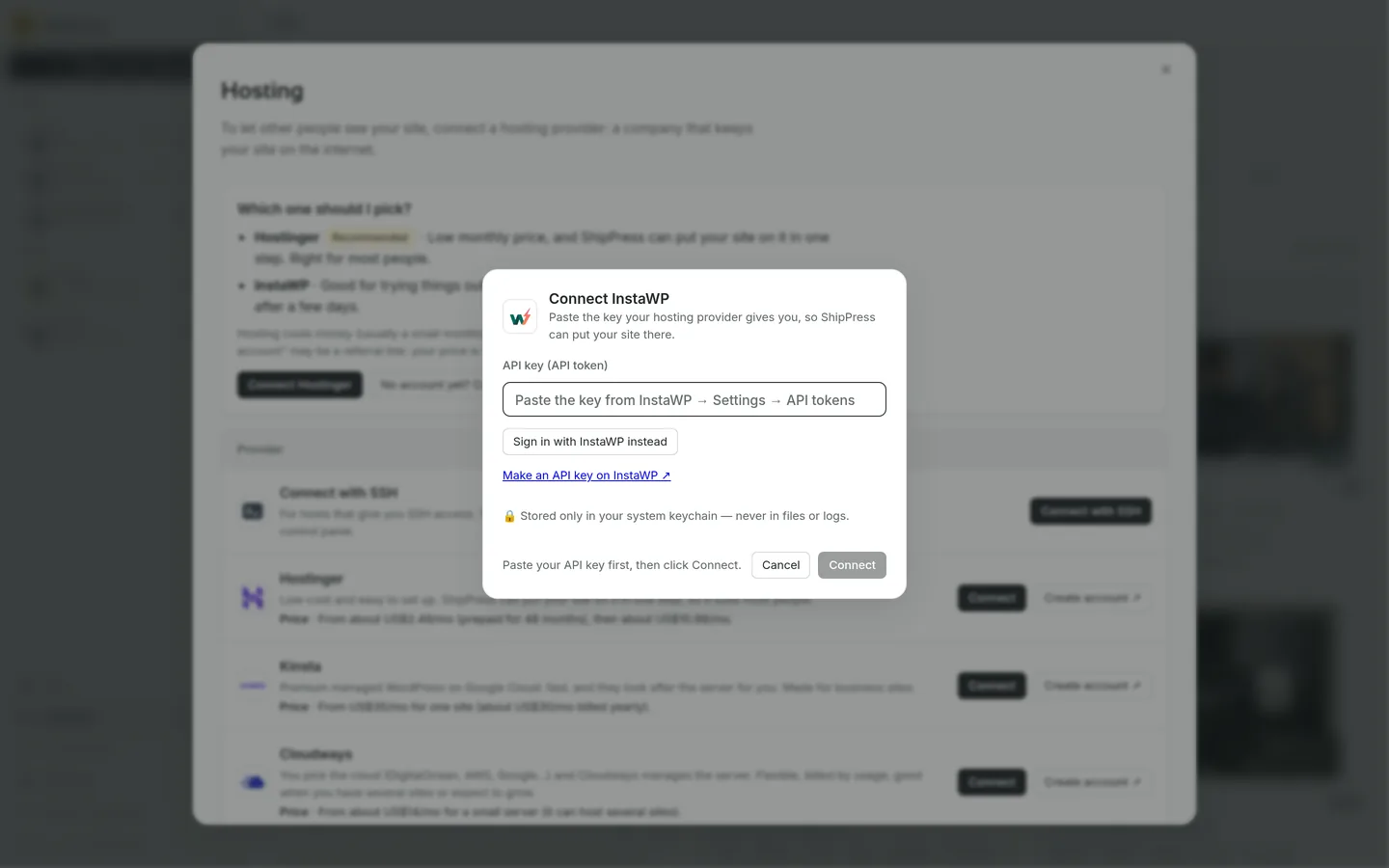
You can paste an API token instead of signing in with the browser. -
Create a site and go live
- Open your site in ShipPress and click Go live.
- Choose the WordPress host tab and select InstaWP.
- If there is no site on InstaWP yet, click New website on InstaWP and type a Site name (for example mysite).
- The checkbox Keep it permanently (uses one site slot of your InstaWP plan) decides what kind of site it is: “Unticked, it's a temporary site: it uses no slot but is deleted after a while, good for trying things out.” Ticked: “A permanent site doesn't expire.”
- Click Create website. If the name is taken on InstaWP, ShipPress adds a short suffix and tells you the name it used.
- Pick the site under Which web address (only active sites that have not expired appear in the list).
- Click Replace and go live.
-
Temporary sites, downloads and disconnecting
In Sites → Online, temporary sites show how long they have left, for example “Expires in 3 days” or “Expires within a day”. To keep one, make it permanent in InstaWP before it expires.
Before each go live to InstaWP, ShipPress saves a copy of the live database on your computer first. To bring a site back to your computer, use Download to this computer (see downloading a site from your host).
If you click Disconnect, “ShipPress forgets the sign-in on this computer. Your live websites keep running; you can connect again any time.” To delete an API token completely, remove it in InstaWP (see the InstaWP token management guide).
-
Next in the series
- Next part: SiteGround over SSH
- Previous part: Hostinger
- Series overview: Get a web host and connect it to ShipPress
- Going live: Go live
- Downloading: Download a site from your host