
Fix leftover sample text by chatting
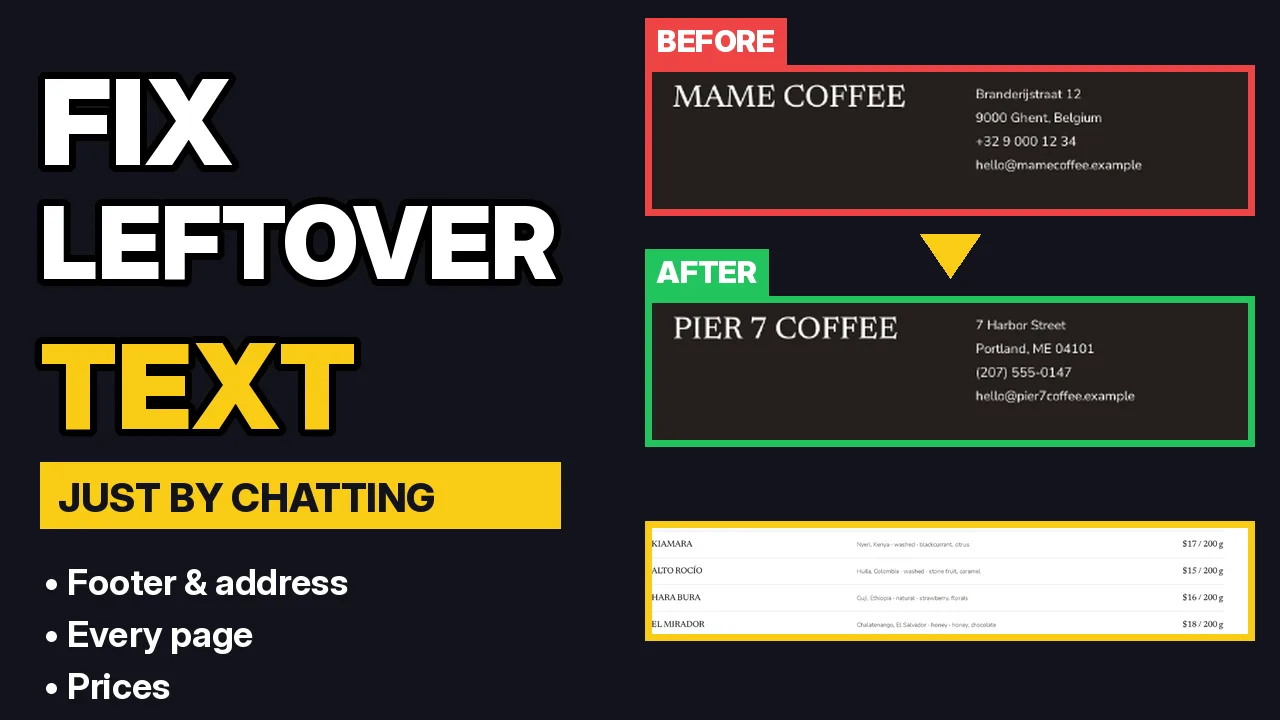
A pro design gives you a finished-looking site, but it still carries the sample shop it was made for: its name, its address, its phone number, its opening hours and its prices. In this tutorial I clean all of that up on Pier 7 Coffee, just by chatting: first the footer, then every page, then the prices.
By Oberon Lai. I make ShipPress (Codotx, LLC), so this is our own product. There are no affiliate links on this page.
-
Spot the leftovers
Scroll down the preview to the bottom of a page. The footer is the easiest place to spot sample content: in the video it still said Mame Coffee, with an address in Ghent, a Belgian phone number and the sample shop's opening hours. Pages like Visit, About or the menu often have more.
-
Give the AI your real details
Start a Worker and write what's wrong and what it should say instead, all in one message. For example: “The footer still shows the sample shop from the design: Mame Coffee in Ghent. Please change it on every page to our details: Pier 7 Coffee, 7 Harbor Street, Portland, ME 04101, phone (207) 555-0147, email hello@pier7coffee.example. Bar open Wednesday to Sunday 7:00–15:00.”
The footer is shared by every page, so one change fixes it everywhere. The Worker also updates the other language versions of the design.
-
Read what the Worker found
When it's done, the Worker lists what it changed and points out sample details it noticed somewhere else, like the Ghent address on the Visit page. The suggestions under the answer turn those into one-click next steps.
-
Fix every page in one go
Ask for a full sweep: “Please fix the rest too. On every page, replace the sample address, the Belgian phone number, the opening hours and any mention of Ghent, Belgium or Mame Coffee with our details from the footer.” Add anything it can't guess, such as your roasting days.
The Worker goes through each page and post and rewrites the sentences so they still read naturally. It then tells you what's left that it couldn't decide for you, for example staff names or class times.
-
Change the prices
The sample shop used euros. Click the suggestion Change prices to US dollars or write your own prices. Check the menu page afterwards and tell the Worker about any price you want different.
-
Check, and undo if needed
Click Refresh above the preview and use the page menu to open each page you care about. Every finished change saves a restore point under History, so you can go back any time. Nothing goes online until you click Go live.
-
Tips
- Put all your real details in one message: name, address, phone, email, hours.
- Ask for “every page”, not just the one you're looking at.
- Staff names, stories and photos are yours to decide: tell the Worker what to use, or ask it to remove them.