
Set up Codex for ShipPress
Codex is OpenAI's coding agent, and one of the five AI tools ShipPress works with. This tutorial sets it up from scratch: pick it in the first-run tour, install it with one click, sign in with your ChatGPT plan, and make it the AI your new Workers use.
By Oberon Lai. I make ShipPress (Codotx, LLC), so this is our own product. OpenAI is not affiliated with ShipPress, and there are no affiliate links on this page.
-
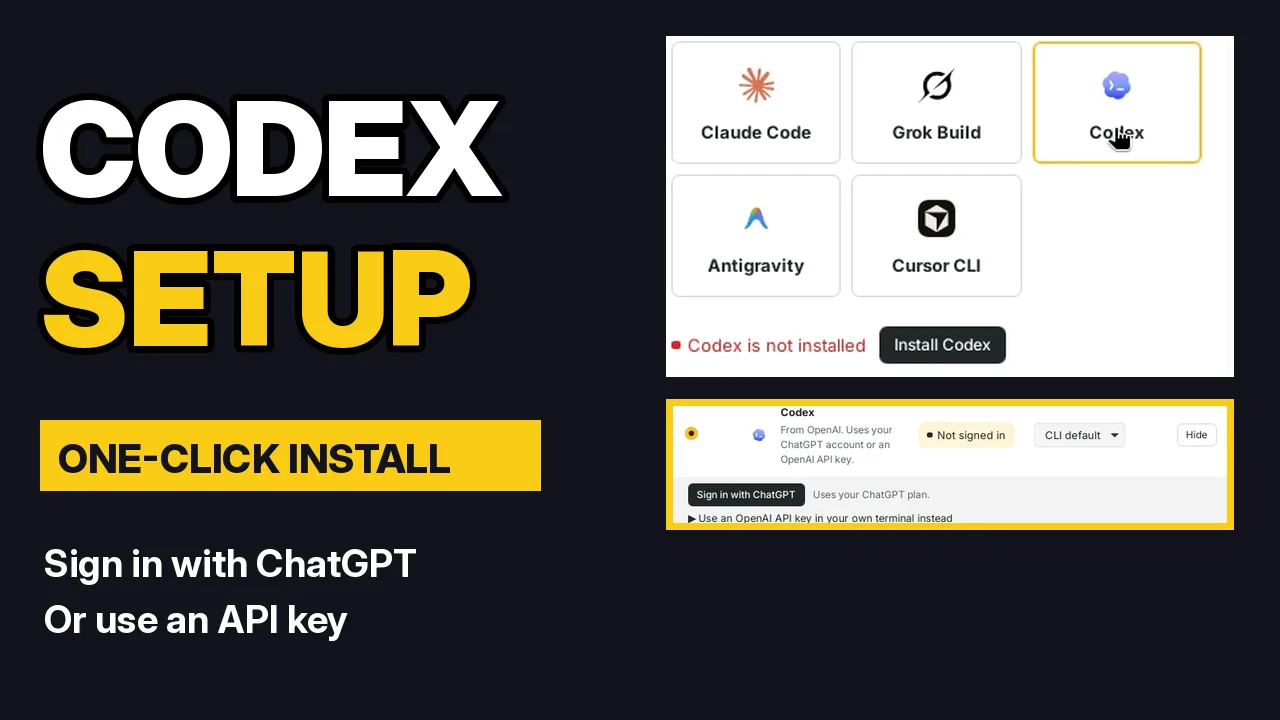
Pick Codex in Connect your AI
The first time you open ShipPress, a short tour starts. Step 2 is Connect your AI: pick Codex. Everything below is also in Settings › Your AI, so you can do it later.
-
Click Install Codex
If Codex isn't on your computer yet, ShipPress shows Codex is not installed and an Install Codex button. Click it. ShipPress installs Codex into your home folder for you, so there's no command to type and no administrator password. In the video it took a few seconds. The official install line is shown below the button as a fallback.
-
Sign in with ChatGPT
When the install finishes, the status says Not signed in. Click Sign in with ChatGPT. Codex opens its own sign-in page in your browser: sign in there with your ChatGPT account, then come back. ShipPress checks the status by itself every few seconds, and it never sees or keeps your password. See OpenAI's Codex pricing page for which ChatGPT plans include Codex.
-
Or use an OpenAI API key
Prefer an API key? Open Use an OpenAI API key in your own terminal instead. In your own terminal, run
codex login --with-api-key, paste your key, press Enter, then press Ctrl+D. Come back and click Check again. ShipPress never asks you to paste the key into the app. -
Make Codex the AI for new Workers
In Settings › Your AI, the New Workers column picks the AI every new Worker starts with. If you picked Codex in the tour, it's already selected. A Worker is the AI helper that changes your site while you chat.
-
Pick the model
Under Model, CLI default uses the model Codex picks for you, which is a good place to start. Choose Custom if you want to type a specific model name.
-
If ShipPress can't find Codex
Set the Program path to the Codex program, or click Re-detect. Check again refreshes the sign-in status. Next: make your first site, or see which AI you need.