
Send a client a private preview link before launch
In the ShipPress Mac, Windows & Linux app, Share to phone lets you send a temporary, password-protected preview link of your WordPress site to a client or your own phone before launch. The site is served directly from your computer without publishing it to the web.
-
When a preview link helps
Before launching a site with Go live, you often need client sign-off or want to check page layouts on a real phone. The Open in browser button opens the page in your own web browser, but its tooltip reminds you that it is still only on your computer.
With Share to phone, ShipPress creates a temporary public link. It is not publishing the site to a live host; it simply serves a temporary preview straight from your computer so someone else or another device can see it.
-
Click Share to phone above the preview
Open any site in ShipPress. Look at the toolbar directly above the site preview, to the right of the page picker and All pages.
Next to Open in browser, click the Share to phone button with the phone icon. If you hover over it, the tip says: Open this site on your phone or another computer.
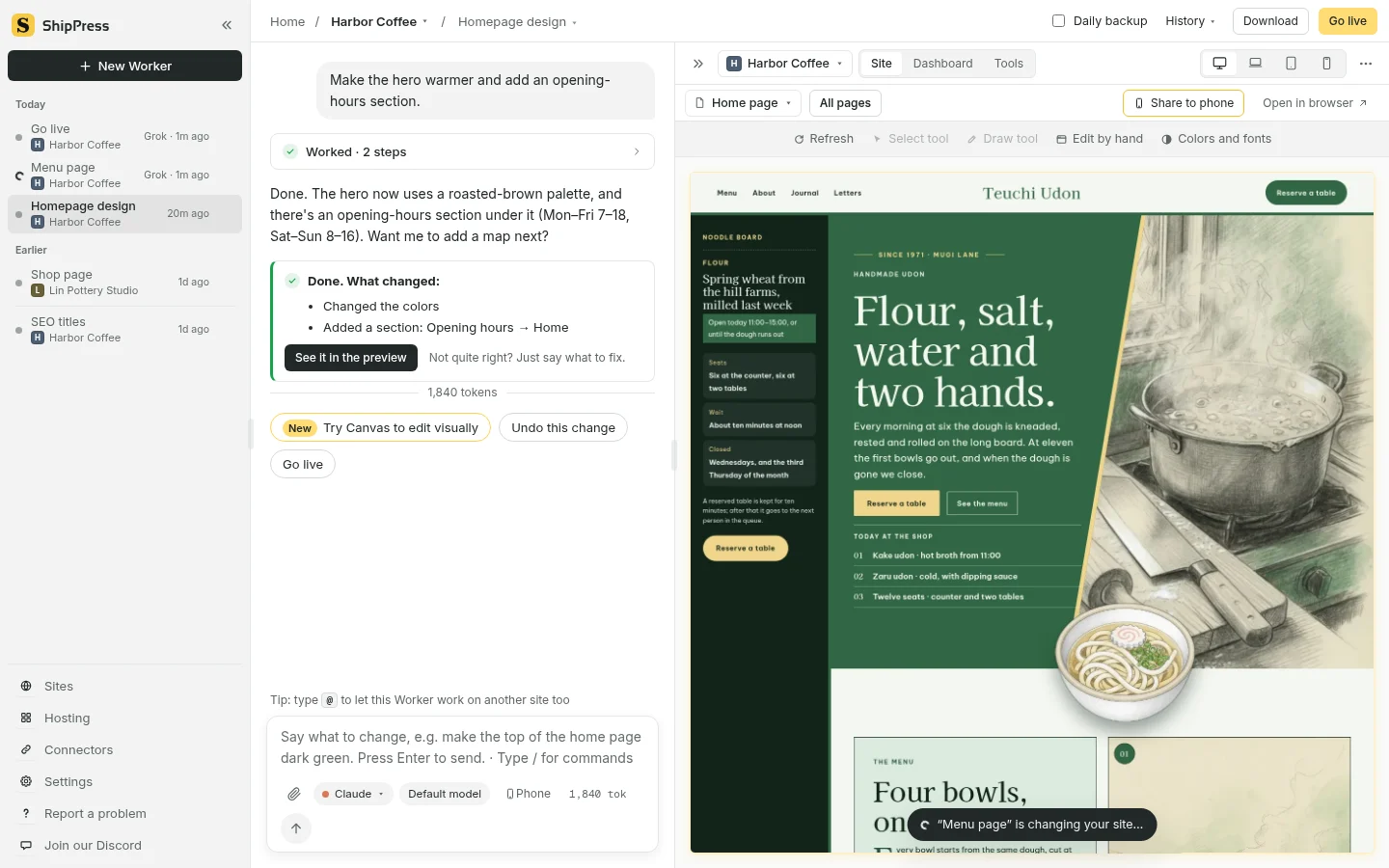
Click Share to phone above the site preview to open the sharing dialog. -
Keep the password on and start sharing
Clicking the button opens the Share to phone dialog: Open your site on your phone or another computer. ShipPress makes a temporary link for it. A clear notice warns: While sharing is on, anyone with the link can see your site on the internet, not just on this computer.
Leave Ask for a password (recommended) checked. As the dialog explains, ShipPress makes one up and shows it here. The small print notes: Sharing stops when you close this window or the site, and by itself after 2 hours at the latest.
Click Start sharing. The very first time you share, ShipPress shows First share: downloading ShipPress's sharing tool (only this once)… with a progress bar, followed by Making your link… This can take up to a minute. If your internet connection is down, you will see Couldn't make a link. Check that this computer is online, then try again. Check your connection and click Try again.
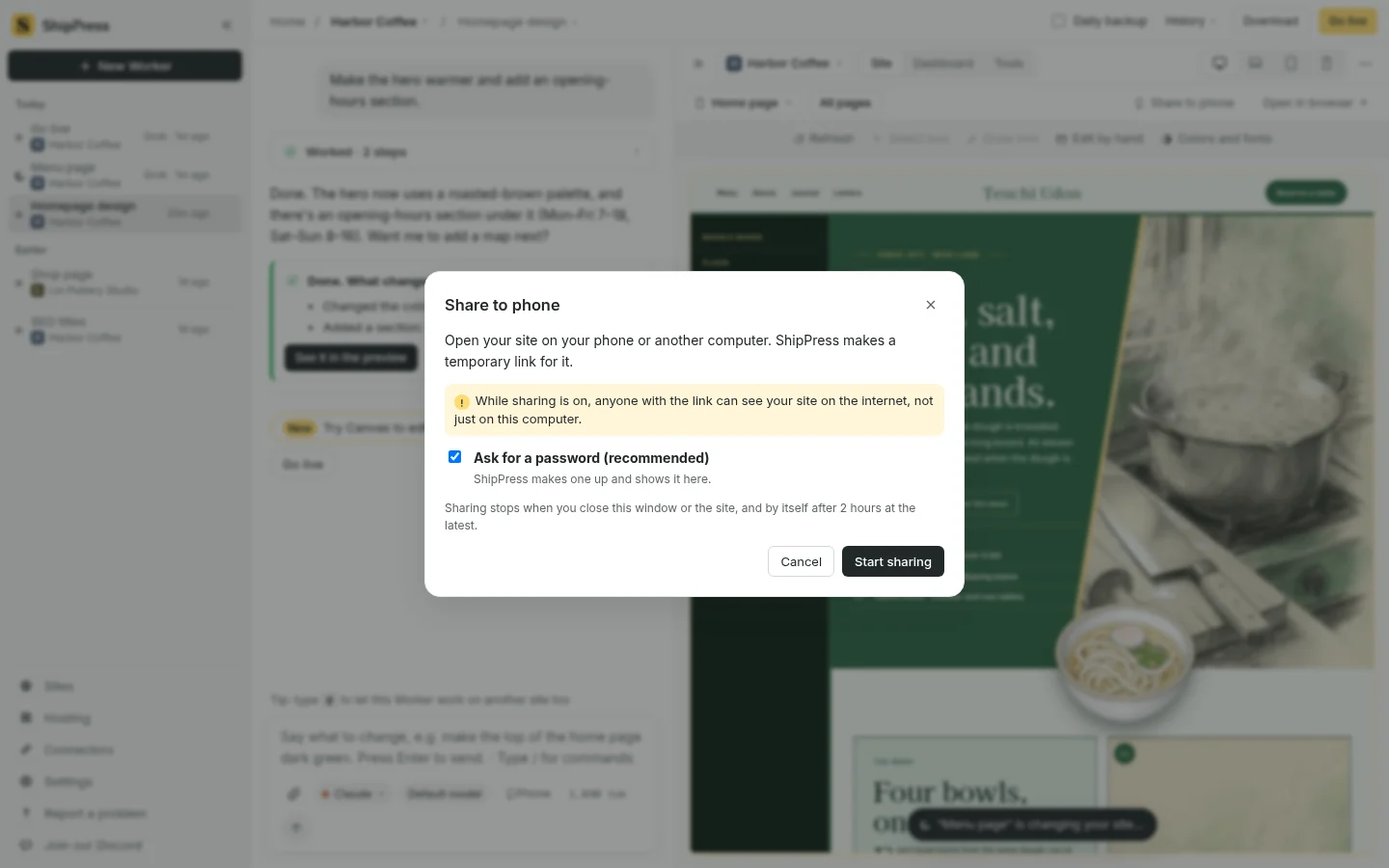
Keep the recommended password turned on and click Start sharing. -
Send the link, name and password to your client
When sharing starts, the dialog announces: Sharing is on. Scan the code with your phone's camera, or open this link:
To test on your own phone, scan the QR code with your camera. To send the preview to a client or colleague, click Copy link next to the temporary address ending in
.trycloudflare.com(Cloudflare's free temporary link service; no account needed).Because password protection is on, the window instructs: On the phone, the page asks for the name first, then the password. Type these:
- Name:
guest(always guest, with a Copy button) - Password: A unique 10-character code of lowercase letters and digits that ShipPress generates (with its own Copy button). It avoids look-alike characters like 0/o or 1/l so it is easy to type on a phone.
A note reminds you: Anyone with the link and password can see your site. Only share them with people you trust.
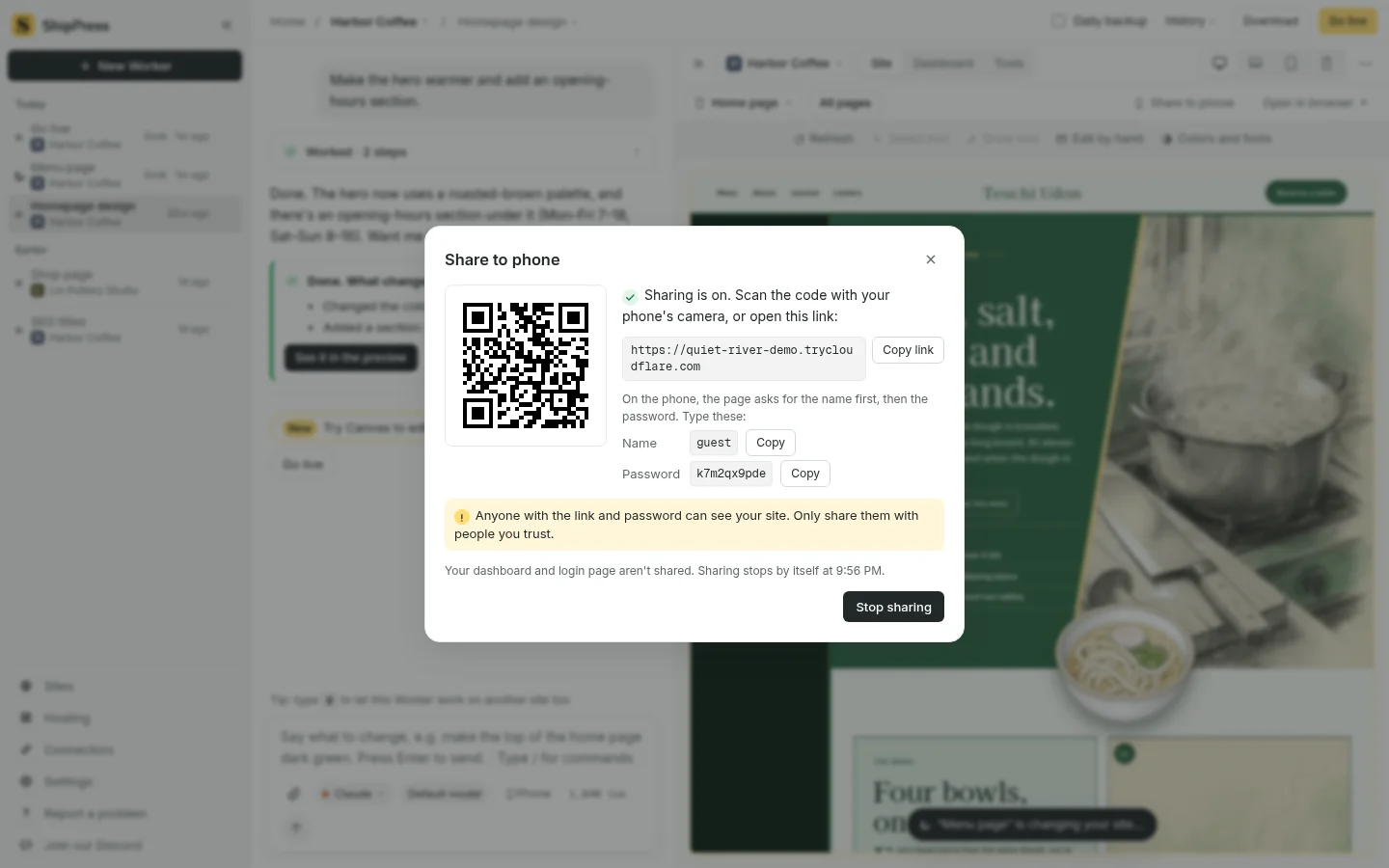
Copy the temporary link, guest name, and generated password to send to your client. - Name:
-
What your client sees
When your client opens the link on their phone or laptop, the browser asks for the name (
guest) and then the password. After entering them, they see the site exactly as an online visitor would.Some parts stay private: Your dashboard and login page aren't shared. The WordPress admin area (
wp-admin), login page, and ShipPress local helpers are blocked on the shared link. Nothing is written to your site's database during sharing, so the site is exactly as before after sharing ends.Because the site is served directly from your machine, your computer must stay powered on and ShipPress must remain open while your client looks around.
-
How long the link works
The sharing dialog shows the exact stop time: Your dashboard and login page aren't shared. Sharing stops by itself at … where the app shows the clock time, 2 hours after you started (for example 9:56 PM in the screenshot). The link lasts for 2 hours at most.
Sharing also stops if you click Stop sharing, close the dialog (or press Esc), close the site, open another site, quit ShipPress, or if your connection drops. The dialog checks every few seconds and confirms when sharing has ended instead of leaving a dead link.
Once stopped, the dialog displays: Sharing has stopped, so the link no longer works. You can click Close or click Share again whenever you need a new session.
-
Make changes and share again
Suppose your client reviews the site and asks for two small adjustments: changing the hero button text and updating opening hours. Because the sharing dialog must stay open while sharing is active, you cannot edit in the app simultaneously.
Click Stop sharing. In the chat panel, ask your Worker to make the adjustments (see Edit your site by chatting). Once the preview updates to your satisfaction, click Share to phone again and click Start sharing.
ShipPress generates a brand-new link and a new 10-character password. Send the fresh link and credentials to your client for final sign-off.
-
Good to know and next steps
- Check your site on Computer, Laptop, Tablet and Phone — Test responsive layouts directly in the ShipPress preview window before sharing.
- Edit your site — Learn the fundamentals of tweaking pages and previewing changes.
- Publish your site free with a ShipPress address — Need a preview link that lasts longer than 2 hours or stays online when your computer is off? Publish with a free ShipPress address.
- Go live — Move your approved WordPress site to your production web host.
- Continue on your phone — A separate feature that lets you continue chatting with your Worker from your mobile device.