
Which AI do you need? The 5 AI tools ShipPress works with
ShipPress doesn't include an AI. It works with an AI account you already have, or one you sign up for. This tutorial goes through the five AI tools it supports, what each one signs in with, where to find each company's own plan page, and how ShipPress installs a tool for you in one click.
By Oberon Lai. I make ShipPress (Codotx, LLC), so this is our own product. Anthropic, xAI, OpenAI, Google and Cursor are not affiliated with ShipPress, and there are no affiliate links on this page.
-
Open Settings › Your AI
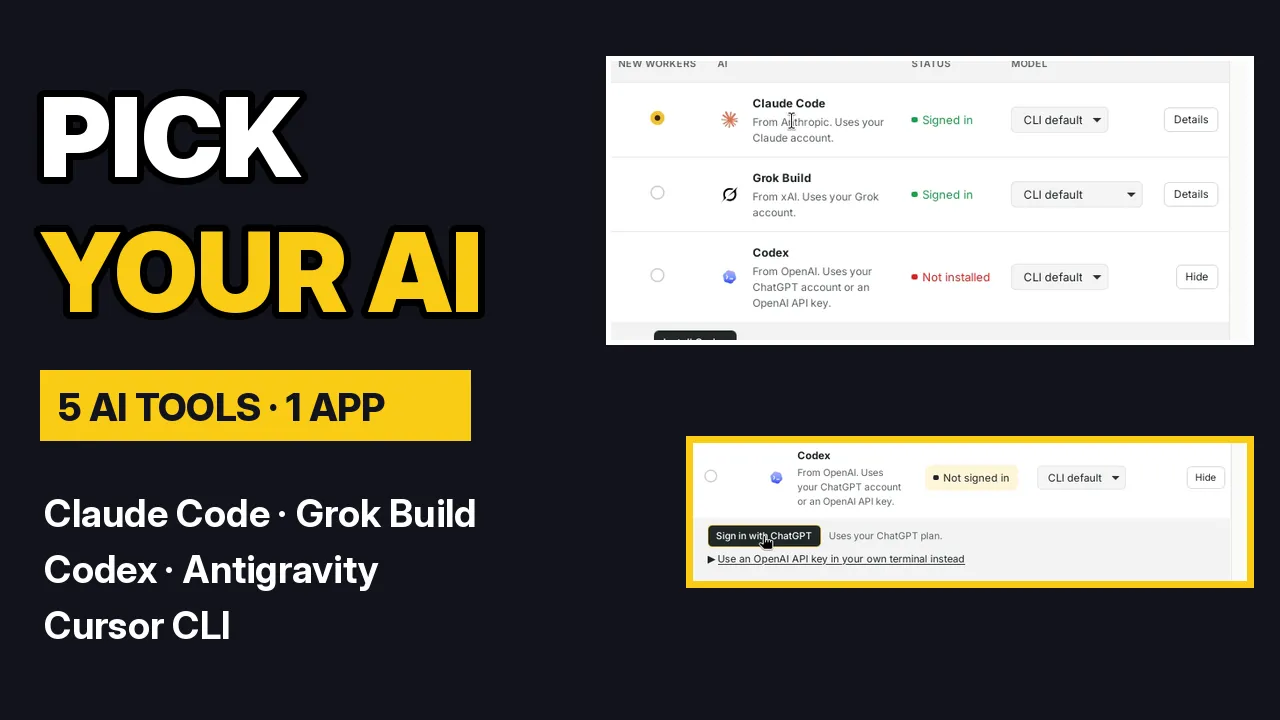
In ShipPress, open Settings and choose Your AI. You'll see the five AI tools ShipPress can use, with a status for each: Signed in, Not signed in or Not installed. As the page says, you sign in to your AI yourself, in the AI company's own tool. ShipPress never sees or keeps your password, and it doesn't sell AI.
-
The five AI tools
- Claude Code (Anthropic) uses your Claude account.
- Grok Build (xAI) uses your Grok account.
- Codex (OpenAI) uses your ChatGPT account or an OpenAI API key.
- Antigravity (Google) uses your Google account or a Gemini API key.
- Cursor CLI (Cursor) uses your Cursor account or a Cursor API key.
The New Workers column picks which AI new Workers use. You can set up more than one and switch any time.
-
Check each company's own plan page
Plans change, so check the official pages before you sign up:
- Claude Code: claude.com/pricing. The FAQ Is Claude Code included in my plan? says it's included in all paid plans.
- Grok Build: x.ai/news/grok-build-cli lists which Grok and X subscriptions include it.
- Codex: developers.openai.com/codex/pricing shows what each ChatGPT plan includes, such as Codex in the CLI.
- Antigravity: antigravity.google/docs. Its command line tool is called
agy, and the Authenticate page explains Google account and Gemini API key sign-in. - Cursor CLI: cursor.com/docs/cli/overview.
-
Install in one click
If a tool isn't installed yet, its row shows an Install button, for example Install Codex. Click it and ShipPress downloads and installs the tool for you, which takes about a minute. There's no command to type. If you prefer, the same row also shows the official install line to paste into your own terminal.
-
Sign in, then check again
After installing, the status changes to Not signed in. For Codex, click Sign in with ChatGPT and your browser opens ChatGPT's own sign-in page. For the other tools, follow the steps shown in the row. When you're done, come back and click Check again. Then pick which AI new Workers use.
-
Which one should you pick?
If you already pay for one of these, start with that one. Every tool builds and edits the same real WordPress site, and you can switch later. The next step is signing in to your AI.