
From local to live: what Go live replaces
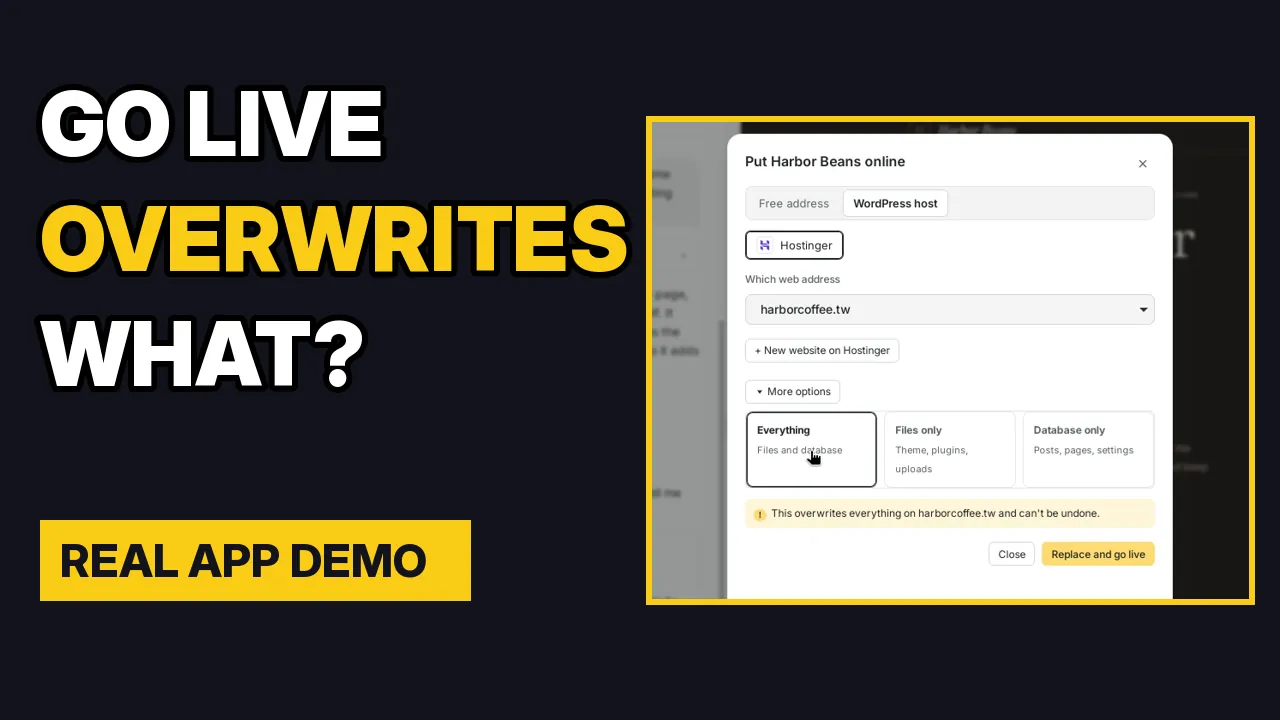
Go live → Everything replaces the live site’s database and files with your local copy. Live posts, pages, settings, users, comments and WooCommerce orders are replaced by what is in your local database. Nothing is merged. Files only sends your theme, plugins and uploads and leaves the live database alone. This tutorial follows each step and shows how to keep a store with real orders safe.
By Oberon Lai. I make ShipPress (Codotx, LLC), so this is our own product.
-
What happens when you click Go live
ShipPress runs WordPress on your Mac with a SQLite database, so a live host can’t simply receive a file copy. When you click Go live:
- It builds a bundle. Your whole local database is exported as a MySQL dump, your local address is changed to the live address (also inside serialized data), and
wp-contentis packed. - It leaves out the local-only parts. The SQLite plugin, the local sign-in helper, ShipPress’s own editing helpers, the agent folders and
wp-config.phpare never sent. Your host keeps its own database credentials. - It saves a copy of the live database first (InstaWP and SSH hosts) into
.aiwp/snapshots/remote/inside your local site, and keeps the newest five. If that export fails or comes back empty, Go live stops and nothing is changed. - It sends the files and the database to the host, switches the table prefix to the one the live site uses, replaces addresses and clears caches.
- If the database import fails over SSH, the saved copy is imported back automatically. On InstaWP, ShipPress tells you where the copy is.
Go live also waits while an AI Worker is editing the site or a scheduled routine (backup, updates) is running, so a half-finished change never goes online.
- It builds a bundle. Your whole local database is exported as a MySQL dump, your local address is changed to the live address (also inside serialized data), and
-
What is replaced, and what stays
Under More options in the Go live box you choose what to send. In Advanced mode you can also narrow the files to themes, plugins and/or uploads.
Choice Live database Live files (wp-content) Everything (default) Replaced by your local database Local files are copied over Files only Untouched: posts, pages, settings, users and orders stay Theme, plugins and uploads are sent Database only Replaced Untouched This is what that means for live data:
Live data Everything Files only Database only WooCommerce orders and customers Replaced Kept Replaced Users and passwords Replaced Kept Replaced Comments Replaced Kept Replaced Posts, pages, settings, menus Replaced Kept Replaced - ShipPress does not filter tables or merge rows. A WooCommerce order that exists only on the live site is not in your local dump, so after an Everything push it is no longer in the live database. The saved copy of the live database still contains it.
- On SSH hosts, files are copied over the live
wp-contentwithout deleting files that exist only on the live site. With Files only, a live file is overwritten only when a local file has the same name.
-
Pull the live site back to your Mac
Apps → All sites → Pull from host (Advanced mode) downloads a live site. You choose a new site on your Mac, which leaves the open site untouched, or replace the site that’s open now, which needs a tick box saying you understand your local site will be replaced.
ShipPress reads the live database and
wp-contentand imports them locally. Only table and row statements are run, files are extracted safely (no path tricks, nowp-config.php, none of ShipPress’s local helpers), and the live address becomes your local address. If the pulled database has no admin user, a localadminuser is created so you can sign in. Like Go live, a pull can be limited to files or to the database.Before it replaces an open site, ShipPress saves a restore point named pre-pull and puts it back automatically if the import fails. You can pull from InstaWP and from any host you can reach over SSH. On Hostinger, pulling needs SSH, which comes with Business plans and up.
- Privacy. A full pull brings customer data (orders, emails, addresses) onto your laptop. Pull Files only if you don’t need it.
- A pull is a snapshot. Anything that happens on the live site afterwards isn’t in your copy, and it is replaced if you later push Everything.
-
Rollback: restore points and the live-database copy
ShipPress saves a restore point on your computer after every AI change, before every pull, before every restore, and when you save one by hand. By default it keeps the newest 30 per site (at least 5). A restore point contains your local database, your custom themes and the uploads folder. It does not contain plugins or WordPress’s bundled themes, and it never touches the live site. Restoring first saves another restore point, so a restore can itself be undone.
For the live site you have two safety nets:
- The saved copy of the live database (InstaWP and SSH): a plain
.sqlfile in.aiwp/snapshots/remote/inside your local site. Restore it withwp db importover SSH or with your host’s database tool. It is a database copy only, not files. - Your host’s own backups. On Hostinger, ShipPress can’t take a database backup through its API, so it opens hPanel’s Backups page instead. Make a backup there before an Everything push.
- The saved copy of the live database (InstaWP and SSH): a plain
-
A safe workflow for a site with real data
A brand-new site with no real orders or users yet: Everything is the right choice. Check the address in the Go live box, click Go live, then open the live site and place a test order.
A site that already has real data:
- Try it on a staging site first. Create a staging copy at your host, or a throwaway InstaWP site, go live there, and check an order, a user and a comment before you touch the real site.
- Decide what changed. Theme, design and code live in files. Pages, posts, products, settings and menus live in the database.
- If only design or code changed, use Go live → More options → Files only. Live orders, users, comments and content stay exactly as they are. If you only changed the theme, tick just Themes (Advanced mode) so plugin files such as WooCommerce aren’t replaced with your local versions.
- If you changed content in the database, make that change in wp-admin on the live site. Use your Mac copy as the place to try it first. Don’t push Everything over a store that is taking orders.
- If you must push the database to a live store, treat it as a short maintenance window. Make a backup in your host’s panel first. Pull Everything right before you start editing, so your copy has the current orders and users. Keep the editing short: an order placed after your pull is missing after the push, and exists only in the saved copy of the live database. After Go live, check an order, a user and a recent comment.
- Check the result. The message after Go live says where the previous live database was saved. Keep that file until you have verified the site.
- To keep editing, pull again instead of working on a stale copy.
-
What ShipPress does not do yet
I’d rather you hear this from me:
- No merge or table filter. There is no “keep live orders and users” switch. Everything and Database only replace every table.
- The warning is general. The Go live box says it overwrites everything. It doesn’t name orders, users or comments.
- No one-click restore of the saved live database, and only the newest five copies are kept.
- No staging site or local-versus-live comparison inside the app.
- Orders placed while a push is running can be lost, because the live database is copied first and replaced afterwards.
The free address route is a different thing: it publishes plain files and isn’t meant for WooCommerce shops, so none of this applies to it.
-
Where to go next
New here? Install ShipPress (free, Mac), then follow Go live and Download a site from your host.
If you run a store on ShipPress and these limits worry you, tell me what you would want: a table filter, a restore button, a warning that counts live orders? Use Contact us. I’d like to build what people actually need.
— Oberon Lai, maker of ShipPress