
The Dashboard and Tools
The Dashboard is the WordPress admin of this site. It shows in the preview, already signed in. Only you see it.
-
Open the Dashboard
The switch at the top of the preview is Site, Dashboard and Tools. Click Dashboard. Settings, pages and posts live here, and so do products and orders (WooCommerce) when the site has a shop. Open in browser opens this screen in your browser. It is still only on your computer.
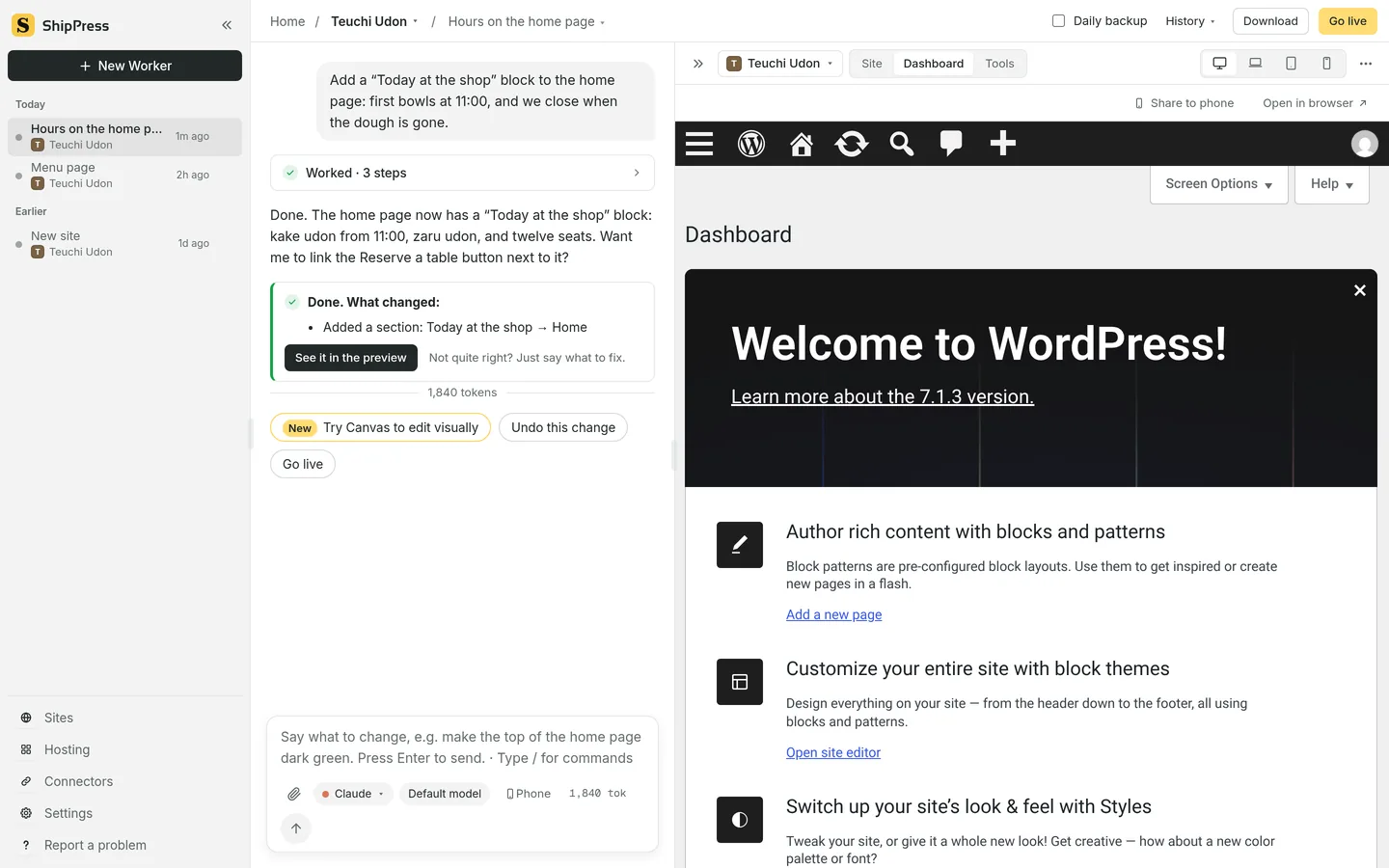
Dashboard. The WordPress admin is in the preview, already signed in. -
Site and Dashboard
Site is what visitors see. Dashboard is where you manage the site. Visitors never see the Dashboard. A change you make there shows on the Site. You can also just ask the Worker in the chat.
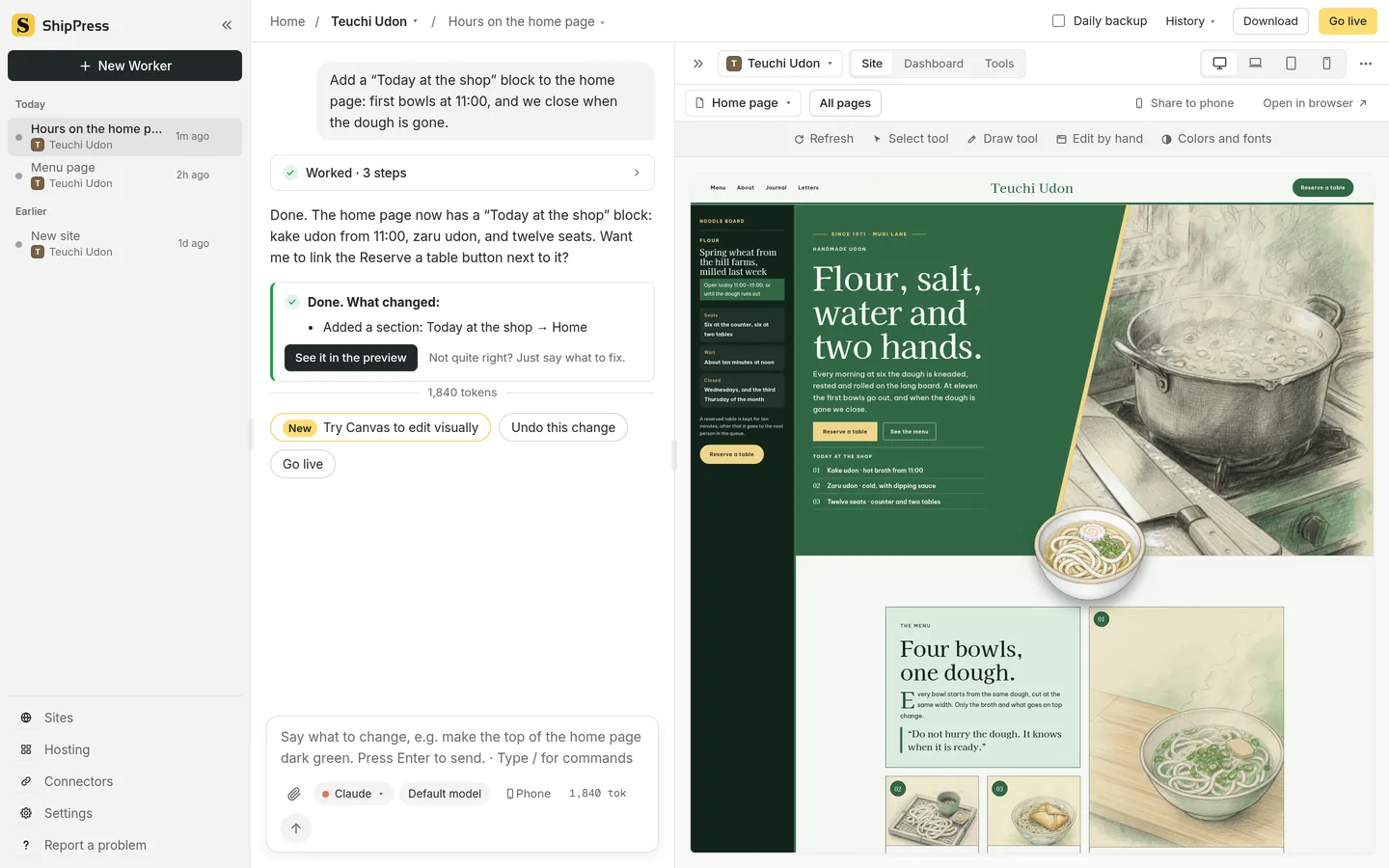
Site. The live site in the preview. -
Tools
Tools is the third button in that switch. Tools are small screens a Worker makes for this site, such as an orders list, a list of posts and their status, or a product price list. Ask for one in the chat. With none yet, the Tools tab offers those asks, for example Make me an orders list. Each tool shows what it may do. The picture says This tool can: see your orders, change your orders. It asks before it changes anything the first time. Once you allow it, it will not ask again, except for changes to many items at once.
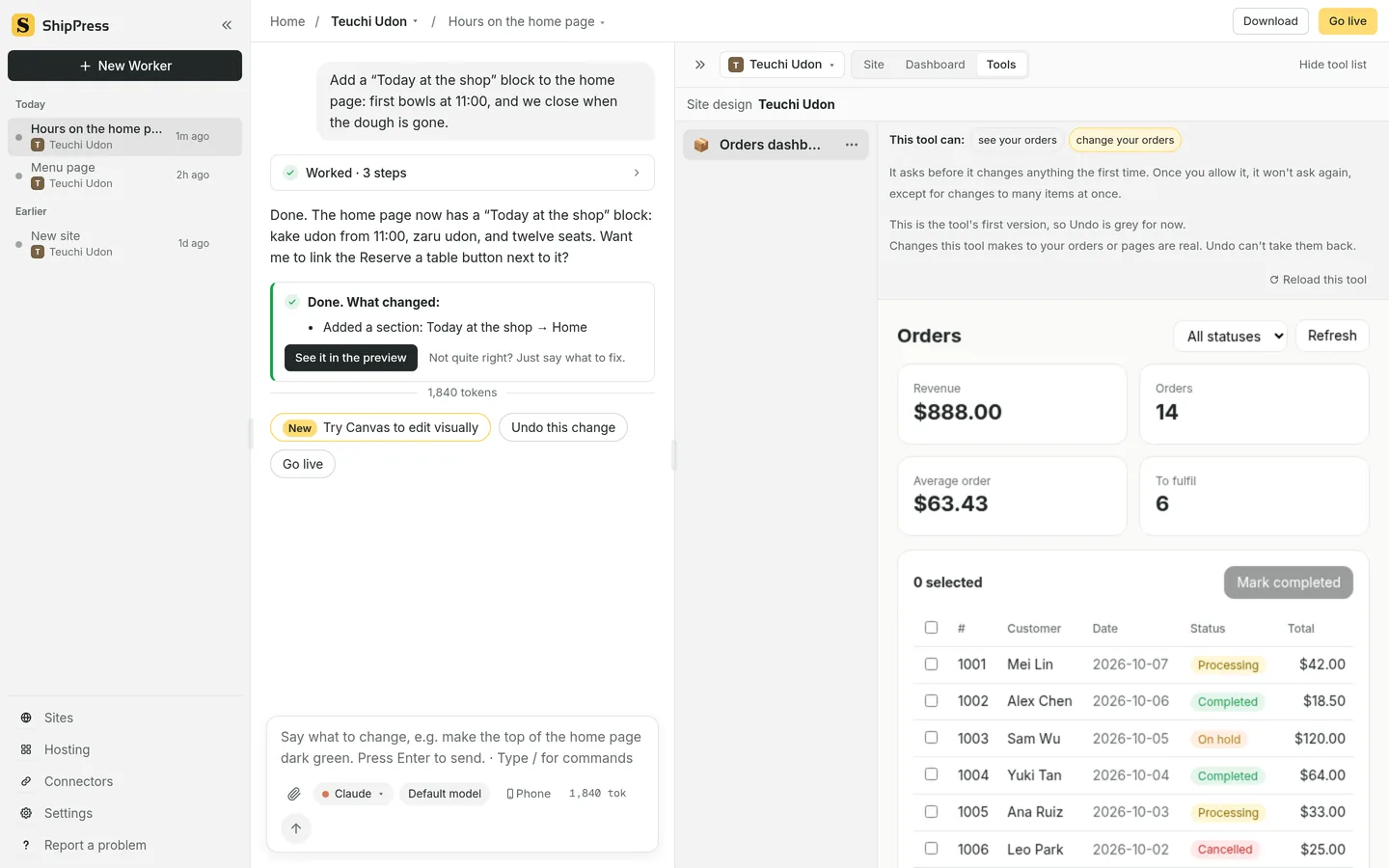
Tools. An Orders dashboard, what it may do, and the note that it asks before the first change. -
The tool menu
The tool menu has Rename, Undo, Duplicate and Delete. Undo goes back to the previous version of the tool. It does not undo changes already made to orders or pages. On the first version, Undo is grey. Reload this tool refreshes the tool.