
Point at what you want to change
The hardest part of asking for a change is saying where it is: “the second line under the title”, “that box on the left”. ShipPress puts three tools above the preview so you can point instead. Select tool picks one element, Draw tool circles a whole area, and Edit by hand opens the page in WordPress’s block editor when you would rather change it yourself. In this tutorial I use them on the home page of Pier 7 Coffee.
-
Find the tools above the preview
Open your site in ShipPress and look at the row above the preview. From left to right it has Refresh, Select tool, Draw tool, Edit by hand and Colors and fonts. The page picker on its left chooses which page of your site you are looking at.

The preview tools sit above the preview. -
Click Select tool and hover
Click Select tool. It turns yellow, which means it is on. Now move the pointer over the preview: ShipPress draws a blue outline around the element under the pointer and names it, for example paragraph. Nothing is chosen yet. Press Esc at any time to switch the tool off.

A blue outline shows what a click would pick. -
Click the element
Click the one you want. It is added to the chat box as a small tag with its text, together with a picture of it. The AI receives that exact element, so you do not have to explain where it is. To drop it, click the × on the tag.

The picked element is attached to your message. 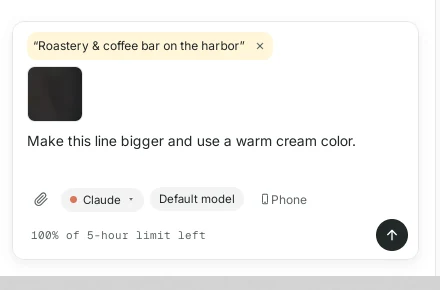
The tag and picture travel with your message. -
Say what to change and send
Type what you want, just as you would to a person standing next to you, and press Enter. “This line” is enough, because the AI already knows which one. It changed only that line, and after you send, the Select tool switches itself off. The AI also offers short follow-up buttons such as Undo this change.
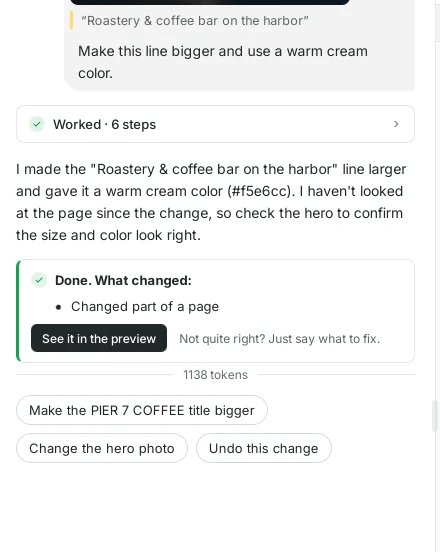
The AI changes only what you picked. 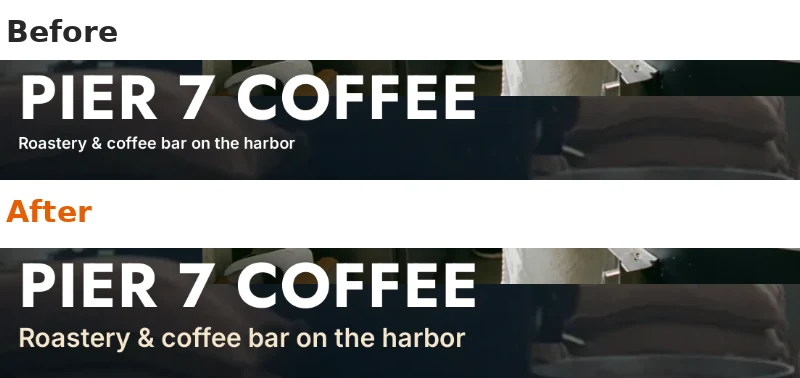
Before on top, after below. -
Circle an area with Draw tool
Some changes are about a whole block rather than one element. Click Draw tool, press the mouse button on the preview and draw a loop around the area. The red circle stays on screen and the chat box gets a picture of what you circled. The elements inside it are attached too.
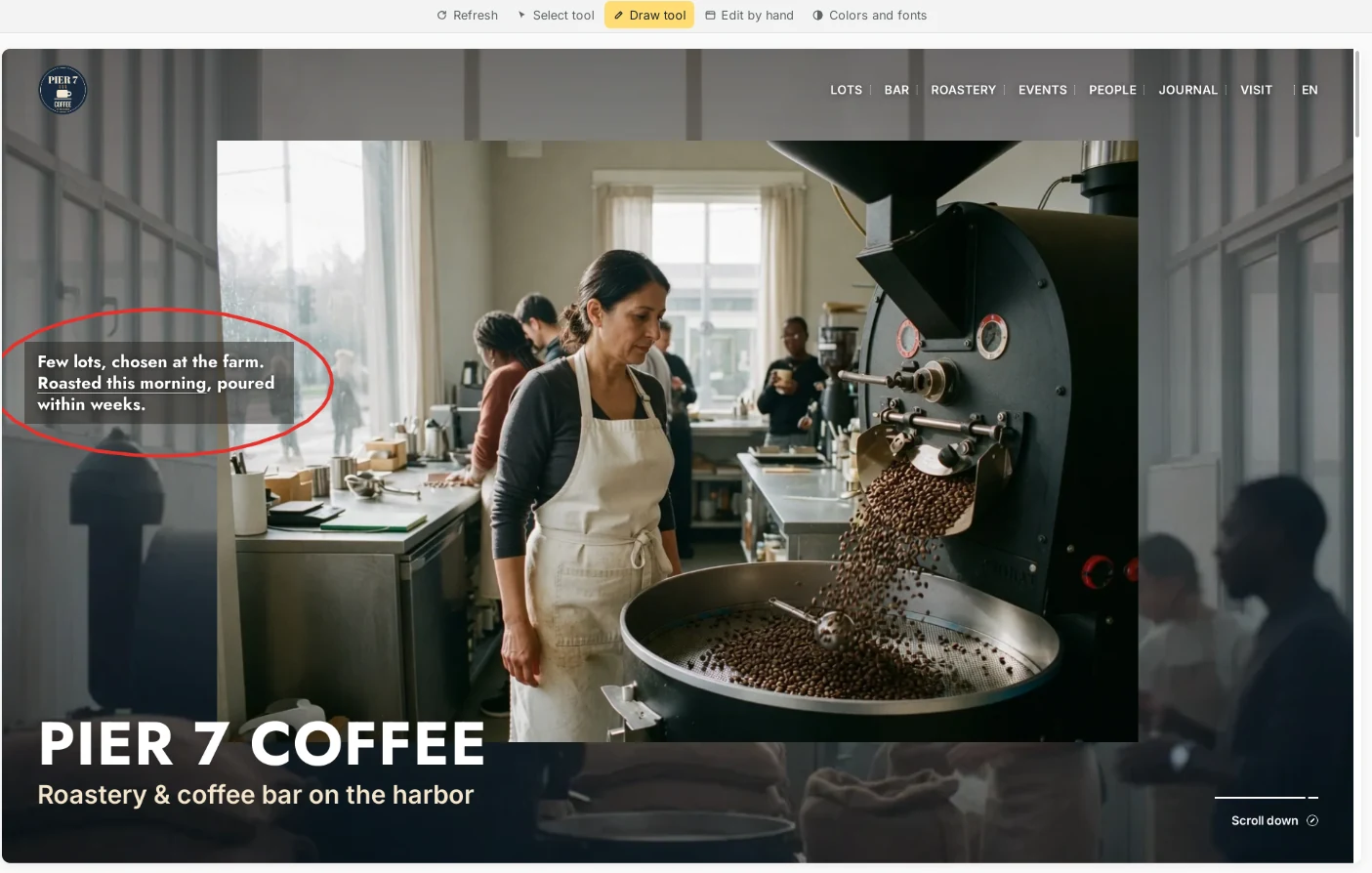
Draw around the part you mean. -
Send it, then check the result
Write your request and press Enter. I asked for the circled box to be solid dark green with cream text, on one or two lines. The AI answers in the chat and the preview updates. The picture you drew on is shown in your message, so you can always see what you pointed at.
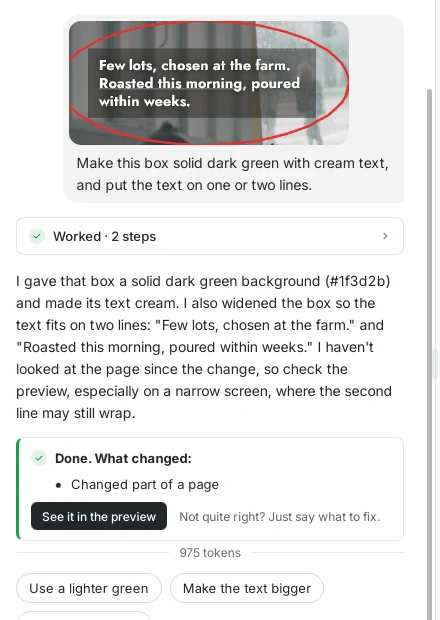
Your drawing is shown in the message. 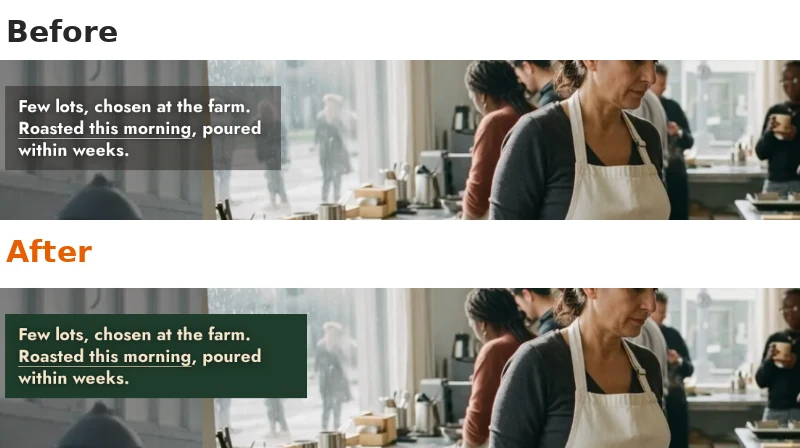
Before on top, after below. -
Edit by hand when you would rather do it yourself
Click Edit by hand to open the current page in WordPress’s block editor, right inside ShipPress. Click any text, change it, and press Save, as in any WordPress site. The first time, WordPress shows a short welcome guide. Close it with the × to get to your page. Click Refresh afterwards to see the result in the preview.
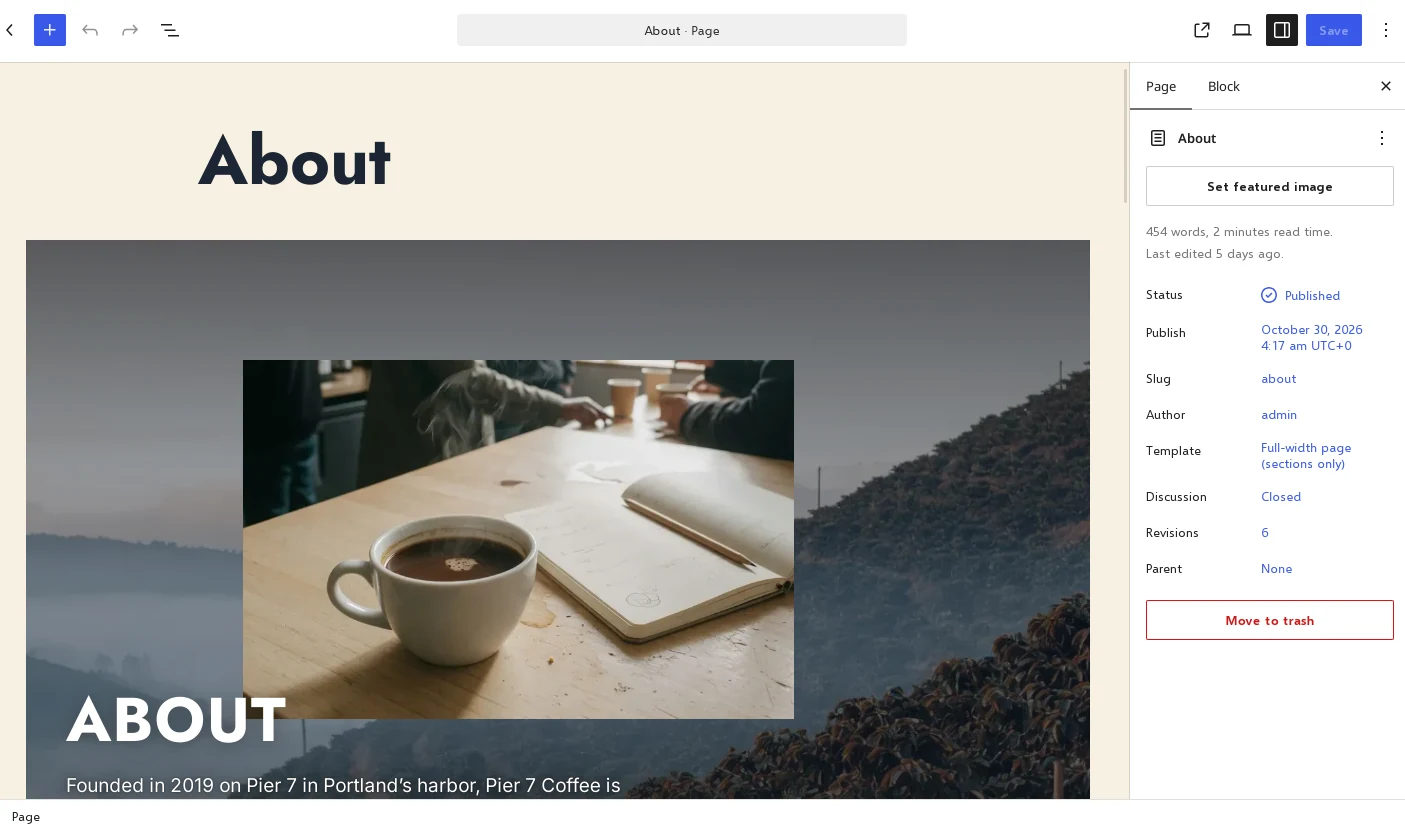
Edit by hand opens the page in the block editor. -
Undo or go back
If you do not like a change the AI made, click Undo this change under its answer. ShipPress also saves a restore point after every AI turn, so you can return to any earlier version from History at the top right.
-
Which one to use
- Select tool: one heading, line of text, button or picture.
- Draw tool: a block, a gap between sections or anything that is more than one element.
- Edit by hand: when you just want to retype a sentence or move blocks around yourself.
- Colors and fonts: the colors, fonts and spacing of the whole site.
- Press Esc to switch a tool off without choosing anything.