
Is it safe? Approval cards, undo and where your data goes
Letting an AI change your website is only comfortable if you stay in charge. This tutorial shows the approval cards ShipPress shows before bigger changes, how to undo with restore points, and where your AI sign-in, your messages and your files go.
By Oberon Lai. I make ShipPress (Codotx, LLC), so this is our own product.
-
Approval cards before bigger changes
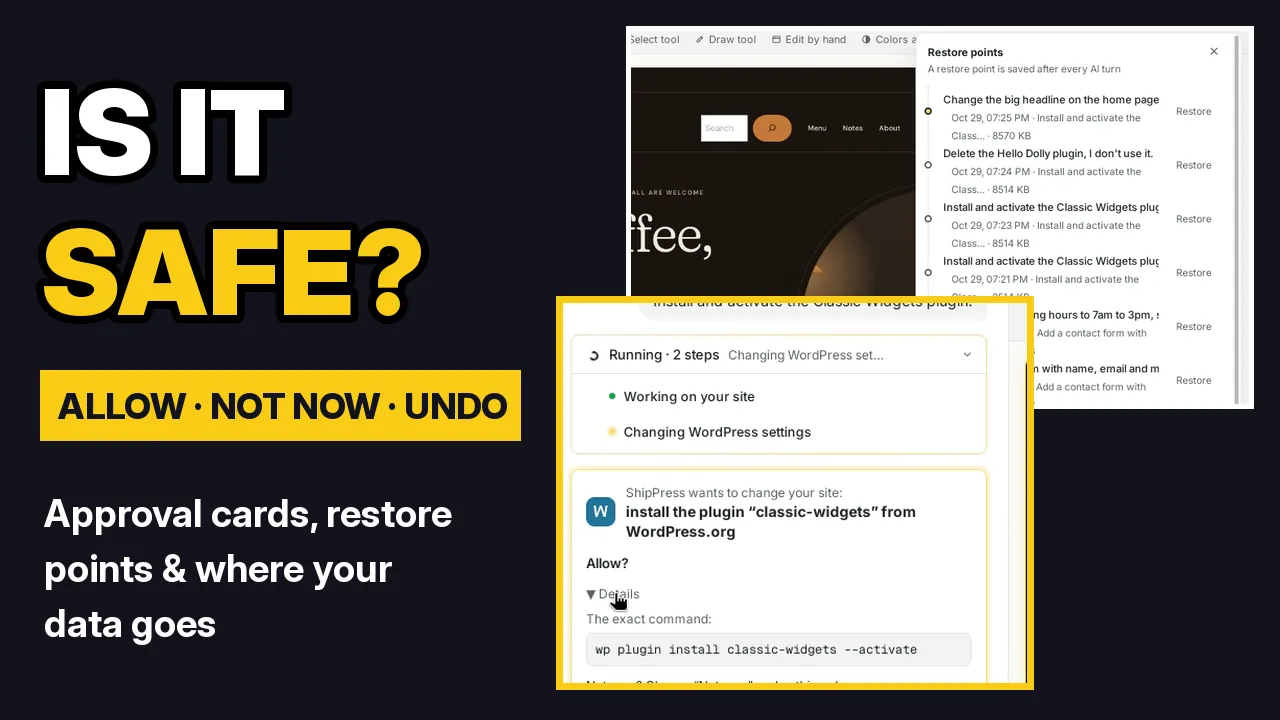
When the AI wants to install, update or delete a plugin or theme, update WordPress, or add or remove a user, ShipPress stops and shows an approval card in the chat. The card says in plain words what will change, for example install the plugin “classic-widgets” from WordPress.org. Click Details to see the exact command. Click Allow to let it run.
-
Say no with Not now
Not sure? Click Not now. The card then says Nothing was changed, and the AI carries on without making that change. Nothing on the card runs until you choose.
-
Your host and your live site always ask first
The same cards guard the big moves with your hosting account: putting your site online, creating a site on your host, pulling your live site over the copy on your computer (a restore point is saved first), and deleting a site on your host, which can't be undone. Any change to a live site asks every time. If you don't answer within 10 minutes, the card expires and nothing runs.
Some commands never run at all, such as running raw code, working on the database directly, or reading passwords and secret keys. The hosting keys you connect stay in your system keychain; the AI never sees them.
-
Undo any AI turn with History
A restore point is saved after every AI turn, with your pages, settings, design files and uploads. ShipPress keeps the last 30 by default. Open History, find the point you want, and click Restore. ShipPress saves your current version first, so you can come back to it. After restoring, Take it back undoes the restore. More in Restore points.
-
Your AI sign-in stays with your AI tool
You sign in to your AI tool (for example Claude Code) yourself, with your own account. ShipPress never sees or keeps your password. Check it in Settings › Your AI. ShipPress also starts the AI without other secret keys on your computer, such as cloud or GitHub tokens.
-
Where your messages and files go
Every site is a folder on your computer. Open Sites and click Open folder: next to the normal WordPress files there is a .aiwp folder with sessions (your chats) and snapshots (your restore points). It stays on your computer and is never copied to your host when you go live.
When you send a message, ShipPress hands it to the AI tool you picked. That tool sends it, along with any site files it reads to do the job, to its own service under your account, just like using the tool on its own. Your chats aren't sent to ShipPress. Your site goes online only when you choose to put it online.
-
Anonymous usage data is off unless you turn it on
In Settings › General, Share anonymous usage data is off by default. If you turn it on, it only covers which features you use and how long you use the app. It never includes site content, prompts or personal data, and turning it off deletes the raw data already sent.