
Set up Grok Build, Antigravity & Cursor CLI
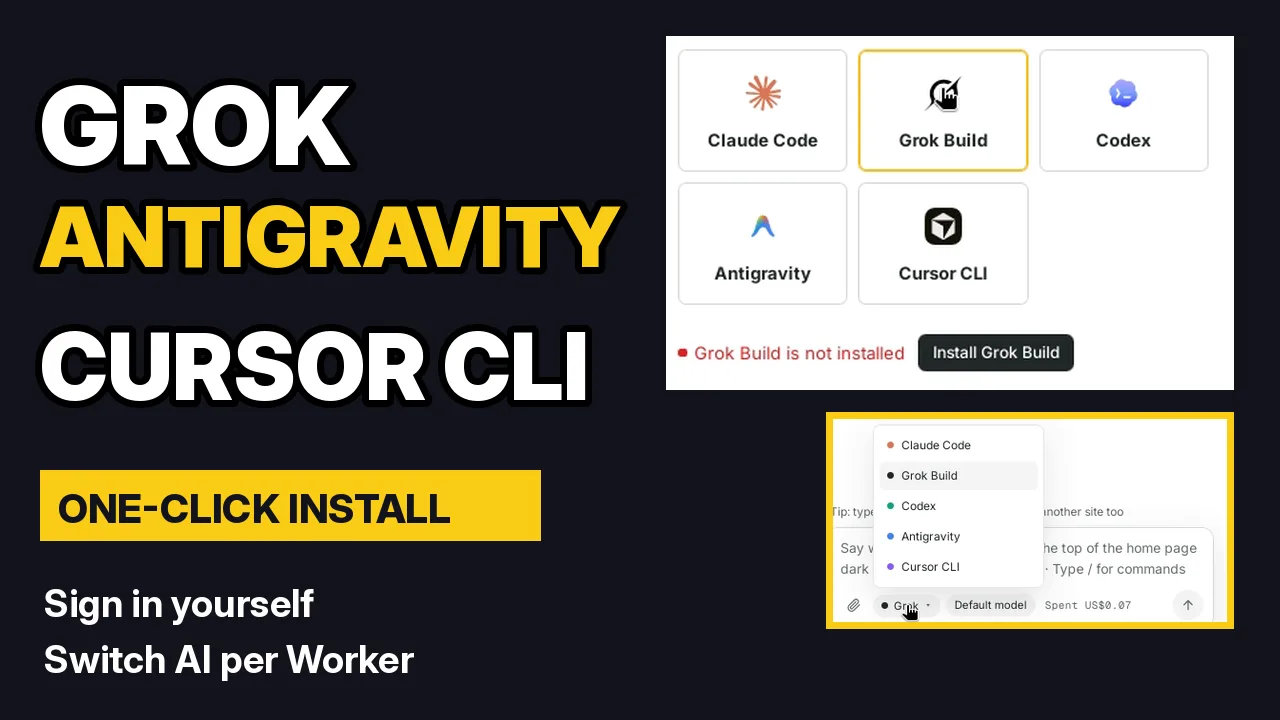
Besides Claude Code and Codex, ShipPress works with three more AI tools: Grok Build from xAI, Antigravity from Google, and Cursor CLI. This tutorial installs all three with one click, shows how you sign in to each, and switches one Worker between Grok Build and Antigravity while it edits a real site.
By Oberon Lai. I make ShipPress (Codotx, LLC), so this is our own product. xAI, Google and Cursor are not affiliated with ShipPress, and there are no affiliate links on this page.
-
Pick the AI in Connect your AI
The first time you open ShipPress, a short tour starts. Step 2 is Connect your AI: pick Grok Build, Antigravity or Cursor CLI. Everything below is also in Settings › Your AI, so you can do it later.
-
Click Install
If the tool isn't on your computer yet, ShipPress shows not installed and a button: Install Grok Build, Install Antigravity or Install Cursor CLI. Click it. ShipPress runs the tool's official installer in the background, so there's no command to type. If it doesn't work, the official install line is shown right below as a fallback.
-
Sign in to Grok Build
When the install finishes, the status says Not signed in. Open a terminal, run
grok login --device-auth, and follow the sign-in steps with your Grok account. See xAI's Grok Build page for which plans include it. -
Sign in to Antigravity
Run
agyin a terminal. A Google sign-in page opens in your browser: pick your account, copy the code it shows, paste it into the terminal and press Enter. You can also use your own Gemini API key. See the Antigravity getting started guide. -
Sign in to Cursor CLI
Run
cursor-agent loginand sign in with your Cursor account, or use a Cursor API key. See the Cursor CLI docs. ShipPress never sees or keeps your password for any of these tools. -
Check again and pick the model
Back in ShipPress, click Check again. When the status says Signed in, the tool is ready. The Model menu lists each tool's own models (for example grok-4.7 for Grok Build, or Gemini models for Antigravity); CLI default is a safe choice. The New Workers column picks which AI new Workers start with.
-
Switch the AI for any Worker
Open a site and look at the menu under the message box: it shows the AI this Worker uses. Pick another one, like Grok Build or Antigravity, and keep chatting. The chat history stays, and every change still gets a restore point, whichever AI made it. Not sure which AI to use? See which AI you need, then make your first site.