
Add an FAQ section by chatting
Customers ask the same few questions again and again: Do you have oat milk? Can I bring my dog? Where do I park? A short FAQ on your site answers them before anyone has to call or message you. In WordPress you would add a details or accordion block for each question and style them to match your theme. In ShipPress you describe the section in the chat and the AI builds it. In this tutorial I add a “Good to know” FAQ to the home page of Pier 7 Coffee.
-
Pick the spot and the questions
Open your site in ShipPress and scroll the preview to where the FAQ should go. Near your address and opening hours works well, because that is where visitors look for practical answers. On Pier 7 Coffee I picked the space after the visit info (address, bar hours, roasting days and contact) and before the footer. Then write down the four to six questions people really ask you.
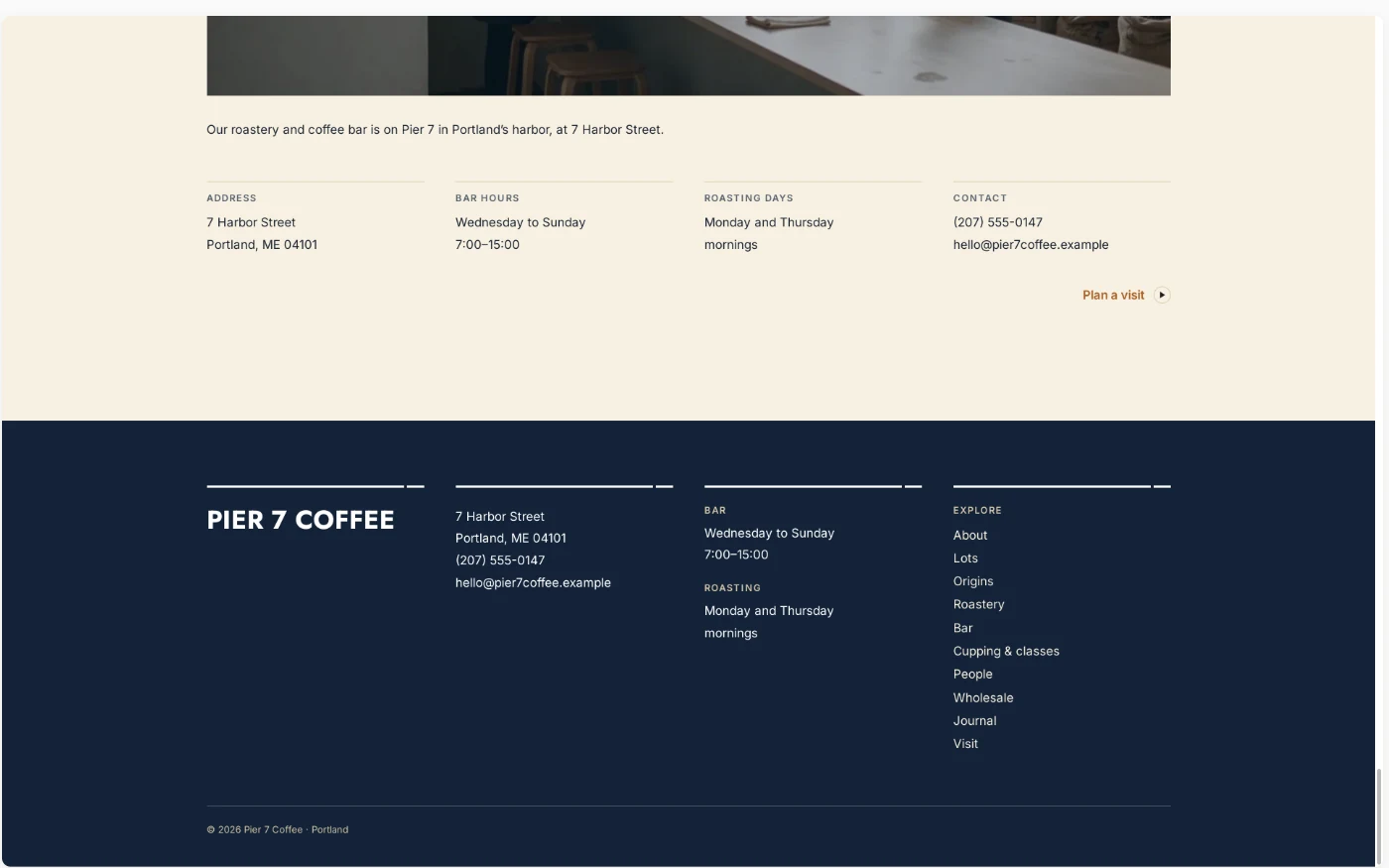
Before: the visit info goes straight into the footer. -
Describe the FAQ in one message
Click + New Worker for a fresh chat and type what you want: the section title, where it goes, which questions, how long the answers should be and how they should open. Also ask it to match the rest of the site and to leave everything else alone. I sent:
On the home page, add a short FAQ section called 'Good to know' right after the visit info (address and bar hours) and before the footer. Add five common questions for a coffee bar: oat milk, laptops and Wi-Fi, dogs, buying beans to take home, and parking. Each answer should be one or two sentences and open when you click the question, closed by default. Use the same fonts and colors as the rest of the site. Don't change anything else.
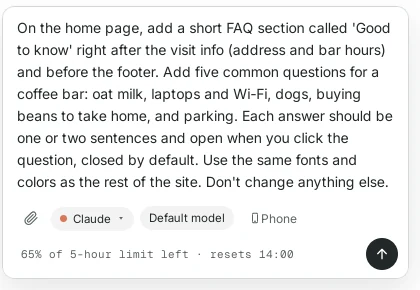
Say where it goes, which questions, and how the answers open. -
Let the AI build it
Press Enter. The AI first reads how the home page is built, then adds the new section. You can follow the steps in the chat. For me it took about two and a half minutes.
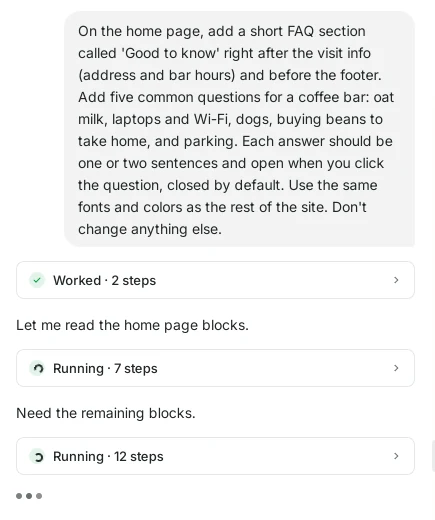
The AI reads the page first, then adds the section. -
Read what it did and check the answers
When it is done, the AI explains what it added: five questions that start closed and open when clicked, with the label in the same style as the other sections. It also says clearly that it made up the answers and lists them, so you can check each one against how you really run your business. This part matters: an FAQ with wrong answers is worse than no FAQ.
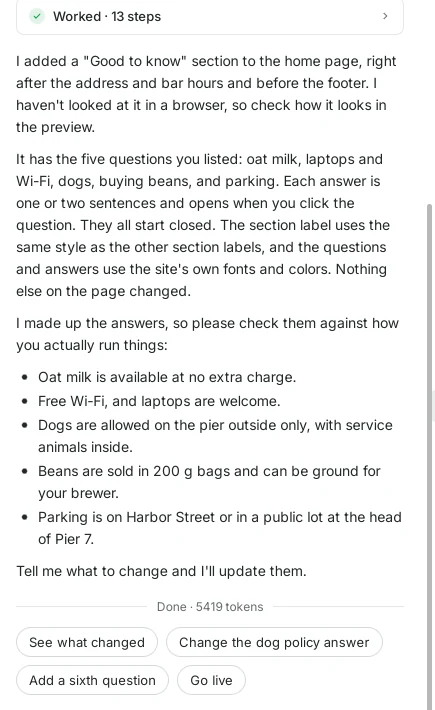
The AI lists its example answers so you can check them. -
Try it in the preview
Scroll the preview down to the new section and click a question. The answer opens right below it; click again to close it. These are real, clickable questions, so they work the same way on your live site.
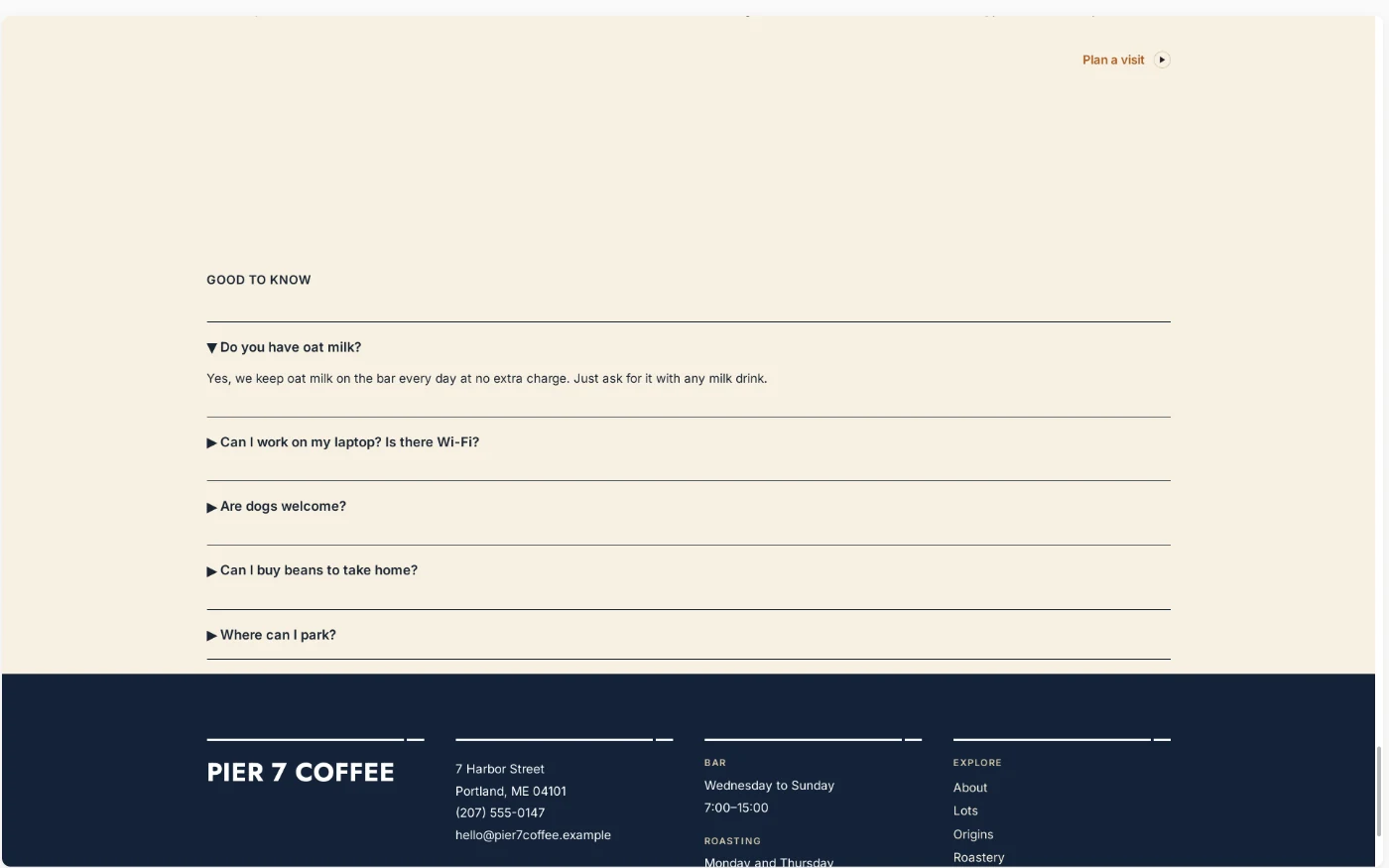
Click a question to open its answer. -
Fine-tune with a short follow-up
The first version used small triangles in front of each question and left a large empty gap above the section. One message fixes both. I sent:
Replace the small triangles with a plus sign on the right of each question that turns into a minus when it's open, and remove the extra empty space above the Good to know section.
About a minute later each question had a plus on the right, the open one showed a minus, and the gap was gone.
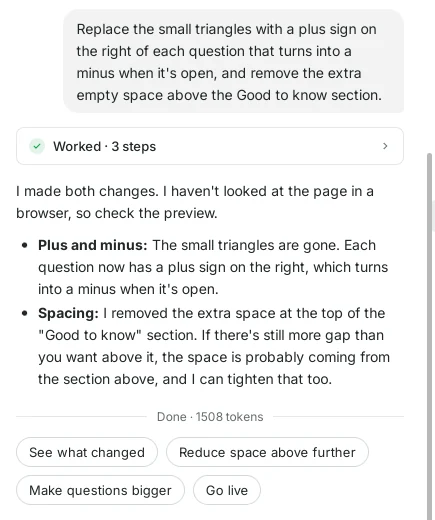
Small design changes take one sentence. 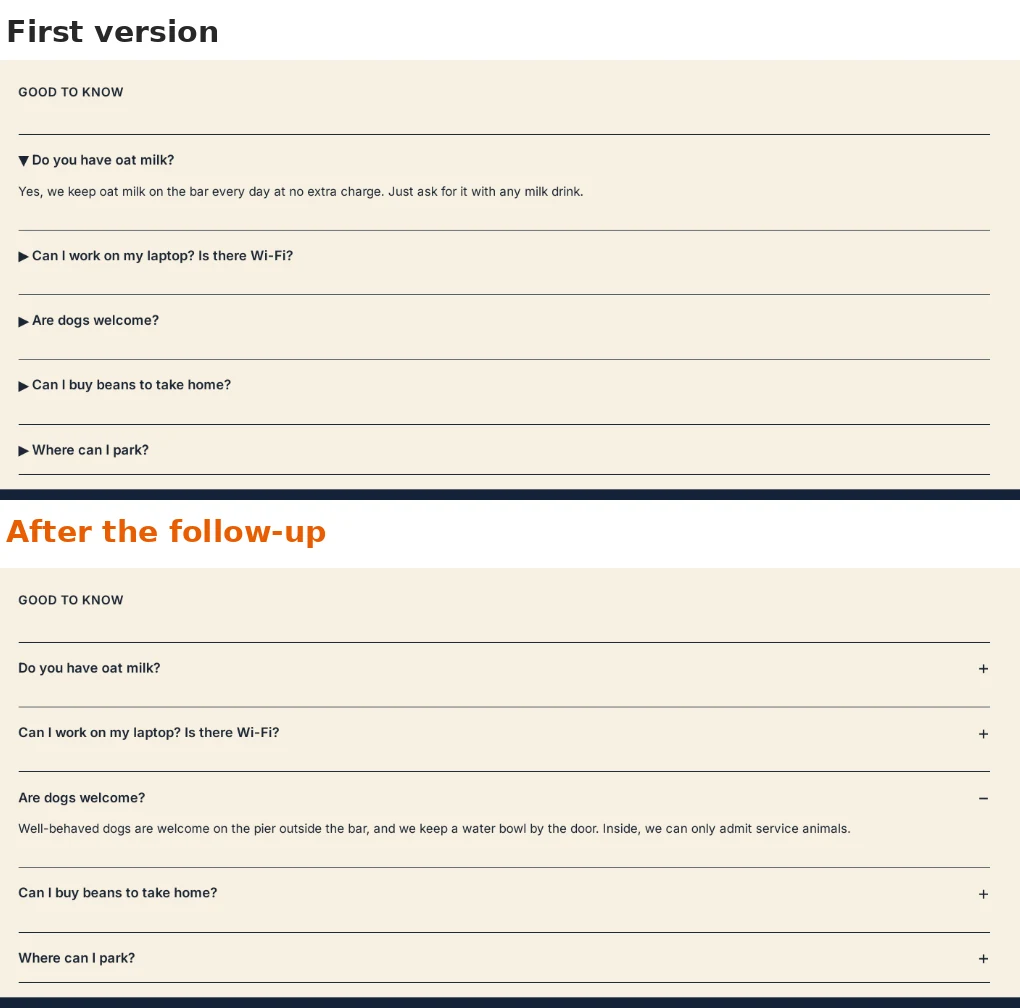
First version on top, after the follow-up below. -
Check it on Phone
Click Phone at the top right of the preview and scroll to the section. The questions fill the width of the screen with large tap areas, and the plus and minus signs stay on the right, so it is easy to use with a thumb.
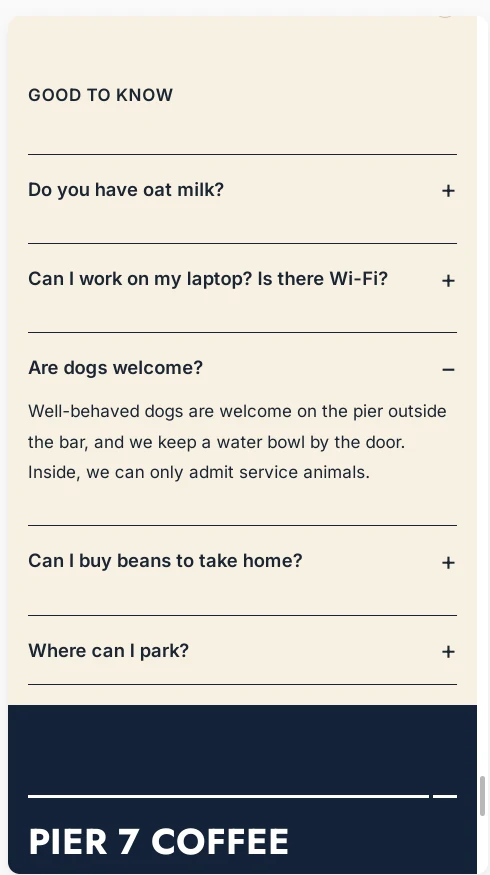
Easy to tap on a small screen. -
Put in your real answers
Before you go live, fix any answer that is not true for you. Just tell the AI in plain words, for example: “Oat milk costs 50 cents extra” or “Change the dog answer: dogs are welcome inside too.” You can also add or remove questions, like the suggestion Add a sixth question under the answer.
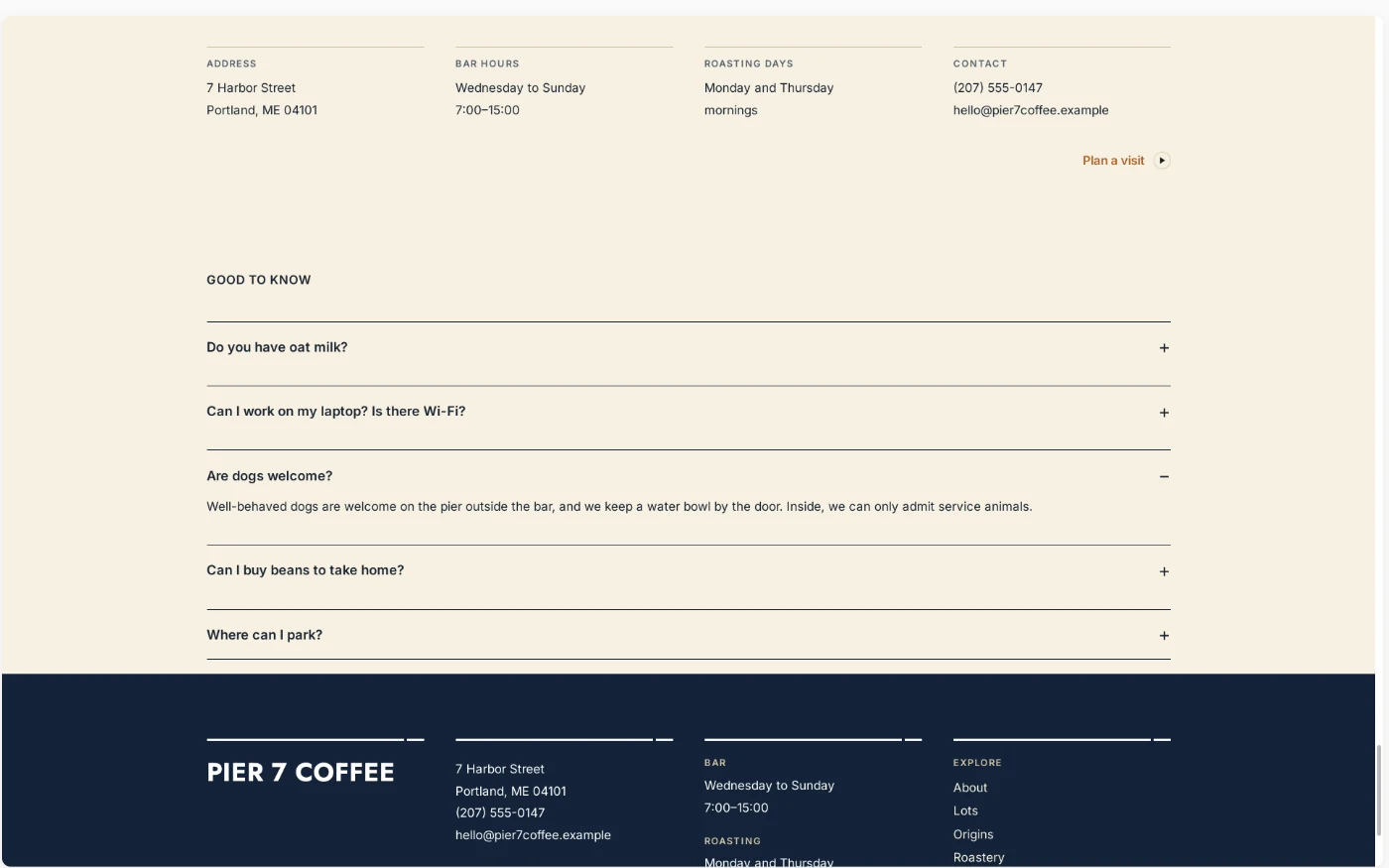
The finished section, ready for your real answers. -
Go back any time with History
ShipPress saves a restore point after every AI turn. Click History at the top right to see one for the new FAQ and one for the plus signs. Click Restore next to either to go back to exactly how the site looked at that moment.
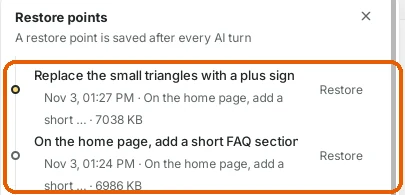
Each change is a restore point. -
Tips
- Use the questions customers really ask you by phone, message or at the counter.
- Keep answers short: one or two sentences, with the key fact first.
- Five or six questions are plenty for a home page. For more, ask the AI for a separate FAQ page and a menu link.
- Update the FAQ when something changes, like prices or opening hours.
- Check the section on Phone before you click Go live.