
Add a customer reviews section by chatting
Kind words from real customers often convince new visitors more than anything you write about yourself. In WordPress you would pick a testimonials block or plugin, build the layout and then style it to match your theme. In ShipPress you describe the section in the chat and the AI builds it from the same pieces your design already uses. In this tutorial I add a “What our regulars say” section to the home page of Pier 7 Coffee.
-
Decide where the reviews go
Open your site in ShipPress and scroll the preview to the place where the reviews should appear. A good spot is after the part that shows what you offer and before the part that asks visitors to come by. On Pier 7 Coffee I picked the gap between the Journal section (with Read the journal) and the large “Sit at the bar” photo.
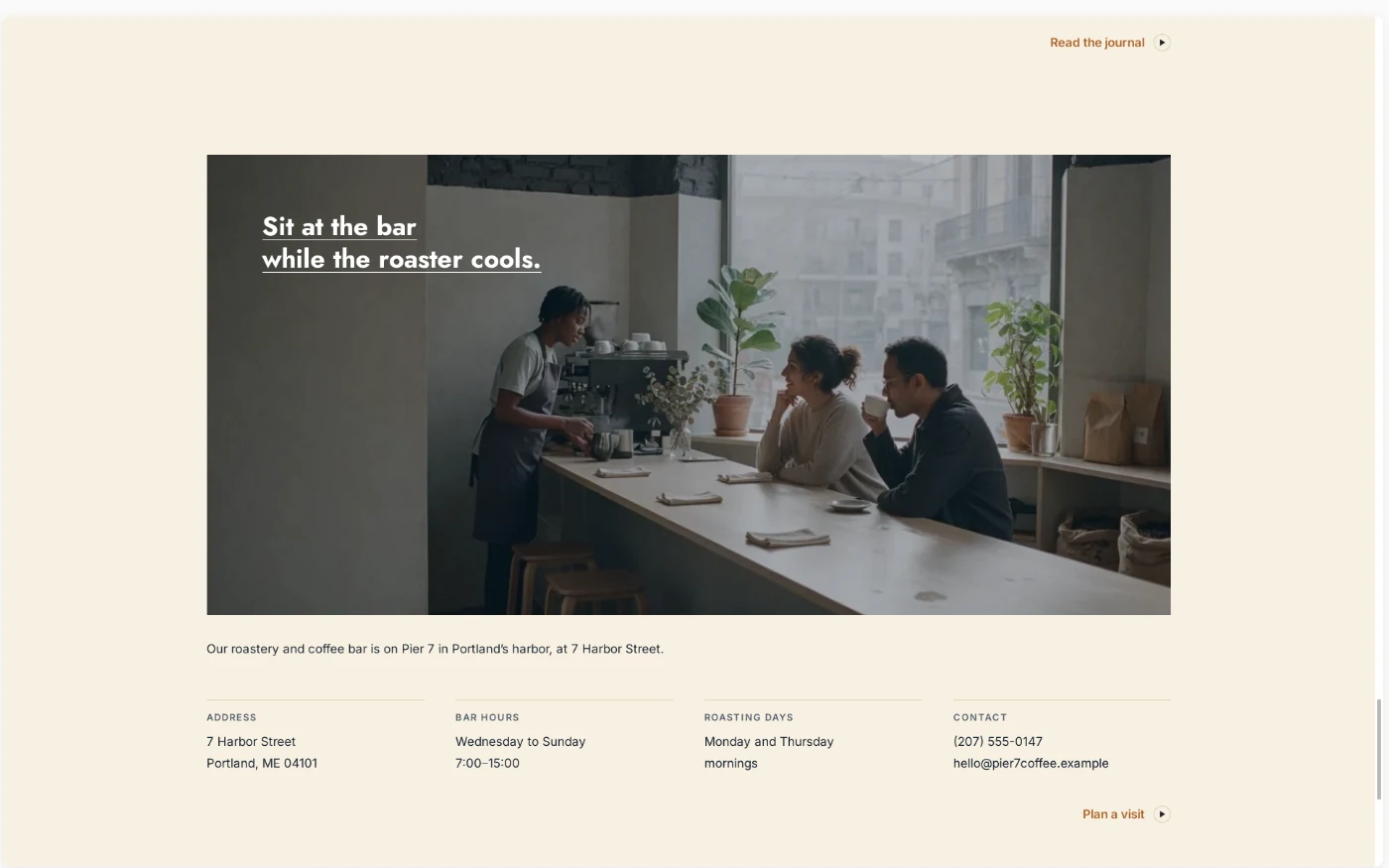
Before: the Journal section goes straight into the bar photo. -
Describe the section in one message
Click + New Worker for a fresh chat, then type what you want: the section title, where it goes, how many reviews and what each one shows. Also ask it to match the rest of the site and to say what must not change. I sent:
On the home page, add a short customer reviews section called 'What our regulars say' between the Journal section and the 'Sit at the bar' photo. Show three reviews side by side, each with a short quote, five stars, the first name and what they usually order. Use the same fonts and colors as the rest of the site, and stack the reviews on phones. Don't change anything else.
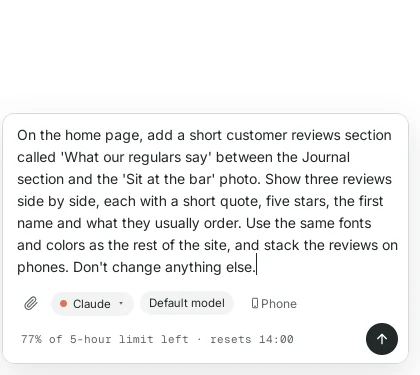
Say where the section goes and what each review shows. -
Let the AI build it
Press Enter. The AI first finds the home page and looks at how its sections are built, then adds the new one. You can watch the steps in the chat. For me it took about four minutes. You can keep typing while it works; new messages wait until it is done.
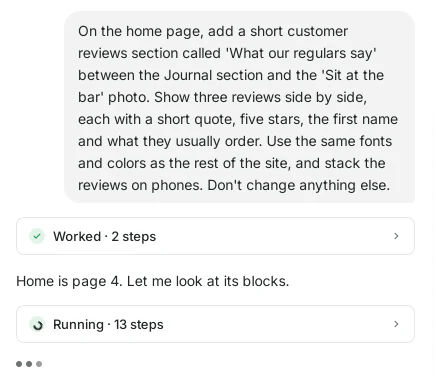
The AI reads the page first, then makes the change. -
Read what it did
When it is done, the AI explains the layout (three reviews side by side, each with a quote, five stars, a first name and a usual order), that it reused the same pieces as the Lots and Journal sections so fonts and spacing match, and that nothing else on the page was touched. It also says clearly that the quotes and names are placeholders and offers to swap in your real reviews.
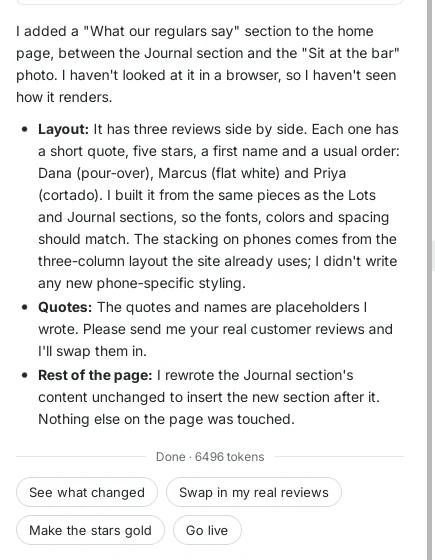
A short summary, including what you still need to provide. -
Look at the new section
Scroll the preview back to the same place. The new “What our regulars say” section sits between the Journal and the bar photo, with three reviews in a row on the same cream background, with the same lines and small capital labels as the rest of the page.
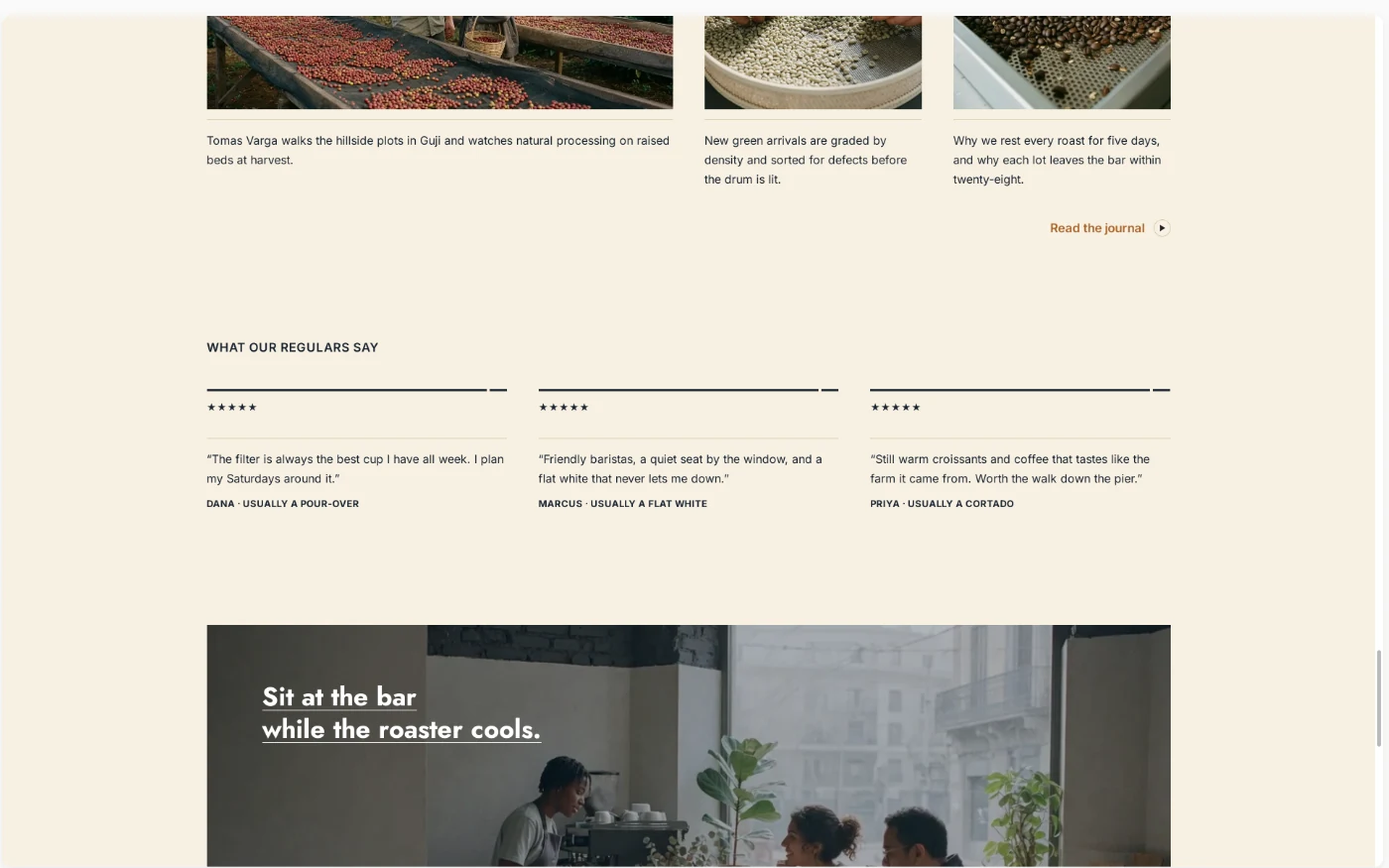
The section looks like it was always part of the design. -
Fine-tune with a short follow-up
The first version was a bit quiet: small black stars and small quotes. One short message fixes that. I sent:
Make the stars gold and a bit bigger, and make the quotes slightly larger so they stand out.
A few seconds later the stars were warm gold and larger, and the quotes were bigger than the other card text.
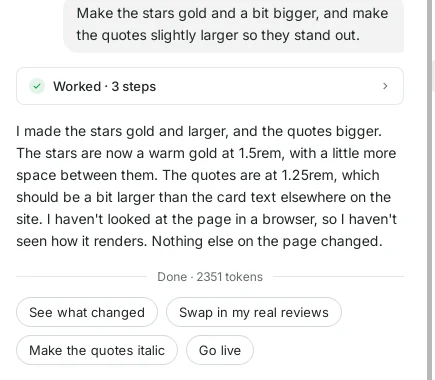
Small style changes take one sentence. 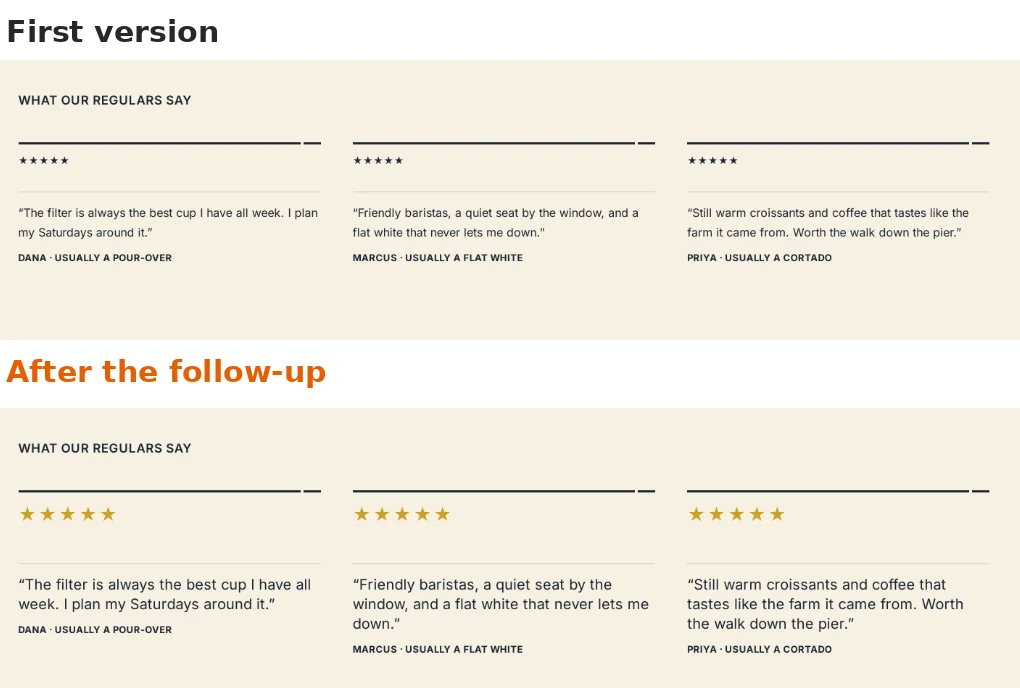
First version on top, after the follow-up below. -
Check it on Phone
Click Phone at the top right of the preview and scroll to the section. The three reviews stack one under the other, each with its stars, quote and name, so they stay easy to read on a small screen.
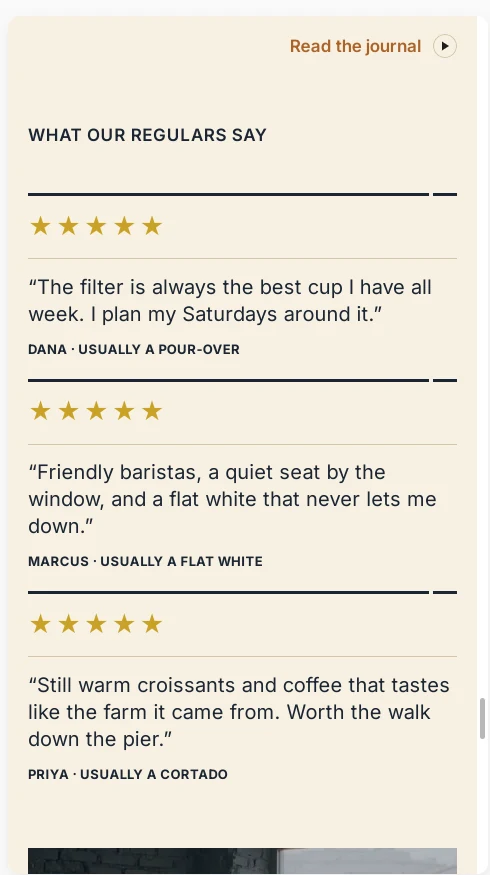
On phones the reviews stack. -
Swap in your real reviews
The quotes, names and orders the AI wrote are only examples so you can see the layout. Before you go live, replace them with what your customers really said. Paste the real reviews into the chat (for example from Google or messages you got, with permission) and ask the AI to use them, or click the suggestion Swap in my real reviews under the answer. If you have fewer than three, ask for two, or for one larger quote.
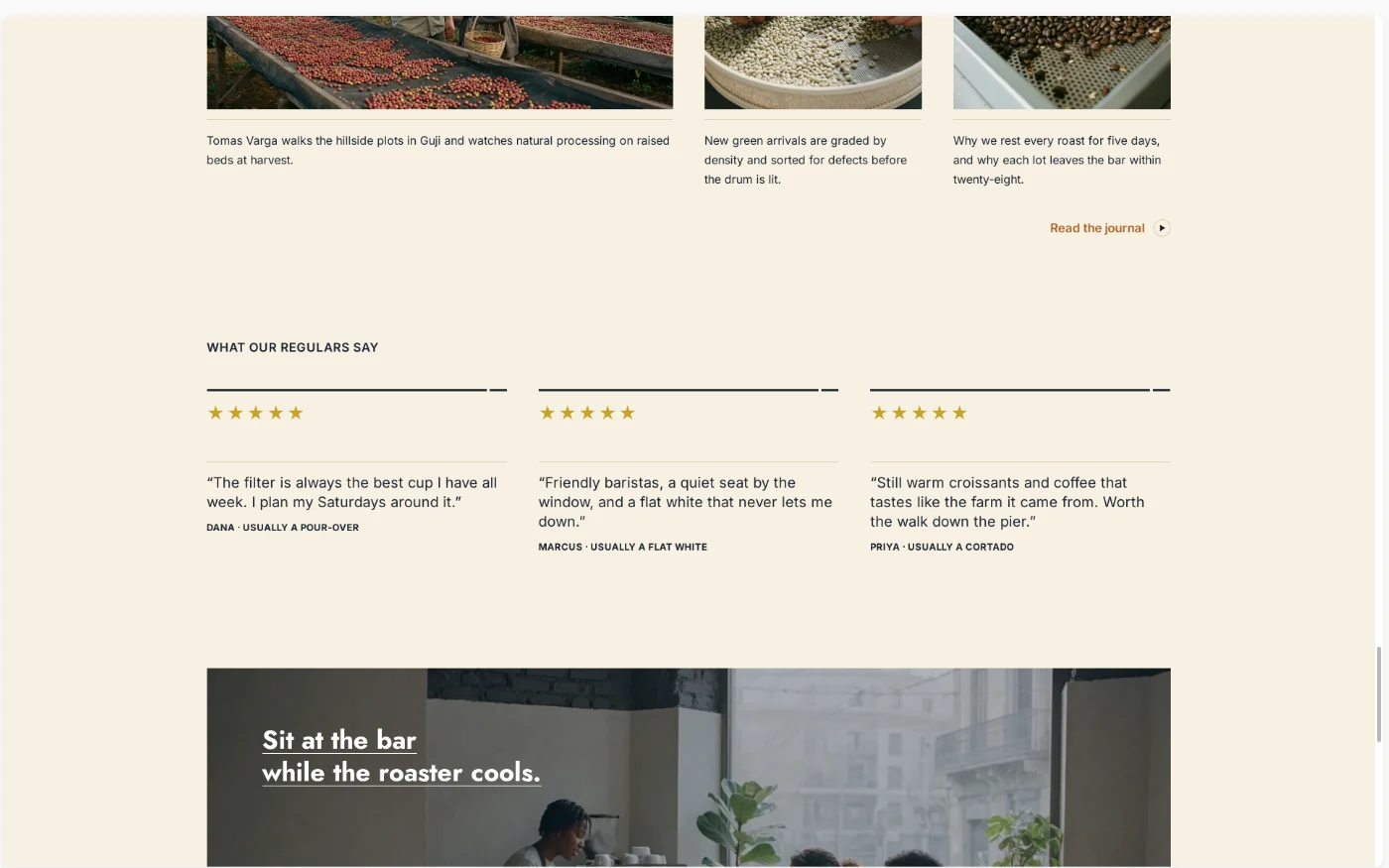
The finished layout, ready for your real reviews. -
Go back any time with History
ShipPress saves a restore point after every AI turn. Click History at the top right to see one for the new section and one for the gold stars. Click Restore next to any of them to go back to exactly how the site looked at that moment.
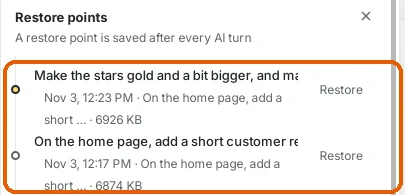
Each change is a restore point. -
Tips
- Use only real reviews, and ask before you show a customer's name.
- Short quotes work best: one or two sentences each.
- Three reviews fit nicely in a row on a computer; on phones they stack.
- Put the section close to where you ask visitors to act, like before your address or contact part.
- Check the page on Phone before you click Go live.