
Edit your site visually with Canvas
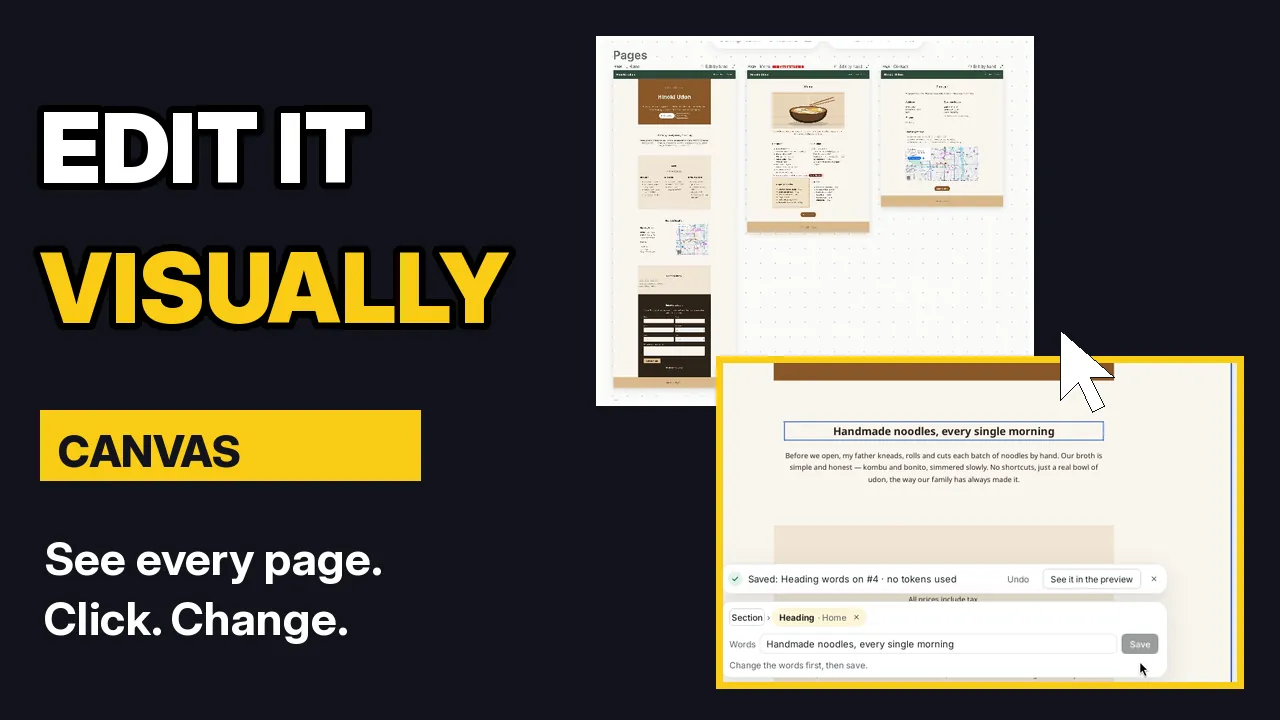
Chatting is great for big changes. But sometimes you just want to point at something on the page and change it. That is what Canvas is for. In this tutorial I edit a restaurant site, Hinoki Udon, by clicking right on its pages.
By Oberon Lai. I make ShipPress (Codotx, LLC), so this is our own product.
-
Open Canvas
Above the preview, click All pages. This opens Canvas: every page of your site, side by side.
The first time, a short tip explains how it works: click a heading, text or picture to change it, or type what to change in the box below. Click Got it to close it.
-
Move around: zoom, Fit and Jump to
Use − and + to zoom out and in. Fit shows the whole site at once: pages at the top, then posts and categories.
To go straight to one page, open Jump to. It lists every page, post and category. Pick one, and Canvas zooms right to it.
-
Change words yourself
Click a heading or a piece of text. A small panel opens with its Words. Type the new words and click Save.
In the video I change “Made by hand, every morning” to Handmade noodles, every single morning. The heading changes right away. Because you typed the words yourself, no AI tokens are used. Changed your mind? Click Undo in the message that confirms the save.
-
Ask the AI about one part
For anything more than new words, ask the AI about exactly the part you clicked. Click a picture or a section, and the box below shows what you picked, for example Picture. Then type what to change and press Enter:
Give this picture rounded corners and a soft shadow.
The AI changes only that part. Its answer in the chat says what changed, with buttons to undo it or to try a follow-up.
-
Fix blocks the editor flags
Canvas checks every block on every page. If the WordPress editor would say a block has invalid content, a red Blocks to fix badge appears next to the page name.
Click the badge. Canvas takes you to that block and outlines it in red. Click Ask the AI to fix it. The AI repairs the block without changing how it looks, and the badge disappears.
-
Chat and Canvas work together
You can keep using the chat on the left while Canvas is open. In the video I type:
On the Contact page, add a short line under the intro: English menus are available.
The new line shows up in Canvas as soon as the AI is done.
-
Undo from Canvas
At the top right of Canvas, Undo takes back the latest change. To go further back, use the restore points in History.
-
Tips
- Typos and new wording: click the text and type. It is instant, and no AI tokens are used.
- Look and layout: click the picture or section first, then tell the AI what to change. It knows exactly which part you mean.
- Big sites: use Jump to and Fit instead of scrolling.
- Red badge? Click Blocks to fix, then Ask the AI to fix it.
-
Where to go next
For bigger changes, read Edit your site by chatting. Every AI change can be undone: see Undo any AI change with restore points. When the site looks right, publish your site free with a ShipPress address.