
Go live
You pay the host, usually a small monthly fee. That fee is not a ShipPress charge.
-
Open Go live
Click Go live. The title uses the site’s name, as in Put Teuchi Udon online. With no name yet, it says Put your site online. The two ways are WordPress host and Free address. This guide follows WordPress host. If no host is connected, click Choose a hosting provider. Nothing goes public until you confirm.
-
Pick a host
The hosting screen starts with Which one should I pick? Hostinger is marked Recommended: a low monthly price, and ShipPress can put your site on it in one step. InstaWP is for trying things out. You sign in with the browser, and free test sites expire after a few days. Hostinger’s buttons are Connect Hostinger and No account yet? Create one. The other cards are Connect with SSH, Kinsta and Cloudways. Each has Connect and Create account. A create-account link may be a referral. Your price stays the same.
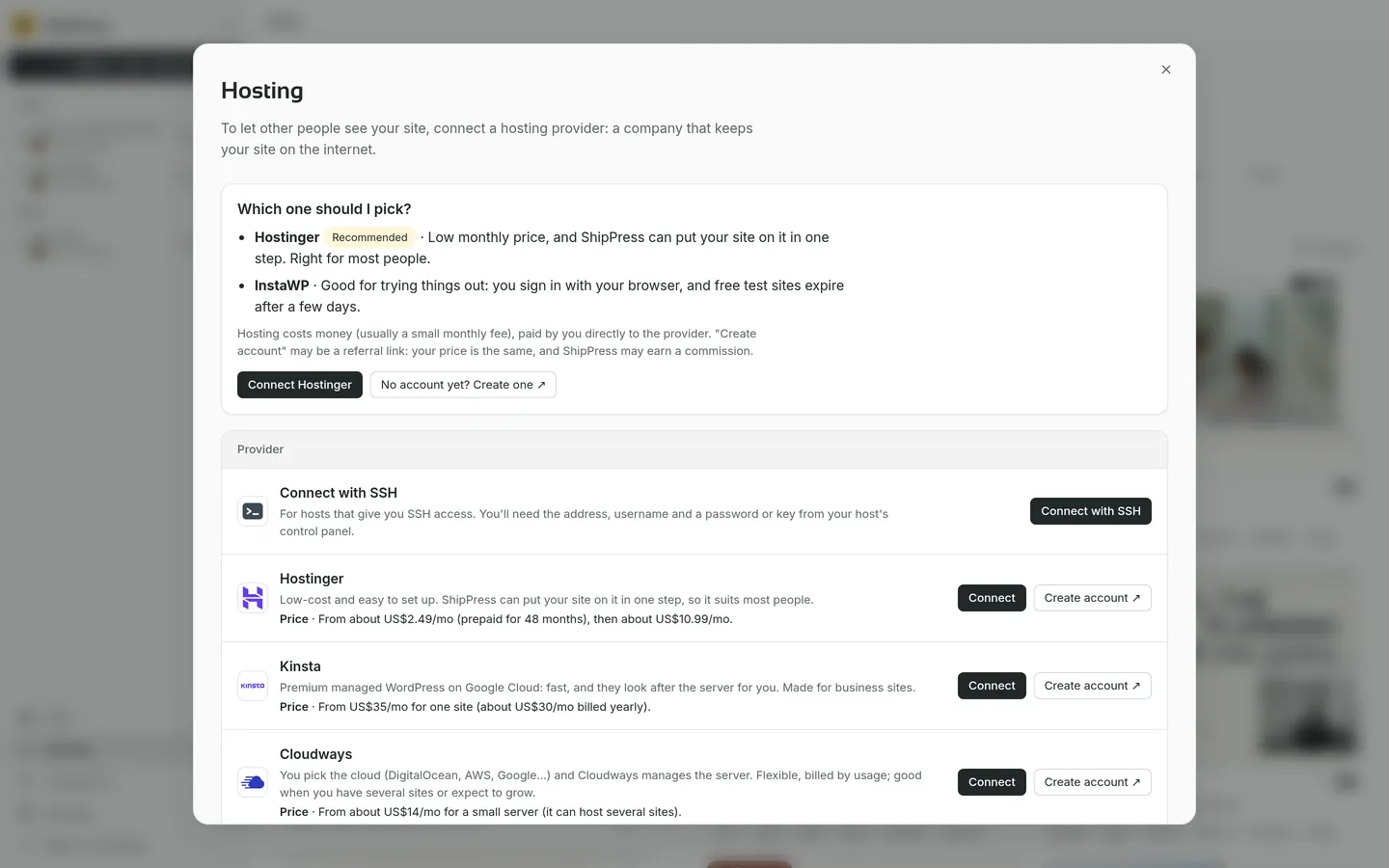
Which one should I pick: Hostinger is recommended. InstaWP is for a short try. SSH, Kinsta and Cloudways are the other cards. -
Confirm the address
Back in Go live, pick the host, then Which web address. ShipPress warns that this overwrites everything at that address and cannot be undone. Click Replace and go live. The picture shows that warning for an example address on Hostinger.
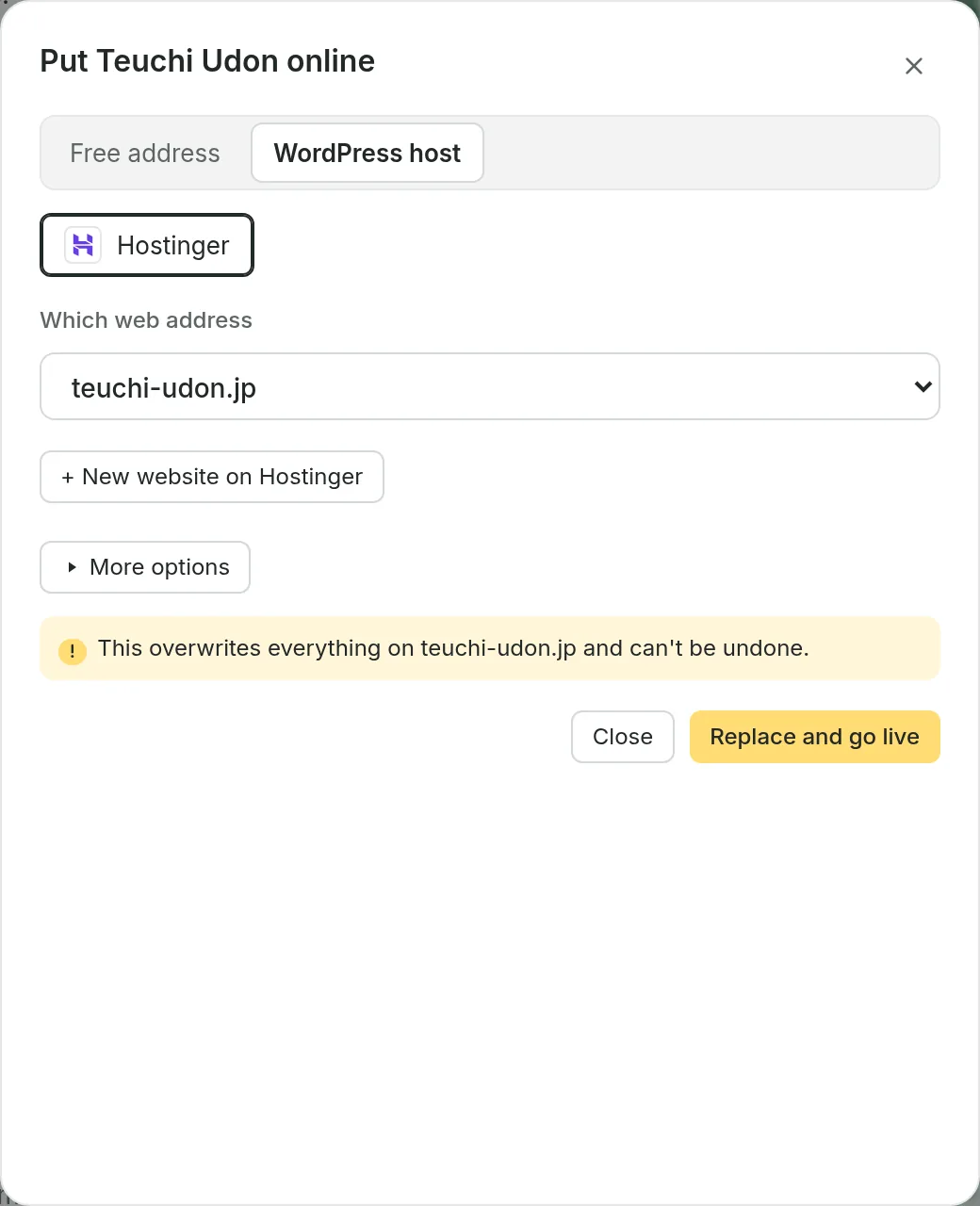
Put the site online, pick the address, read the overwrite warning, then Replace and go live. -
Send later changes
After you change the site, click Go live again. The box says what will be replaced before anything is public.