
Edit your site by chatting
Once your site exists, you change it the same way you made it: by chatting. This tutorial follows a restaurant site, Hinoki Udon. You will turn its header dark green, add a short FAQ section, and replace a placeholder phone number, then see what happens when you send a new message while the AI is still working.
By Oberon Lai. I make ShipPress (Codotx, LLC), so this is our own product.
-
Open your site and find the chat
Open your site in ShipPress. The chat is on the left and the preview of your site is on the right. Everything you change stays on your computer until you click Go live.
-
Change a color
Click the message box and say what you want, the way you would tell a person. Then press Enter. For example:
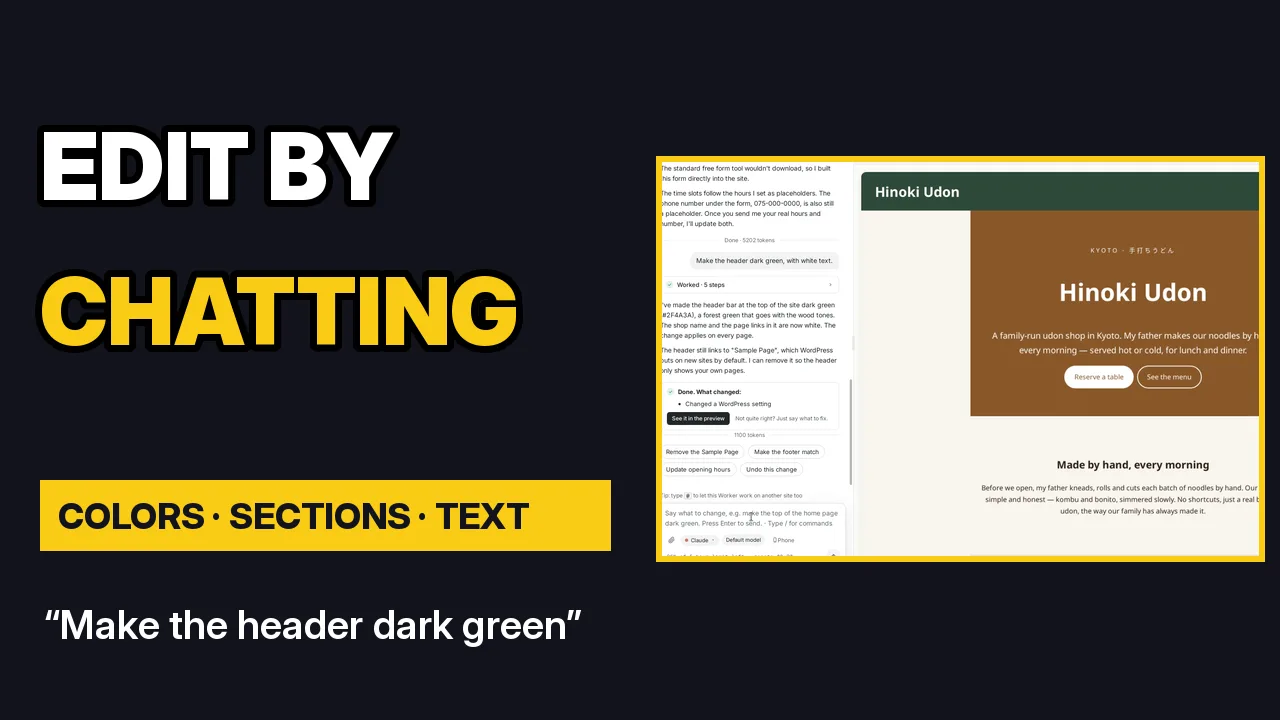
Make the header dark green, with white text.
The AI shows its steps while it works. When it is done, the preview updates: the header is dark green on every page.
-
Read what changed
After each request, the AI explains what it did in plain words. Under Done. What changed: you see the kind of change. Click See it in the preview to look at the result.
Below the answer, ShipPress suggests next steps you can click, such as Undo this change. If the result is not quite right, just say what to fix.
-
Add a section
Ask for a new section and say where it goes. For example:
Add a short FAQ section above Reserve a table: walk-ins welcome, a vegetarian kombu broth is available, and kids are welcome.
The AI reads the page first, then adds the section in the same style as the rest of the site. In the video, it adds a “Good to know” section whose questions open with a tap.
-
Change text
To change words, give the AI the real text. A first version often has placeholders, like a phone number or prices. For example:
Our real phone number is 075-123-4567. Please use it everywhere on the site.
The AI finds every place where the old text appears and tells you where it changed it.
-
Send a message while the AI is working
You don’t have to wait. While the AI is working, keep typing and press Enter. Your message does not interrupt the current request. It waits under Up next, where you can still Edit it or choose Don’t send, and it goes to the AI as soon as the current request is done.
If it can’t wait, click Stop and send now. The AI stops what it is doing and works on your new message right away.
-
Check the result in the preview
If the preview doesn’t show a change yet, click Refresh above it. Scroll through the page, and switch to Phone to check how it looks on a small screen. To go back to an earlier state of the site, use Undo this change in the chat or History at the top.
-
Tips for better results
- Ask for one change at a time. Each request finishes faster, and it is easy to undo.
- Say where the change goes, for example above Reserve a table or in the header.
- Give real facts (prices, hours, phone number) instead of asking the AI to guess.
- Don’t like the result? Click Undo this change, or describe what to do differently.
-
Where to go next
When your site looks right, put it online: follow Publish your site free with a ShipPress address, or Go live with your own domain. For more ways to edit, such as seeing every page at once, read Edit your site.
Don’t have ShipPress yet? Download ShipPress (free, Mac).