
Shopee import
Shopee import reads the mass-update export files from Shopee Seller Centre and builds a new WooCommerce site in ShipPress, with products, pictures, categories, prices and stock. Your Shopee listing stays as it is. Available now in ShipPress 0.1.41, on Mac, Windows & Linux.
ShipPress is a free desktop app for Mac, Windows & Linux. Reading this on a phone? Open this page on your computer to download it.
Who it is for
Shopee sellers who want their own website as well as their Shopee shop. The catalog is the part that moves over; you keep selling on Shopee if you want to.
Price
The first 20 products import for free. The full version, with no product limit, is US$99 (tax included), a one-time purchase licensed per site, not a subscription.
How to unlock
- Download ShipPress (Mac, Windows & Linux) using the button above.
- The first 20 products import for free.
- To unlock the full version with no product limit (US$99, one-time, per site, tax included), do it inside the app: open the site, then go to Settings → Add-ons.
- If an import has more than 20 products, the app also prompts you to unlock there.
- The licence belongs to that WordPress site and moves with it when you go live, download the site back from your host, or move the site folder. A new site made from a template or a copy needs its own licence.
Unlocking is done in the app, not on this page.
How to import
-
Export from Shopee Seller Centre
In Shopee Seller Centre, open Products › Mass tools › Mass update. Download “Sales info”, “Basic info” and “Media info”. You can pick all three files at once in ShipPress, or the ZIP if Shopee gave you one. Nothing on Shopee is changed.
-
Open the Shopee import in ShipPress
On the Home screen, open the Import tab, then choose “From a Shopee export”.
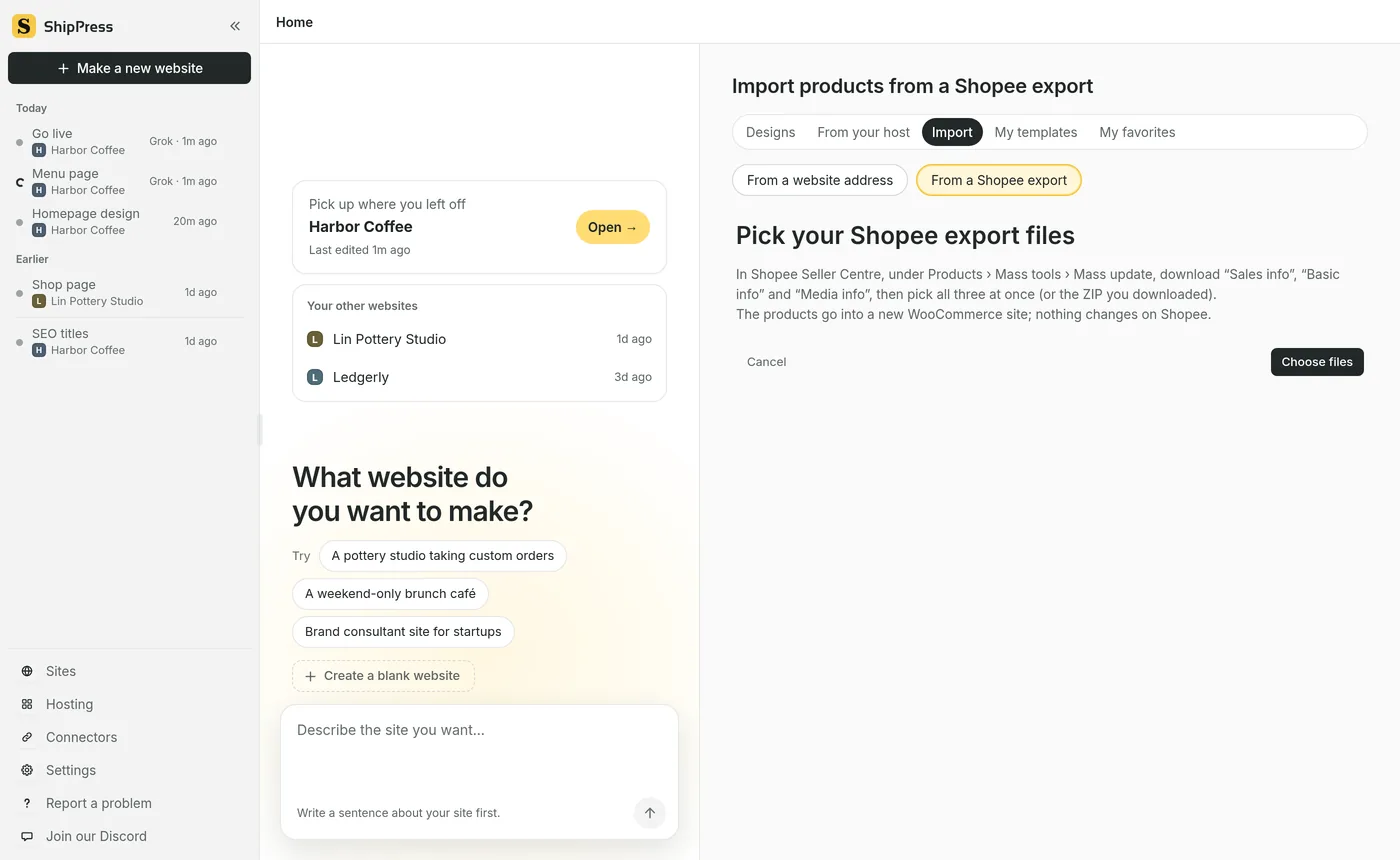
Home → Import → From a Shopee export. The screenshots on this page use ShipPress test export files, not a live store. -
Choose the files
Pick the three files you downloaded (or the ZIP) in the step shown above.
-
Review what was read
ShipPress lists how many products, variable products, options and pictures it found, with a few sample names. If some products have a second option level that the export does not name, you can name it here (the default is “Option 2”). Products or options with no SKU get one starting with SHP-, and duplicate SKUs are listed.
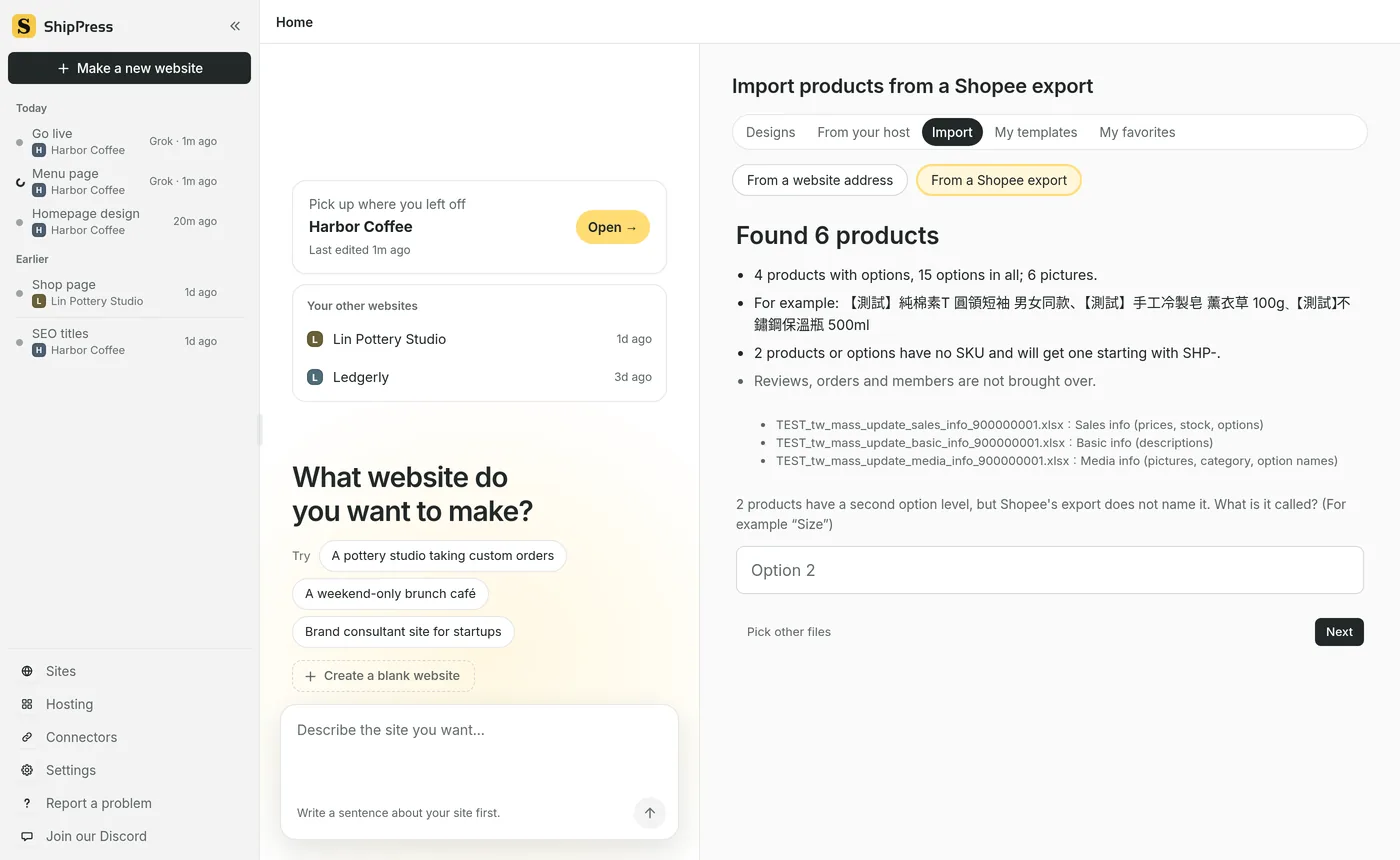
The review step, shown here with ShipPress test export files (not a live store). -
Name the new site and start
The site name is optional. The placeholder is “My Shopee store”. Click Start import: ShipPress installs WooCommerce first, then creates the products and downloads the pictures. This can take a few minutes.
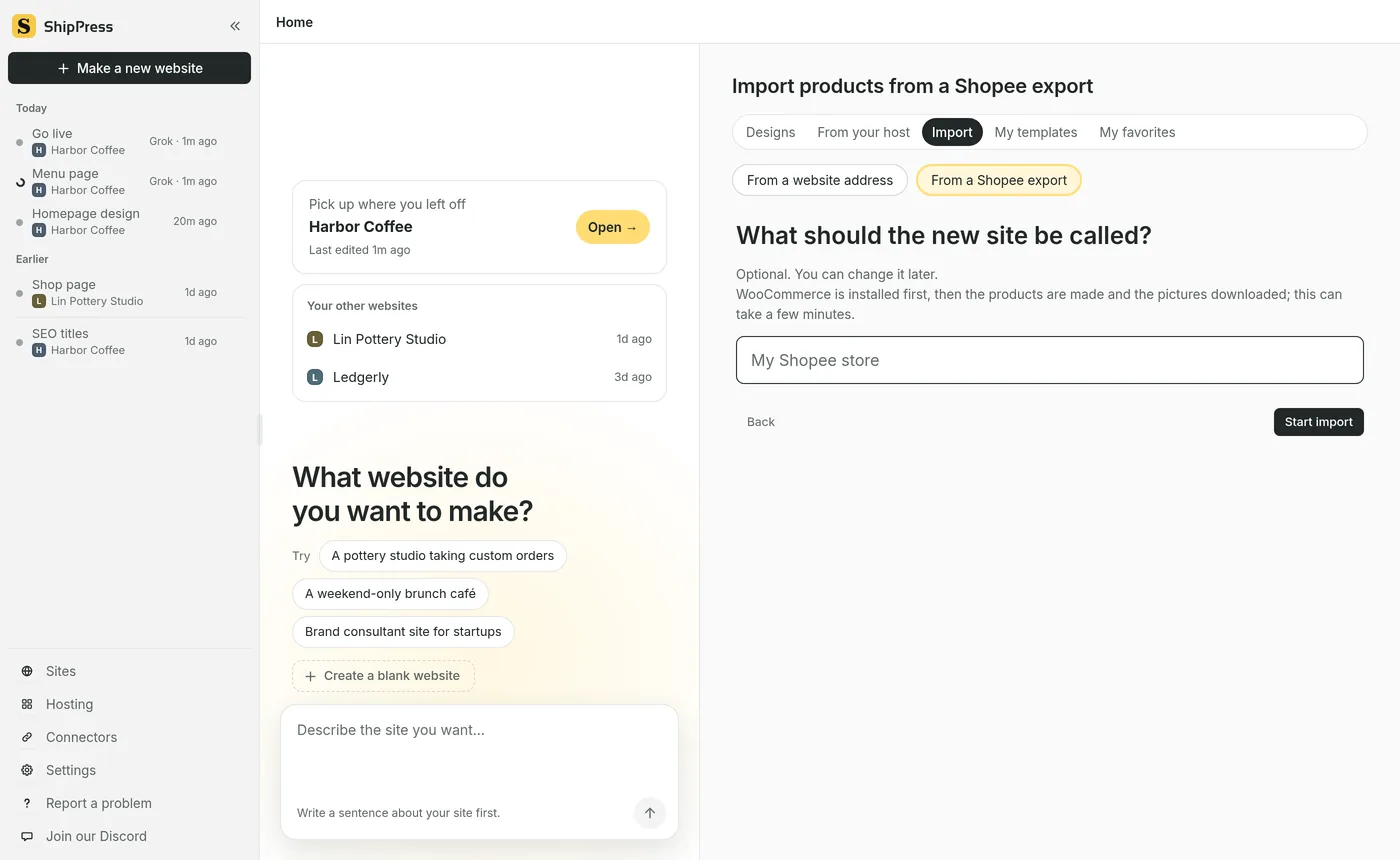
Name the site, then start the import. -
Read the report
When it finishes, the report shows how many products, options and pictures were imported, and any SKUs that were created or changed. To undo, open History and choose “Before importing”.
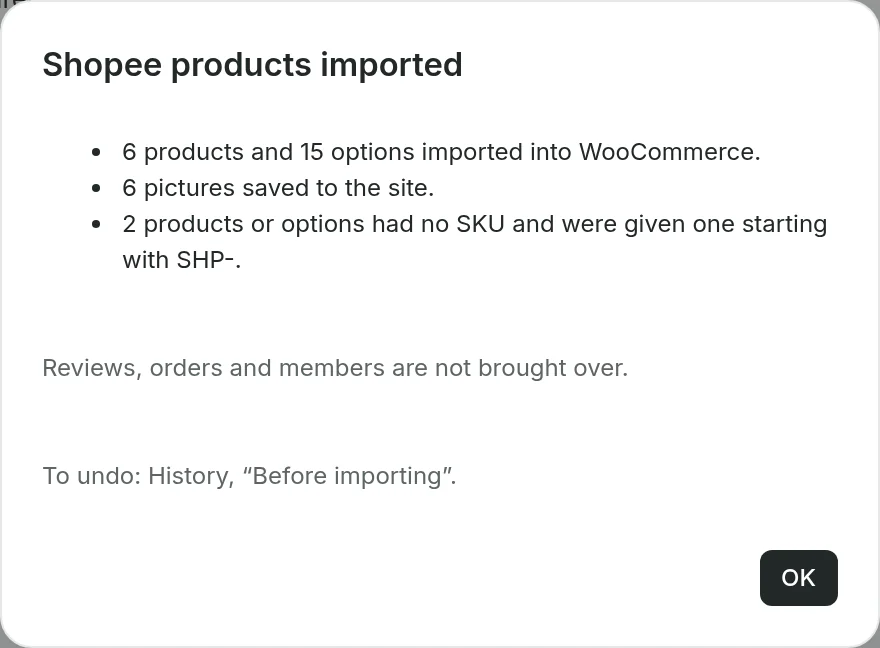
The import report, including how to undo.
What is not brought over
Reviews, orders and members stay on Shopee. The import is for the product catalog: names, descriptions, pictures, categories, prices, stock and options.
Limits
A single import can include at most 1,000 products, and at most 100 options per product. Prices are imported as TWD.
ShipPress is a free desktop app for Mac, Windows & Linux. Reading this on a phone? Open this page on your computer to download it.